Setup guides
Set up your first tracker
Three steps from a tracker in the box to a dot on the map.
Choose a package in the portal; you see the first invoice before you confirm.
Before you start
Three things to have at hand
A connection
Your tracker has a SIM card with data, or a Wi-Fi connection.
The identifier
You have its identifier, usually the IMEI printed on the label or shown in the tracker's own app.
The protocol
You know its protocol, which the manufacturer lists. More than 260 protocols are supported.
Example values
The values in the steps are examples. Your own server address and ports are shown in your account.
The steps
From the box to the map
Add the device
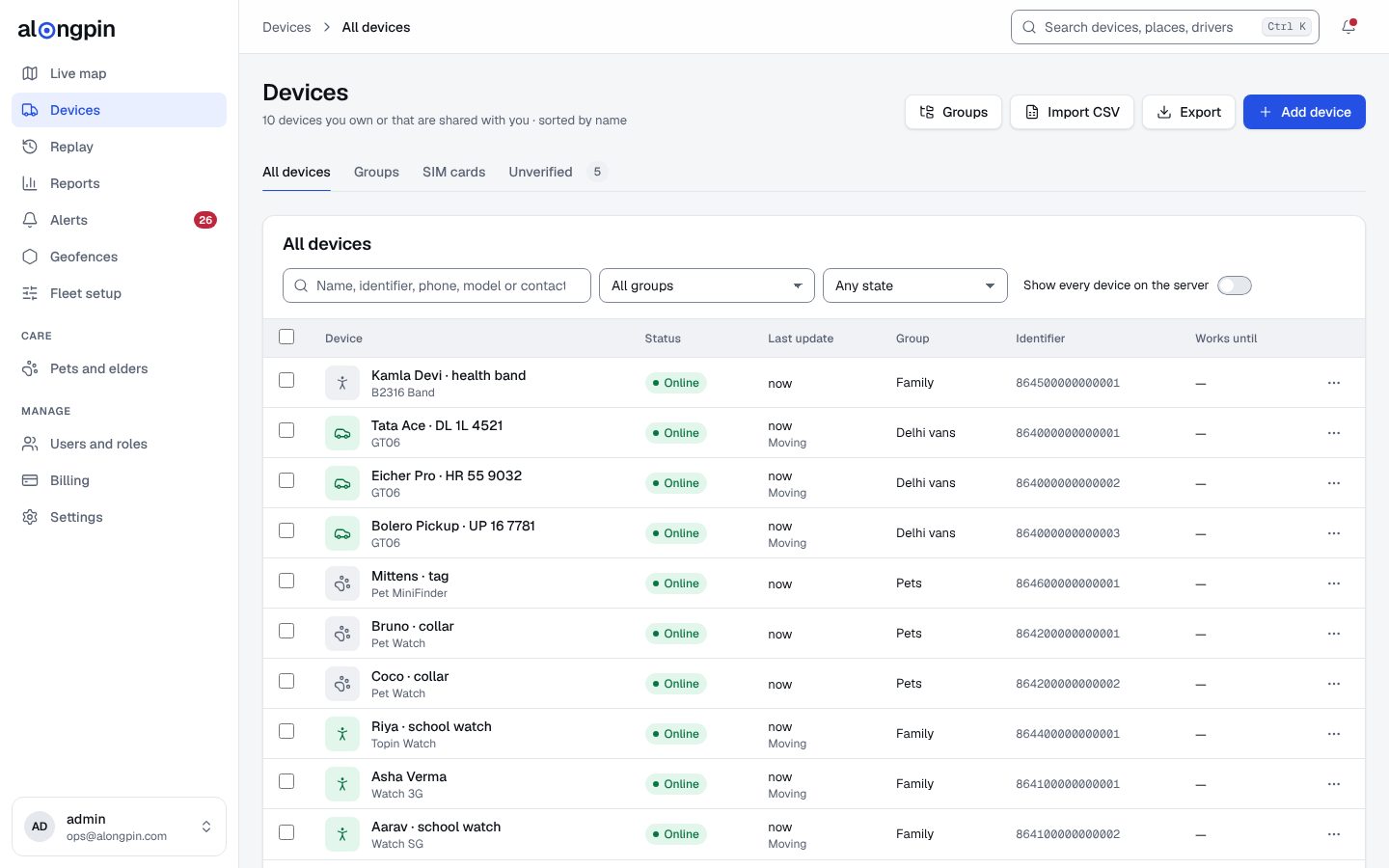
In the web app open Devices and choose Add device. Enter a name and the device identifier. Most trackers use the IMEI printed on the label or shown in the tracker's own app. The identifier must be unique on the whole server, upper and lower case count, and it cannot contain a slash or a backslash.
- Name
- Van 12
- Identifier
- 864000000000001
Point the tracker at our server
Each tracker protocol has its own port. Open the tracker setup of the device in the web app (or ask us) to see the server address and the port for your device's protocol, and whether it uses TCP, UDP or HTTP. Enter both in the tracker with the manufacturer's tool or an SMS configuration command sent from your own phone. The platform itself does not send text messages to trackers.
All ports- Server address
- tracking.example.com
- Port
- 5023 for GT06-type trackers, 5015 for JT808 dashcams, 5093 for watches, 5055 (HTTP) for phone apps, in a standard setup.
See it on the live map
Switch the tracker on outdoors. Once it connects, the device turns from Offline to Online and its position appears on the live map. If it does not, check the identifier first: a tracker that connects with an unknown identifier is kept in the list of unverified devices, where an administrator can register it in one step.
About the live mapOfflineOnlineThe state changes on its own once the tracker connects.
Guides
Setup guides by device
Step-by-step guides for particular devices, written by our team.
Care
- How to see heart rate and other readings from a health watch
- How to set up a pet profile with vaccination and vet reminders
- How to share a care profile with family, a sitter or a doctor
- How to set leaving-home and inactivity alerts for someone living alone
- How to set medication and appointment reminders
Reports
Account and team
Vehicle trackers
Alerts
Dashcams
Phone app
Privacy
Pet collars
Watches
By device type
The port depends on what you connect
Ports of a standard setup. Your own are shown in the tracker setup of the device in your account.
FAQ
When a step does not go as written
The device stays Offline. What do I check first?
Where do I find my server address and port?
Does the platform configure the tracker for me?
Which identifier do I enter?
Can the tracker connect before I add it?
Try it with your own tracker
Add a device, see it on the map and set an alert in the same sitting. Choose a package in the portal; you see the first invoice before you confirm.