Watches
How to set up a personal alarm with an SOS button
For carers who chose a MiniFinder-type personal alarm rather than a watch: connect it, test the SOS button, and send SOS and low-battery alerts to the people who should hear. Plus what to expect from fall detection.
Ashish Srivastava4 min read

To set up a personal alarm with GPS, connect the alarm like any tracker: add it under Devices with its identifier, point it at the server address and the port of its protocol, and wait until it shows Online. Then press the SOS button as a test, and create two alert rules: one that sends SOS to the people who should act, and one for Low battery. A MiniFinder-type alarm is a small pendant or keyring with one button, made for people who will not wear a watch. This guide is for carers who chose one.
Before you start
- A MiniFinder-type personal alarm, charged.
- A SIM card with a data plan, PIN switched off.
- The alarm's identifier, on its label or box.
- A login that may add devices and create alert rules.
- The names of the people who should hear about an SOS, and agreement on who calls for help.
Alongpin is not an emergency service. An alert tells the people you chose; it does not call the police or an ambulance.
1. Confirm the protocol in the device check
Type "MiniFinder" or the alarm's model into the device check. A match means the server decodes the protocol; it does not confirm every model, so test one alarm before you order more. The watches page covers personal alarms too.
2. Fit the SIM and charge the alarm
Insert the SIM with the alarm switched off, then charge it fully. Try the SIM in a phone first: it needs mobile data, and its PIN must be off.
3. Add it under Devices
Open Devices, choose Add device, name it after the person, for example "Dad's alarm", and enter its Identifier (IMEI). Choose Add and set up.
4. Enter the server address and the port of its protocol
Set up the tracker shows the Server address. Pick the alarm's protocol under Protocols this server accepts to see its port; MiniFinder alarms use one of the MiniFinder protocols, and the device check tells you which. Use the port the dialog shows: ports differ between installations.
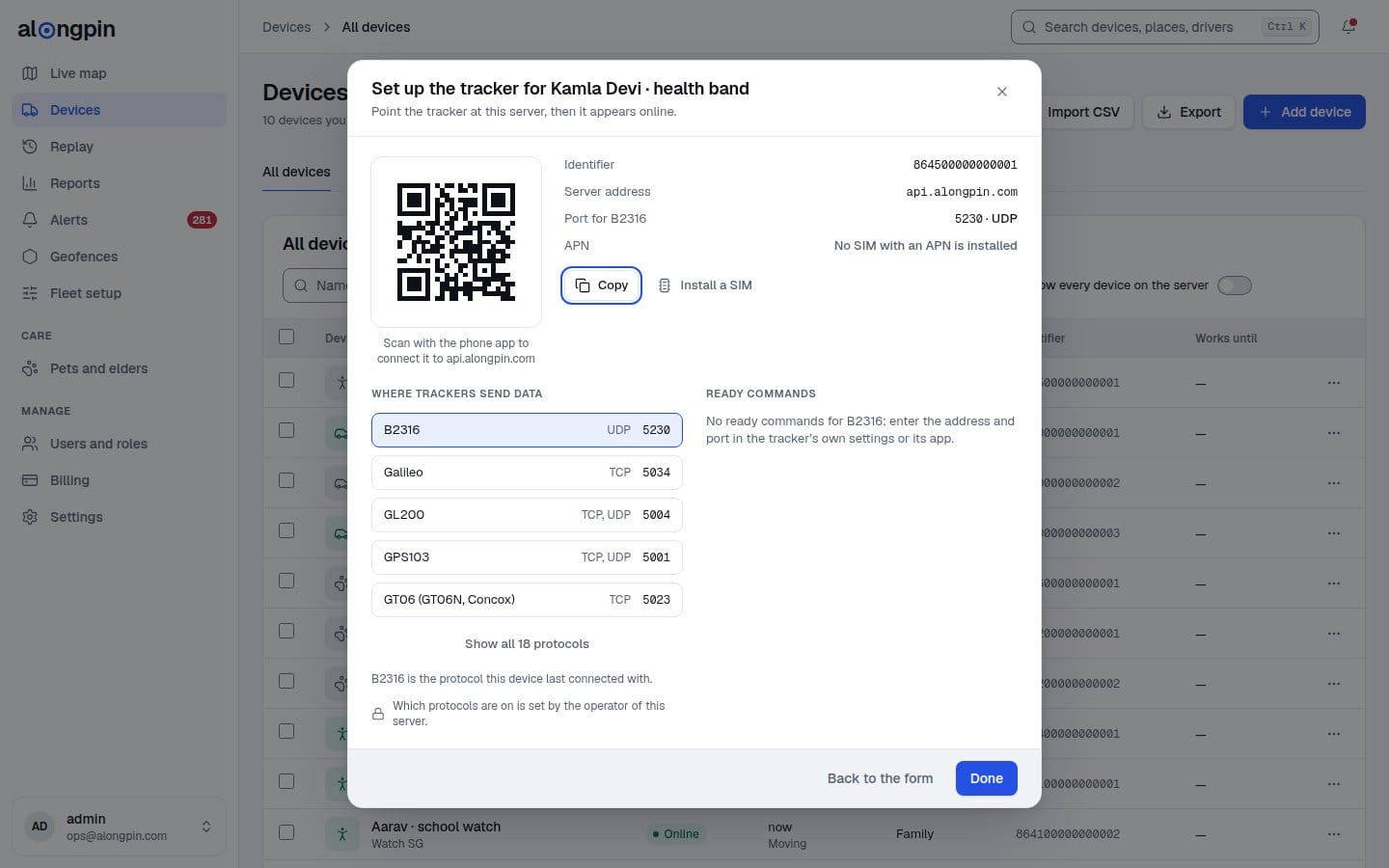
There are no ready text messages for these alarms. Enter the address and port as the maker describes, usually in its configuration app or with a text message to the alarm's SIM. Then take the alarm outdoors and wait for Online on the live map, with its position and battery.
5. Test the SOS button
Press the SOS button once, outdoors, while the alarm is online. Open the alarm's Events tab: the press shows as an Alarm with SOS. If nothing arrives, check in the maker's app that the button reports to the server and is not set only to call a phone number.
6. Add an SOS rule for the people who should be told
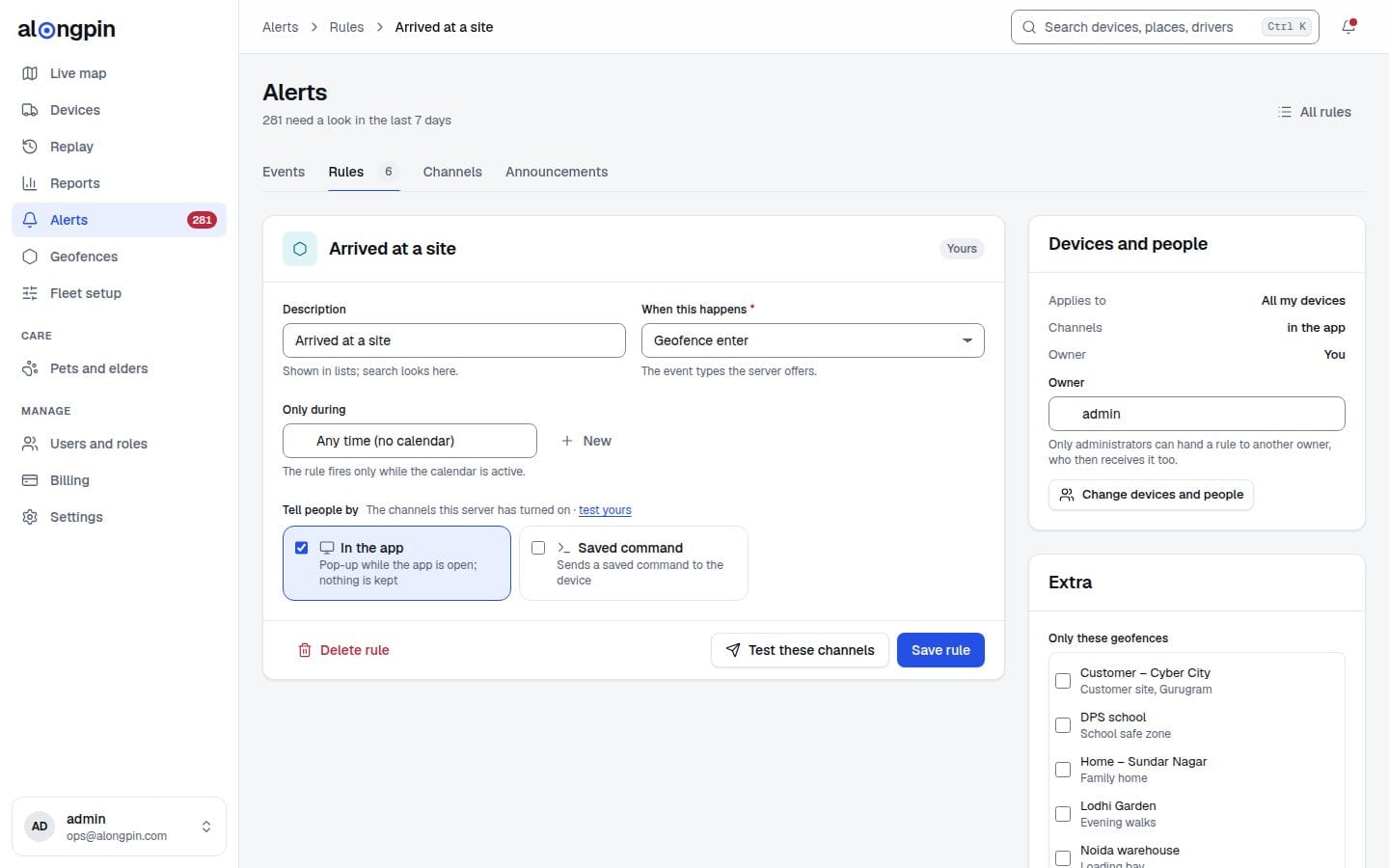
Open Alerts → Alert rules and choose New alert rule.
- Under Description, write something clear, such as "SOS: Dad".
- Under When this happens, choose Alarm.
- Under Alarm kinds, tick SOS only.
- Under Tell people by, tick at least two channels that reach people when the portal is closed, such as Push notification and Text message. The list shows the channels your server has switched on.
- Choose Create rule.
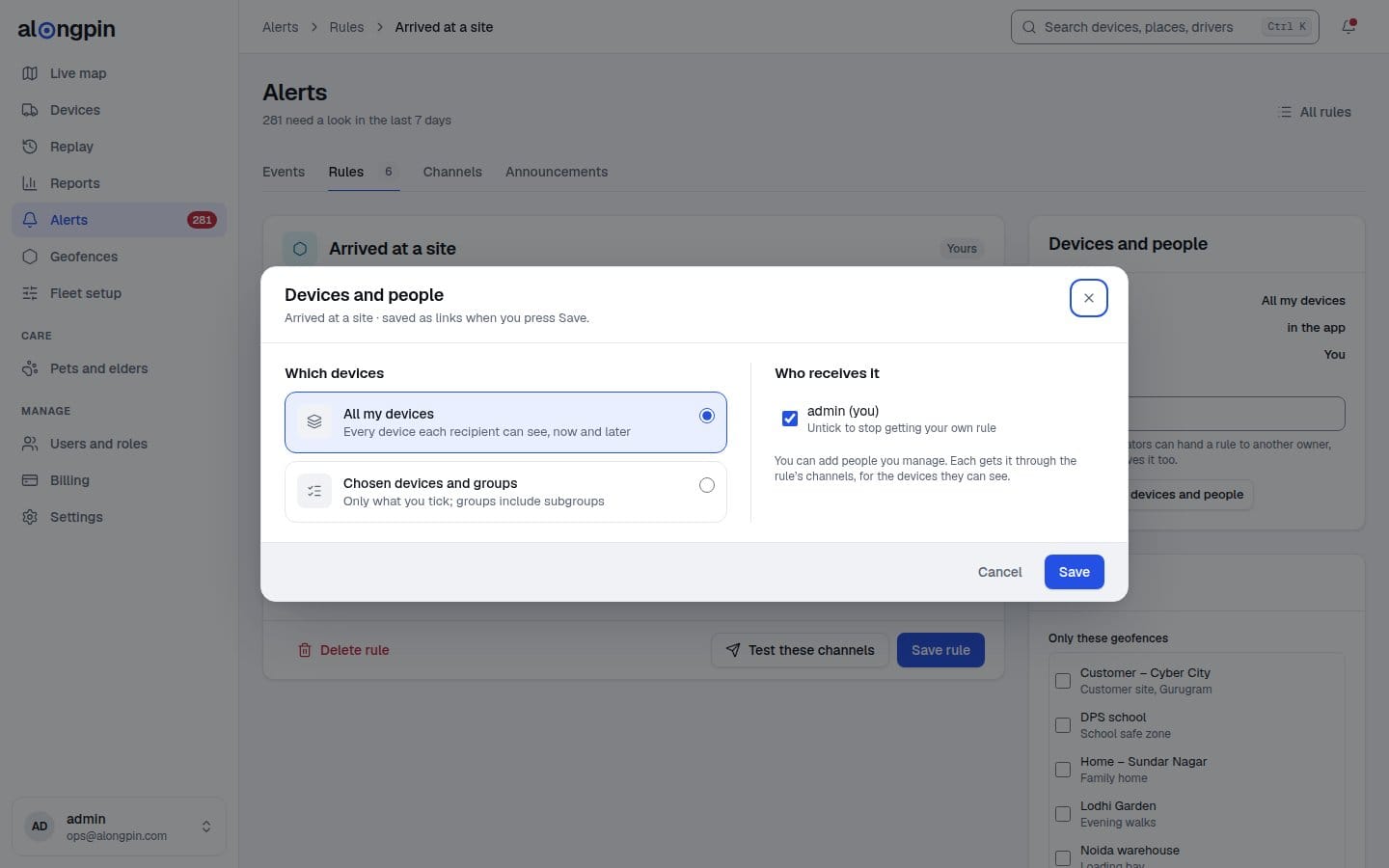
Then open the rule's Devices and people. Under Which devices, pick the alarm; under Who receives it, tick the family members or carers. Only administrators and managers can add other people to a rule; if you cannot, ask your administrator. Choose Test these channels so that a missing phone number shows up now.
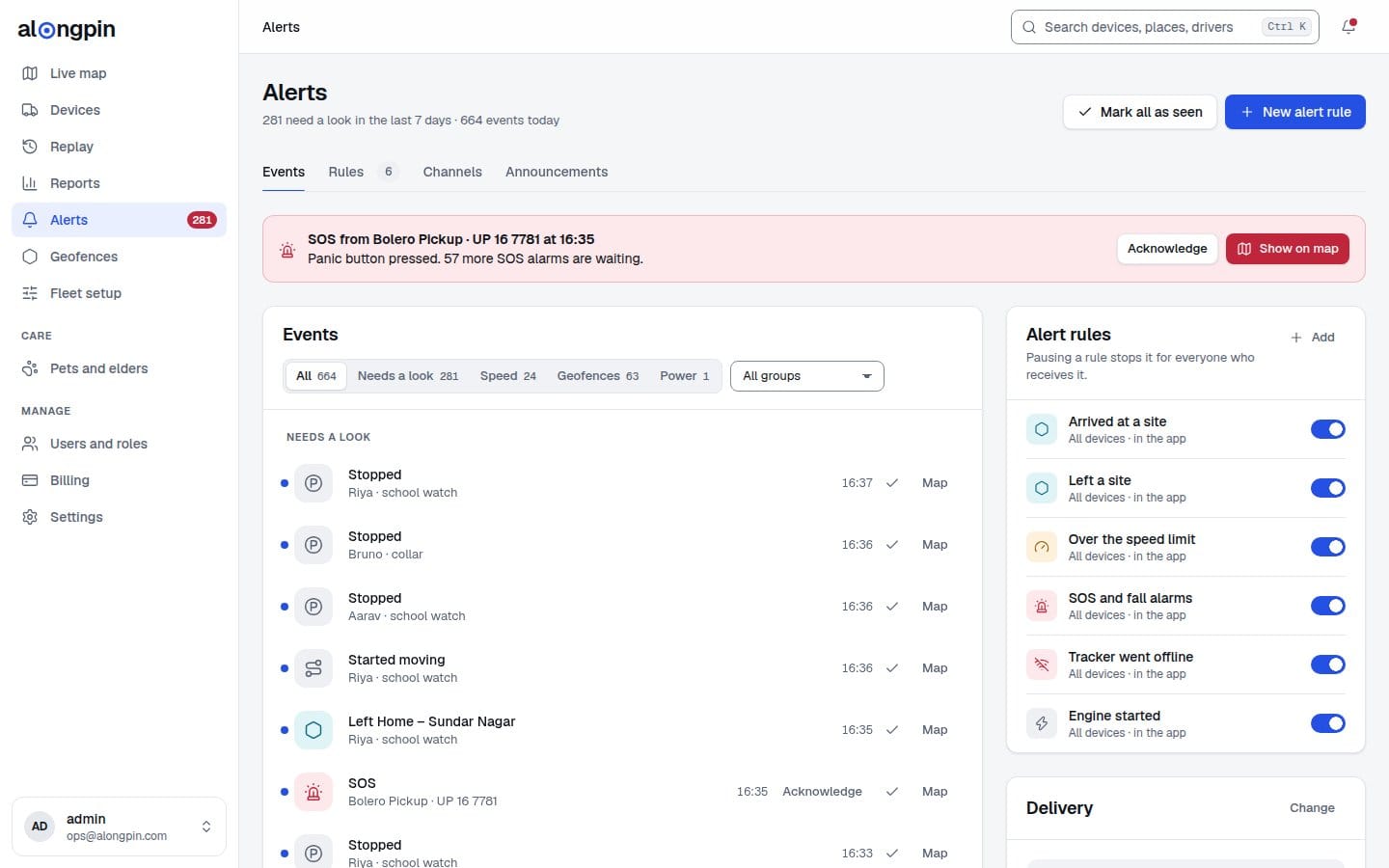
Next time the button is pressed, the SOS shows at the top of Alerts for everyone on the rule, and the first person who chooses Acknowledge takes it, so the others know. Acknowledging an alarm explains what everyone sees.
7. Add a low-battery rule
A personal alarm with a flat battery sends nothing, so the low-battery warning matters as much as the SOS. Create a second rule: Alarm, with Low battery ticked under Alarm kinds, to the same people. Choose a time to charge the alarm every day, for example with the evening news, and the warning will rarely come.
What to expect from fall detection
Some MiniFinder-type alarms detect a fall themselves and send a fall alarm. The platform does not detect falls: it passes on what the alarm reports. If your model sends fall alarms, tick Fall down in the alarm rule, or add a rule of its own. Test it by following the maker's instructions, never by dropping the person's alarm in use, and expect both missed falls and false ones; a fall alert adds to the SOS button, it does not replace it.
Good to know
- No signal or no battery, no alarm. An alarm without mobile coverage or with a flat battery cannot send an SOS.
- Quiet hours. Ask each recipient to check that SOS alarm is on the Still goes out list under Settings → Your account → Alerts and channels → Quiet hours.
- A care profile adds more. Linked to a care profile under Care → Pets and elders, the alarm also gets care alerts for leaving home and no movement, with contacts who need no account. The elder care page explains it.
The SOS page shows how an alarm travels from the button to the people on the rule.