Reports
How to schedule a report that arrives each morning
For managers who want yesterday's figures without opening the app: pick a report, give it a calendar that ends each night, choose groups and recipients, and each morning an e-mail links to the report for the day before.
Ashish Srivastava4 min read

A scheduled fleet report e-mail arrives without anyone opening the app: you pick the report, give it a calendar whose period ends each night, choose the vehicles or groups and add the people who should get it. Each time a period of the calendar ends, every recipient receives an e-mail with a link to the report for that period, and opens it signed in. This guide is for managers who want yesterday's figures waiting in their inbox each morning.
Before you start
- A user for every recipient, with an e-mail address, and a role that covers the vehicles they should see. Set both under Users and roles.
- An account that may create scheduled reports. Read-only accounts cannot.
- A server that sends e-mail. If nobody has received e-mail from it yet, ask your administrator.
1. Choose the report
Open Reports and the report you want each morning. Trips, stops, summary, route, events and geofence stays can all be scheduled, and so can the combined and wellness reports. Set the Devices or Groups and the filters the e-mail should keep, then press Schedule. On the Trips tab the button is called Email weekly; it opens the same dialog, and you choose the calendar in it.
The dialog Schedule this report opens. Give the report a Name: it becomes the subject of the e-mail, up to 128 characters, so make it say what is inside, such as "Depot North, trips of yesterday". For a summary, tick A row per day: summary reports only to get one row per vehicle and day.
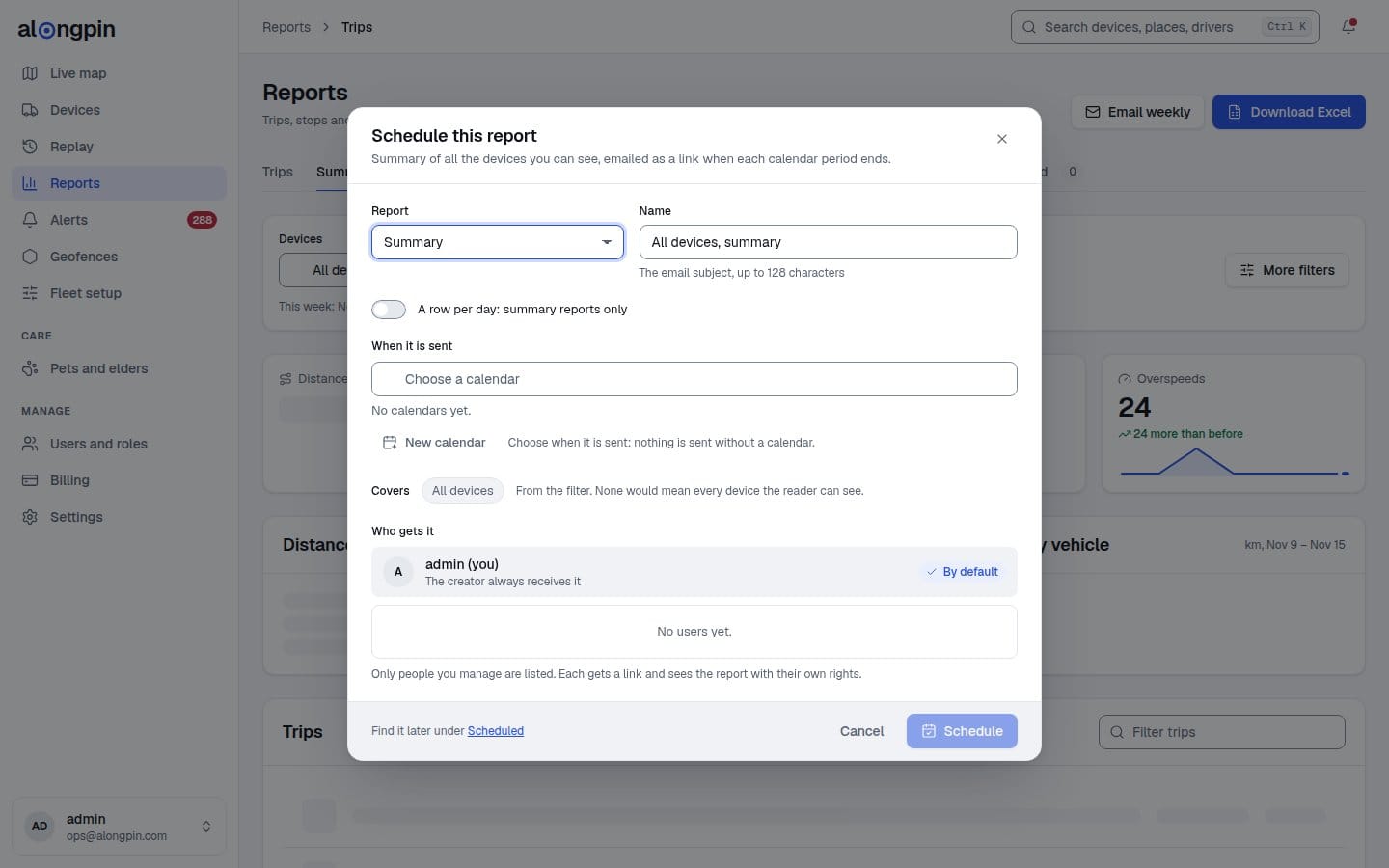
The idle report cannot be scheduled: the dialog says This report cannot be scheduled. Run it on demand instead.
2. Create or choose a calendar with a daily period
Under When it is sent, choose a Calendar. The report goes out at the end of each period of the calendar, up to 15 minutes later, and covers that period. The calendar sets the period, not the dates in the report's filter.
If you have no suitable calendar, choose New calendar (or open Fleet setup → Calendars and New calendar):
- Name it so others recognise it, such as "Every day, midnight to midnight".
- Keep Simple schedule and check the Time zone: midnight is midnight in this zone.
- Add one period From 00:00 To 00:00 and tick Ends the next day.
- Set Repeats to Daily and choose Save calendar.
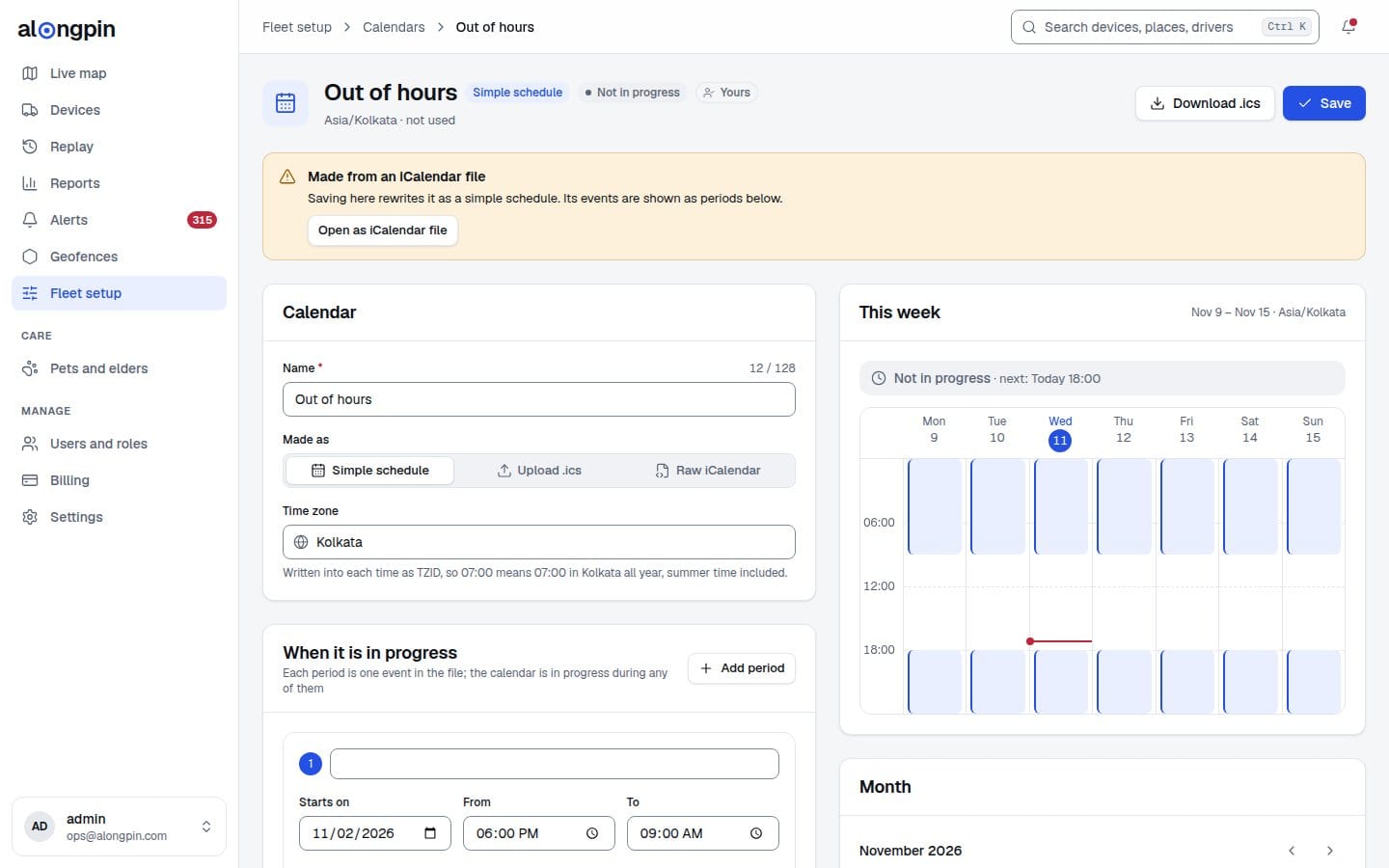
Each night, shortly after midnight, the report for the day that just ended goes out, so it is waiting when you start work. If your day runs differently, move the edge: a period from 06:00 to 06:00 the next day sends the last 24 hours at about a quarter past six. For working days only, repeat the period Weekly on Monday to Friday; weekend driving is then in no e-mail.
3. Pick the vehicles or groups
Covers shows what the report is about, taken from the filter you set. Prefer groups to single vehicles: a van added to the group later is in the next morning's report without anyone changing the schedule. If you leave it empty, each reader sees every vehicle they can see, which is rarely what a depot manager wants.
4. Add the recipients
Under Who gets it, you are listed first: the creator always receives it. Add colleagues under Other recipients. Only people you manage are offered; each of them gets a link and sees the report with their own rights. Press Schedule. The report is now under Reports → Scheduled.
5. Wait for the first e-mail and open the link
Reports → Scheduled lists each report with its Calendar, what it Covers and its Owner, and when it goes out: Next: and the time, then Last sent once the first e-mail has gone. Until then it reads Not sent yet.
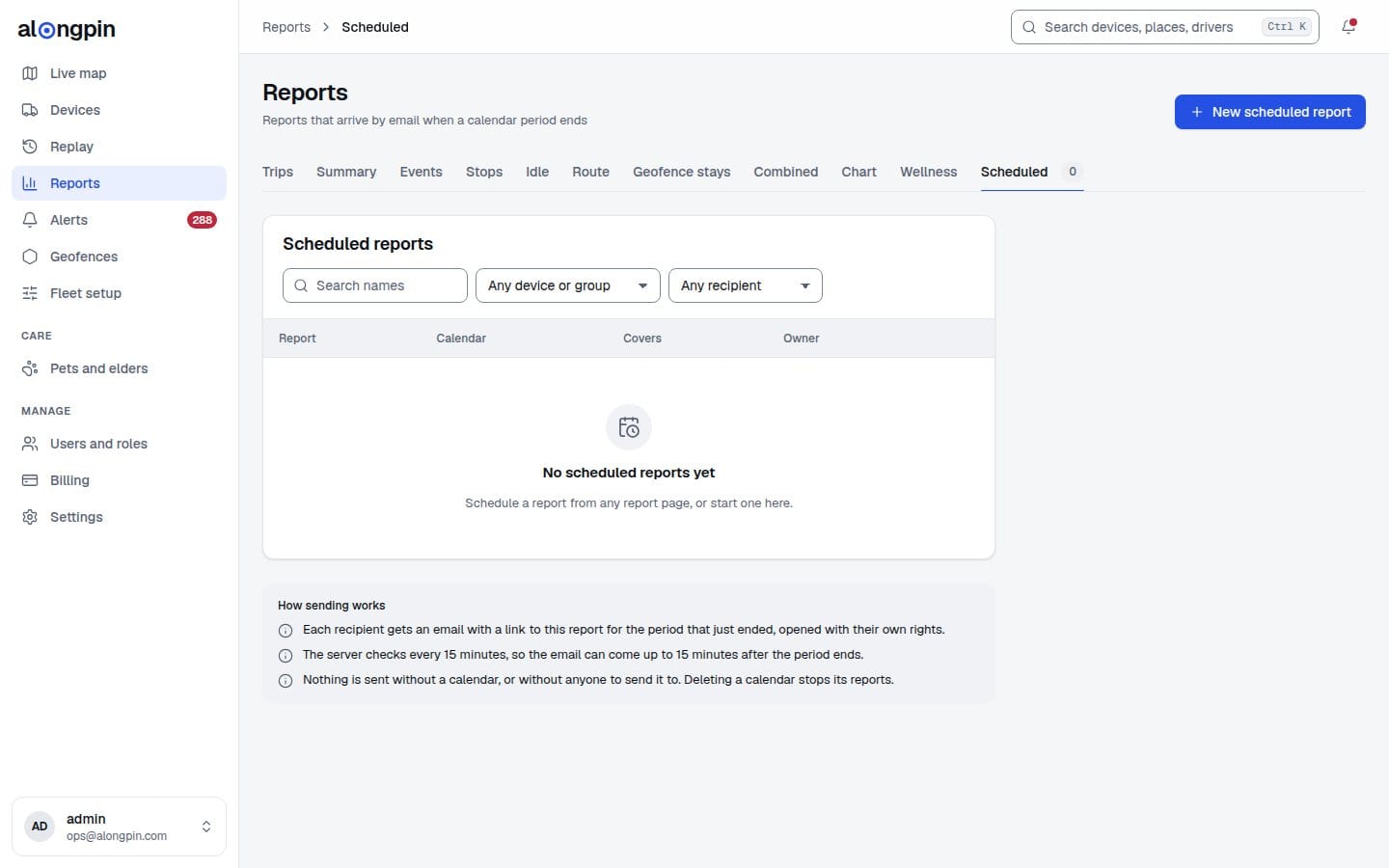
The e-mail's subject is Scheduled report: followed by the name, and the text says which period the report covers, with a link. Opening the link asks you to sign in if you are not, then runs the report for exactly that period.
6. Download as CSV or Excel from there
The link opens an ordinary report page, so every download of that report is there: Excel for the trips, and CSV, one sheet or a sheet per device for the others. Times in the file are in the reader's time zone and units.
Watch out for
- The e-mail holds a link, not an attachment. Every recipient needs a user account and has to sign in. Why the e-mail holds a link explains the reasons.
- Each recipient sees only the vehicles their role covers. Two people who open the same e-mail can see different rows. That is on purpose: a depot manager sees their depot.
- Idle reports cannot be scheduled. Trips and summary carry the idle time per trip and per day instead.
- Nothing goes out without a calendar or without a recipient. Deleting a calendar stops every report that used it; the list then shows No calendar: never sent.
- Some recipients get nothing. Users whose reports are switched off, and accounts that are disabled or expired, receive no e-mail, and the missed periods are not sent later.
- The calendar's time zone decides midnight. A report arriving an hour early or late usually has a calendar in another zone. See a scheduled report at the wrong time.
The scheduled reports page covers what can go out and how often, the reports page every report type, and users and roles how to give each recipient the right vehicles.