Privacy
How to switch on a private trip as a driver
For drivers of a company vehicle: what your employer sees during work, how to switch a private trip on and off on your phone or with the button in the vehicle, and what an SOS does.
Ashish Srivastava4 min read
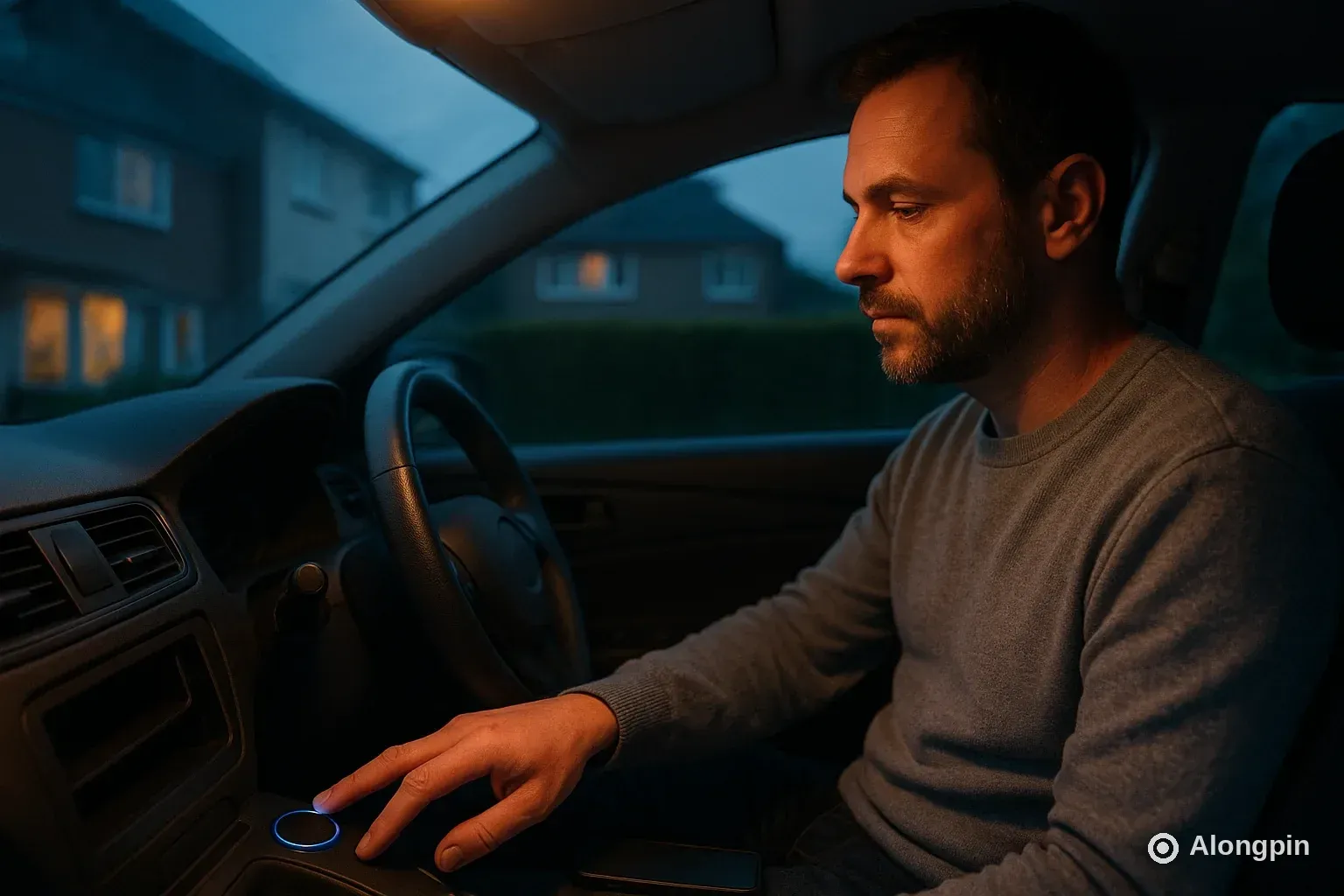
If you drive a tracked company car and use it privately, a private trip limits what is recorded: your company chooses whether the trip is kept as a point blurred to about 1 km, as the distance only, or not at all. You switch it on before you drive off, on your phone or with a button in the vehicle when one is fitted, and off again when work starts. Pressing SOS ends a private trip, so help can find you. This guide is written for drivers.
Before you start
- An account from your employer that lets you see the vehicle.
- Private trips allowed by your company, and the switch open to drivers. If it isn't, only your fleet manager can switch them.
What your employer sees
During work your fleet manager sees the vehicle on the live map, its trips and stops, and the reports built from them, as your company's driver notice describes.
During a private trip, depending on what your company chose:
| Your company chose | Your employer sees |
|---|---|
| Blurred to 1 km | "Private trip", shown to about 1 km, without an address |
| Distance only | "Private trip" and the distance, no map and no places |
| Stop storing positions | "Private trip" with when it started and ended, no map and no places |
Nobody, administrators included, can see afterwards where a private trip went. Photos and video a dashcam sends during the trip are deleted.
1. Ask whether self-service private trips are allowed
Ask your fleet manager three questions: may drivers switch private trips on themselves, is there a button in the vehicle, and are trips outside working hours private by themselves? Many companies set the last one, so your evening and weekend driving is private without you doing anything.
Ask for the driver notice too, if you haven't seen it. It is shown when you first sign in and after each new version; read it and choose I have read this. More in reading and acknowledging the driver privacy notice.
2. Sign in on your phone
Sign in with the account your employer gave you and open the Private trip page for your vehicle; your fleet manager can send you the link. If you drive more than one vehicle, pick it under Vehicle.
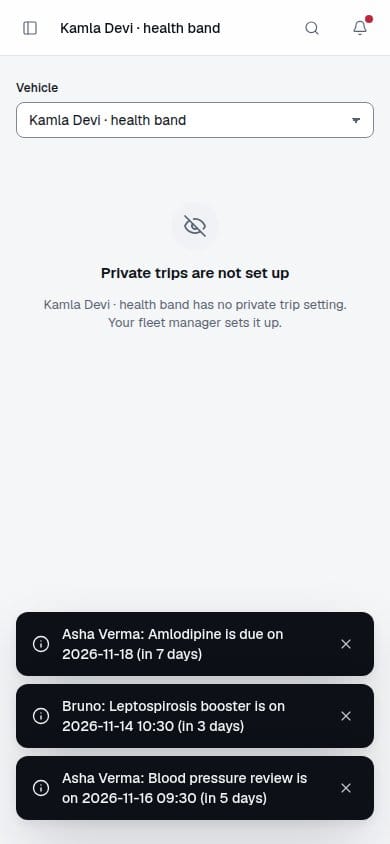
If the page says "Only your fleet manager can switch private trips for this vehicle", self-service is off for it. If it says "Private trips are not set up", your company hasn't set them up for this vehicle.
3. Switch the private trip on before you drive off
Turn the switch on before you start the engine. The page says On since with the time, shows "Your employer sees: Private trip", and lists under What is kept what is stored and what isn't. Then drive as usual.
Switch it on before you leave, not halfway: positions recorded before you switched it on stay as they were.
4. Or press the button in the vehicle
Some companies wire a button or switch to the tracker. While it is on, the trip is private, whatever the phone says. Ask your fleet manager whether your vehicle has one and how it shows that it is on.
5. Switch it off when work starts again
Turn the switch off when you start working. If your company set it up that way, a switch left on ends by itself at the start of your next working hours, so you can't forget it overnight.
Outside working hours the trip may also be private by itself. Switching it off then means the vehicle is tracked until your working hours start, for example when you pick up a parcel for work on a Sunday; the next evening is private again.
6. Know what SOS does
An SOS from the vehicle sends where you are and ends the private trip by default, so help can find you. The vehicle is then tracked again until your working hours start. Your company decides which alarms do this; SOS is on the list unless your company took it off. See the SOS page and what happens to an SOS during a private trip.
Pitfalls
- Forgetting to switch it on means a normal trip. If working hours don't make the trip private by themselves, a trip without the switch is recorded like any working trip.
- Distance may still be recorded. With distance only, your company keeps the kilometres for the tax logbook, but not where you went.
Tip: if you have never been shown the driver notice, ask for it. It tells you what is tracked, why, and who to ask. The driver privacy page explains the feature, and the privacy page how Alongpin handles personal data.