Alerts
How to hear when a tracker goes offline, loses power or runs low
Three alert rules for the tracker itself: offline, power cut and low battery. A silent tracker raises no other alert, so these tell you when it was unplugged, lost signal or is running flat.
Ashish Srivastava4 min read

A GPS tracker offline alert tells you when the tracker itself stops working: it lost its connection, it was unplugged from the vehicle's power, or its battery is running low. Add an alert rule for Device offline (and Status unknown for trackers that never hold a connection), an Alarm rule narrowed to Power cut, and an Alarm rule for Low battery. Send them by push and one more channel. A silent tracker raises no geofence, speed or SOS alert, so these three rules are the only way to hear that something is wrong. This guide is for vehicle owners who want to know when their tracker has a problem.
Before you start
- A tracker that reports power and battery alarms, for the second and third rules. Which alarms exist depends on the model; the vehicle trackers page lists what wired trackers usually report.
- The Alongpin app signed in on your phone, if you want push notifications.
- A login that may create alert rules.
Why these alerts matter
Every other alert depends on the tracker sending positions: a geofence exit, overspeed, even an SOS. When a tracker loses power, is pulled out, or sits without signal, nothing arrives, and nothing tells you. A thief who finds the tracker will cut its power first. These rules turn that silence into an alert of its own.
1. Add a rule for the device going offline
Open Alerts → Alert rules and choose New alert rule. Under When this happens, the Device status group offers:
- Device offline: the tracker closed its connection. Trackers that keep a connection open, as most wired vehicle trackers do, raise this.
- Status unknown: nothing has arrived for longer than the server's status timeout. Trackers that send without keeping a connection raise this instead.
- Device inactive: nothing has arrived for a longer time, such as several hours, with a reminder at intervals. It is raised only where this time is set, for example under No-data alert in a group's settings.
A rule has one event, so make one rule for Device offline and one for Status unknown. Then open Devices and people and attach your vehicle, or choose All my devices. The help article on getting an alert when a device stops reporting explains the three events in more detail.
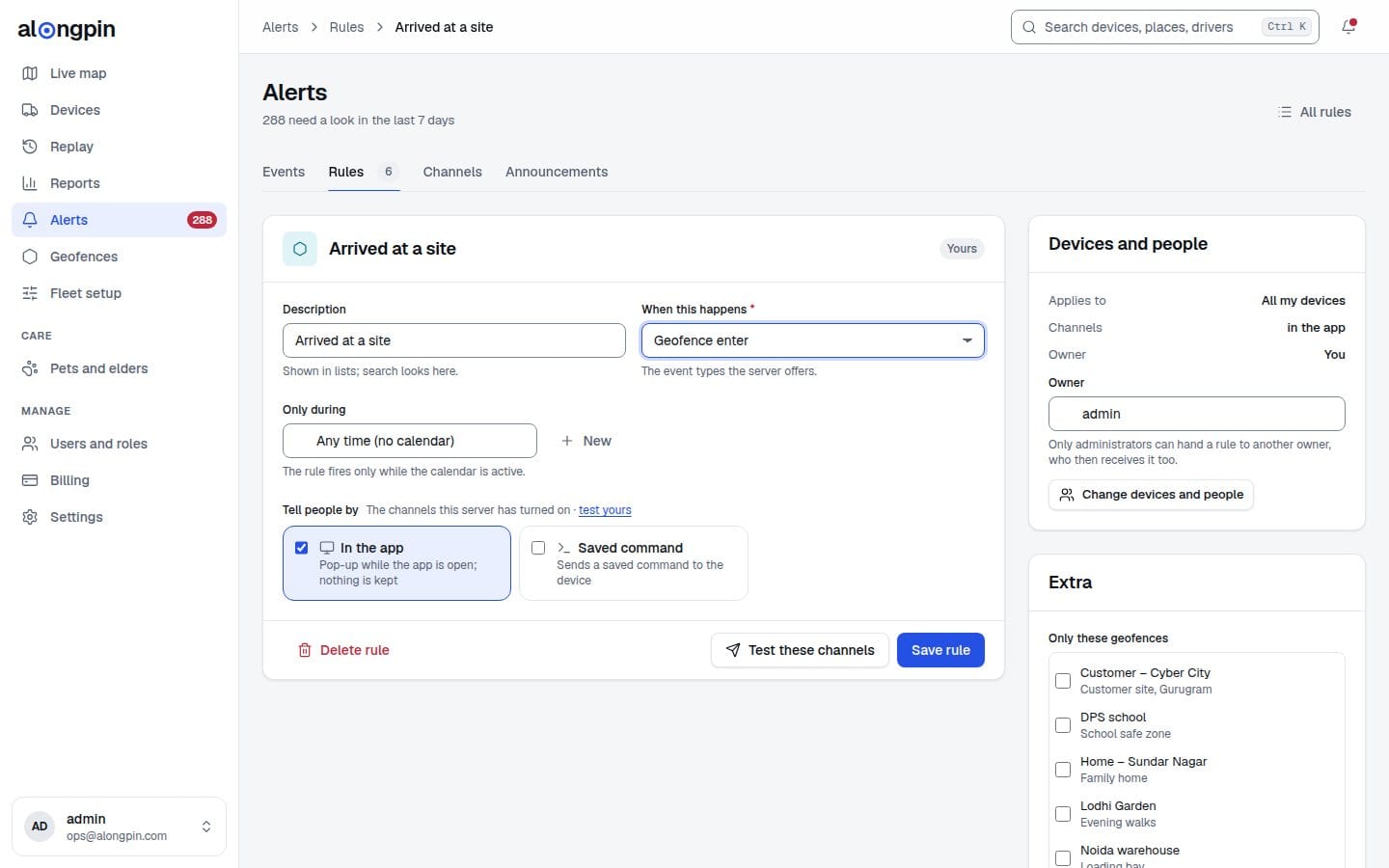
2. Add an alarm rule for a power cut
Make a second rule with When this happens: Alarm. Under Alarm kinds, tick Power cut. Many wired trackers also report Power off or Low power; tick those too if your model sends them. Save the rule and attach the vehicle.
A tracker with a small backup battery keeps reporting for a while after its power is cut, so this alarm usually arrives with a position. When it does, the Alerts page also shows the backup battery's level.
3. Add a low-battery rule
Make a third rule, again an Alarm, with Low battery ticked. This matters most for battery-powered trackers, such as magnetic trackers on trailers or plant, that run for weeks between charges. For a wired tracker, a low-battery alarm often means the backup battery is worn, or the tracker has been on backup power for a long time.
4. Send them by push and one more channel
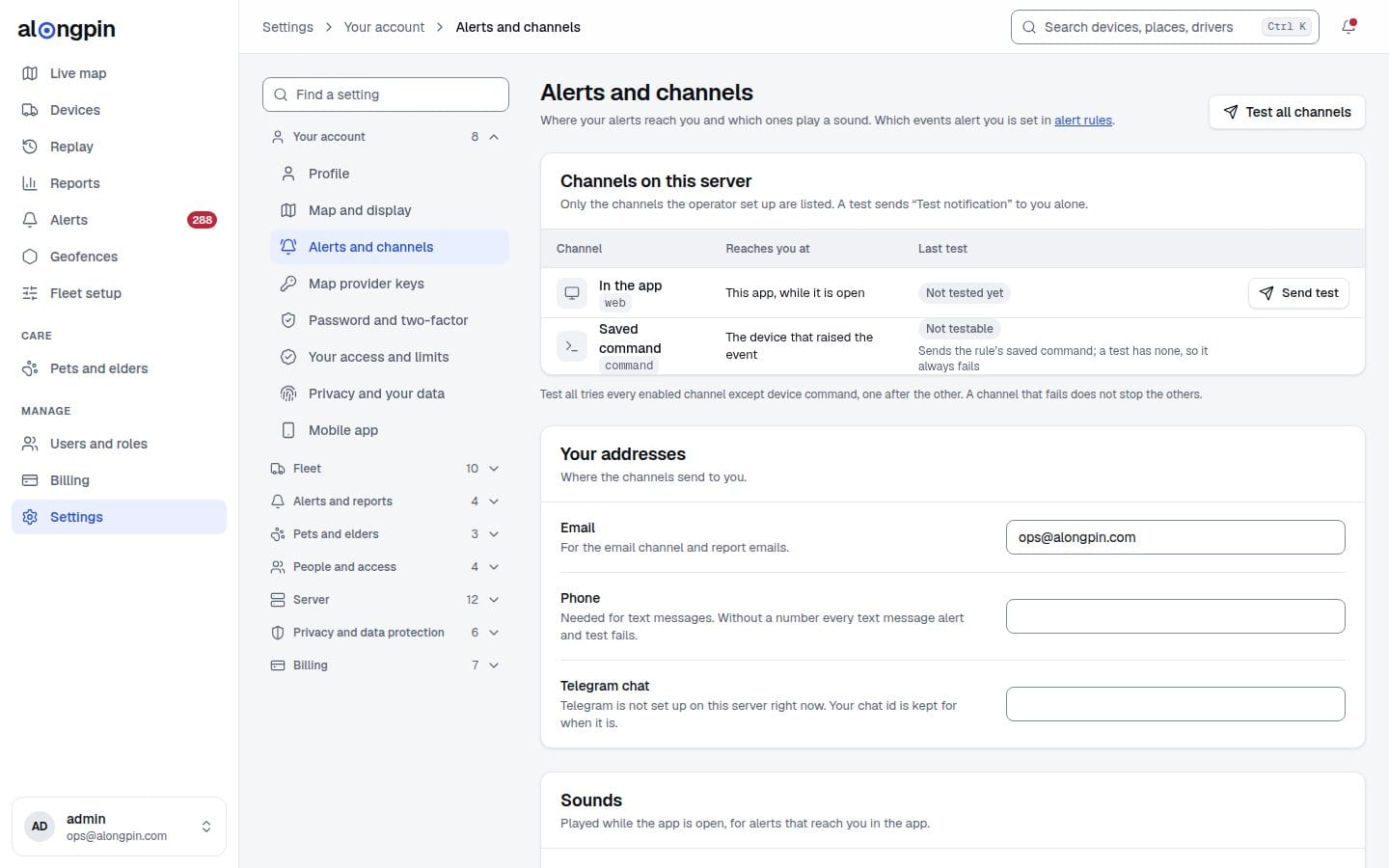
Under Tell people by, tick Push notification and one more channel: Text message or Email, as far as your server offers them. In the app alone only shows alerts while the portal is open, which is not when a tracker goes missing at night.
Push reaches the phones and browsers listed under Settings → Your account → Alerts and channels → Phones and browsers for push. If the list is empty, sign in to the app on your phone first. Then choose Test these channels in each rule.
5. Let them through quiet hours if theft is the worry
If you set quiet hours, alerts in that window reach you only in the app. Power cut alarm is on the Still goes out list by default. To be woken when the tracker goes offline at night too, open Quiet hours, choose Let another through and add Device offline and Status unknown. A held-back alert is dropped, not sent later.
6. Test it: unplug or switch off the tracker
With the vehicle parked somewhere safe, take the tracker's power away for a while: pull its fuse, unplug it from the OBD port, or switch off a battery tracker. Then watch:
- The Power cut alarm should arrive first, where the tracker reports it.
- Device offline or Status unknown follows once the tracker stops reporting.
- Restore power. The vehicle comes back Online and sends what it recorded.
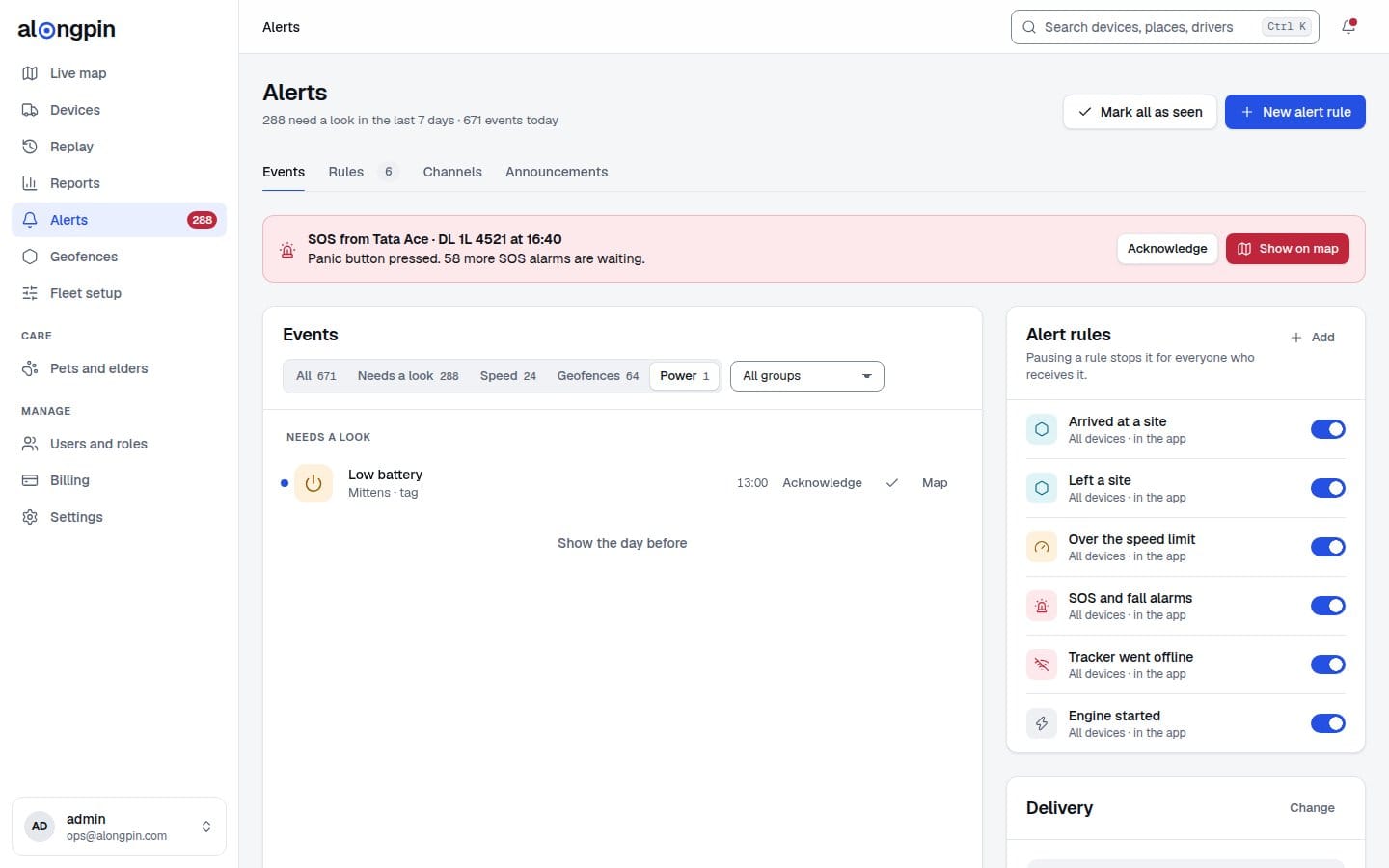
The Alerts page lists every event of your devices; the Power filter shows the power and battery alarms on their own.
Watch out for
- Offline is not instant. Status unknown comes only after the server's status timeout, and Device inactive after the time set for it. A short gap in a tunnel or a car park is normal; act on the alert, not on every gap.
- Which alarms exist depends on the tracker. If Power cut never arrives in the test, the model does not report it. The offline rules still cover you.
- Your own alerts are personal. To have a family member or a colleague hear about it too, an administrator or manager adds them to the rule.
- A silent tracker raises nothing else. No geofence, speed or SOS alert can arrive from it, which is why these rules come first. See also why a device shows offline.
For SOS handling across a team, see setting up SOS handling for a dispatch team. The alerts page lists every event a rule can watch.