Insights
Reports that arrive by themselves.
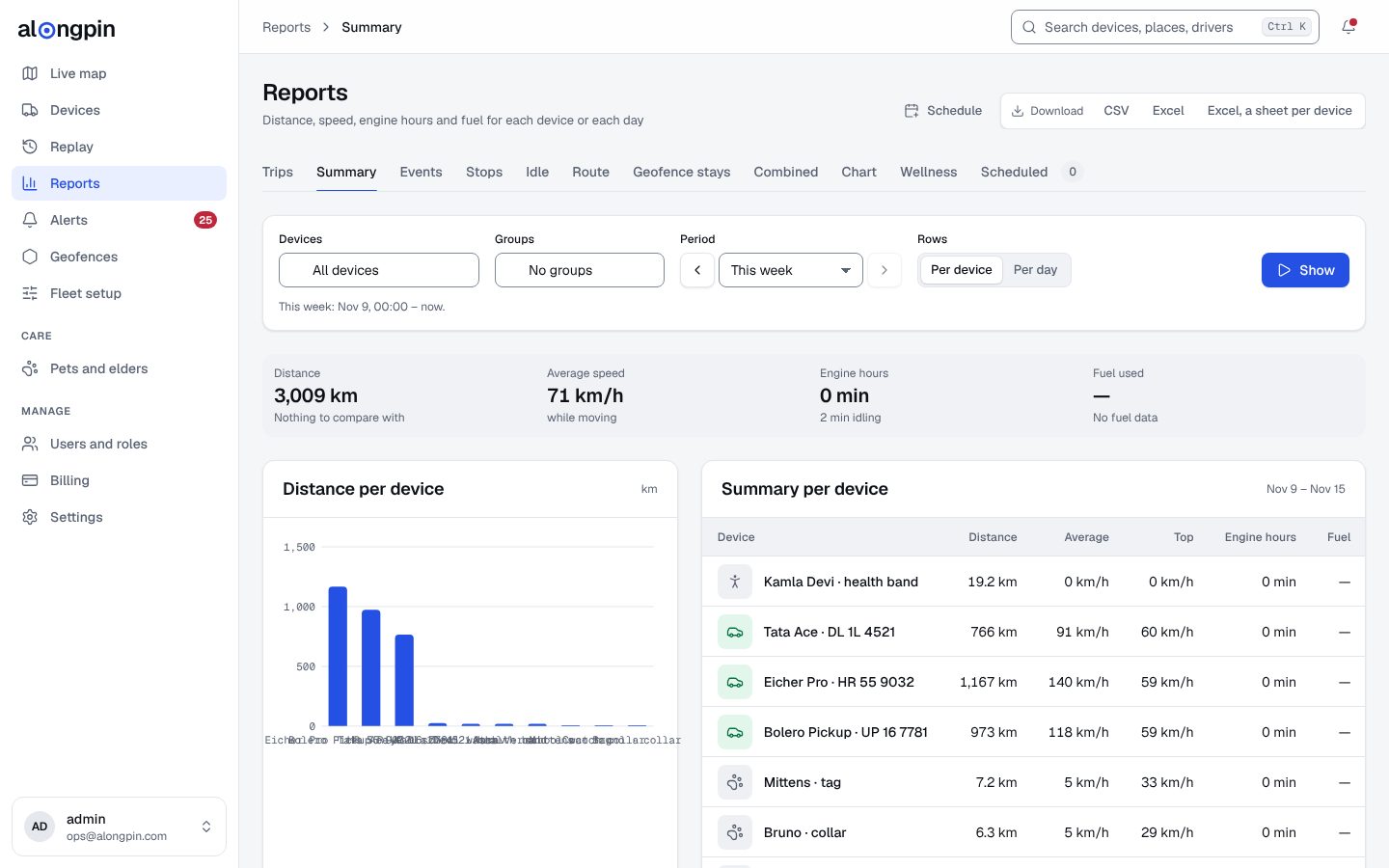
Schedule a trips, stops or summary report to go out each night, week or month. Each recipient gets an e-mailed link to the report for the period that just ended.
Choose a package in the portal; you see the first invoice before you confirm.
Set it up once
Four choices, then it runs by calendar
Choose the report
Trips, stops, summary, route, events or geofence stays. A summary can have one row per vehicle or one per vehicle and day.
Choose the calendar
The calendar says when: the report goes out each time one of its periods ends. A daily period sends the report for the day that just ended.
Pick the vehicles
Single vehicles, whole groups such as a depot or a team, or both.
Add the recipients
Users of your account: dispatch, the workshop, the owner. Each recipient gets an e-mailed link.
What arrives
A link in the inbox, not a file to forward
Subject
Scheduled report: Daily trips
The trips report for 17 May 00:00 to 18 May 00:00 is ready:
Sent to each recipient of the report.
The e-mail names the report and the period and carries a link. The link opens the report in the web app, already set to the vehicles and the period.
- The recipient signs in to open it, so the figures do not travel as an attachment
- Each person sees the vehicles their role covers, and no others
- From the report page it downloads as CSV or Excel
Calendars
The calendar decides when
A scheduled report goes out each time a period of its calendar ends, and covers that period.
A day, repeating daily
Each night
The day that just ended
A week, repeating weekly
At the end of each week
That week
A month, repeating monthly
At the end of each month
That month
Create a calendar as a weekly schedule, such as "weekdays 08:00 to 18:00", or import an iCalendar file. The same calendars limit alert rules and zones to working hours.
What can be scheduled
Six reports on a schedule, one on demand
On a schedule
- Route
- Events
- Summary
- Trips
- Stops
- Geofence stays
On demand
- Idle
Scheduled reports cover route, events, summary, trips, stops and geofence reports. Idle reports are run on demand.
FAQ
Questions about scheduled reports
Is the report attached to the e-mail?
Which reports can be scheduled?
How often can a report go out?
Who can receive a scheduled report?
Can a customer get a report without an account?
Let the month-end report send itself
Create an account, or let us set up your first scheduled report in a demo. Choose a package in the portal; you see the first invoice before you confirm.