Vehicle trackers
How to replace a tracker and keep its plan
For fleets that swap a faulty tracker or move one to another vehicle: connect the new unit, move the subscription to it under Billing, put it in the same group and check what was attached to the old device alone.
Ashish Srivastava4 min read
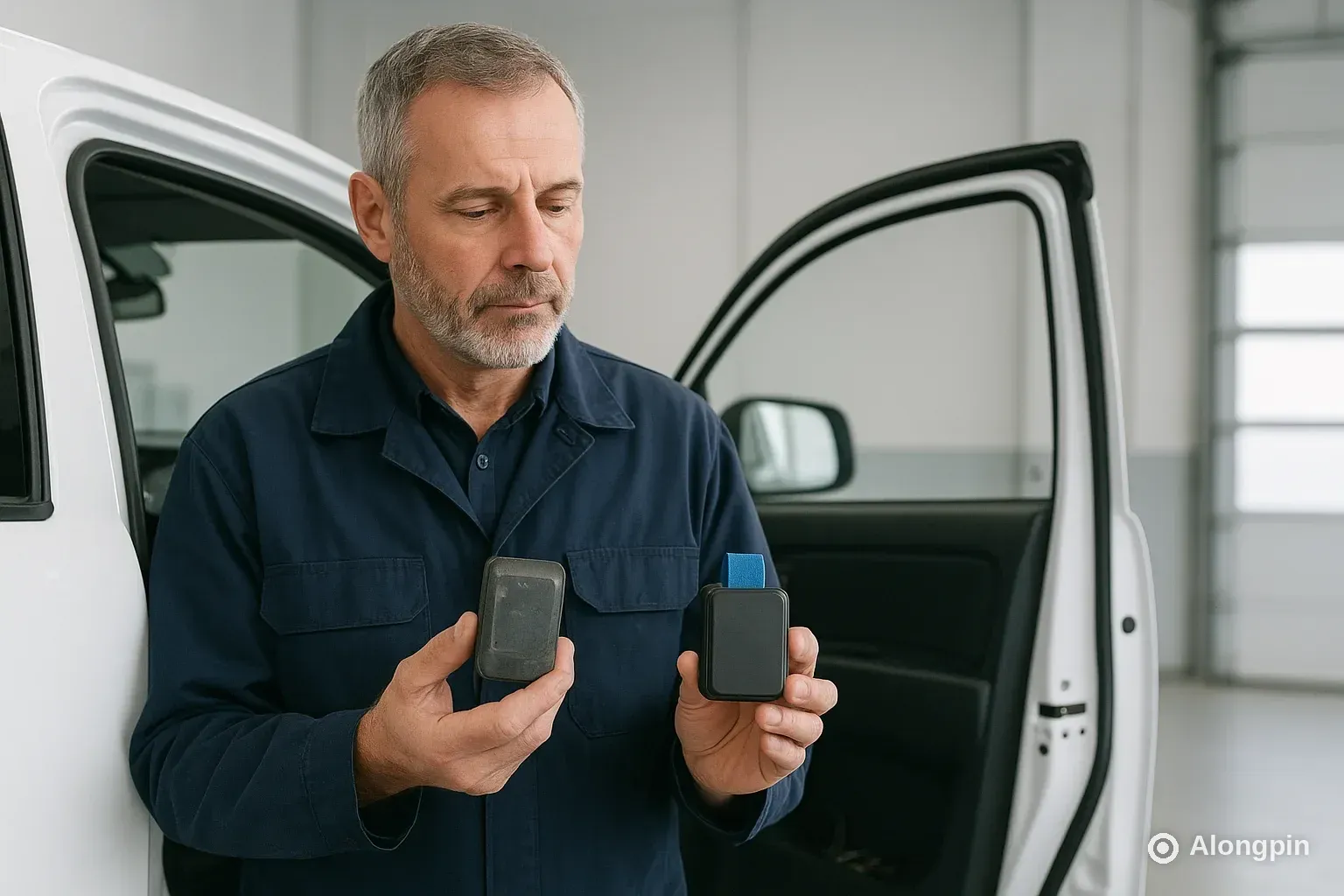
To replace a GPS tracker and keep the subscription, add the new tracker as a device, check that it reports, then open the old device's subscription under Billing and use Move to another device. The plan moves with the period you paid for, and nothing is charged. Put the new device in the same group, so the group's geofences and alert rules apply to it, and copy over anything that was attached to the old device alone. This guide is for fleets that swap a faulty tracker or move a plan to a tracker in another vehicle.
Before you start
- The new tracker fitted, with its SIM, and its identifier.
- A per-device plan on the old tracker, and both devices in your own account.
- A login that may add devices and change your subscriptions. The person who subscribed can always move a subscription; so can administrators and billing staff.
Two ways to swap a tracker
If the new tracker goes into the same vehicle and you want one device with one continuous history, there is a shorter way: edit the old device and change its Identifier (IMEI) to the new tracker's. The portal warns that a new identifier binds the device to another tracker: positions from the old one stop, and the new one connects as this device from its next message. Its group, rules and plan stay where they are, and you can skip the rest of this guide.
Follow the steps below when you want a separate device for the new tracker: a tracker that moves to another vehicle, an old unit you want to keep apart, or a fleet that names devices after the hardware.
1. Add the new tracker and check it reports
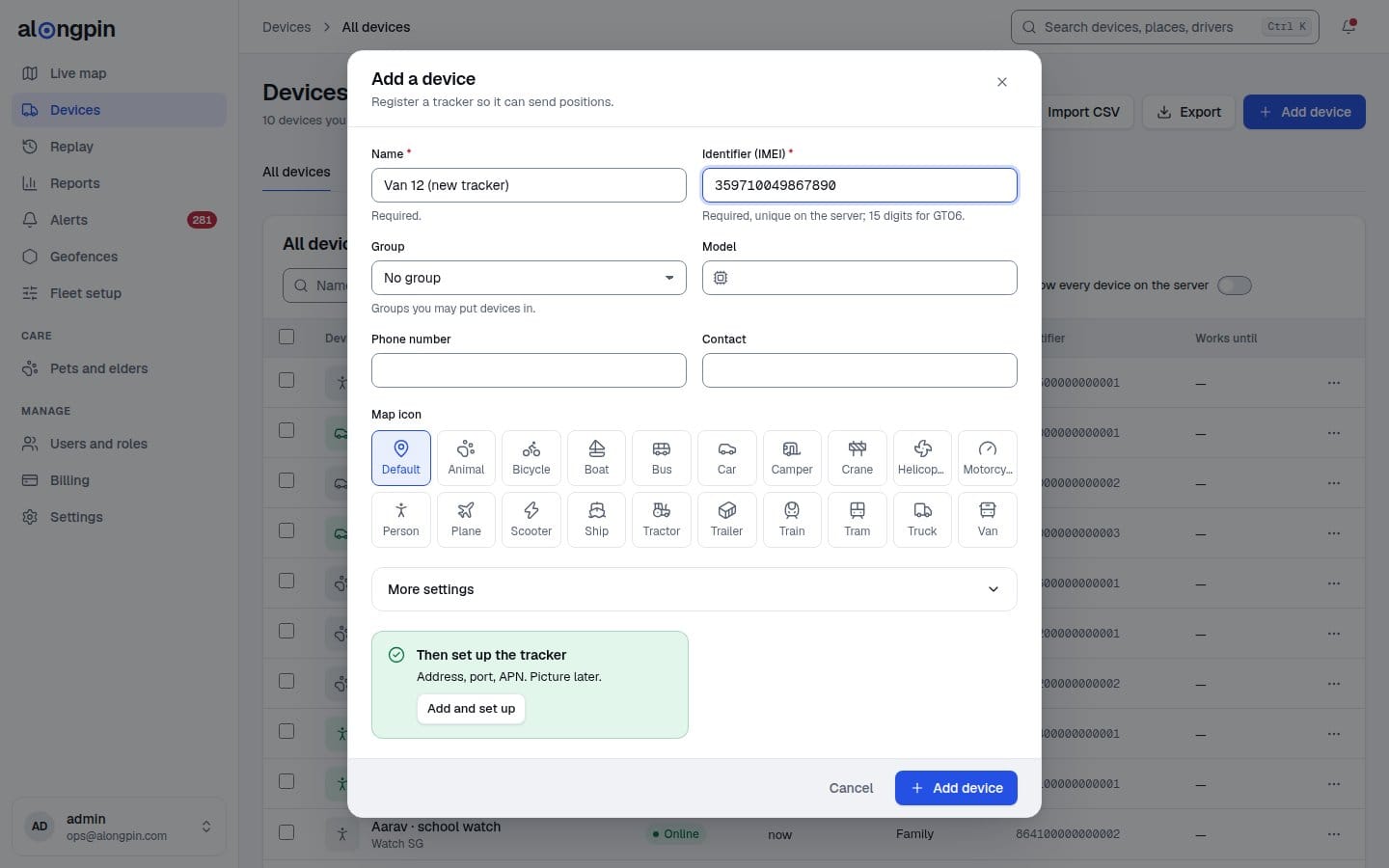
Open Devices, choose Add device, give the new tracker a name and enter its Identifier (IMEI). Choose Add and set up and point the tracker at the server address and the port its protocol uses, as Set up the tracker shows. Wait until it shows Online with a position on the live map before you move anything. The vehicle trackers page explains what to look for in a tracker, and the setup guides cover each kind.
If the portal says you own all the devices your plan allows, you are on a whole-account package with a device limit: see the note at the end.
2. Open billing in the portal
Open Billing in the menu. Subscriptions lists yours, each with its package and the device it covers. Open the subscription of the old tracker.
3. Move the plan to the new device
Under What you can do, find Move to another device: "For a replaced tracker; the period stays." Choose the new tracker under Device to move to and select Move. The portal confirms that the subscription moved to the new device.
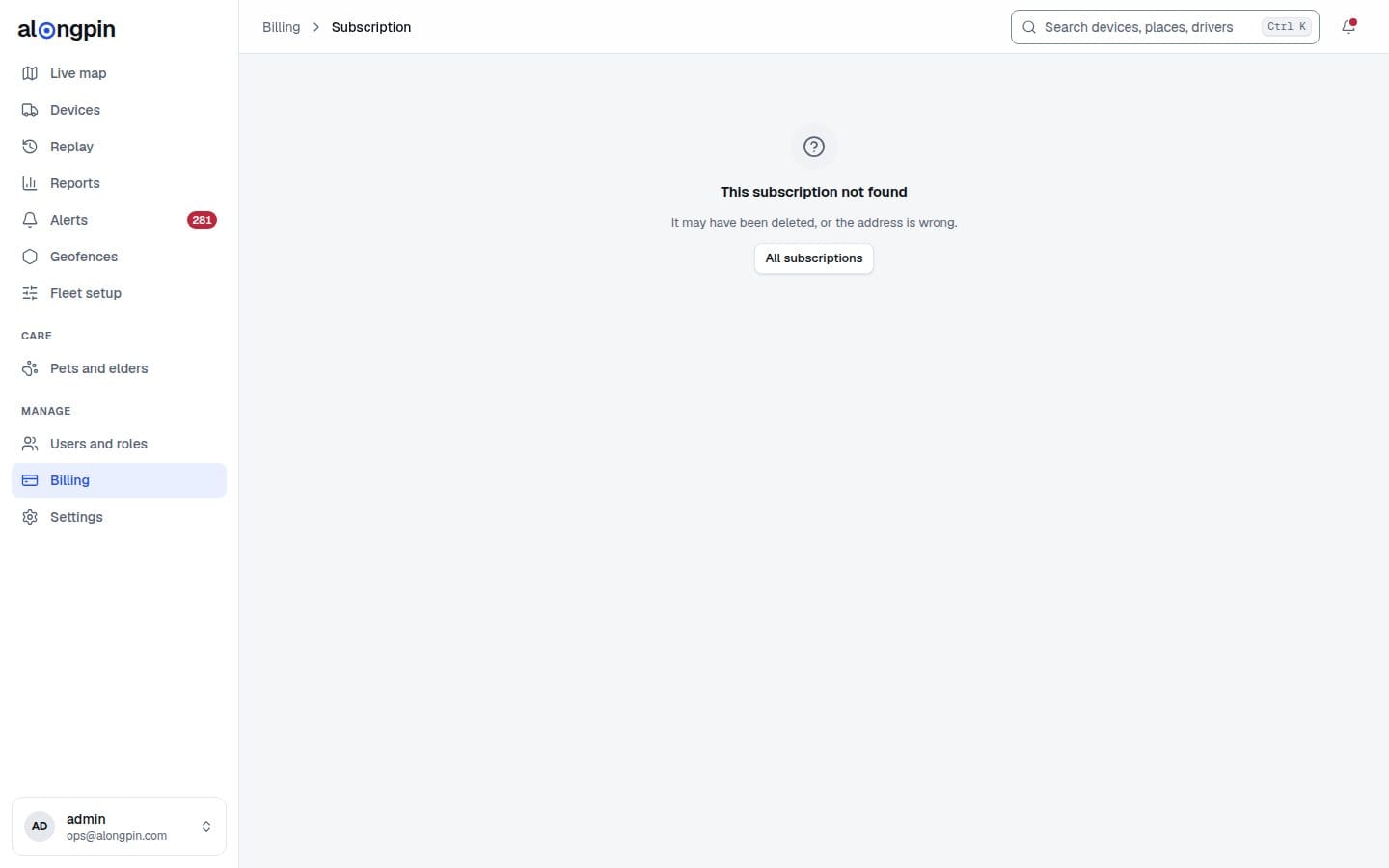
From that moment the new device is covered and the old one is not. The package, the period and the next invoice stay as they were. You can move a subscription while it is paused or while a payment is due, too. The list offers only devices you own that have no running device subscription of their own; if the new tracker is missing, check that you added it to your own account and did not subscribe it separately.
4. Put the new device in the same group
Open the new device, go to its Settings tab and choose Edit. Under Group, calendar and icon, pick the old device's Group and choose Save changes. The device now takes on the group's settings and connections: the group's geofences, alert rules, saved commands and maintenance plans apply to it as they did to the old one.
5. Check what was attached to the old device alone
Open the old device's Settings tab. The card Attached to lists what is linked to that device itself: Geofences, Alert rules, Drivers, Saved commands, Maintenance, Computed attributes, Scheduled reports and Linked devices. Its note says it: "Only what is attached to this device itself; its group can add more."
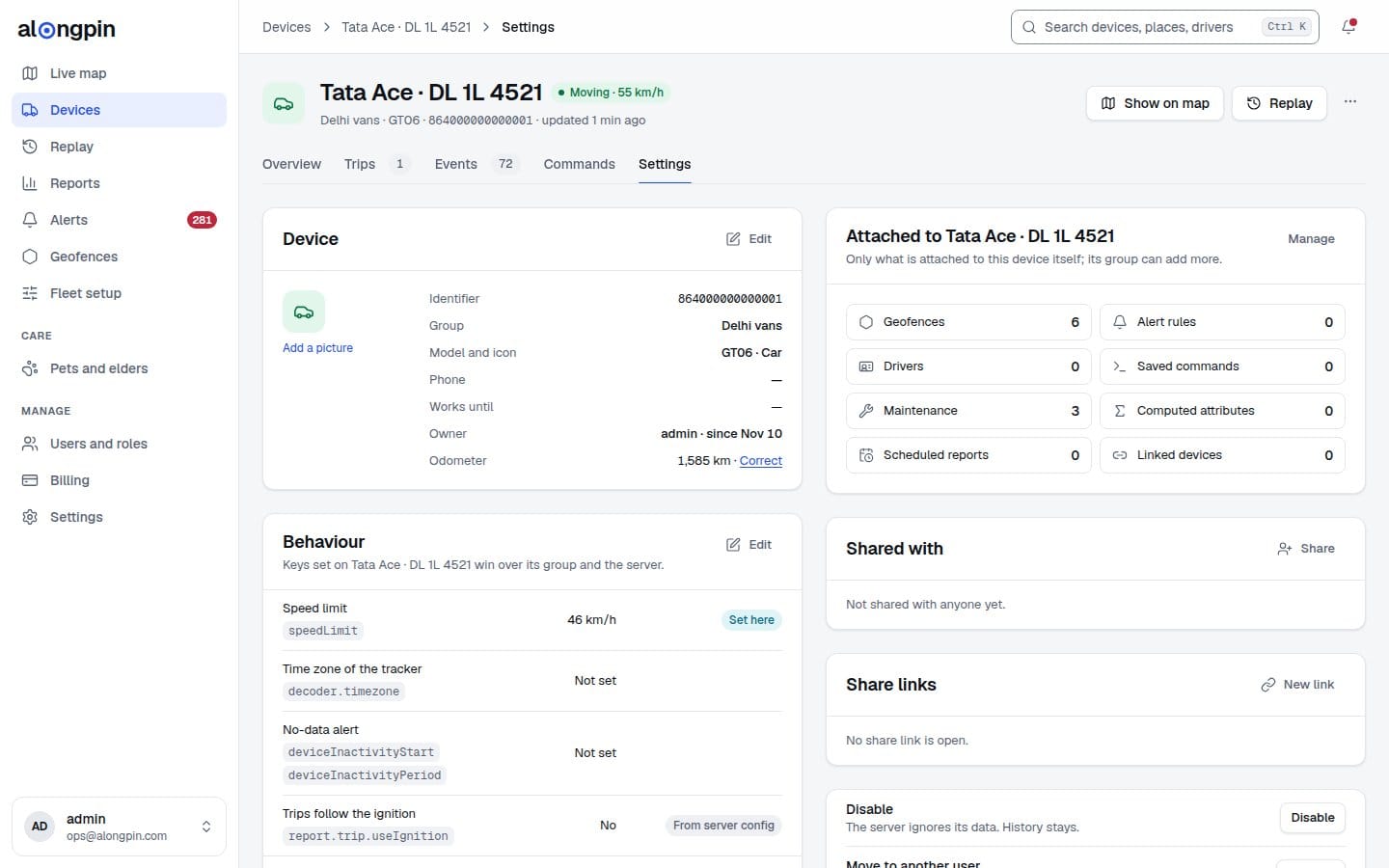
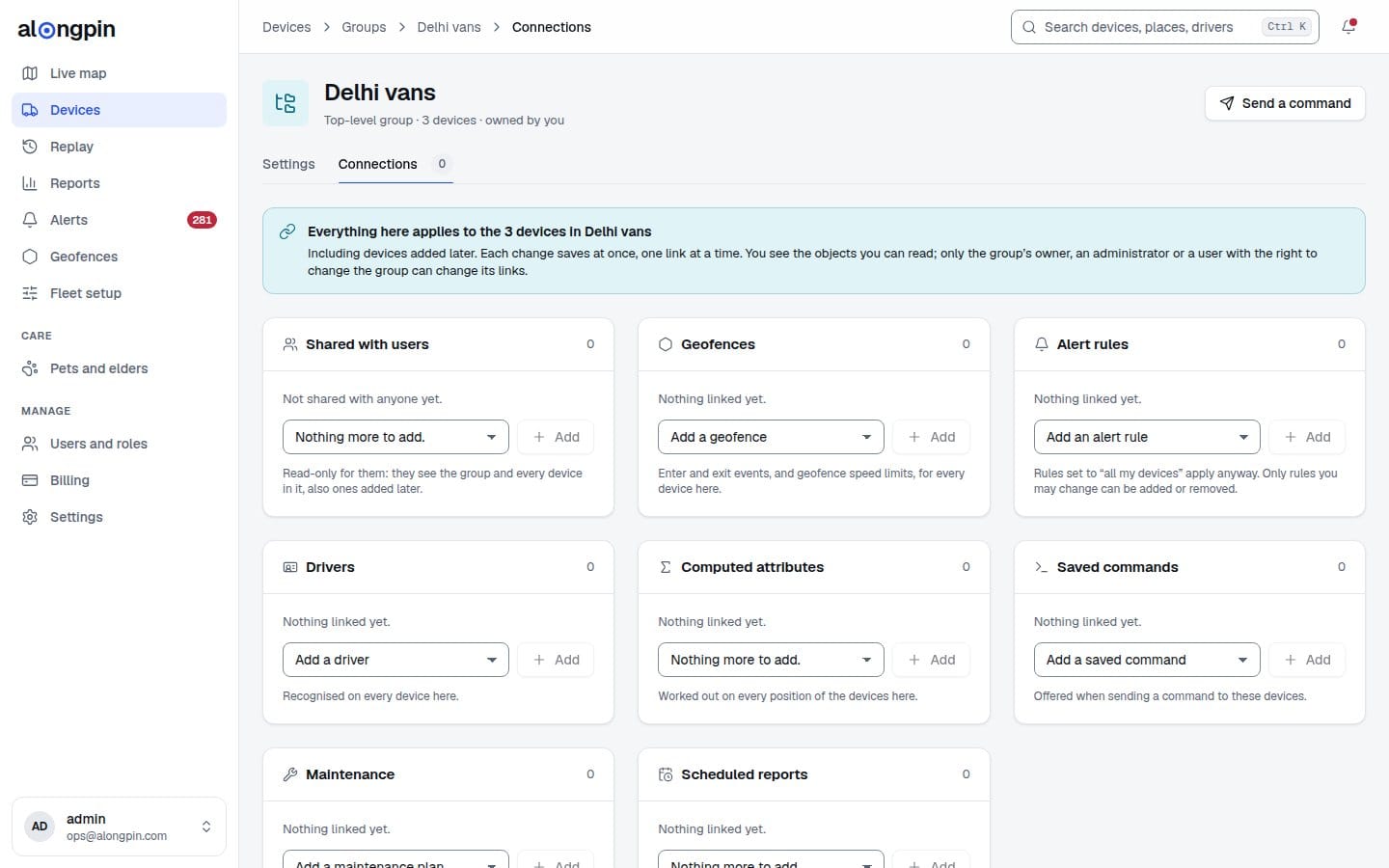
These do not follow by themselves. For each one, open the new device's Settings, choose Manage on the same line and attach the same items. Then open the group's Connections under Devices → Groups and check that the group's own rules and geofences are the ones you expect.
Odometer and engine hours belong to each device as well. If reports should carry on from the old reading, set them on the new device with Correct odometer and engine hours.
6. Decide what happens to the old device and its history
Trips, positions and events belong to the device that recorded them. You have three choices:
- Keep it. After the move it is no longer covered, so the server ignores what it still sends, and its history stays for reports and replay.
- Disable it in its settings. The server ignores its data and nothing is removed.
- Delete it. Its positions, events, photos and links go with it, which cannot be undone.
If you delete a device that still has a subscription, the subscription is cancelled for the end of the period; moving a subscription to a replacement tracker explains how to keep it running in that case.
On a whole-account package
With a package for the whole account there is nothing to move: every device you own is covered, up to the package's device limit. If the new tracker would go beyond that limit, give up or delete the old device first. Packages per device or per account explains the difference, and the pricing page lists the packages.