Alerts
How to set up SOS handling for a dispatch team
For teams whose drivers or lone workers carry a panic button: an SOS-only alert rule, several recipients and channels, SOS through quiet hours, and one person who acknowledges so two do not both rush.
Ashish Srivastava5 min read

To set up a panic button alert for your fleet, you check that the tracker's SOS reaches the platform, create an alert rule for Alarm with only SOS ticked, send it to everyone on duty by more than one channel, and let it through quiet hours. When a driver presses the button, the alarm appears at the top of the Alerts page for every recipient. The first person who chooses Acknowledge takes it, and the others see who did, so two people do not both rush to the same call. This guide is for dispatch teams whose drivers or lone workers carry a tracker with an SOS button.
Before you start
- Trackers with an SOS button whose protocol the platform decodes. The device check tells you what a model reports.
- A login that may create alert rules. To send a rule to colleagues you need to be an administrator or a manager of their accounts.
- Agreement on who answers an SOS during the day, at night and at weekends.
Alongpin is not an emergency service. An SOS alert tells your team; it does not call the police or an ambulance. Your procedure must say who calls them, and when.
1. Check that the panic button raises an SOS
With the driver, press the tracker's SOS button once, outdoors, while the tracker is online. Then open the device's events: the press should show as an Alarm with SOS. If nothing arrives, or the alarm has another name, the button may be set to call a phone number instead of reporting to the server, or the model may report SOS in a way the platform does not decode. Check the tracker's manual and the vehicle trackers page before you rely on it.
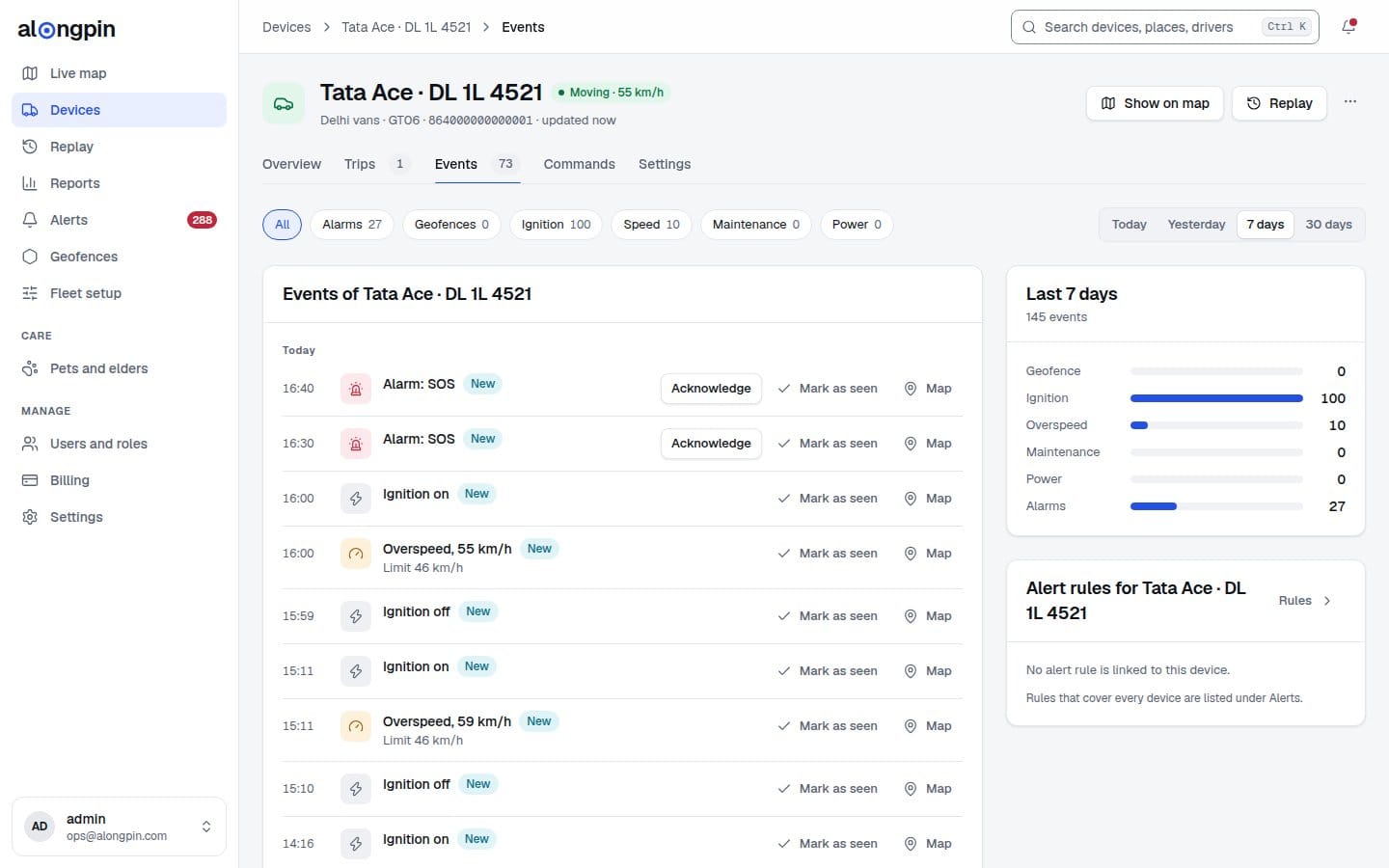
Some trackers need the SOS button switched on, or a number stored, before they report it. Do this once per tracker during installation.
2. Create an alarm rule narrowed to SOS
Open Alerts → Alert rules and choose New alert rule.
- Under Description, write something your team will recognise, such as "SOS: dispatch".
- Under When this happens, choose Alarm.
- Under Alarm kinds, tick SOS only. With nothing ticked, the rule reacts to every alarm, harsh braking included, and an SOS gets lost in the noise.
- Leave Only during on Any time (no calendar). An SOS matters at every hour.
- Choose Create rule.
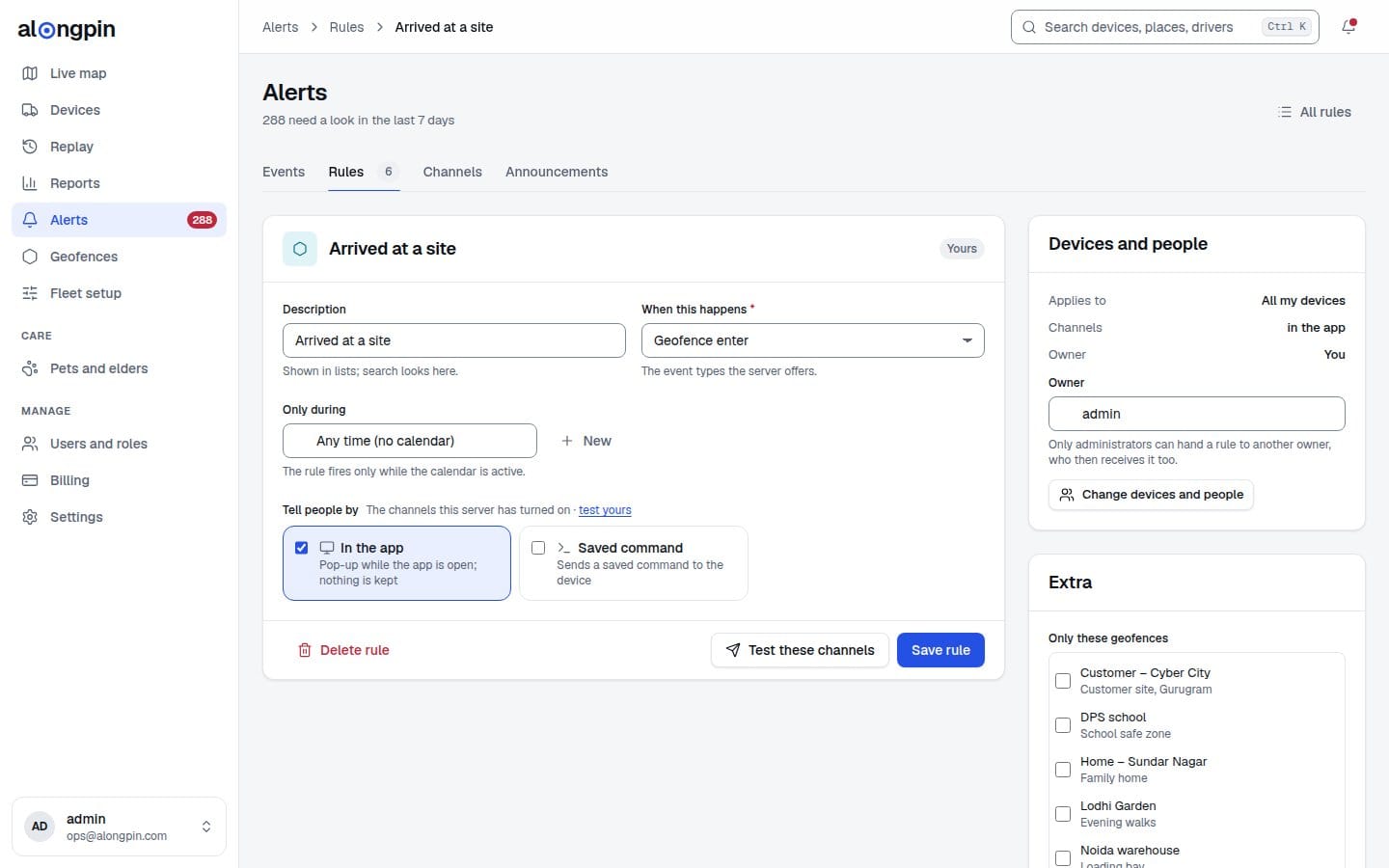
3. Name several recipients
After you create the rule, choose its Devices and people. Under Which devices, pick All my devices, or the group of vehicles whose drivers carry a panic button. Under Who receives it, tick dispatch and the manager on call. Each person gets the alert through the rule's channels, at their own email address, phone number or apps.
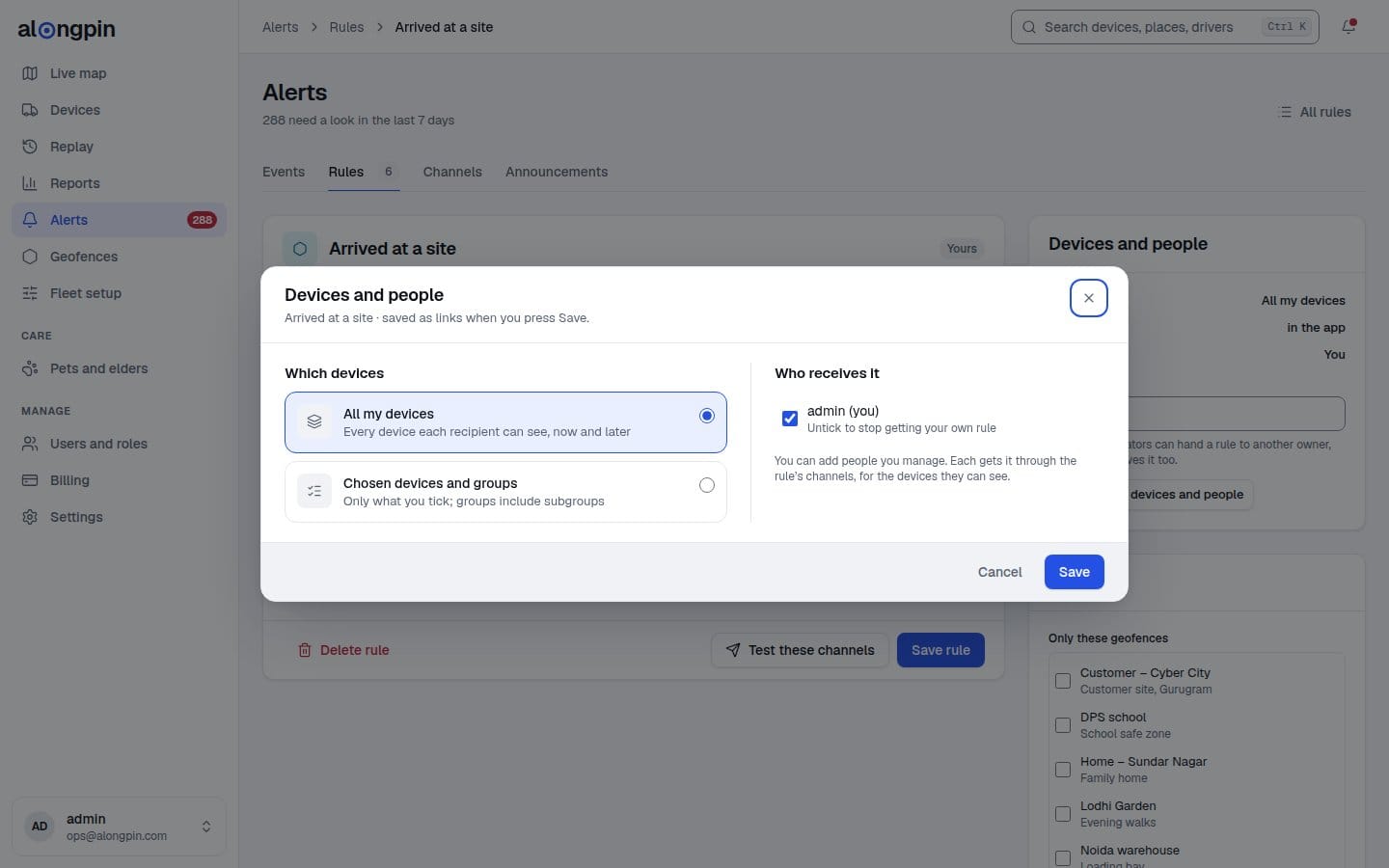
Only administrators and managers can add other people to a rule. If you cannot, ask your administrator to add the team, or to make one shared dispatch account that everyone on shift watches.
4. Choose more than one channel
Under Tell people by, tick at least two channels that reach people when the portal is closed:
- Push notification, to the phones signed in to each recipient's account.
- Text message, to each recipient's account phone, when your server has an SMS gateway.
- Email, and Telegram where your server offers it.
In the app shows the SOS only while the portal is open. The list shows only the channels your server has switched on; ask your administrator about any that are missing. Then choose Test these channels: each channel sends you a test marked "[Test]", so a missing phone number shows up now, not during an emergency.
5. Let SOS through quiet hours
Quiet hours hold back email, texts, Telegram and push for the person who set them. SOS alarm is on the Still goes out list by default, but anyone can remove it. Ask each recipient to open Settings → Your account → Alerts and channels → Quiet hours and check that SOS alarm is still listed. A held-back alert is dropped, not sent later.
6. Run a drill: press, receive, acknowledge
Agree a time with one driver and the whole team, then:
- The driver presses the SOS button.
- Every recipient checks that the alert arrived on each channel.
- On the Alerts page, the SOS shows at the top as SOS from the vehicle, with Panic button pressed and the place. One person chooses Acknowledge.
- The others see Acknowledged by that person and the time, within seconds, on their own screens.
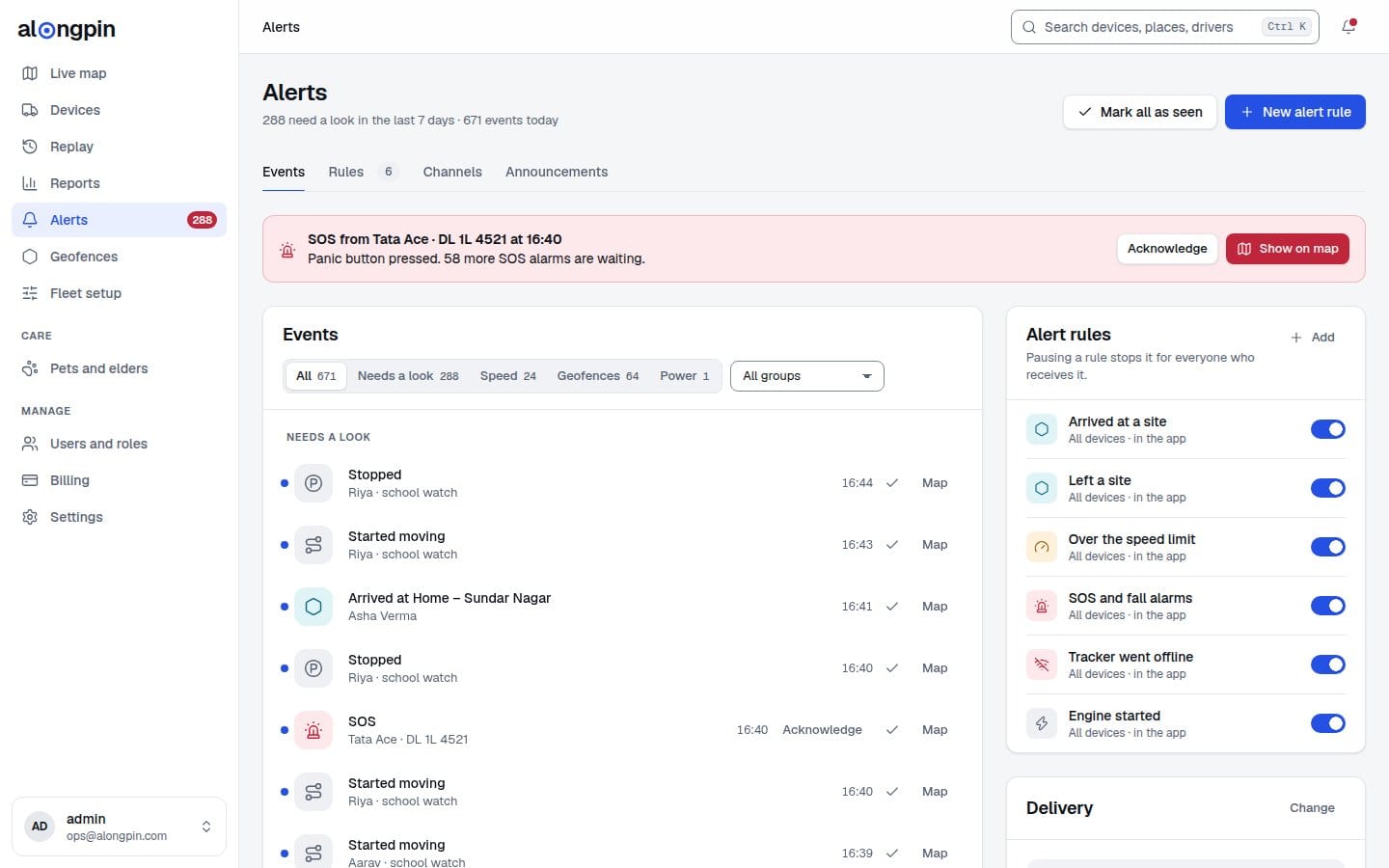
Use Show on map to see where the driver is. Repeat the drill when people join the team or change phones.
7. Review who was notified
Open the SOS event from the Alerts page. Under Sent by and Sent to, the event lists each recipient and channel with what became of the message: sent, not delivered and why, or held back by quiet hours. Fix a missing phone number or a signed-out phone straight after the drill. The help article on seeing who was notified about an alert explains each line. Deliveries are kept for 90 days.
Watch out for
- No signal or no power, no alarm. A tracker without mobile signal or with a flat battery cannot send an SOS. Add offline and power alerts so you hear when a tracker goes silent.
- An SOS ends a private trip. If your fleet uses private trips outside working hours, an SOS is never private: it is sent with the real location and ends the private trip. Tell drivers so before the first drill.
- Acknowledging is a record, not a message. It shows who took the alarm and when. It tells no one and does not stop other alerts.
- One rule per purpose. Keep SOS in its own rule, apart from harsh driving or power alarms, so it never shares a channel set with noisier alerts.
The SOS page shows how an SOS travels from the button to the team, and the alerts page lists every event a rule can watch.