Device connection guide
Point a tracker at the server, then approve it.
Each protocol listens on its own port. Enter your server address and the port in the tracker’s settings, then add the device or approve it once it has connected. The platform decodes more than 260 protocols.
Choose a package in the portal; you see the first invoice before you confirm.
In four steps
From the tracker’s settings to the map
Find the protocol
The protocol decides the port. If you do not know which one your device speaks, look it up by model.
Check if your device worksEnter the address and the port
In the tracker’s settings, enter your server address and the port of its protocol.
Setup guides for each device typeAdd the device, or let it connect first
Add the device with its ID (IMEI) in the portal. Or let it connect first: messages from unknown devices are held in the list of unverified devices.
Approve it
Approve the device from the list of unverified devices. It becomes a device of your account and its positions are stored from then on.
Protocols and ports
One port per protocol
| Protocol | Port | Typical device |
|---|---|---|
| GT06 | 5023 | Vehicle trackers |
| H02 | 5013 | Vehicle trackers |
| Teltonika | 5027 | Vehicle trackers |
| OsmAnd (HTTP) | 5055 | Phone app |
| Watch | 5093 | Smartwatches |
| JT808 | 5015 | Dashcams |
| JT1078 | 5263 | Dashcam video |
These are the standard ports of the protocols most devices use. Which ports are open depends on your installation: ask the API which protocols yours has enabled.
curl -H "Authorization: Bearer $TOKEN" \
  https://YOUR_HOST/api/server/protocols
# the enabled protocols with their ports and transports (tcp, udp or http)
Dashcams use two: JT808 for positions and events, JT1078 for live video.
Unknown devices
A device that connects first waits to be approved
Messages from a device the platform does not know are not dropped and not shown on the map: they are held in the list of unverified devices.
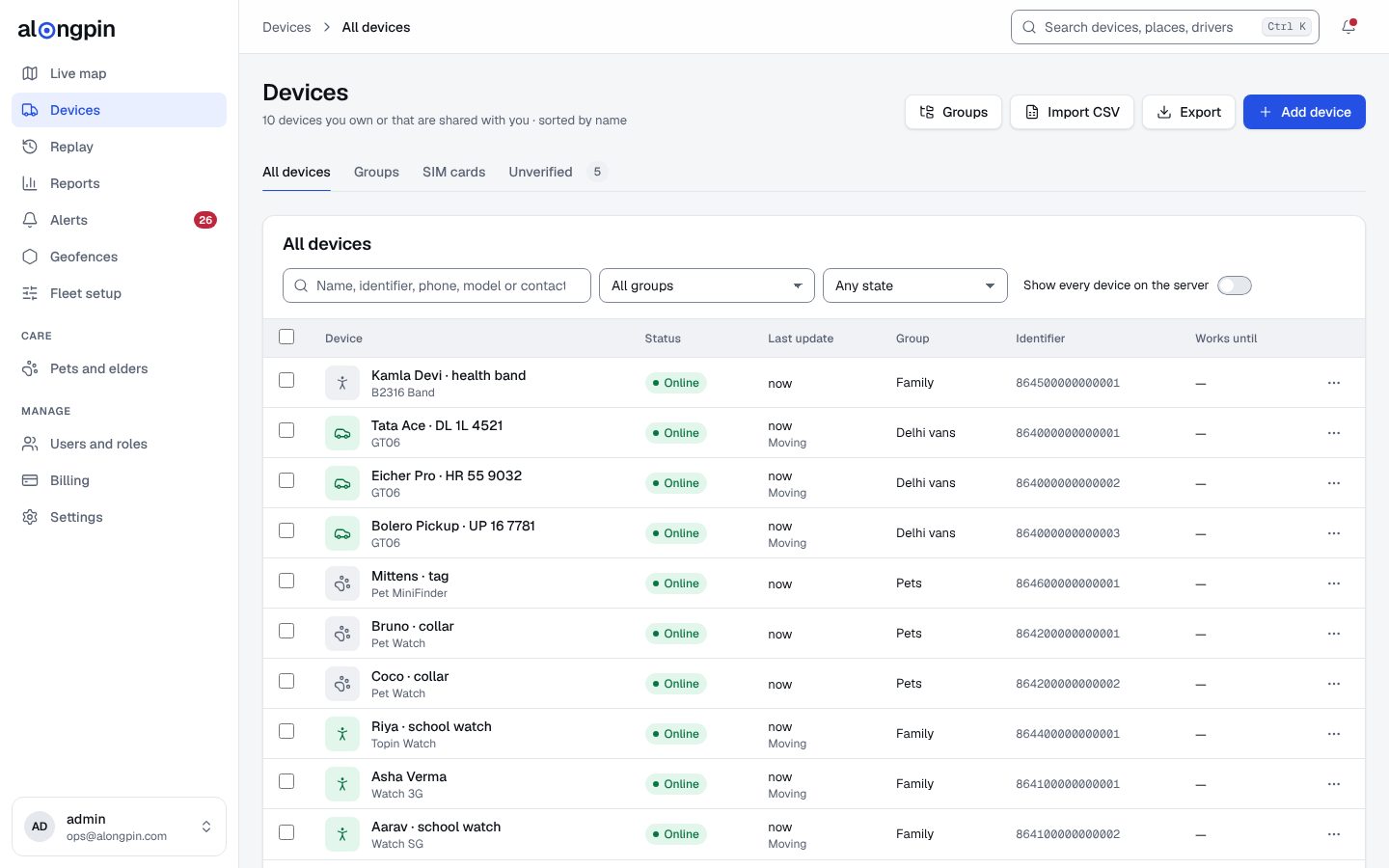
- An unverified device is kept with its protocol, its address, its first and last contact and only its latest position
- A record that is not seen again is deleted after 30 days by default
- Approving needs the right to manage unverified devices and the normal right to add a device, your device limit included
# Devices that connected but are not registered yet, most recently seen first
curl -H "Authorization: Bearer $TOKEN" https://YOUR_HOST/api/unverified-devices

# Approve one: it becomes a device, with the unique id of the record
curl -H "Authorization: Bearer $TOKEN" -H 'Content-Type: application/json' \
  -d '{"name": "Van 12"}' \
  https://YOUR_HOST/api/unverified-devices/1/register
FAQ
Questions about connecting a device
How do I connect a tracker that is not in your list?
Which port does my device use?
Do you sell trackers?
My device connects but nothing appears on the map. Where do I look?
Connect your first device today
Create an account, or check first whether your device works. Choose a package in the portal; you see the first invoice before you confirm.