Tracking
A fixed route, its stops, and a message as the vehicle nears each one.
Draw the line a bus, a shuttle or a delivery round drives every day. The platform follows the vehicle along it and tells the people at each stop when it is approaching, arrives, is late or does not come.
Choose a package in the portal; you see the first invoice before you confirm.
How it works
A route, a run, and the messages along it
The route
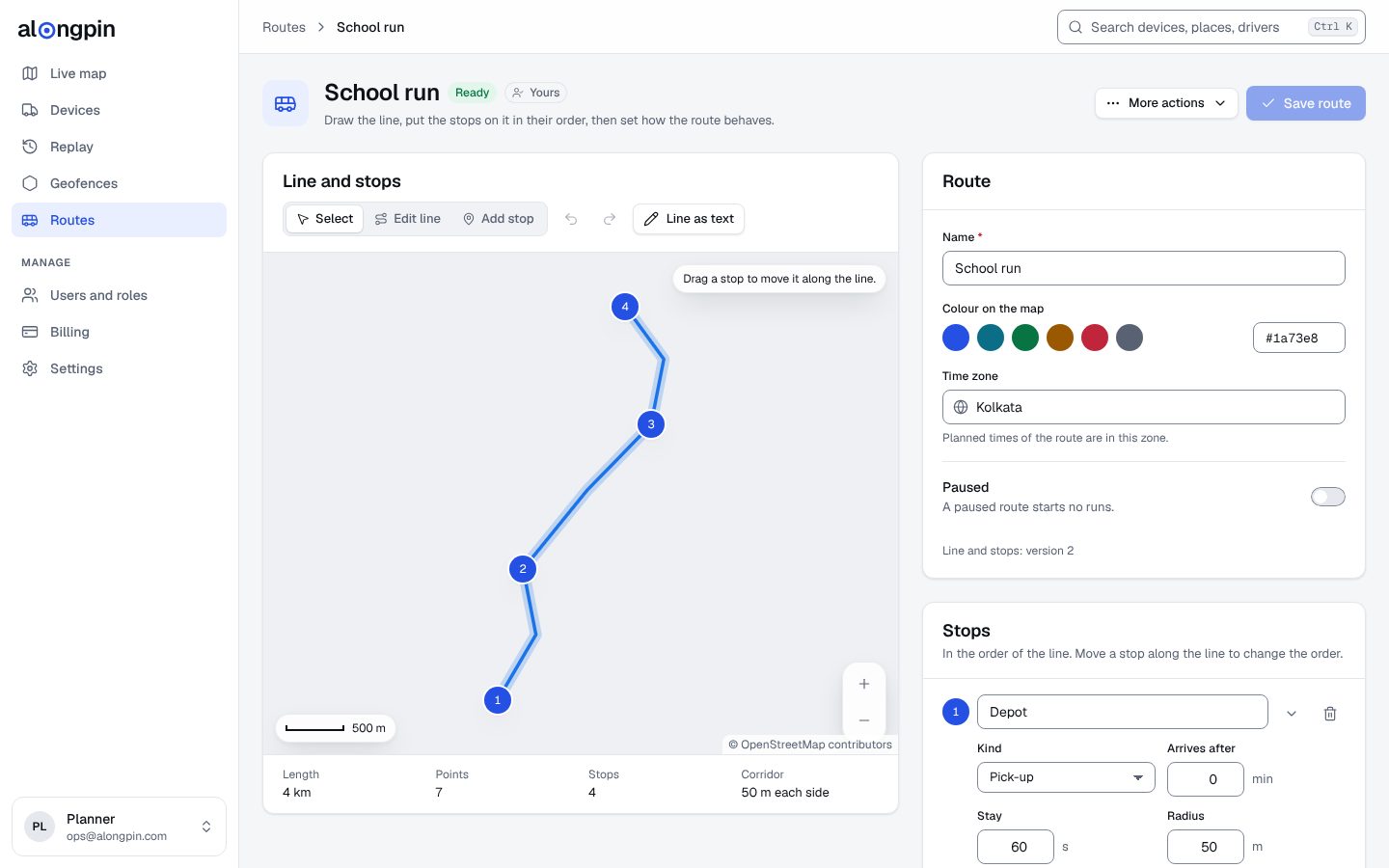
Draw the line on the map, or import it from a KML, KMZ, GPX or GeoJSON file or from a past trip of a vehicle. Put the stops on it in their order.
The run
A run is one journey of one vehicle over the route. A timetable starts it by itself when the vehicle sets off, or a person starts it by hand.
The messages
The platform measures how far the vehicle is along the line and tells the right people at each step: approaching, arrived, left, late, missed.
The route
Draw the line once, put the stops on it in their order
A route has a corridor around its line, a time zone and, if you want one, a speed limit. Problems show while you draw, before you save.
- A stop has a name, an arrival radius, a kind (pick-up, drop or both), a planned arrival and a planned stay
- A stop placed beside the road is moved onto the line when it is within the corridor
- Copy a route, or copy it reversed to make the way back
- Pause a route, or share it read-only with a colleague
A change to a route does not change a run that is on its way: the run keeps the route as it was when it started.
Events
What a run tells you
Each event is written to the run's timeline with its time, and none is raised twice.
- The run
- Run started
- Run ended, with the reason
- Run cancelled
- Vehicle swapped
- Stops
- Approaching a stop, at the distance you set
- Arrived at a stop
- Left a stop
- Missed a stop
- Needs attention
- Running late, and later still
- Not started in time
- Left the route
- Back on the route
- Speed
- Faster than the route's speed limit, counted only while a run is on
While the vehicle is off the route, its progress stays where it was and no "approaching" is sent until it is back.
Approaching
"Approaching" at the distance that suits each stop
The distance is what is left along the route line to the stop. Set it for the route, change it for one stop, and let each recipient choose their own.
- For the route
- Up to three distances, each between 0.2 and 50 km: for example 5 km and 1 km.
- For one stop
- A stop can have distances of its own. They replace the route's for that stop.
- For one recipient
- A recipient can choose one distance of their own, inside the limits staff set on the route. It counts for them only.
Who is told
Six ways a run reaches people
Passengers are assigned to stops, each with their contacts. A contact hears only about the stop of their own passenger.
Text message (SMS)
Contacts of a passenger, no account needed
When SMS is set up for your account. A monthly limit applies; at the limit SMS stop and e-mail goes on.
E-mail
Contacts of a passenger, no account needed
Every e-mail has a link that stops the messages.
Live page
Anyone with the link from a message
No sign-in. The link works for that run only and can be ended by staff.
Viewer account
A contact you invite by e-mail
They sign in to the web portal and see only the runs of their own passengers.
Alert rules
Your own staff
Late, missed stop, off the route, not started and too fast, on the channels of your alert rules.
Webhook
Your own system
One address per account, each request signed.
One message per contact and stop, however many of their passengers are there. Nothing goes out for a test run or for a passenger marked absent. The message record of a run shows what was sent, what failed and what was not sent and why. See alerts for the rules your staff use.
What a recipient sees
Three views of the same run, chosen per route
The link in a message opens a live page of that run. What a view does not allow is not sent to the page at all.
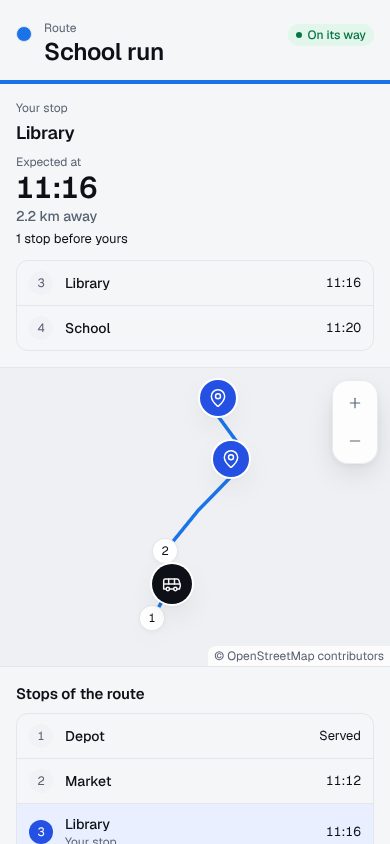
Shared route
The whole line, every stop with its name and expected time, and the vehicle during the run. For a school bus or a shuttle.
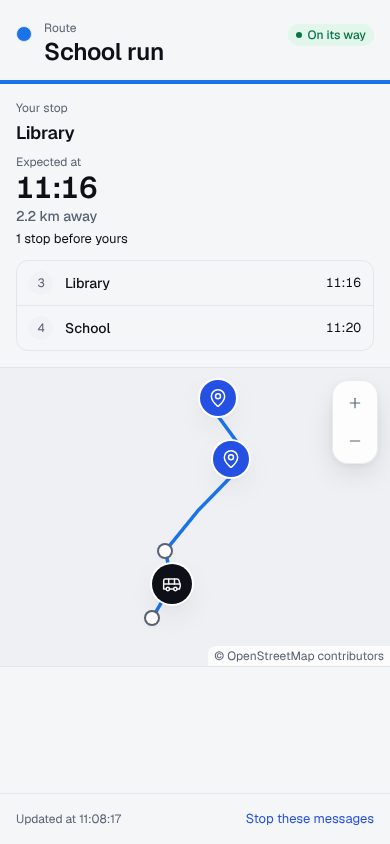
Own stop
The line and the vehicle. The recipient’s own stop has its name and time; other stops are dots without names.
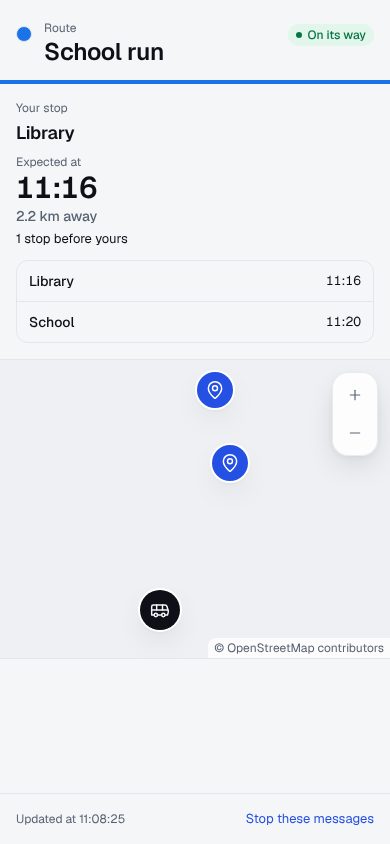
Private
Only the vehicle and the recipient’s own stop, with "1 stop before yours" and the expected time. No line, no other stops. For deliveries.
No view shows other passengers, speed or earlier positions, and a page shows the vehicle only while the run is on. The link ends an hour after the run. The names, numbers and addresses of passengers and contacts are stored encrypted. Privacy and GDPR
For staff
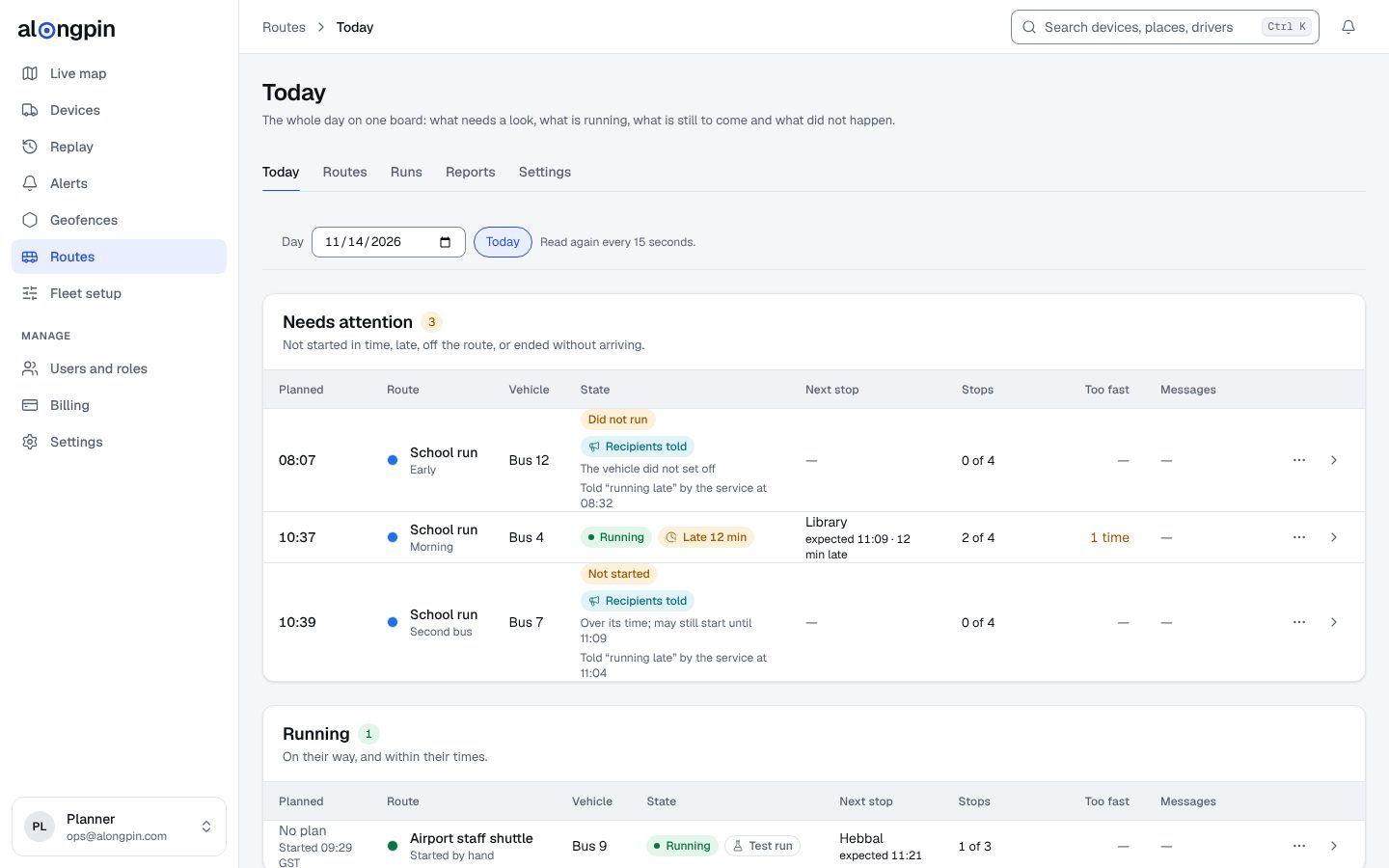
The whole day on one board
Every run of the day in one list: running, still to come, ended, cancelled, and what did not start. Open a run for its map, its stops and its timeline.
- What needs a look comes first: not started, late, off the route, ended without arriving
- Tell the recipients about a delay in your own words
- Cancel one run or a whole day, and choose whether recipients are told
- Give a run another vehicle; progress and the messages already sent are kept
Reports and webhook
What the runs did, as a report or as data
- Runs
- One line per run: planned and real start, stops served and missed, the largest delay, time off the route, how often it was too fast, messages sent and failed.
- On time
- One line per route: how many planned runs reached every stop within the route’s limit, the average and the worst delay, missed stops. There is no per-driver view, by design.
- Messages
- What went out by channel, what failed, and what was not sent and why: passenger absent, messages stopped by the contact, SMS limit reached.
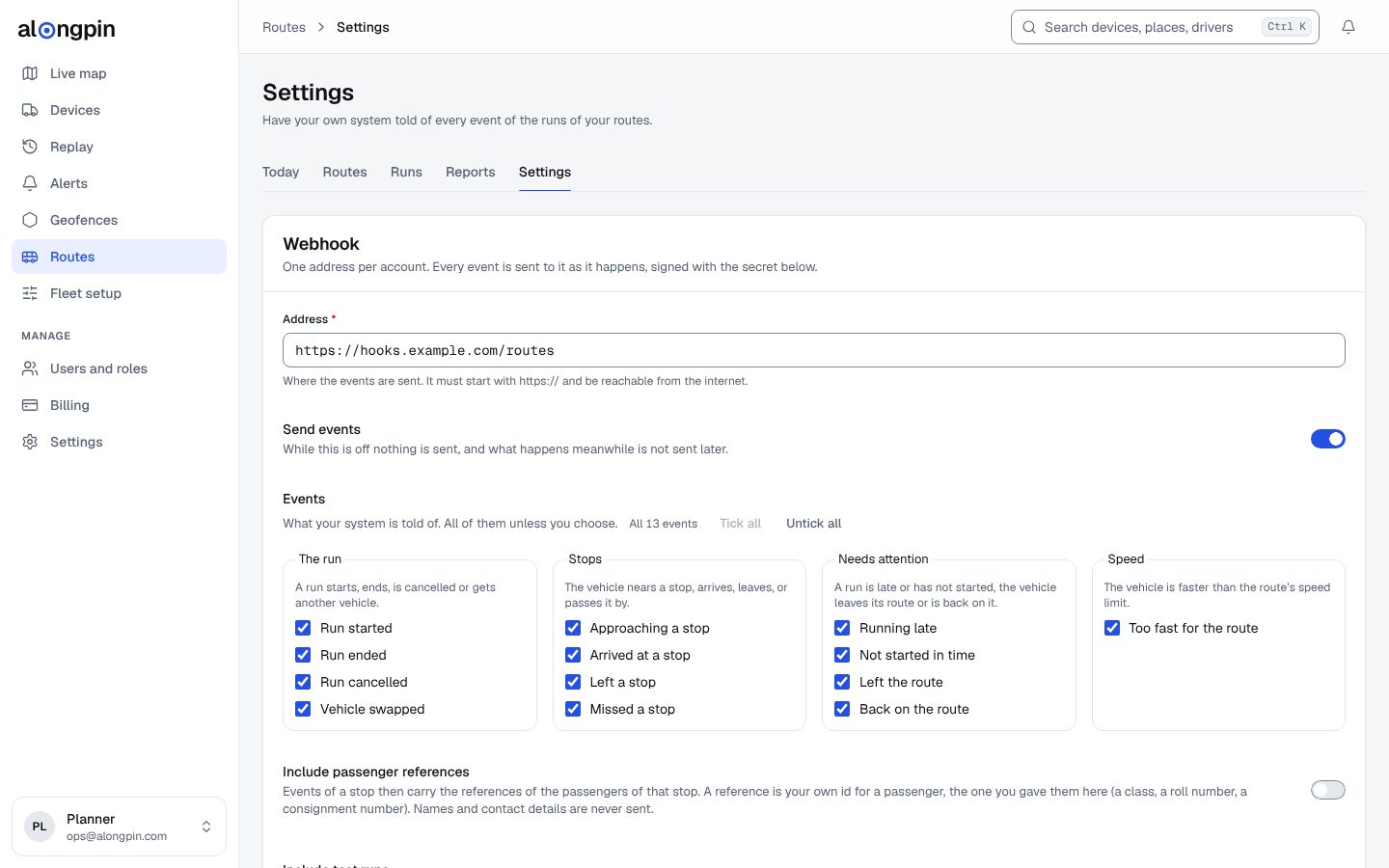
A signed webhook for your own system
Every event of a run can be posted to one https address per account, as JSON with the run, the route, the stop and the vehicle. Each request is signed with your secret, and a failed delivery is tried again for an hour. Names and contact details are never sent.
WebhooksEach report downloads as CSV or Excel. Runs and their message records are kept for 90 days unless your administrator sets another period.
FAQ
Questions about routes and stops
How is "5 km before the stop" measured?
Where does the expected arrival come from?
Do parents or customers need an app or an account?
Does it record who got on the bus?
Does it plan or optimise the route?
What does the vehicle need?
Put your first route on the map
Create an account, or let us show you a run from the first stop to the last. Choose a package in the portal; you see the first invoice before you confirm.