Reports
How to report time on site with the geofence stays report
For field service leads asked how long a technician was at a customer: check the site zones, run the Geofence stays report for the team and the week, read entered, left and time inside, check a visit in Replay, export it and schedule it weekly.
Ashish Srivastava4 min read
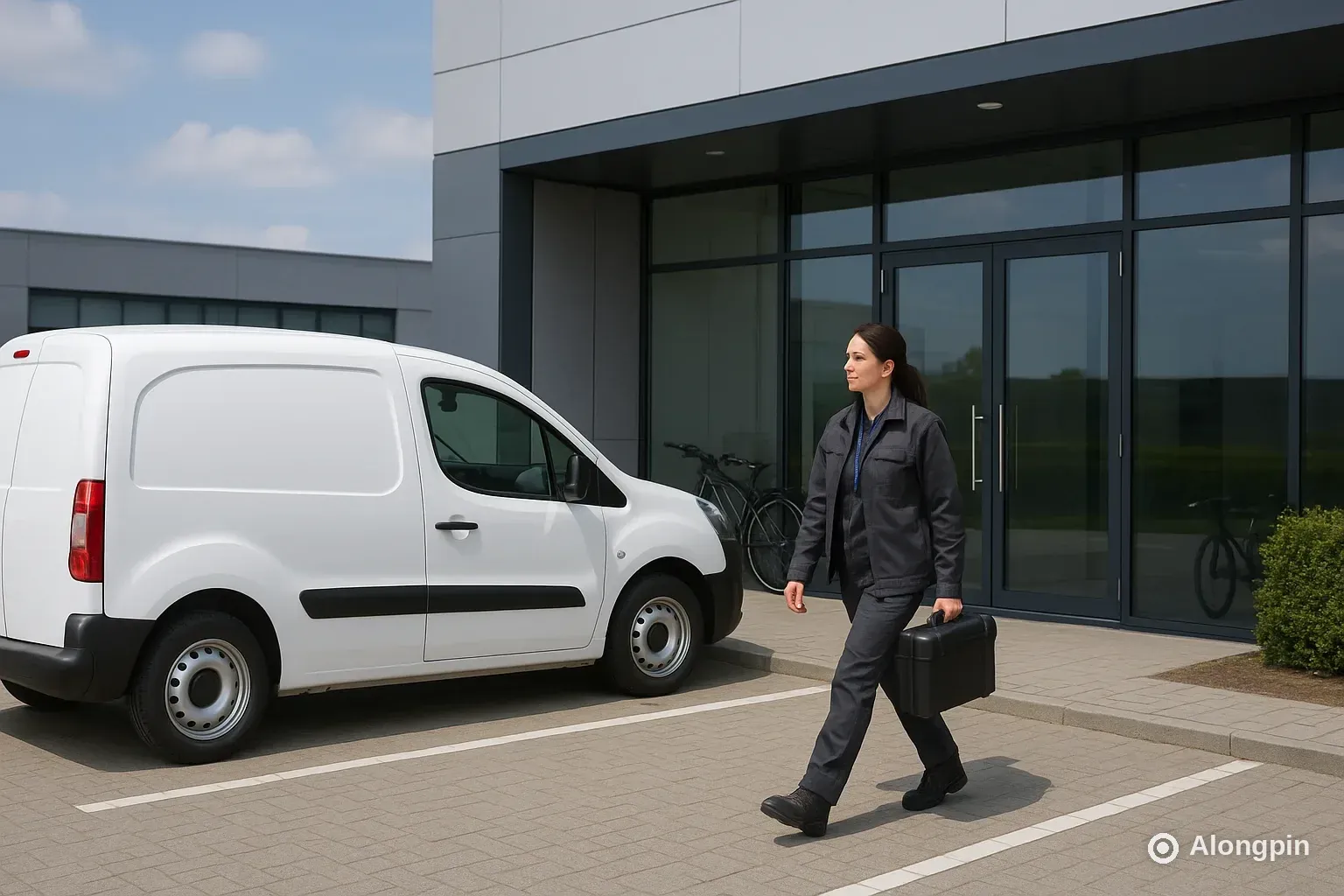
A time on site report from GPS comes from the Geofence stays report. Each customer site has a zone, the zones are attached to your technicians' vehicles or phones, and the report lists every stay: when the vehicle entered, when it left and how long it was inside. Open one day in Replay to see a visit in its context, download the rows for the customer file, and schedule the report to arrive each week. This guide is for field service leads who are asked how long a technician was at a customer.
Before you start
- Zones at the customer sites, attached to the vehicles or phones directly or through their group. Setting up geofences at customer sites covers importing them from a list.
- Vehicles or phones that report positions during working hours.
- Access to reports for the team's vehicles.
1. Check that the customer sites have zones
Open Geofences. The list shows each zone with its shape, its calendar and what it is attached to. A site without a zone produces no stays, and neither does a zone attached to no vehicle of the team.
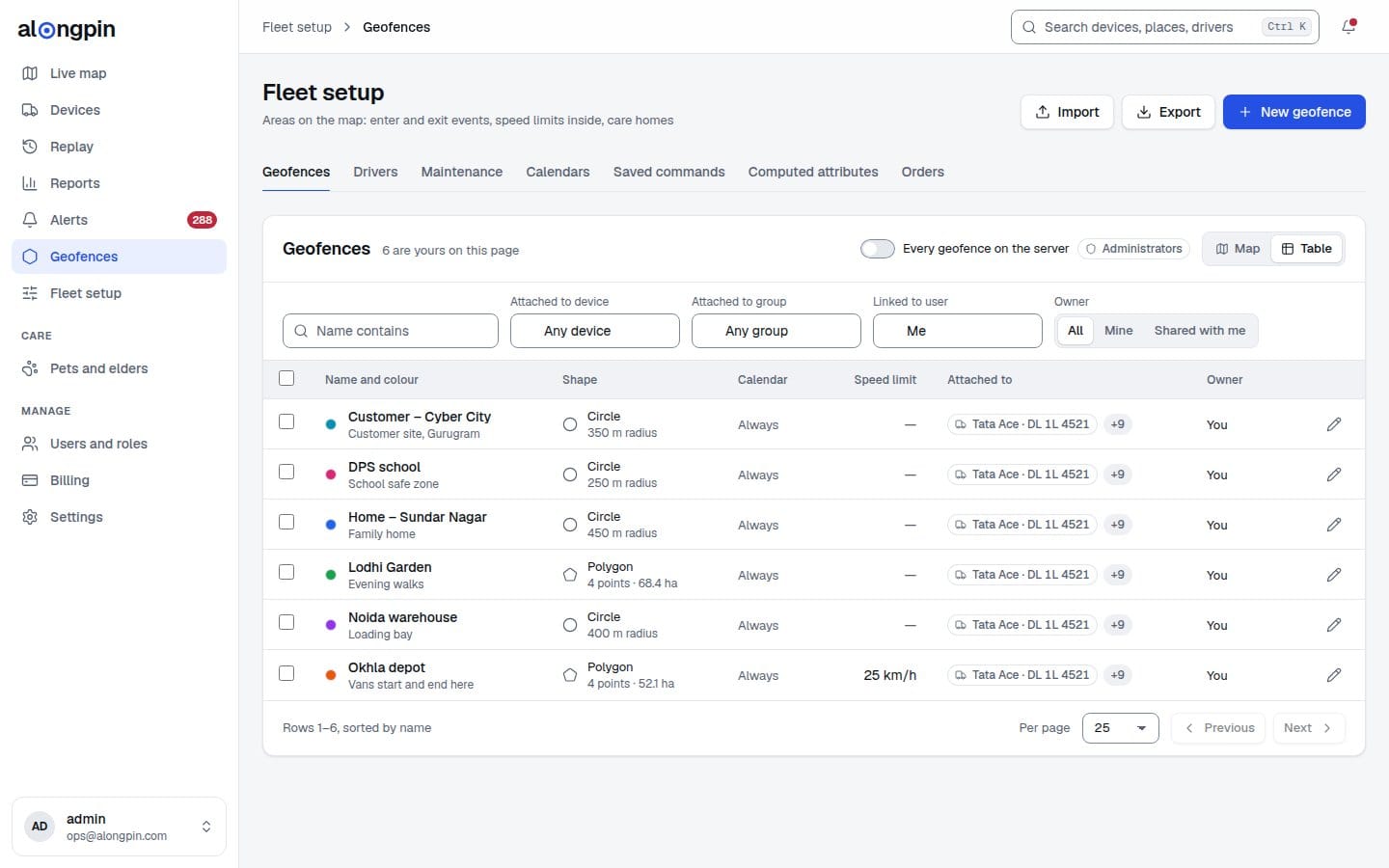
Check two things before you rely on the report:
- When the zone was drawn. Positions know only the geofences that existed when they were processed. A zone drawn today gives no stays for last week, and a zone moved today keeps the old area for earlier days.
- Its calendar. A zone with a working-hours calendar raises its enter and exit events only during those hours. A visit on a Saturday morning is then missing from the report, even though the route shows it.
2. Open Reports and choose Geofence stays
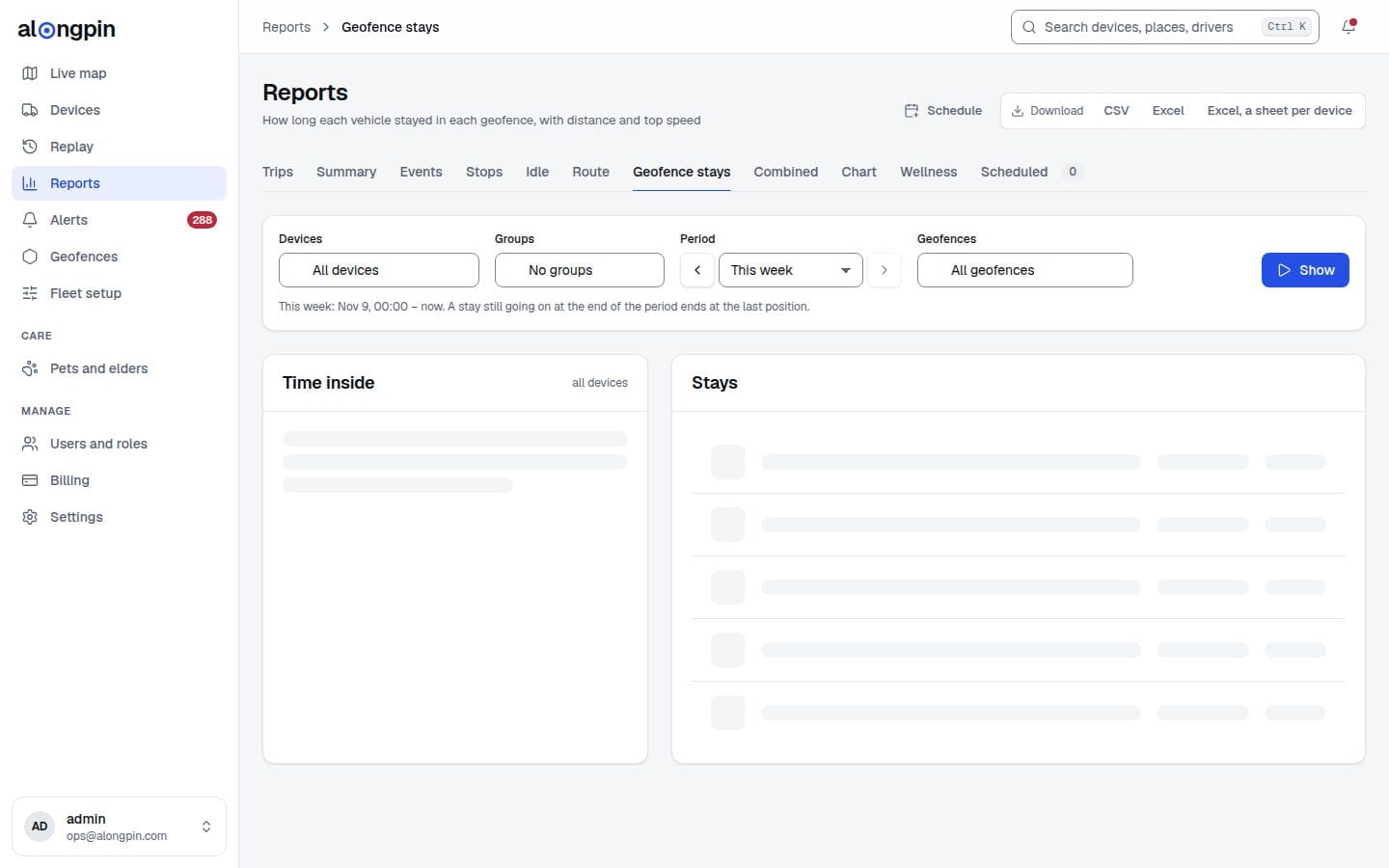
Choose Reports in the sidebar and the Geofence stays tab. Its line reads How long each vehicle stayed in each geofence, with distance and top speed.
3. Pick the team's group and the week
Under Groups, pick the team's group. Choose the period, such as Previous week. Under Geofences, keep All geofences, or pick one customer's sites when the question is about that customer. Press Show.
4. Read entered, left and time inside
Time inside per geofence adds up the stays at each site for the period. The table below has one row per stay:
| Column | What it shows |
|---|---|
| Device | The vehicle or phone |
| Geofence | The customer site |
| Entered | When it entered the zone |
| Inside | How long it stayed, and until when it was inside |
| Distance | How far it moved while inside, which shows if it drove around a large site |
| Top speed | The highest speed inside the zone |
Two notes appear in the Inside column. still inside means the vehicle had not left by the end of the period, so the stay ends at its last position. inside before the period means it was already there when the period began. Widen the period by a day to see the whole visit.
5. Open one day in trip history
A row tells you how long; the route tells you why. Open Replay, choose the Device and set the Period to the day of the visit. The Trips list shows the day's trips; the timeline marks Entered and Left with the name of the site.
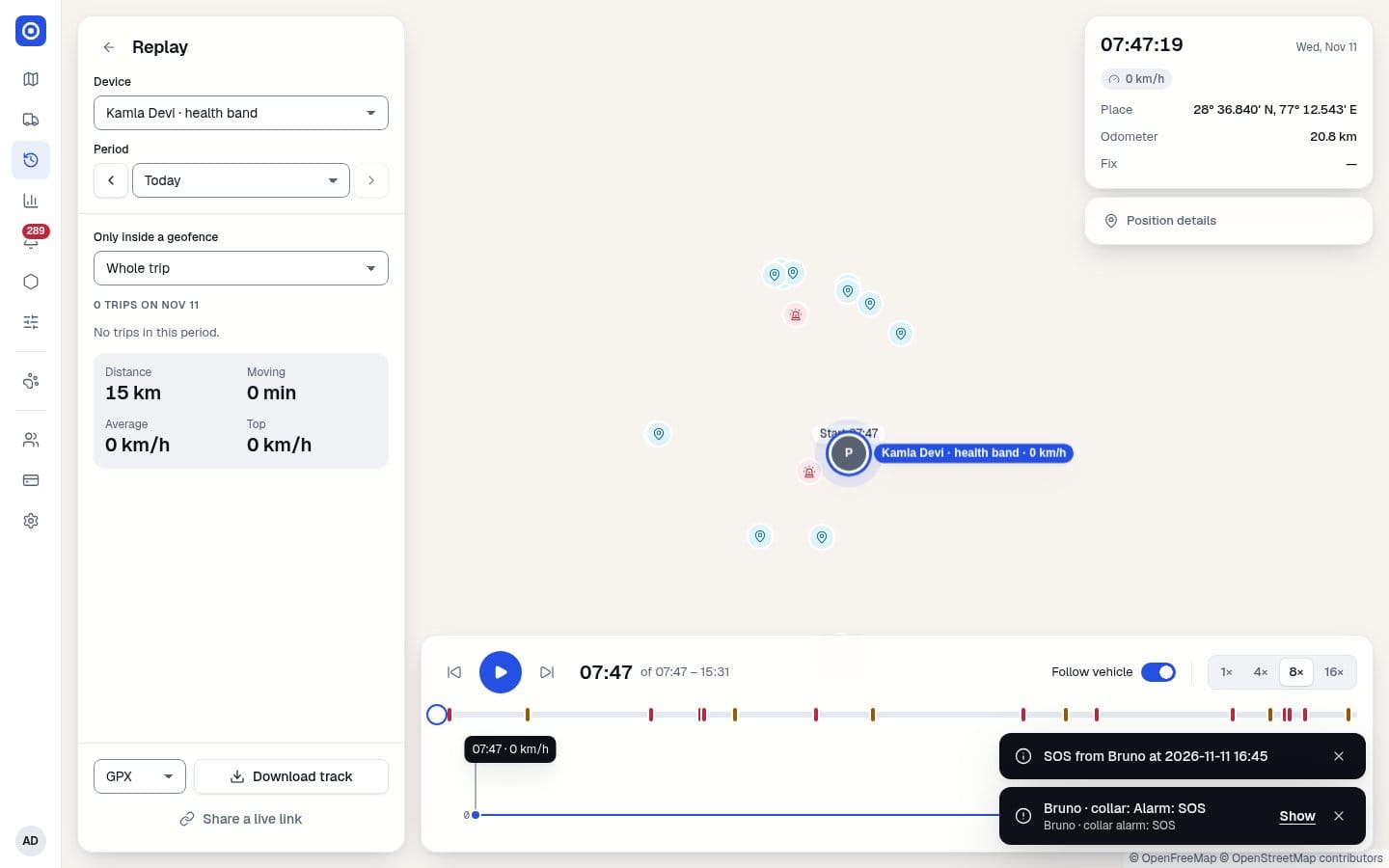
To look at the visit alone, choose the site under Only inside a geofence. The replay then shows only the positions inside that zone, so you see where the van stood and whether it moved between buildings. Play it back to check that the stay was a visit and not a slow drive past.
6. Export for the customer file
Back on Geofence stays, narrow Geofences to the customer's sites and download the rows. CSV opens in any spreadsheet; Excel gives one sheet, Excel, a sheet per device one sheet per technician. The file holds the device, the site, Entered, Left, the time inside, the distance and the speeds, in your time zone and units. A stay still going on at the end of the period reads still inside under Left.
7. Schedule it weekly
Press Schedule on the report, give it a name such as "Customer visits, team North", and choose a calendar under When it is sent. Each time a period of the calendar ends, you and the recipients you add get an e-mail with a link to the report for that period. A period in the simple calendar editor lasts 24 hours at most, so a report that covers a whole week needs a calendar uploaded as an .ics file whose event spans the week. Scheduling a report explains the calendar choices.
Watch out for
- It shows presence, not the job. A stay shows that a vehicle or phone was at the site, when and for how long. It is not a signature and does not show that the work was done; that remains the job sheet's role.
- Short drive-pasts can appear as stays when a zone overlaps a road. A stay of a minute or two with a top speed at road speed is usually a vehicle passing. Draw such zones smaller, or around the car park rather than the address.
- Phones need to report. A technician's phone that was switched off or had tracking stopped leaves no stay, even if the technician was there.
- The vehicle is where the van is. A technician who parks around the corner and walks in may be outside the zone for the whole visit. Make the zone cover where your vans actually park.
The geofences page covers zones and their calendars, the reports page the other report types, and the field service solution how teams use visit times day to day.