Care
How to set up a pet profile with vaccination and vet reminders
The collar, the vet and the vaccination dates in one pet profile: species, breed and microchip, each vaccination with its next due date, vet visits and expiring papers, reminders before each date, and a sitter share.
Ashish Srivastava4 min read
A pet vaccination reminder app needs three things in one place: the pet's details, the dates of each vaccination and vet visit, and someone to remind. In Alongpin you create a pet profile under Care → Pets and elders, link the collar, add your vet, enter each vaccination with its next due date, and choose how many days before each date the reminders go out. While you are away, you share the pet's location with a sitter until the day you are back. This guide is for pet owners who want the collar, the vet and the vaccination dates together.
Before you start
- An account in the portal. A collar is optional: without one you get the records and reminders, but no map.
- The pet's vaccination card or passport, with the dates of the last and next vaccinations.
- Your vet's name, practice and phone number.
1. Create the pet's profile
Open Care → Pets and elders and choose New profile. The setup goes step by step:
- Type: choose Pet.
- Details: Name, Species (dog, cat…), Breed, Colour, Gender and Birthday.
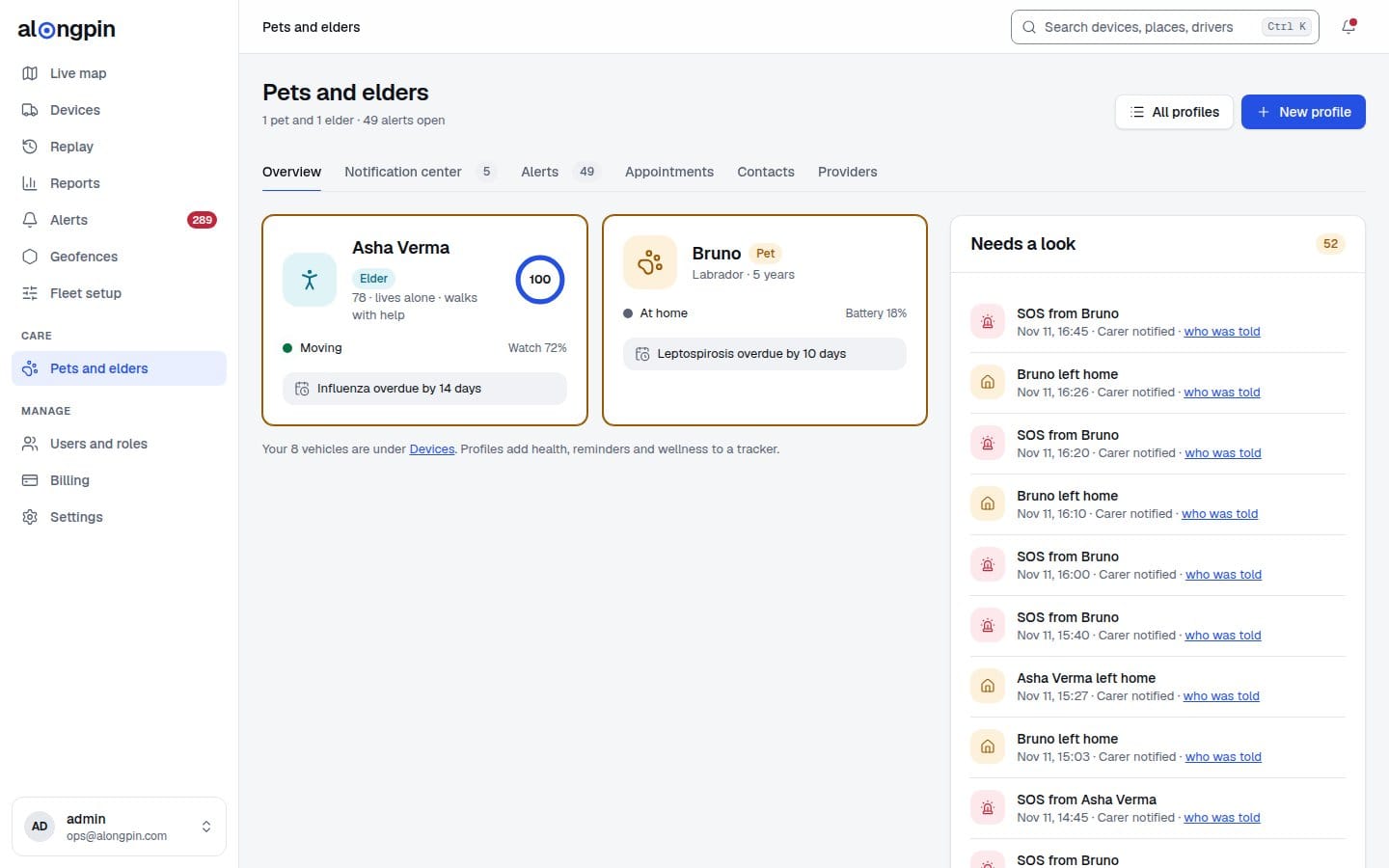
The microchip number, the licence number and whether the pet is spayed or neutered go in the profile afterwards: choose Edit on the saved profile and fill in Microchip, Licence number and Spayed or neutered. The microchip number is searchable, which helps when you have several animals.
2. Link the collar
At the Tracker step, pick the collar, or choose Register a new tracker and enter its name and Identifier (IMEI), printed on the collar or its box. Linking makes the collar's map icon an animal. At the next step, pick a Home geofence if you want an alert when your pet leaves home; you can also leave it for later. The pet collars page lists what a collar reports.
3. Add the vet
Vets, groomers and pharmacies live in your Providers directory. At the Vet or doctor step, link your vet; if the directory is empty, open Providers, choose New provider, pick Veterinarian as the type and enter the name, practice, phone and address. Linked providers show on the profile, next to the records and appointments they belong to.
Providers are a directory and never receive messages. If someone other than you should get the reminders, such as a partner without an account, add them under Contacts with Receives reminders.
4. Enter vaccinations and their next dates
On the profile, open Records and documents → Vaccinations. The page Vaccinations and parasite care lists vaccinations, deworming and parasite treatments. Choose Add and fill in:
- Kind: Vaccination, Deworming or Parasite treatment.
- Title: for example Rabies.
- Given on: the date of the last dose.
- Next due: the date of the next one. Reminders count down to this.
- Provider: your vet.
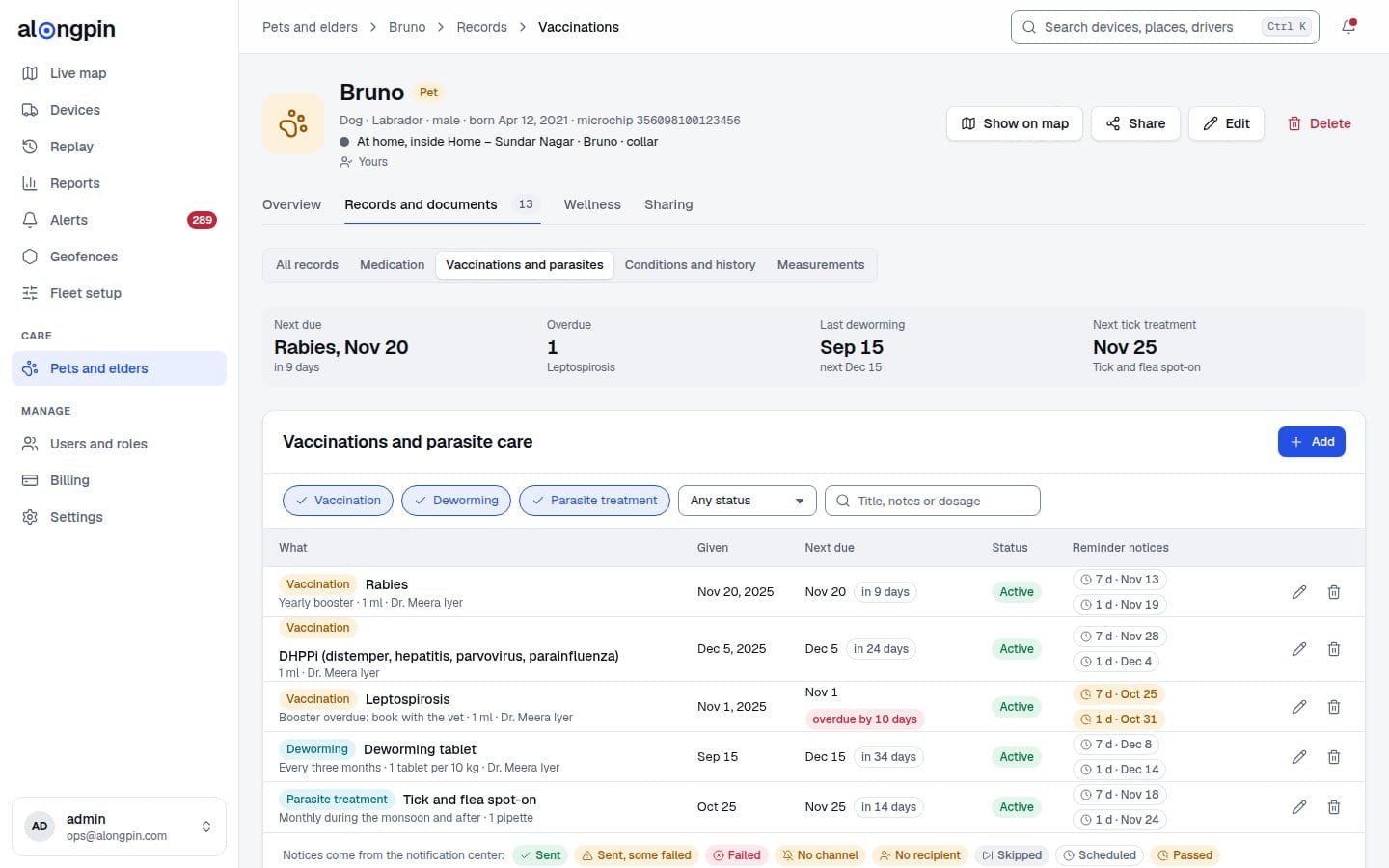
Repeat for each vaccination on the card. The summary at the top shows the next one due and anything overdue. When a vaccination has been given, choose Mark done in the notification center and enter the next date; the reminders start again for it.
5. Add vet visits and documents that expire
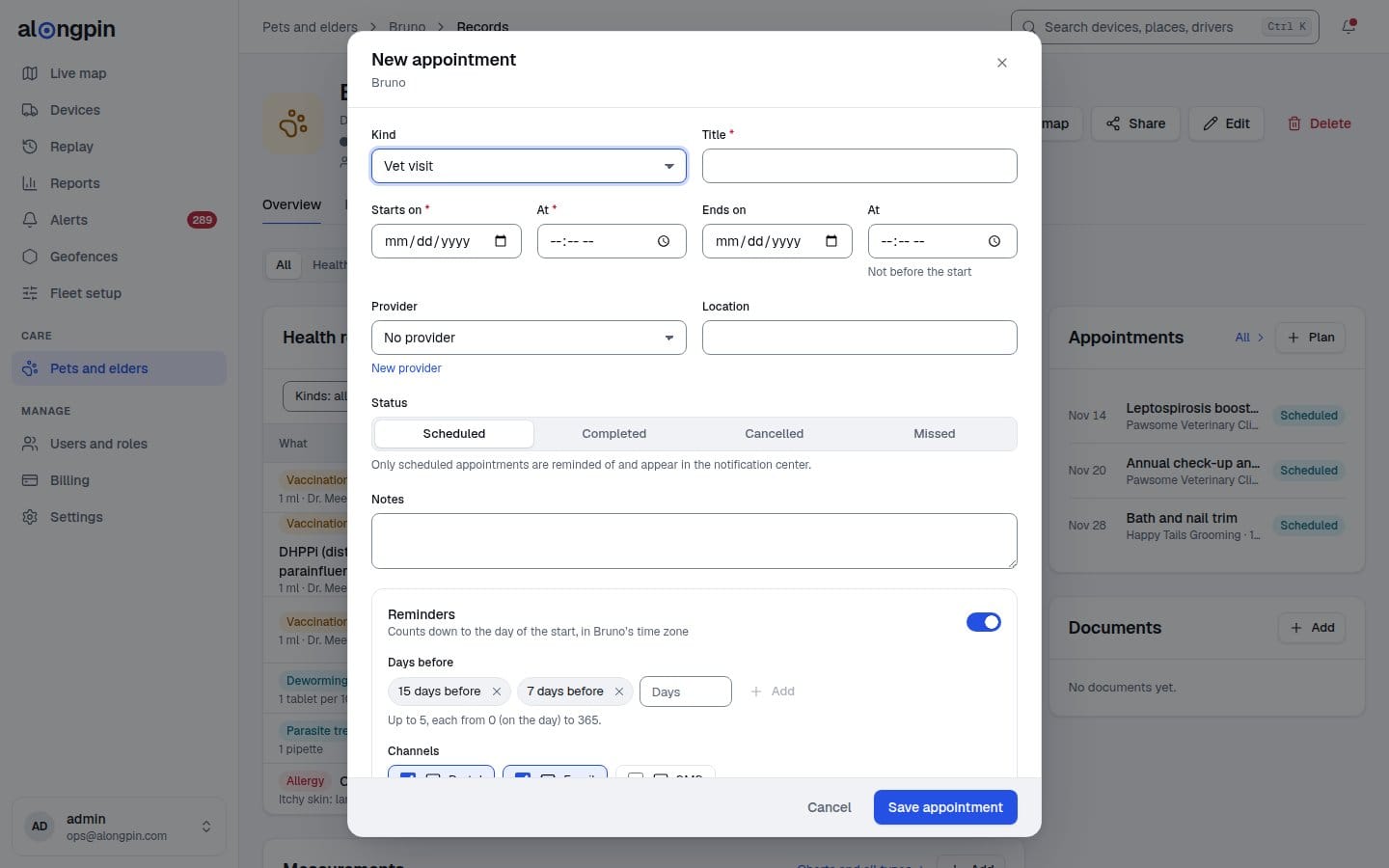
A booked vet visit is an appointment: choose New appointment, pick Vet visit as the Kind, the Start time, the vet and the Location. Only scheduled appointments are reminded of.
Papers with an end date go under Documents: an ownership licence (Expires), an insurance policy (Renews on), a pet passport. Upload a scan if you like. Reminders go out before each expiry date.
6. Choose reminder days and who is told
Every record, appointment and document has its own Reminders. Days before starts at 15 and 7 days; change them, or add 0 for the day itself, up to five days per item. Under Channels, tick Portal, Email or SMS. Reminders go out in the morning of each of those days, in the profile's time zone.
They go to you, to anyone you shared the profile with for everything, and to contacts who receive reminders. The notification center lists everything that is Overdue, Due soon or Upcoming across your pets. The guide to medication and appointment reminders explains the notices in more detail.
7. Share location only with a sitter while you are away
Choose Share on the profile and type the sitter's email: they need an account. Under What they see, choose Location only, so they see where your pet is, its alerts and its contacts, but not its records or reminders. Tick Also share the tracker so the map works for them, and set Ends to the day you are back.
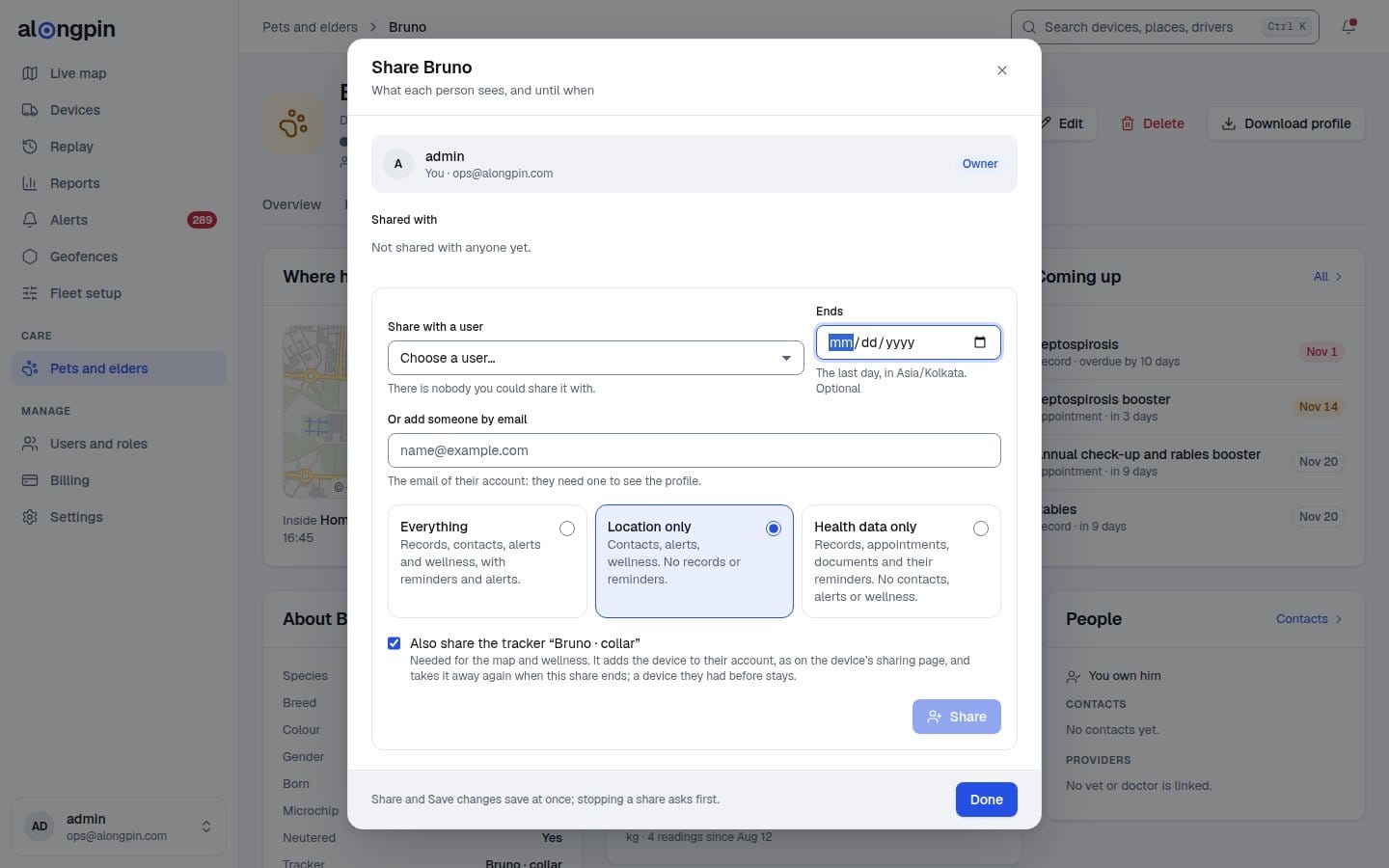
After that day the sitter sees nothing and the collar leaves their account again. The guide to sharing a care profile covers the other kinds of share.
Watch out for
- Collars report no health readings. Weight, vaccinations and vet visits are entries you make; the collar adds the position, and activity where it reports steps.
- Text reminders need the SMS channel. If your server has no text message gateway, an SMS-only reminder goes nowhere. Tick Email too.
- Give the sitter's share an end date. A share without one lasts until you stop it.
- No date, no reminder. A vaccination without Next due is kept, but never reminded of.
How owners use Alongpin for their animals is on the pets page. The care profiles page shows what a profile holds, and the health readings page the records and measurements you can keep.