Privacy
How to set working hours and a private mode for drivers
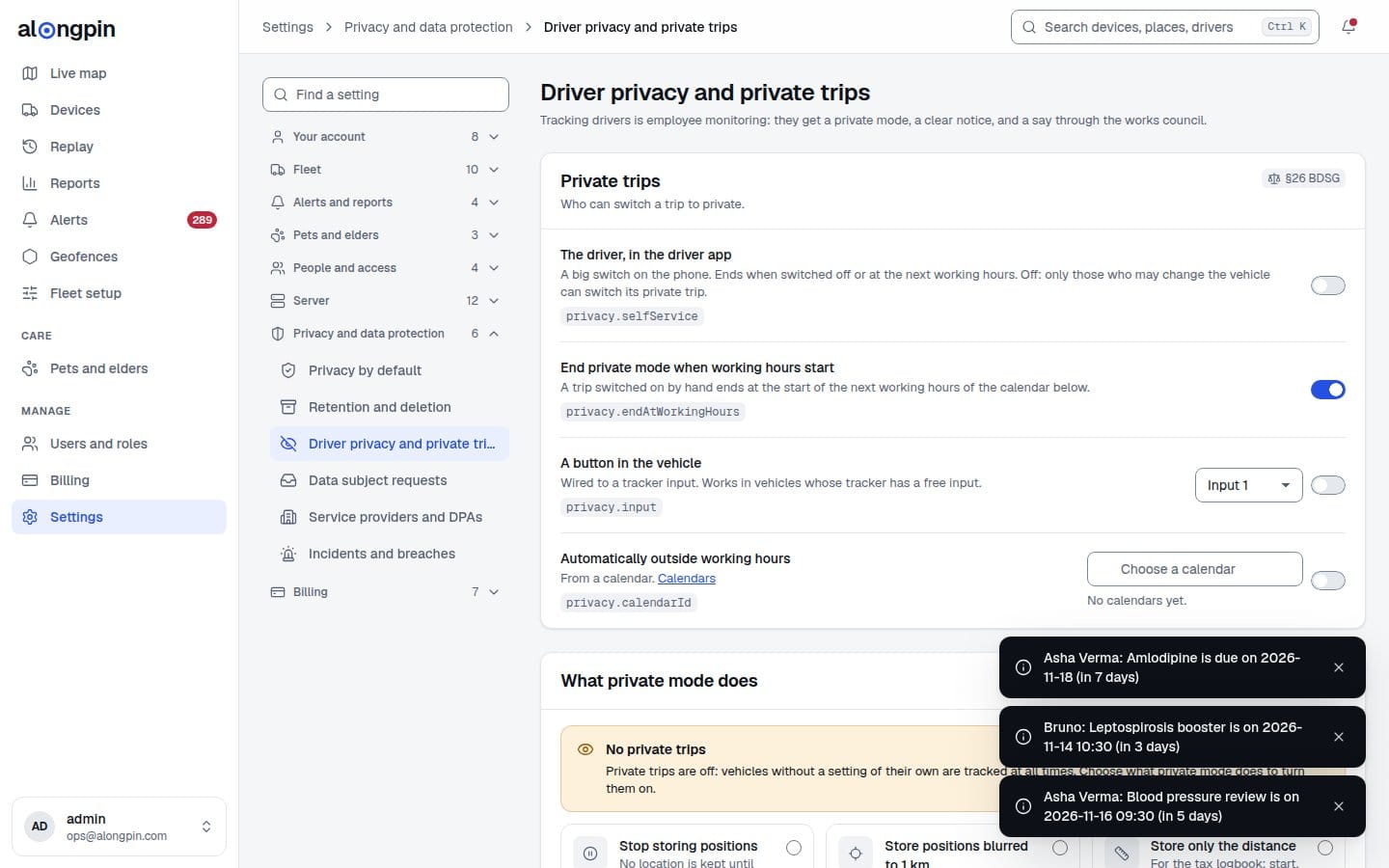
For fleets whose vehicles are also driven privately: a working-hours calendar decides when tracking is full, and a private mode decides what is kept outside it: a blurred point, the distance only, or nothing.
Ashish Srivastava4 min read
Employee vehicle tracking privacy comes down to two settings: working hours, a calendar that decides when a vehicle is tracked in full, and a private mode, which decides what is kept outside those hours or during a trip the driver marks as private: a point blurred to about 1 km, the distance only, or no positions at all. Both are set under Settings → Privacy and data protection → Driver privacy and private trips. This guide is for fleet managers whose vans and company cars are also driven after work.
Before you start
- Your own legal basis for tracking drivers and a written notice for them. The platform gives you the settings; whether and how you may track is your decision.
- Administrator rights, the right to change the server settings, or the privacy right (
identity:privacy:writefor all) to change these settings.- About an hour, most of it spent agreeing the rules.
1. Agree the rules first
Before anyone changes a setting, agree with the drivers, and where the law requires it with the works council or employee representatives, what is tracked during work, what happens outside it, and who sees what. In Germany, for example, the works council must agree before vehicle tracking starts. The platform doesn't store your agreement: keep it with your other agreements.
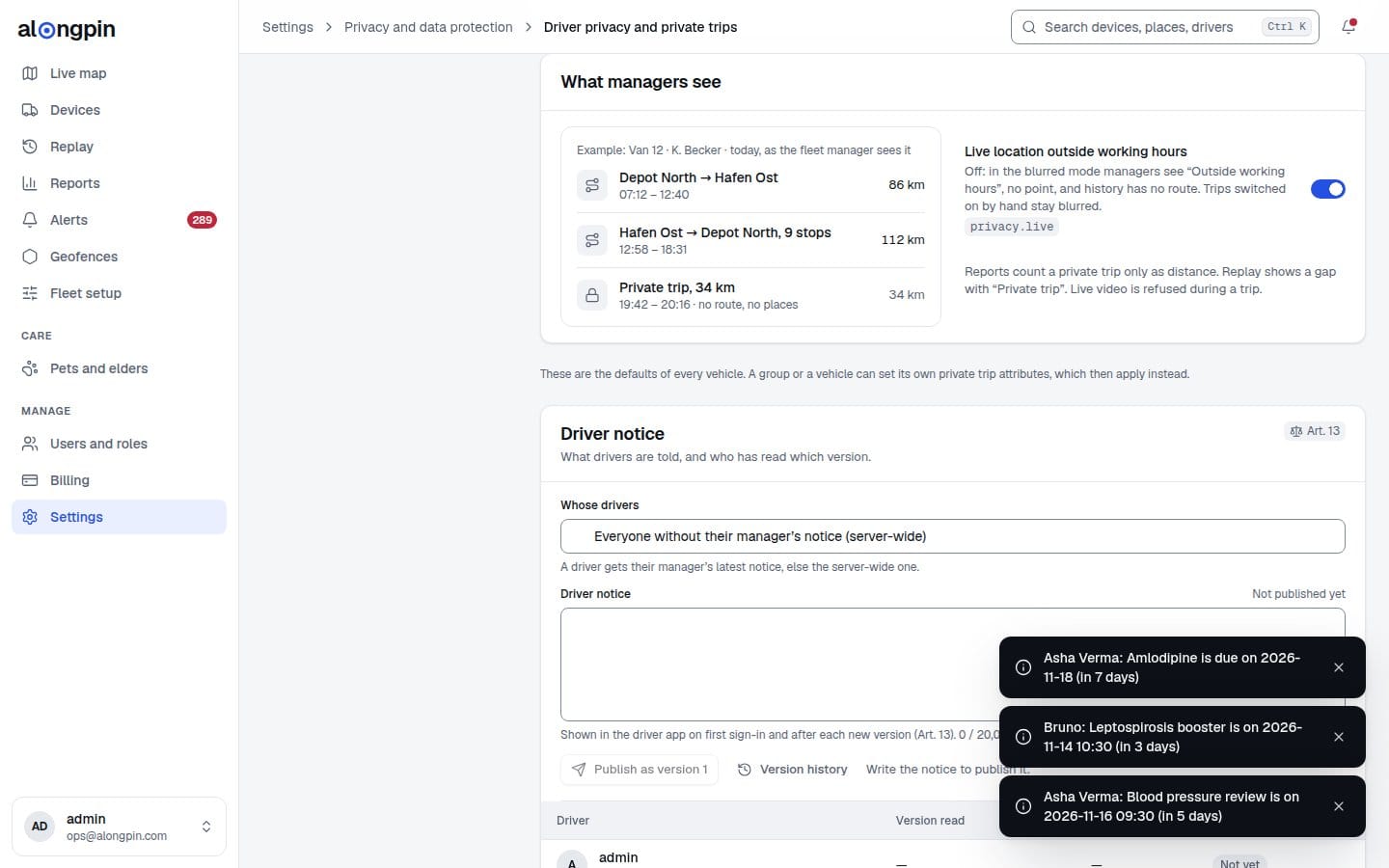
Then write the Driver notice on the same page and choose Publish as version 1. Drivers see it in the driver app at their next sign-in and are asked to read it; the table below the notice shows who has read which version. A published version can't be changed: a correction is a new version.
2. Create a working-hours calendar
Open Fleet setup → Calendars and choose New calendar. With the simple schedule, give the first period a name such as "Working hours", set From and To, choose Weekly under Repeats and tick the working days under On these days. Add public holidays under Exceptions, and a second period for a Saturday shift if you have one. For night shifts, tick Ends the next day.
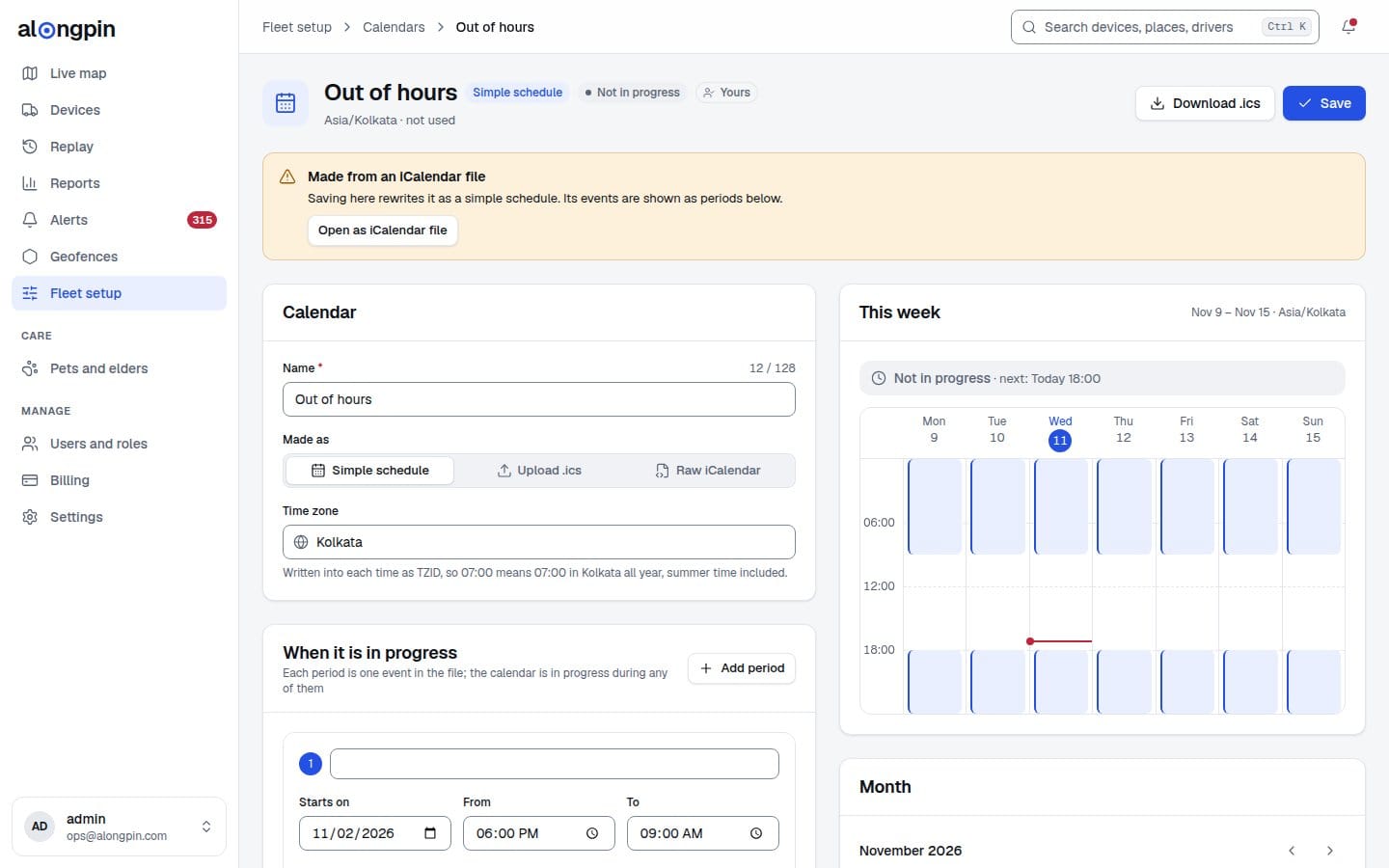
Check the calendar's time zone: 07:00 should mean 07:00 where your drivers are. Limiting alerts to working hours explains calendars in more depth.
3. Choose what private mode does
Back on Driver privacy and private trips, choose under What private mode does:
| Choice | What is kept during a private trip | Suits |
|---|---|---|
| Store positions blurred to 1 km | A rough route, no addresses | Fleets that want to know the vehicle's area, not the street |
| Store only the distance | Start, end and kilometres, no route | A tax logbook that must still add up |
| Stop storing positions | Only when the trip started and ended, and theft alarms | The strictest choice |
Nobody, administrators included, can see afterwards where a private trip went. Choosing between the three is covered in more detail in blur, distance only or pause.
4. Decide who switches a trip to private
Under Private trips, switch on any of the three ways a trip becomes private:
- Automatically outside working hours: pick the calendar from step 2 as the Working hours calendar. Everything outside it is private.
- The driver, in the driver app: a switch on the driver's phone, for a private errand during the day. With End private mode when working hours start, a switch left on ends by itself at the start of the next working hours.
- A button in the vehicle: a button wired to a free input of the tracker; pick the Tracker input it is wired to. It works only in vehicles whose tracker has a free input.
The guide for drivers is how to switch on a private trip as a driver.
5. Choose which alarms end a private trip
Under Alarms that end a private trip, list the alarms that go out with the real location and end the trip; SOS is there by default, so a driver in trouble is found. The vehicle is then tracked again until working hours start. Under Alarms kept in "Stop storing positions", list the alarms that are still stored, without a location, in the strictest mode; by default SOS and the theft alarms such as towing and movement. Their alerts still go out.
6. Apply it to vehicles or groups
The values on this page are the defaults of every vehicle. A group or a single vehicle can carry its own private trip settings, which then apply instead: a pool car without private use, for instance, or a group of vans on a different shift calendar. Turning private trips off makes every vehicle without its own setting tracked at all times.
Also decide Live location outside working hours. Switched off, managers see "Outside working hours" in the blurred mode instead of a point, and history has no route.
7. Check a weekend trip in the history
After the first weekend, open Replay for a vehicle that was driven privately. The private trip shows as a gap marked "Private trip", and reports count it only as distance. If the weekend shows a full route, check the vehicle's own settings, its group and the calendar's time zone.
Pitfalls
- Distance only keeps a logbook adding up, pause doesn't. With Stop storing positions, only the start and end of the trip are stored, so a tax logbook built from the history is missing those kilometres.
- Private trips raise no geofence or speed events. No geofence entries or exits, no overspeed, no harsh driving during the trip, and a zone left during it raises nothing afterwards. Alerts that rely on those stay quiet.
- Dashcam media from a private trip is deleted. Photos, video and sound the tracker sends during the trip are deleted, and live video is refused while it lasts. See the dashcam page for what a dashcam does during work.
The driver privacy page sums up the feature, and the privacy page how Alongpin handles personal data.