Dashcams
How to find a dashcam recording and keep it for an insurance claim
For fleet managers after an incident: find the photo or clip under Media, ask the camera for a photo if nothing came, check place, time and channel, and place a legal hold so it outlives the retention period.
Ashish Srivastava4 min read
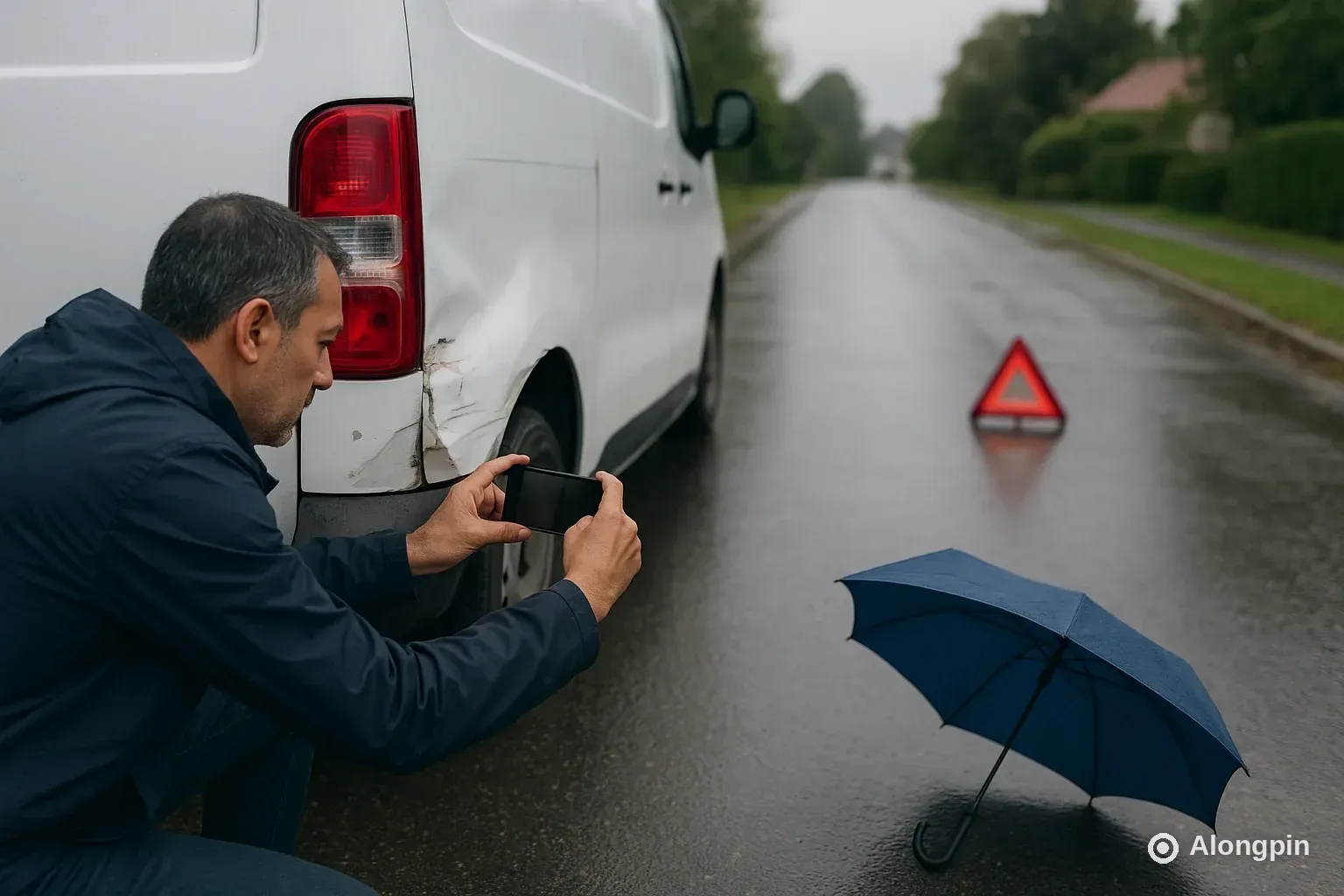
To save dashcam footage for an insurance claim, find the photo or clip under Devices → Media, check where, when and by which camera it was recorded, and place a legal hold on it with a reason and the claim number. Media is deleted after its retention period, 30 days in a standard setup; a held file stays until someone releases the hold. Add a hold on the trip of the same period too, so the route can be shown with it. This guide is for fleet managers after an incident.
Before you start
- A JT808 dashcam on the vehicle, and a role that covers the vehicle and lets you open its photos and files.
- Time: act well within the retention period, which is 30 days unless your administrator set another.
- For placing the hold: access to Retention and deletion (administrators and privacy staff), or an administrator who places it for you.
1. Open the vehicle’s media and look for the reason
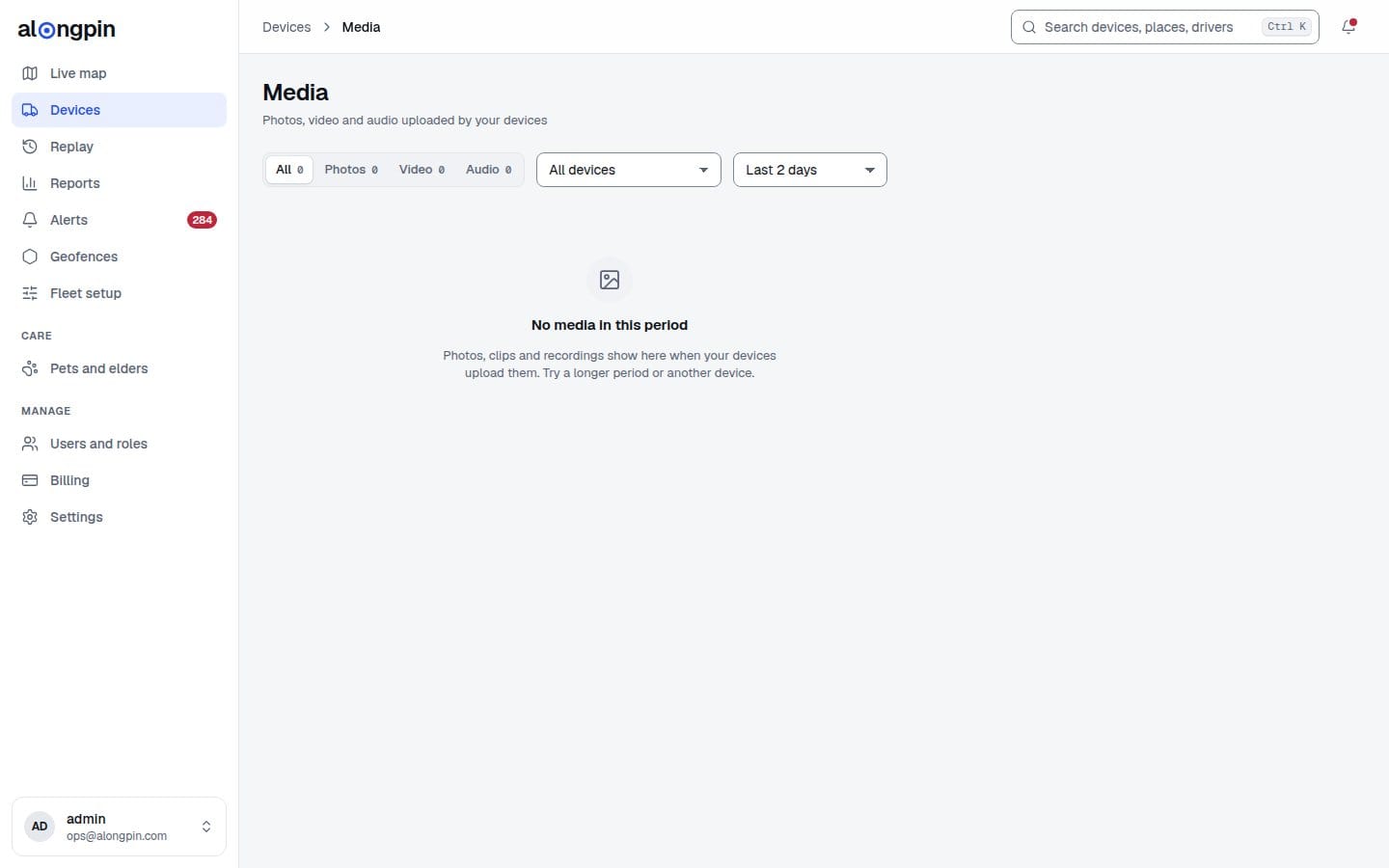
Open Devices → Media. Choose the vehicle under Device, a Period that covers the incident (up to Last 30 days) and, if you like, the Type: photos, video or audio. Each upload is titled by the reason the camera gave, so after a collision look for Collision clip or Collision photo, after an alarm for SOS, or for Harsh braking just before the time of the incident.
2. Ask the camera for a photo if nothing was uploaded
If the camera uploaded nothing, you can ask it for a photo now: open the device, choose Send command, pick Take a photo and the Camera number. The photo shows the scene as it is now, for example the damage or where the vehicle stands, and arrives as Requested photo. More in requesting a photo from a dashcam.
There is no request for a clip of the past. A clip the camera did not upload can only come from the camera’s own memory card, as far as it still has it, which depends on the model and its storage. Secure the card, or read it out with the camera vendor’s tool, before it is overwritten.
3. Check place, time and channel
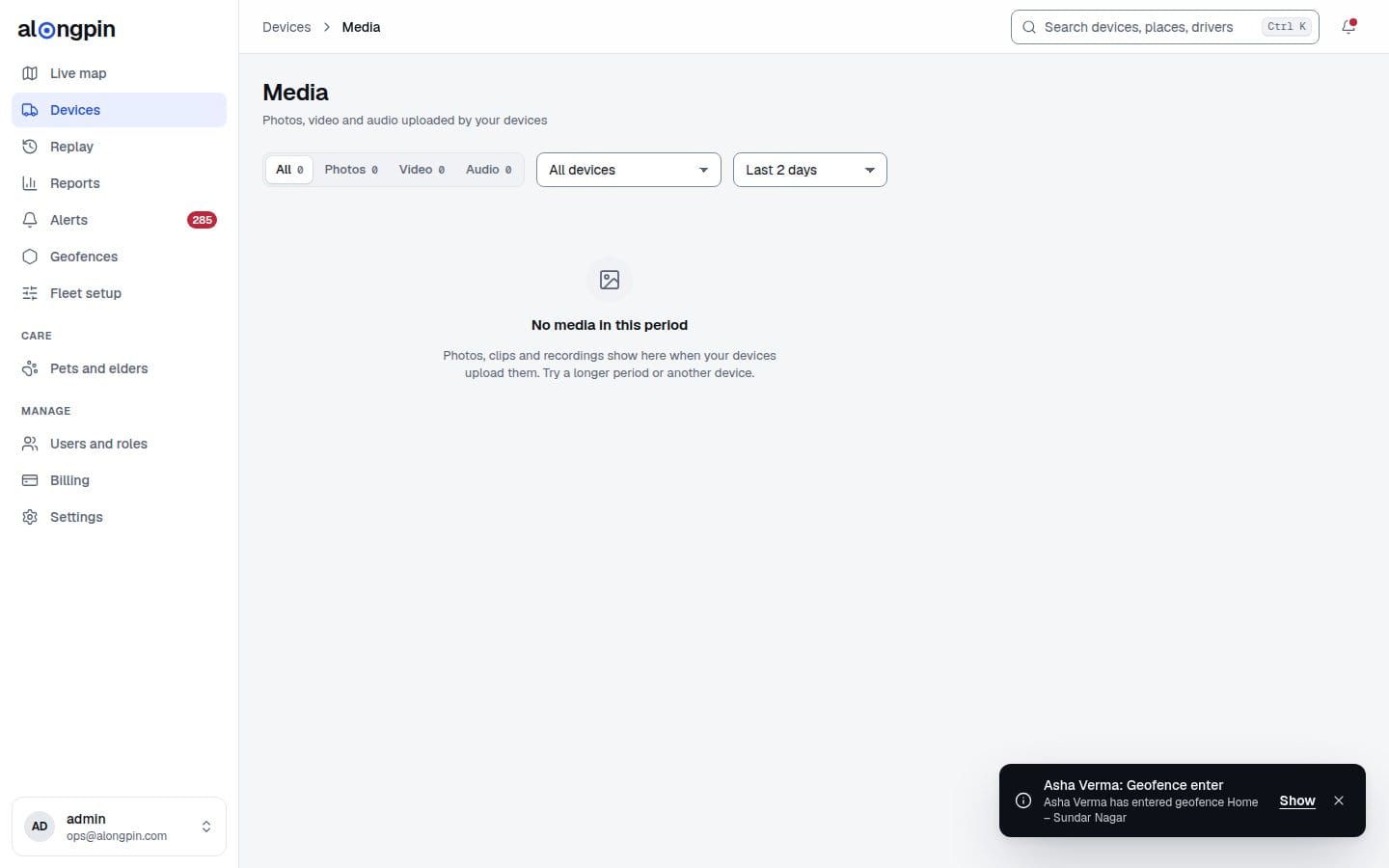
Select the tile. The panel shows when it was Recorded (with start and end for a clip whose length is known), Where, the Camera channel and the File name with its size. Open event shows the event on the map, and Download saves the file for the insurer. Note the file name, such as 20261020140631.mp4: the hold in the next step needs it.
4. Place a hold with a reason and the claim number
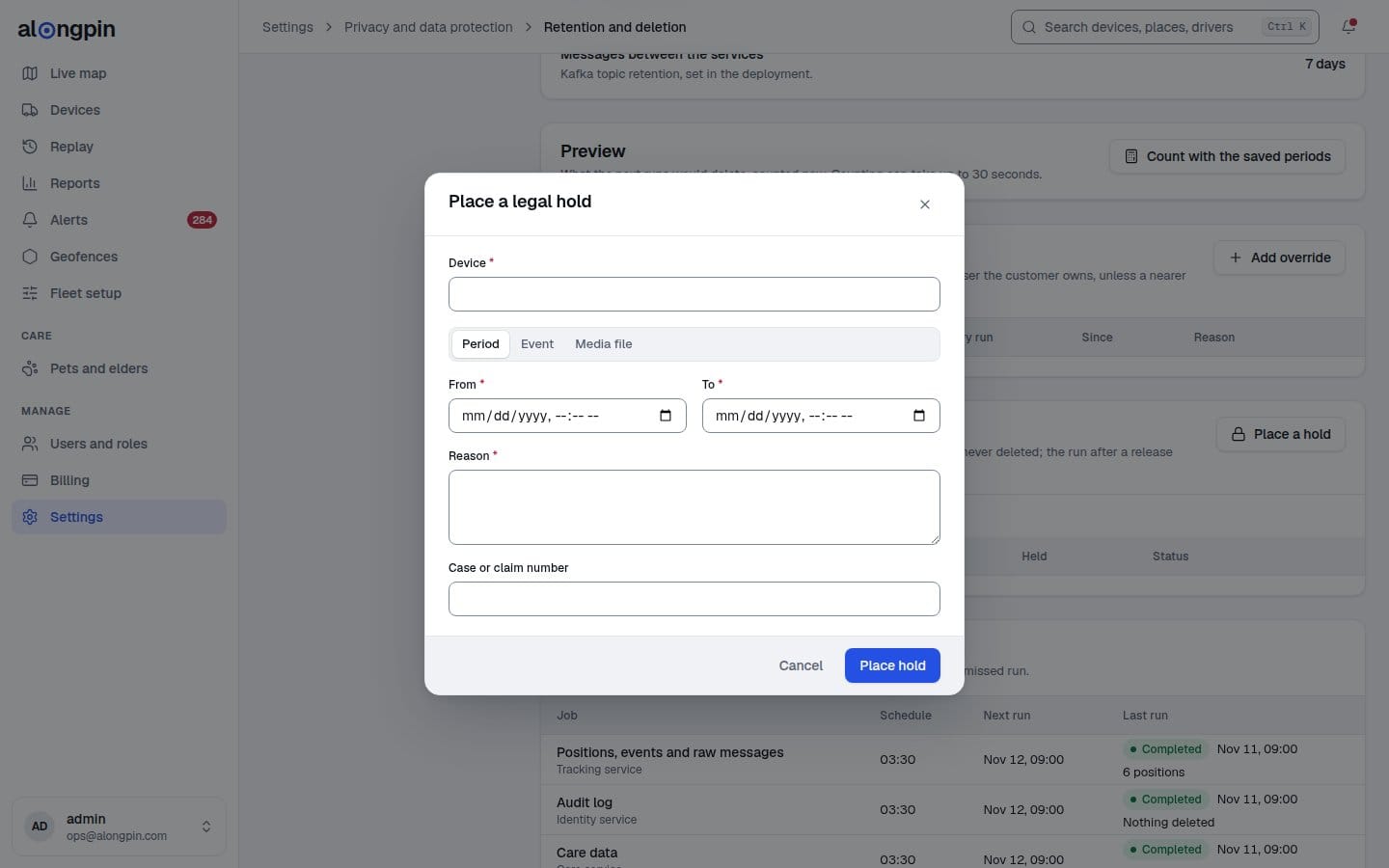
Open Settings → Privacy and data protection → Retention and deletion, go to Legal holds and choose Place a hold.
- Device: the vehicle.
- Keep: Media file.
- File name: as the media event names it, the name you noted.
- Reason: for example “Collision on 20 October, insurance claim”.
- Case or claim number: the insurer’s reference.
- Choose Place hold.
The hold keeps the file, its event and its position through every retention run. Placing it is recorded in the audit log. Administrators and staff with privacy rights open this page; placing a hold also needs the right to change the vehicle’s events. If you do not see the page, ask your administrator, or place the hold through the API (POST /api/holds).
5. Add the trip replay for the same period
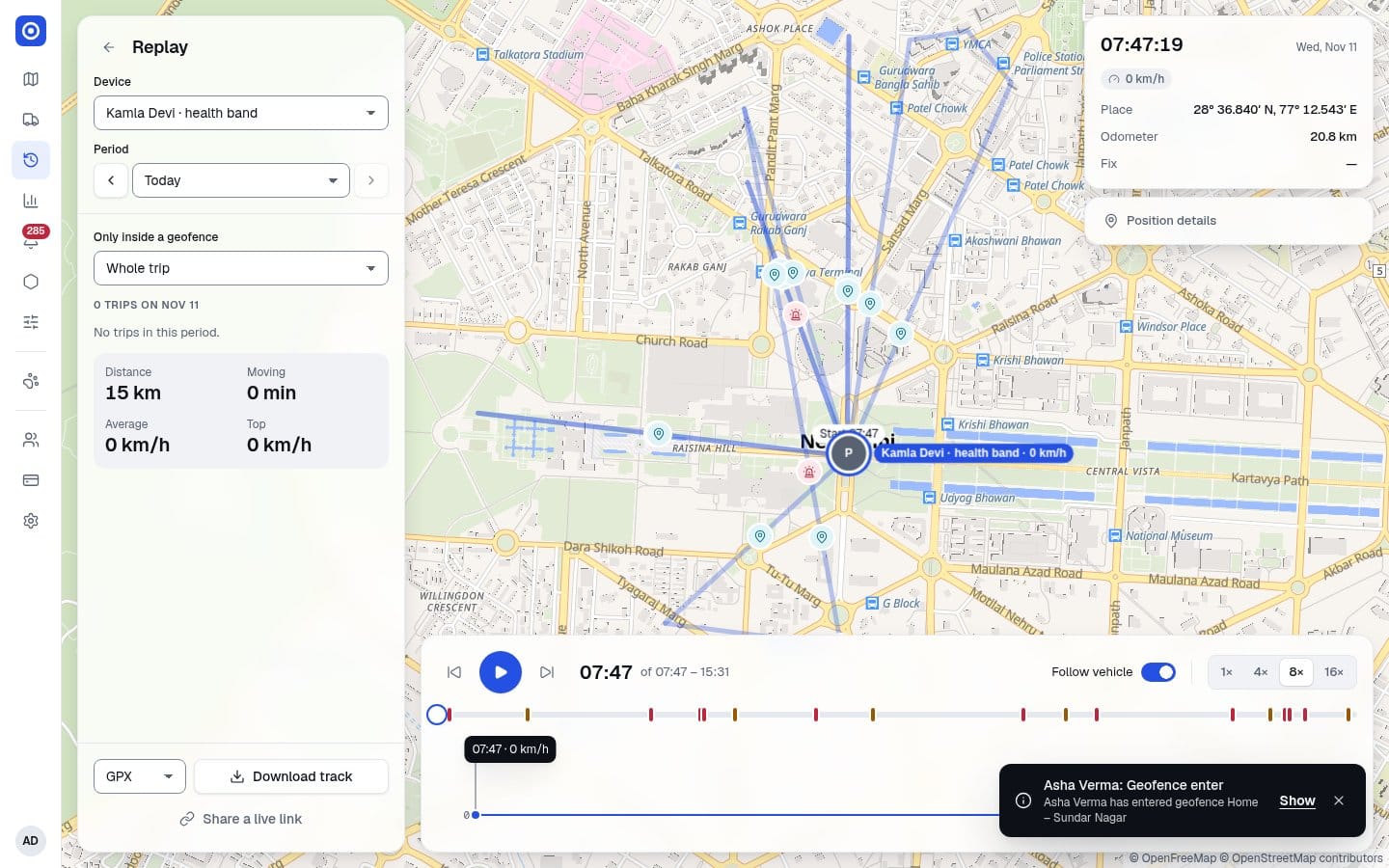
Open Replay, pick the vehicle and the period around the incident, and check the route and speed. To keep that route too, place a second hold with Keep set to Period and From and To around the incident: it keeps every position and event of the vehicle in that window, and the media files among them, so the trip history of the incident outlives the retention period as well.
6. Release the hold when the claim is closed
When the claim is settled, find the hold in Legal holds (filter Show by Active), choose Release and give the reason, such as “Claim settled”. The hold is never deleted: the released hold stays in the list with who released it, when and why. From the next retention run on, the file is deleted if it is older than the retention period.
Things to know
- 30 days by default. Without a hold, media is deleted after the retention period your administrator set, 30 days in a standard setup.
- A hold protects against retention only. Deleting the vehicle, deleting its positions by hand, or the erasure of its owner still removes held data.
- Private trips. Photos and clips sent during a private trip are neither shown nor kept, held or not.
- Which recordings exist depends on the capture policy; see setting a dashcam capture policy.
For how fleets use camera evidence day to day, see video telematics and the dashcam feature page.