Care
How to set leaving-home and inactivity alerts for someone living alone
For carers of someone who lives alone or tends to wander: a home zone, the leaving-home and no-movement alerts, an offline alert for a silent watch, who is told at night, and what these alerts cannot do.
Ashish Srivastava5 min read
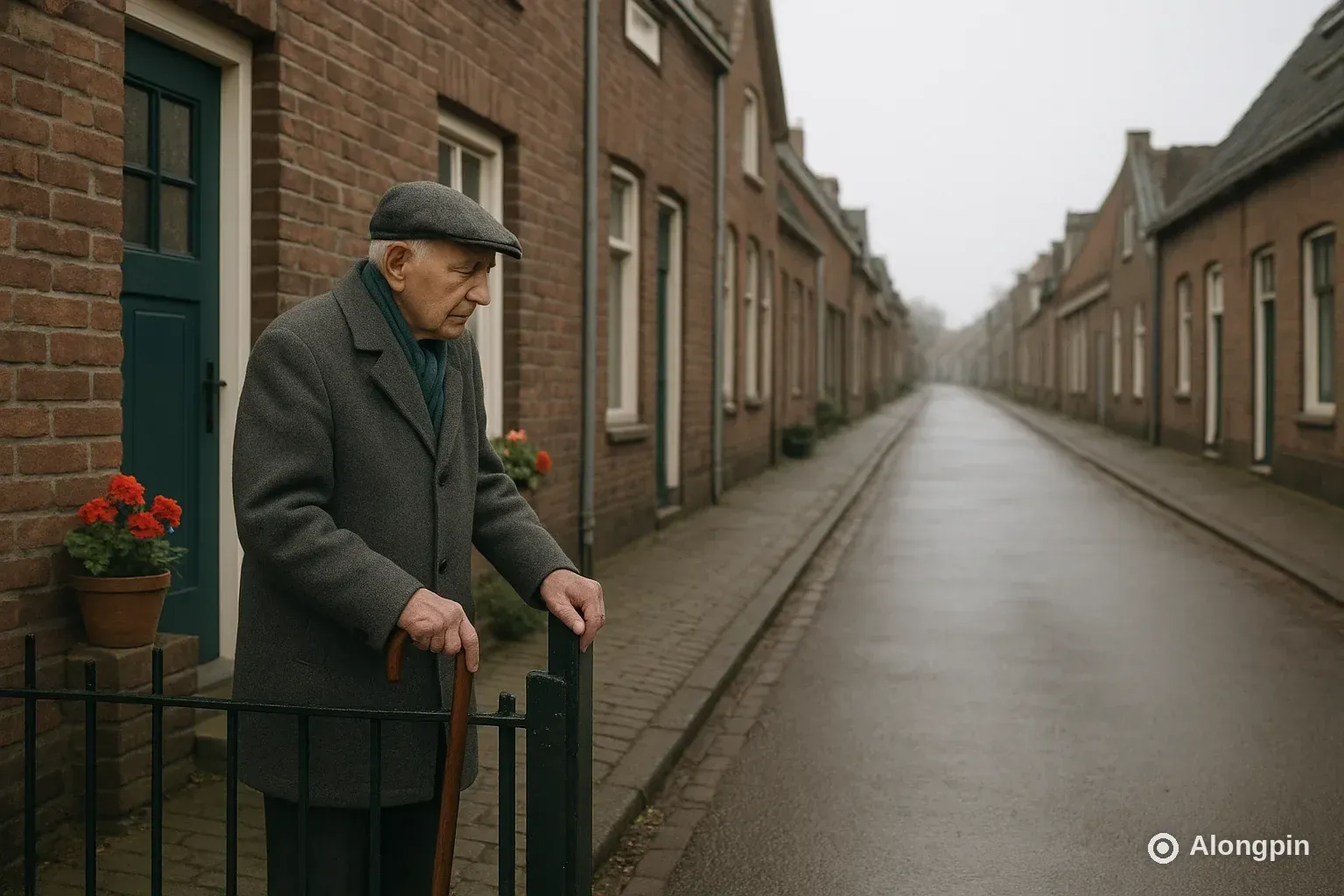
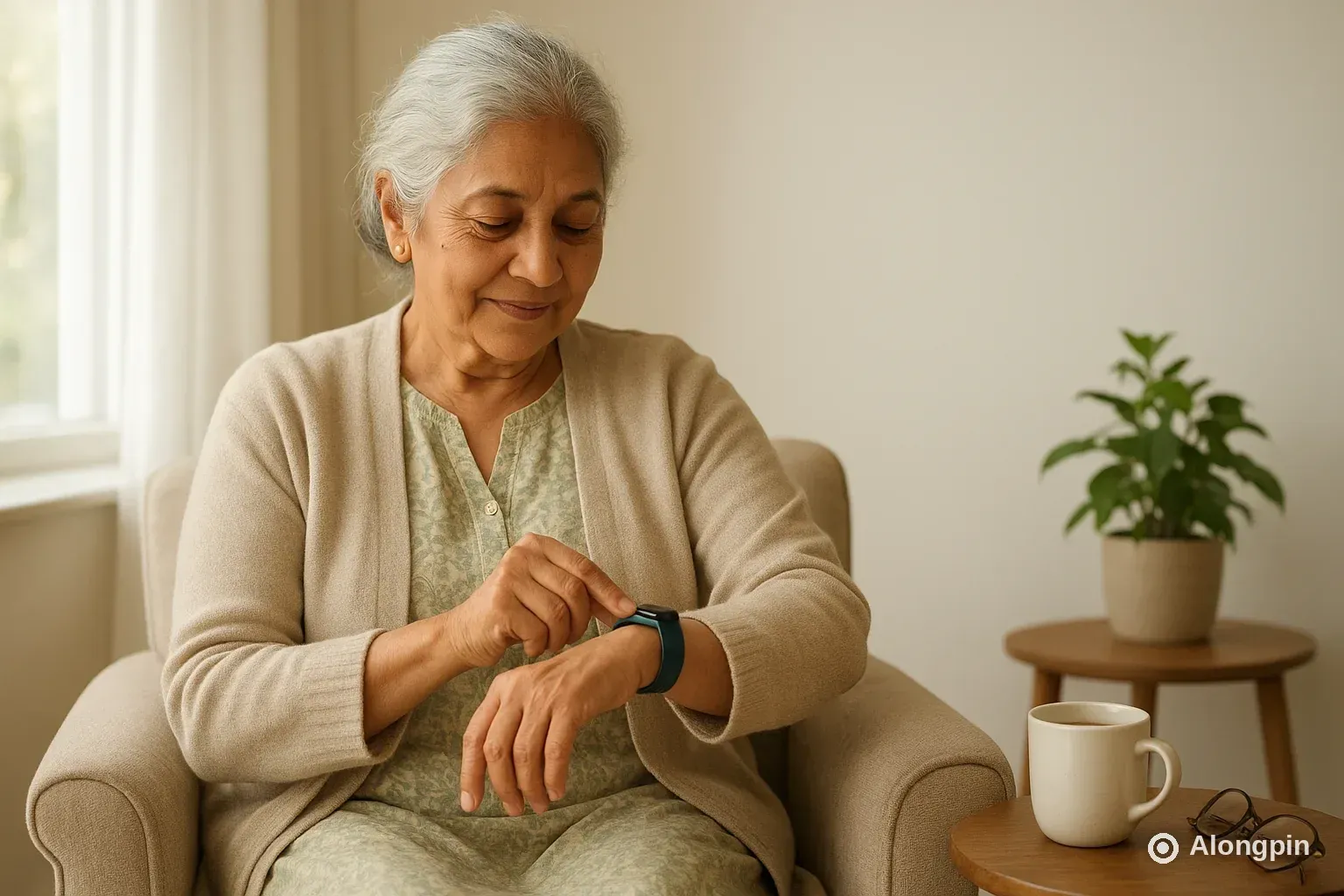
A wandering alert for someone with dementia, or for anyone who lives alone, is built from two care alerts: Left home, raised when the watch leaves a home zone you draw, and No movement, raised when the watch shows no movement for a time you choose. Add an offline alert for a watch that stops reporting, decide who is told at night, and review a week of alerts before you rely on them. This guide is for carers of a person who lives alone or tends to wander, and it is plain about what these alerts cannot do.
Before you start
- A care profile with a watch or personal alarm that reports regularly. See creating a care profile for an older relative.
- On a server that requires consents, an active location consent. Without it, the watch stores no positions and raises no leaving-home or no-movement alerts.
- The person's daily rhythm: when they get up, when they go to bed, when they usually go out.
1. Draw the home zone a little larger than the property
Open Geofences and draw a circle or an area around the home. Make it a little larger than the house and garden, and include the path to the front gate. Indoors, a watch often has a weak GPS fix and its position can drift by some distance; a zone drawn tight around the walls would raise a leaving alert while the person sits in the kitchen. Give the zone a name everyone understands, such as "Mum's home".
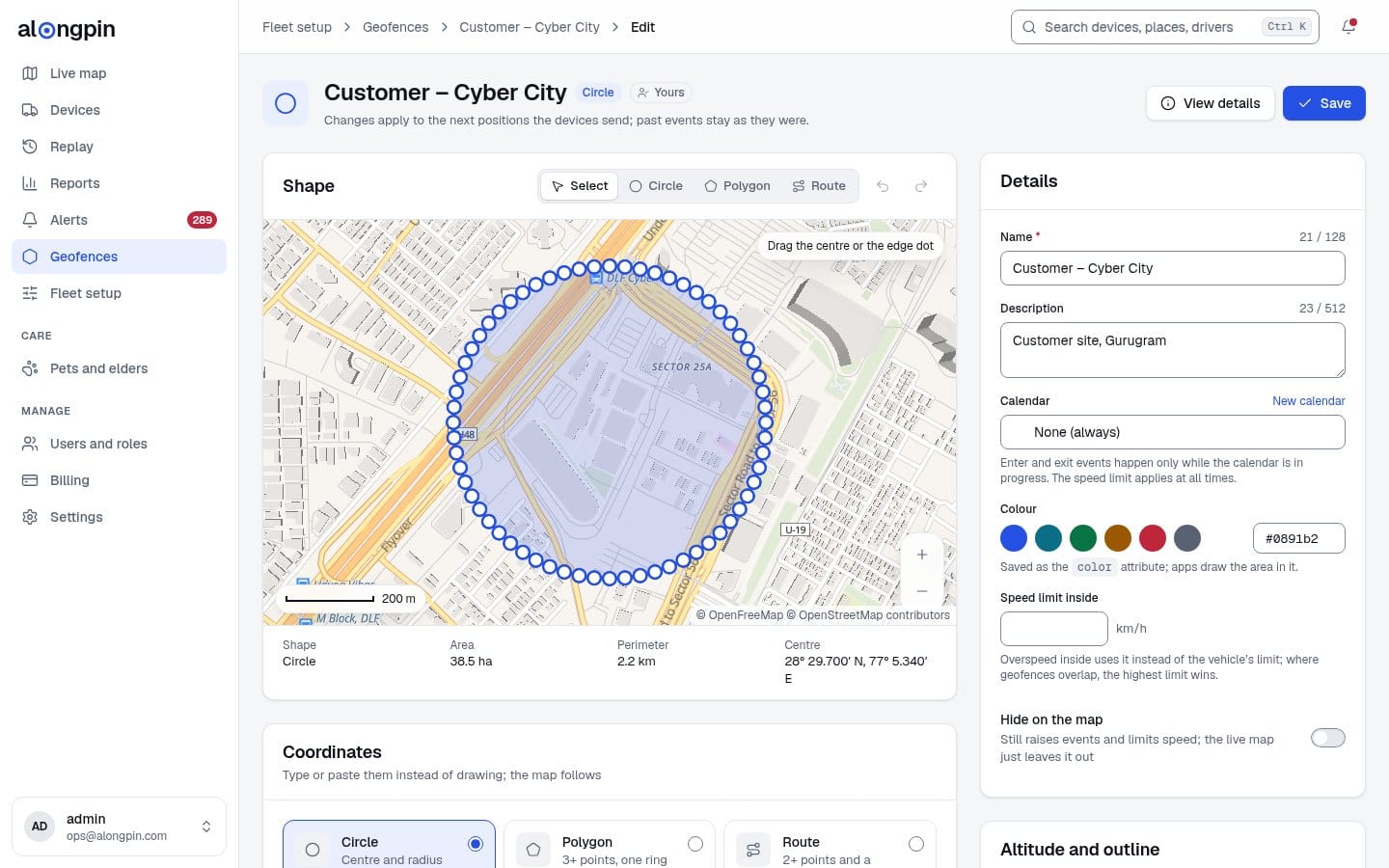
Where the person regularly walks to a shop or a bench nearby, decide now whether that counts as leaving home. If it should not, draw the zone to include it. The help article on setting a home zone for a person or pet covers drawing and editing.
2. Link the zone to the profile
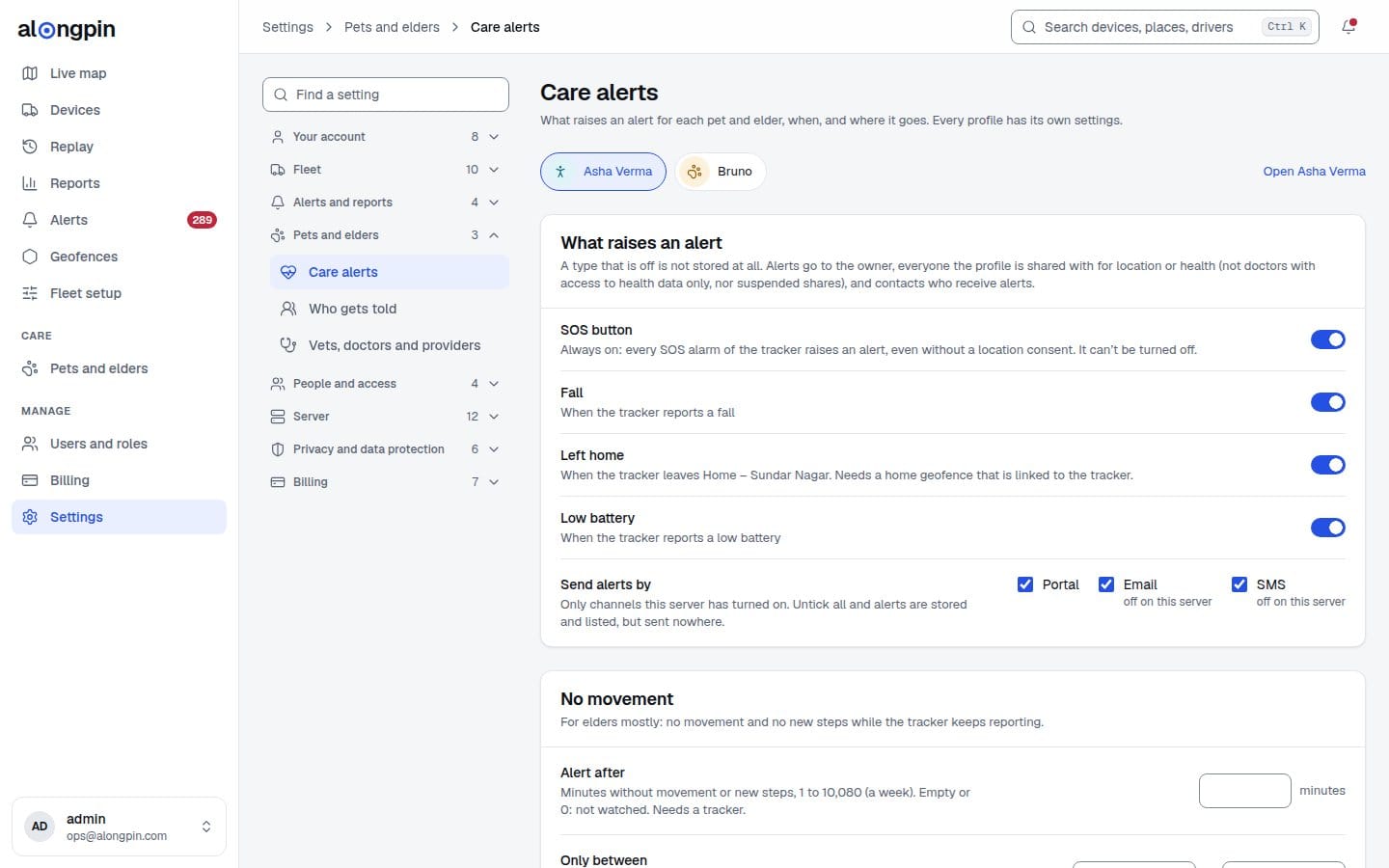
Open the profile's Alert settings. Under Home, choose the zone as the Home geofence, or use Draw to make one from here. Save. Saving links the home to the watch, and the page then shows Linked to the watch's name.
If it says Not linked, you may not change the watch: someone who may (the person who added it, or an administrator) saves the profile once more, and the link is made. Until then, leaving home raises no alert.
3. Switch on the leaving-home alert
In the same settings, switch on Left home. From now on, each time the watch leaves the home zone, a care alert left home is raised with the time and place, and goes out through the profile's channels.
4. Switch on the inactivity alert
Under No movement, set Alert after to the minutes without movement or new steps that should worry you, for example 180 minutes. Under Only between, set the hours to watch, for example 08:00 to 21:00, so that a night's sleep raises nothing. Both times or neither; without hours, the watch is watched around the clock.
Start with a generous time and shorten it once you know the person's rhythm. Each still stretch raises one alert; moving again re-arms it. The help article on setting up the inactivity alert for an elder explains how movement is counted.
5. Add an offline alert for a watch that stops reporting
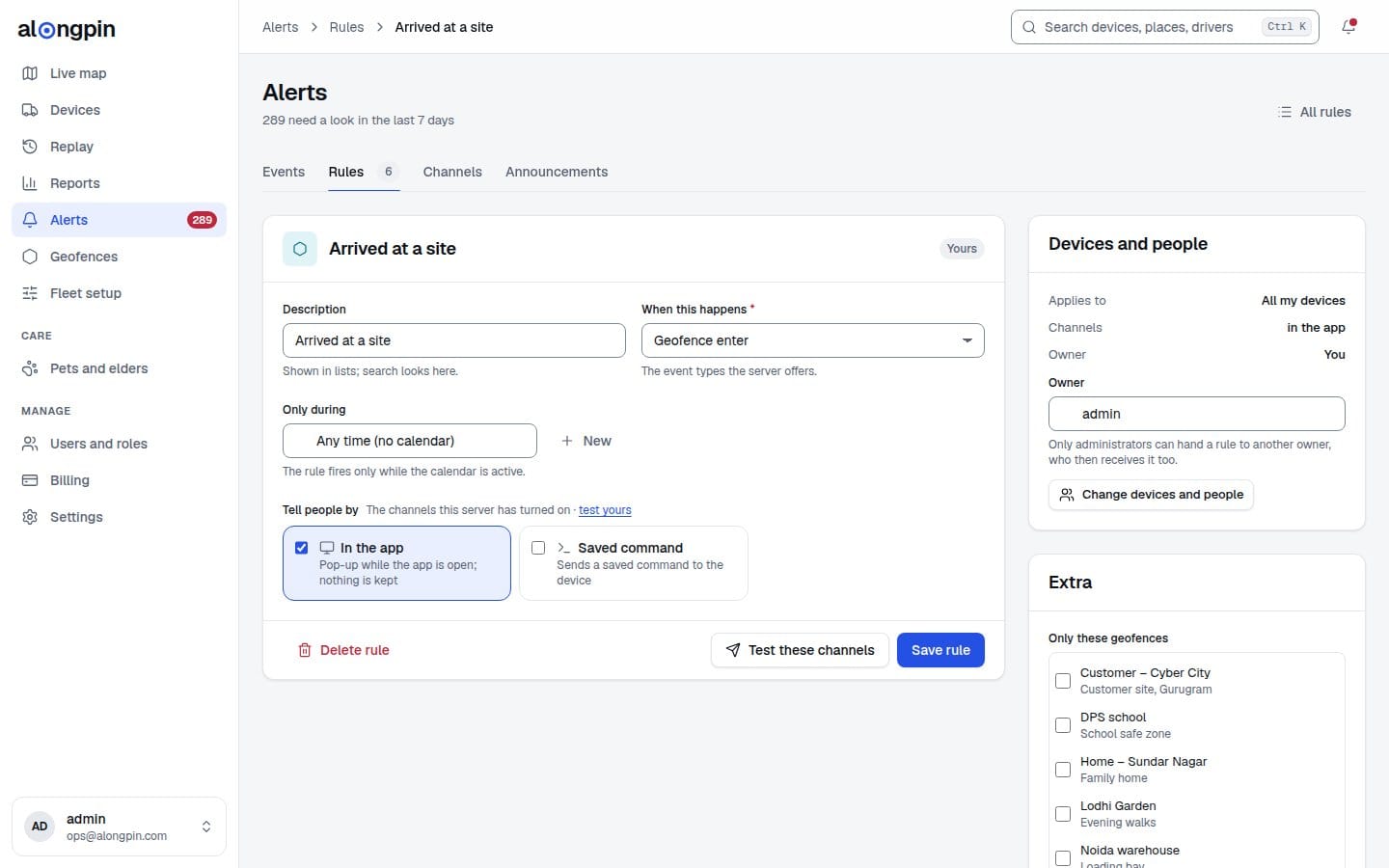
A watch that stops reporting, because it is flat, switched off or left in a drawer without signal, raises no no-movement alert: the page names the time under Silent trackers. That gap is covered by an ordinary alert rule. Open Alerts → Alert rules → New alert rule, choose When this happens: Device offline, attach the watch under Devices and people, and send it by push and text message. Make a second rule for Status unknown, which some watches raise instead. The guide to offline, power and battery alerts has the details.
6. Choose who is told at night
Care alerts go to the profile's owner, to everyone it is shared with for location or for everything, and to contacts who Receives alerts, through the channels ticked under Send alerts by. They are not held back by anyone's quiet hours: a Left home at 03:00 reaches everyone on the list.
So decide who that list should be. A neighbour who can knock on the door at night may be more useful than a son three hours away. Untick Receives alerts on contacts who should not be woken, and keep at least one person who can act. Your offline alert rule is different: it follows your own quiet hours, so add Device offline under Still goes out if it should reach you at night.
7. Review a week of alerts and adjust
After a week, open Care alerts and read what came in. For each alert you see when it happened, where, and who was told.
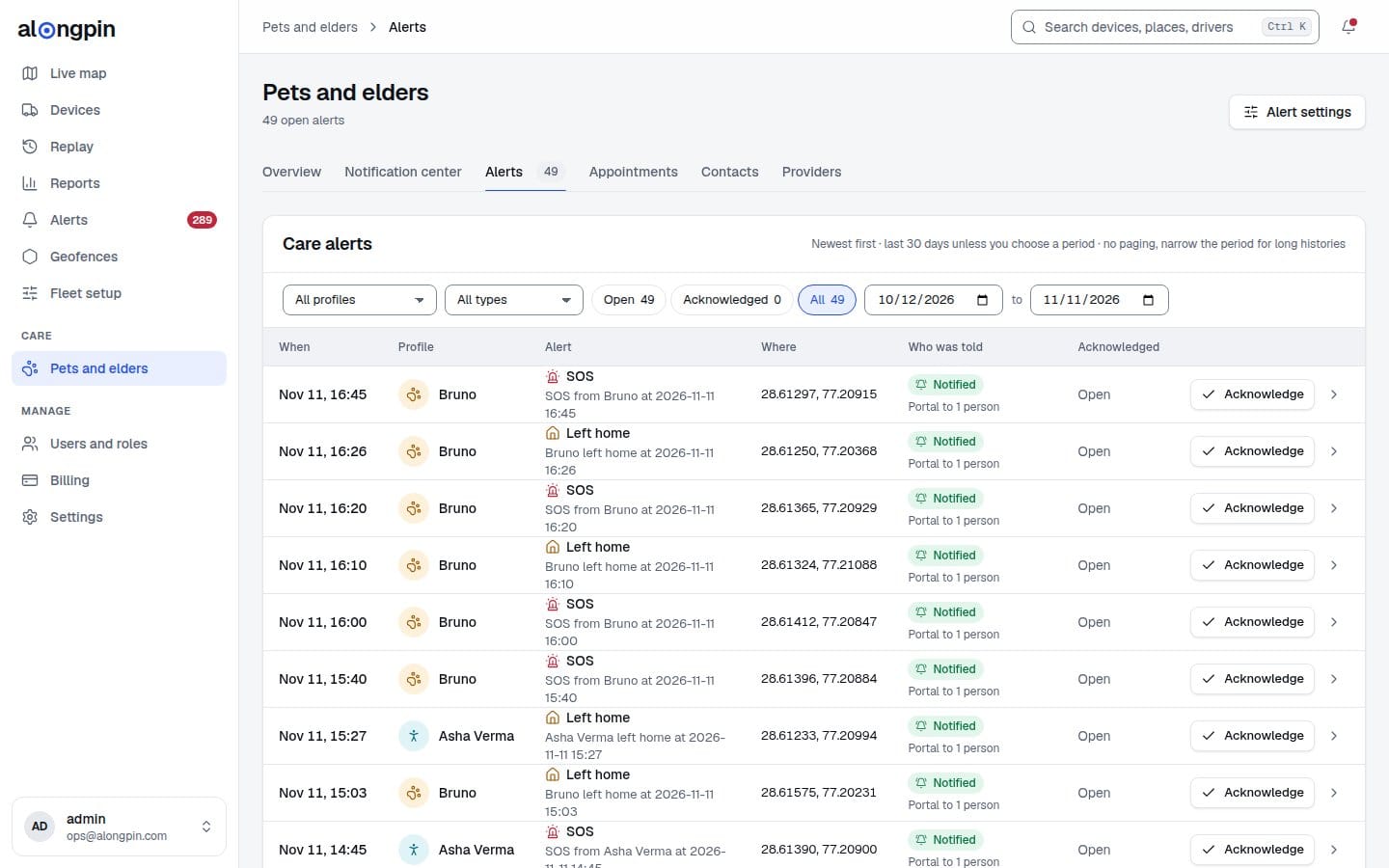
- Leaving alerts while the person was at home: make the zone larger.
- No-movement alerts during an afternoon nap: lengthen Alert after, or narrow Only between.
- Alerts that reached nobody: check the channels and that contacts have a mobile or email.
Acknowledge each alert once it is dealt with, so the family sees it was handled.
What these alerts cannot do
- A watch that stops reporting raises no inactivity alert. That is why step 5 matters.
- Indoor positions can drift and trigger a leaving alert. A larger zone reduces this; it cannot rule it out.
- The watch has to be worn. A watch left on the bedside table reports no movement and leaves home with no one.
- Alerts support care; they do not replace a visit or an emergency service. Alongpin does not call anyone for you.
The care profiles page shows what a profile holds, elder care how families use it, the geofences page how zones work, and the alerts page the rules you can add.