Vehicle trackers
How to set up an OBD plug-in tracker in your own car
For private owners and small businesses without an installer: find the protocol of your plug-in tracker, add it by IMEI, send it the server address and port, plug it in and see your first trip in Replay.
Ashish Srivastava5 min read
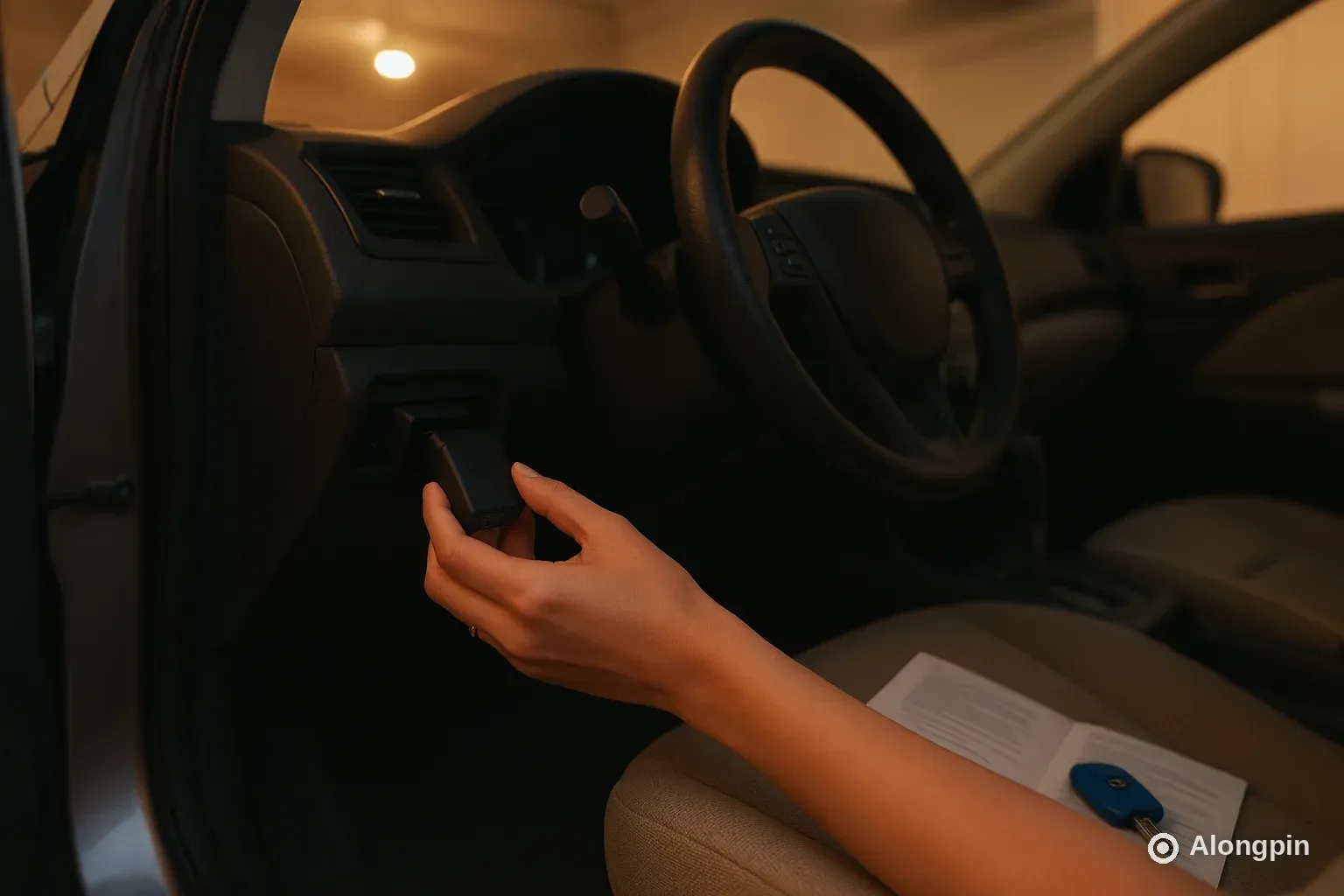
To set up an OBD plug-in GPS tracker in your own car, find out which protocol the tracker speaks, put a SIM card with data in it, add it under Devices with its IMEI, and send it the server address and the port of its protocol from Set up the tracker. Then plug it into the car's OBD socket and drive a short trip: the car appears on the live map, and the trip shows up in Replay. This guide is for private owners and small businesses with a plug-in tracker and no installer.
Before you start
- An OBD tracker that speaks a protocol the platform decodes. Step 1 checks this.
- Its IMEI: 15 digits on the label, the box or under the SIM cover.
- A SIM card with a data plan, and its APN if the network needs one.
- The tracker's manual: it says how to send it settings, by text message or with the manufacturer's app.
1. Look up the model in the device check
Type the tracker's model into the device check. It tells you which protocol the model speaks, and that protocol decides the port in step 4. Many plug-in trackers sold under different names share a handful of protocols; the plug on the end tells you nothing about which one.
If the check finds nothing for your model, look in the manual for the protocol name or the default server settings. The vehicle trackers page lists what a vehicle tracker typically reports.
2. Put a SIM card with data in the tracker
Open the SIM cover while the tracker is not plugged in, and insert the SIM. Use a SIM with a data plan; a tracker sends small amounts of data all day, so a plan for machines or a small mobile data plan is usually enough. If the SIM has a PIN, switch the PIN off in a phone first, because most trackers cannot enter one.
3. Add the device with its IMEI
In the portal, open Devices and choose Add device. Give the car a Name you recognise, such as "Family Corolla", and enter the IMEI as the Identifier (IMEI). Choose Add and set up: it saves the device and opens its tracker setup in one go.
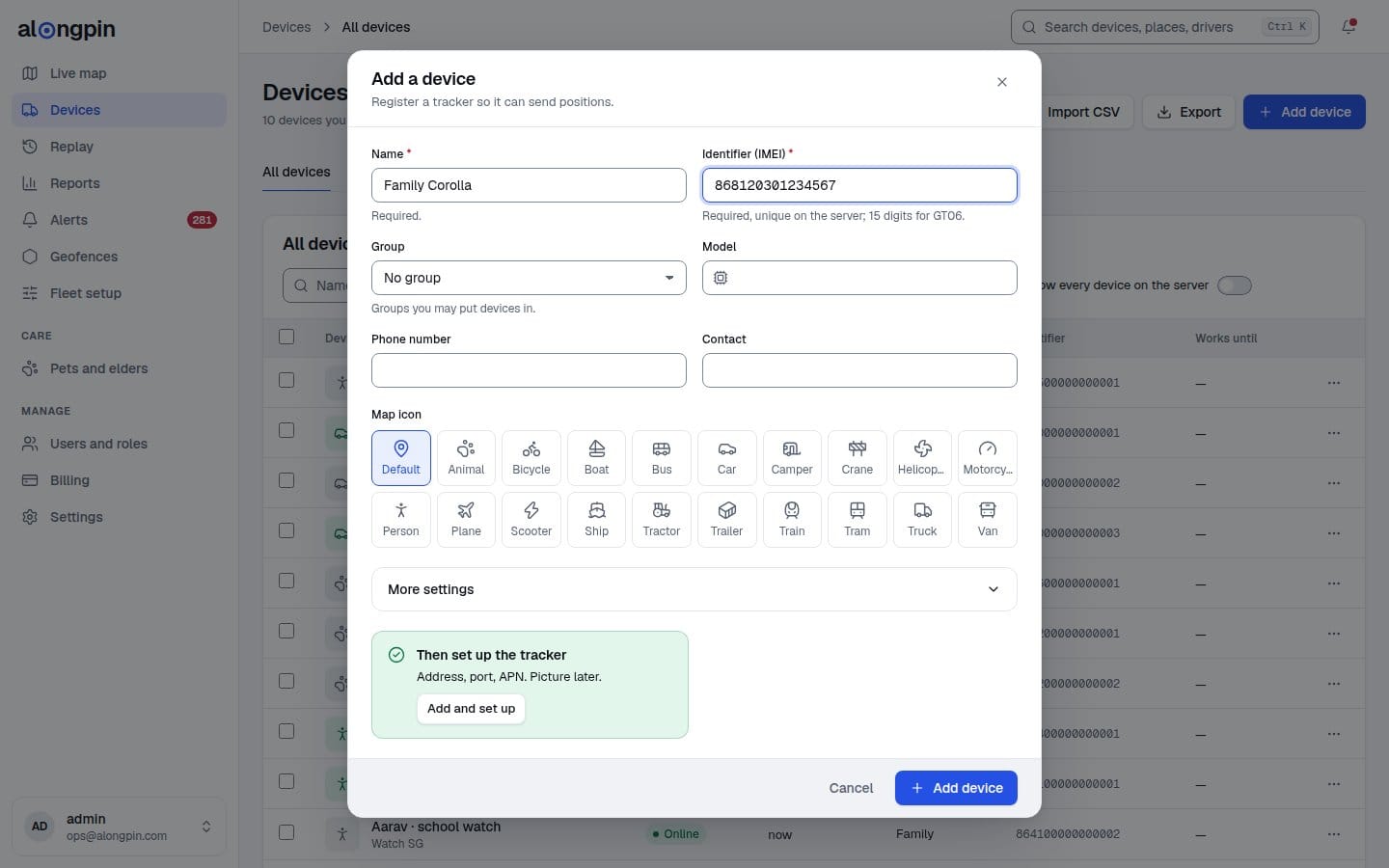
If the portal answers that the identifier is already in use, check the digits against the label before anything else.
4. Read the server address and the port of the protocol
Set up the tracker shows what the tracker needs: the Identifier, the Server address, the port of the protocol (Port for followed by its name) and the APN when a SIM is recorded for the device. If no port is shown yet, pick your tracker's protocol under Protocols this server accepts. Copy all copies the values to paste into a note or a message.
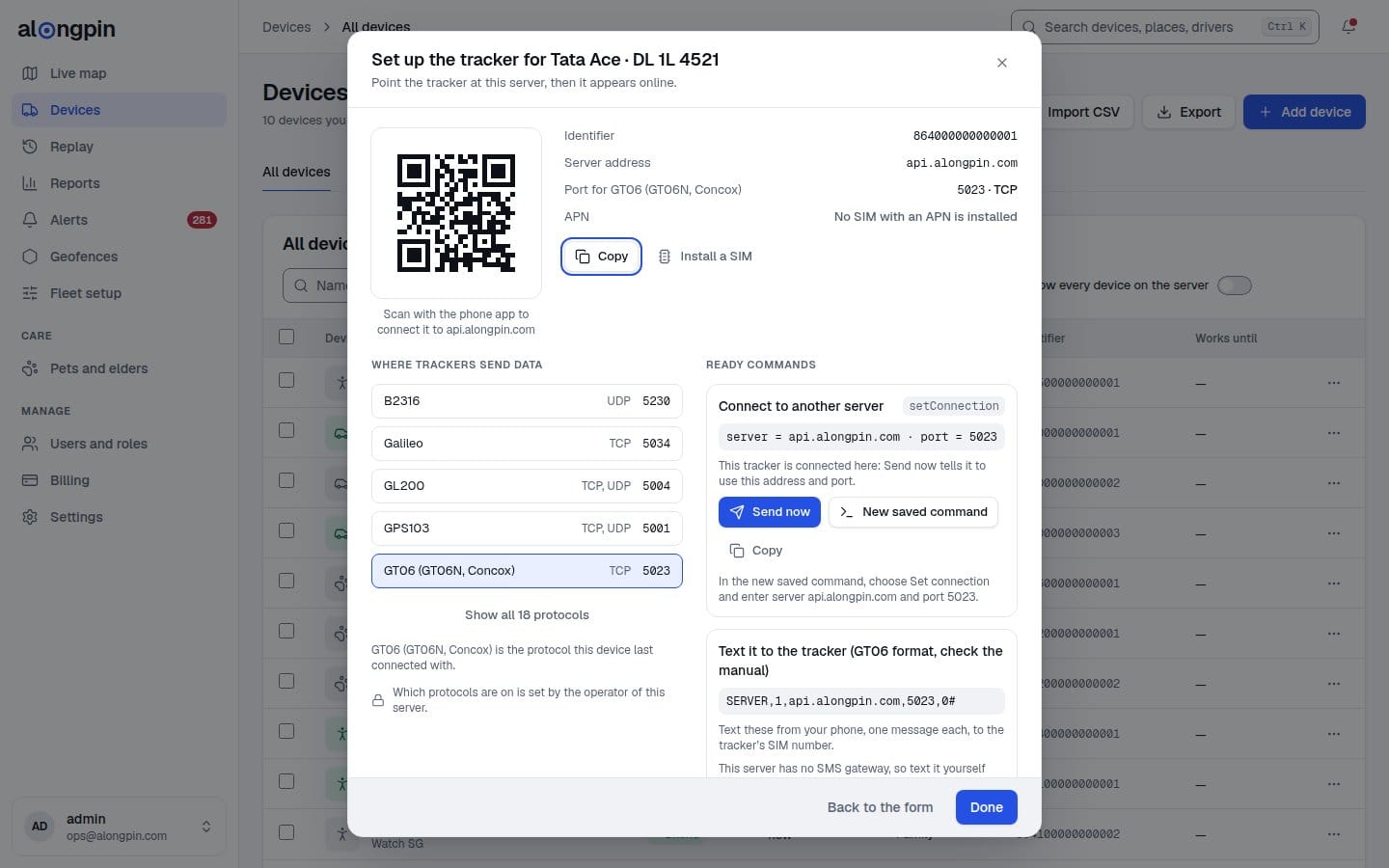
Ports differ between protocols and between installations, so never copy one from another guide; use the one this dialog shows. If the dialog says your protocol is not switched on for the server, ask your administrator or your provider to turn it on before you go further.
5. Send the server settings to the tracker
Send the address and the port to the tracker as its manual describes. Most plug-in trackers take them by text message to the tracker's SIM number; some use the manufacturer's phone app. For trackers of the GT06 family, the dialog shows the text messages ready to copy under Text it to the tracker: send each line from your own phone, one message each. Look in the manual for the APN command too, if your network needs one.
6. Plug it into the OBD socket and drive a short trip
The OBD socket is a 16-pin connector that most cars built in the last twenty years have under the dashboard, usually on the driver's side near the steering column or behind a small cover. Plug the tracker in with the engine off, and make sure it sits firmly and does not touch the pedals.
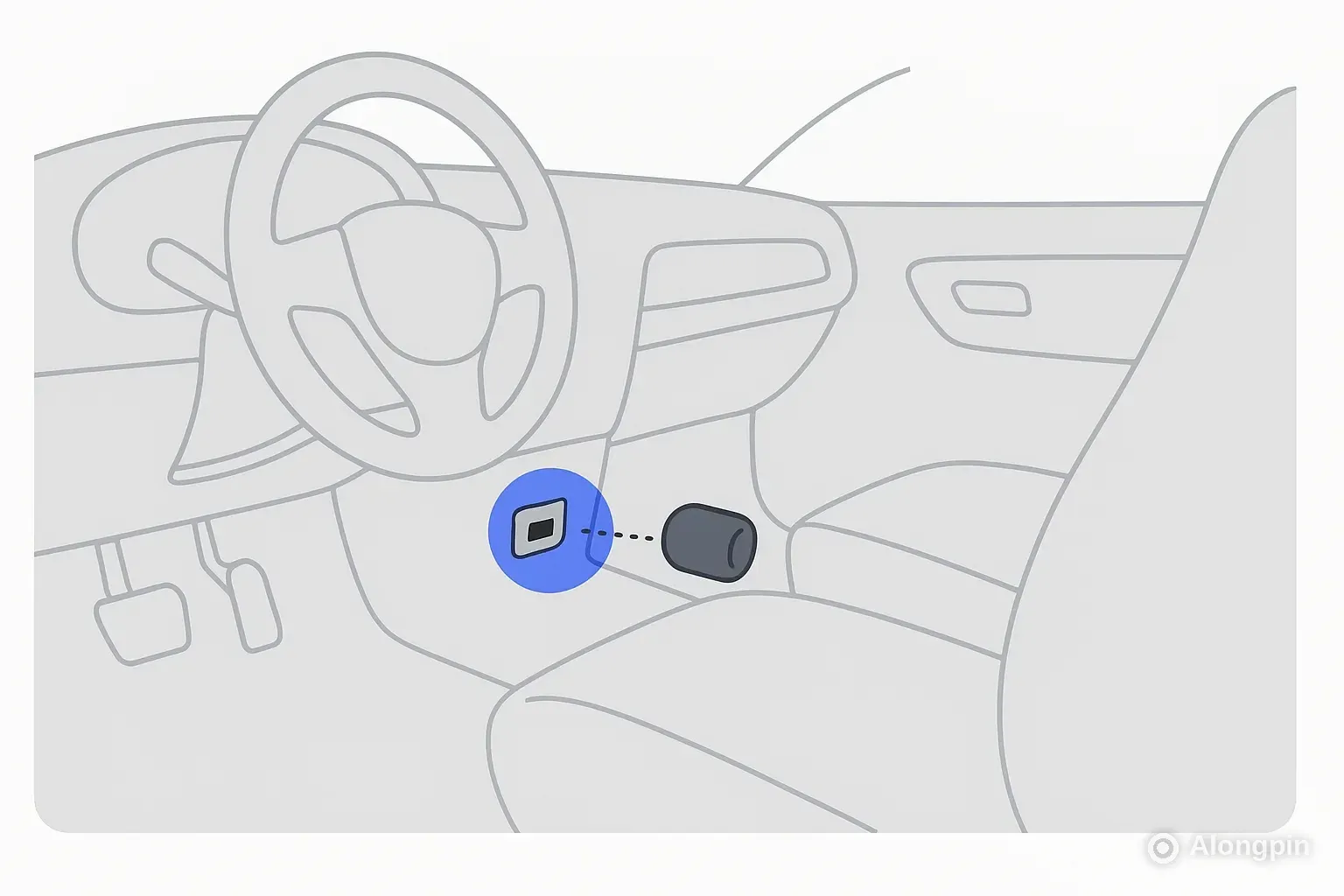
Park in the open for a few minutes so the tracker gets a GPS fix, then drive a short trip: ten minutes and a few kilometres is plenty. In a standard setup a trip begins after about five minutes or half a kilometre of movement, so a run around the block may not count as one. Watch the live map on your phone or computer: the car turns from Never connected to Online when the tracker connects, and shows Moving while you drive.
7. Open the trip in Replay
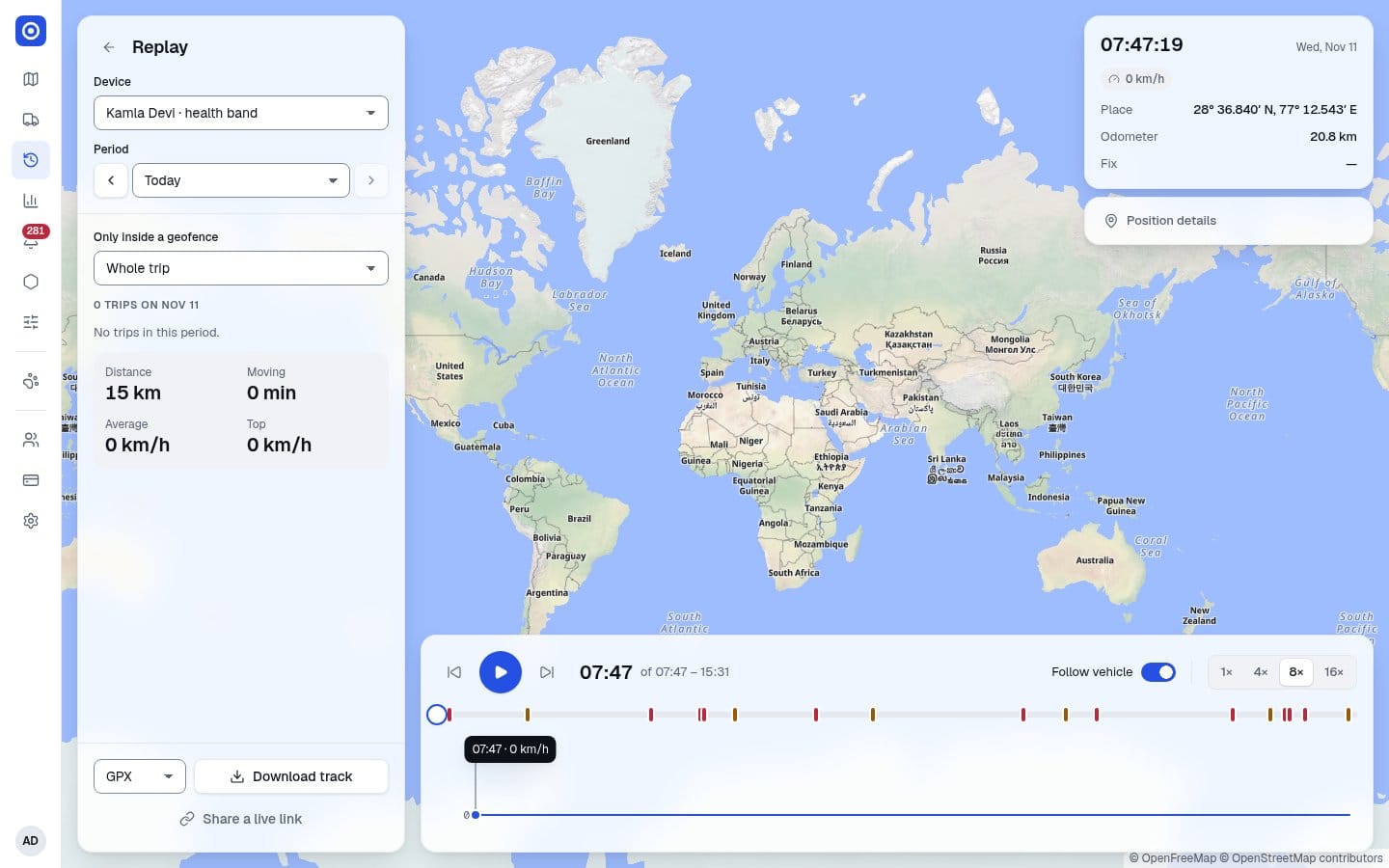
Back home, open Replay, choose the car under Device and today under Period. Your trip appears in the Trips list with its start, end, distance and time. Select it and press Play to see the positions arrive one after another along your route. The trip history page shows what else Replay does, and replaying a trip walks through the controls.
When something does not work
- The car never comes online. Check that the SIM has data and the right APN, that the address and port match the dialog exactly, and that the tracker answered your text message. A tracker that reaches the server with another identifier than the one you entered appears under Devices → Unverified; see devices that do not appear after connecting.
- Online, but no position. The tracker has no GPS fix yet. Move the car into the open and wait a few minutes.
- The car in the garage shows where it was last seen. Indoors there is often no GPS fix, so the map keeps the last known position until the tracker sees the sky again. This is normal.
- OBD values are missing. Odometer, engine data or trouble codes appear only where the tracker reads and reports them; many plug-in trackers report position, ignition and battery voltage only.
- The tracker goes quiet when the car is parked. Some trackers sleep to save the car's battery, and the car then shows Parked or Offline. The manual explains the sleep settings.