Phone app
How to use a phone as a tracker with a tracking app
For team leads whose technicians have no tracker in the van: install an OsmAnd-style tracking app, add the phone under Devices, enter the server address and port, and see it on the live map.
Ashish Srivastava4 min read
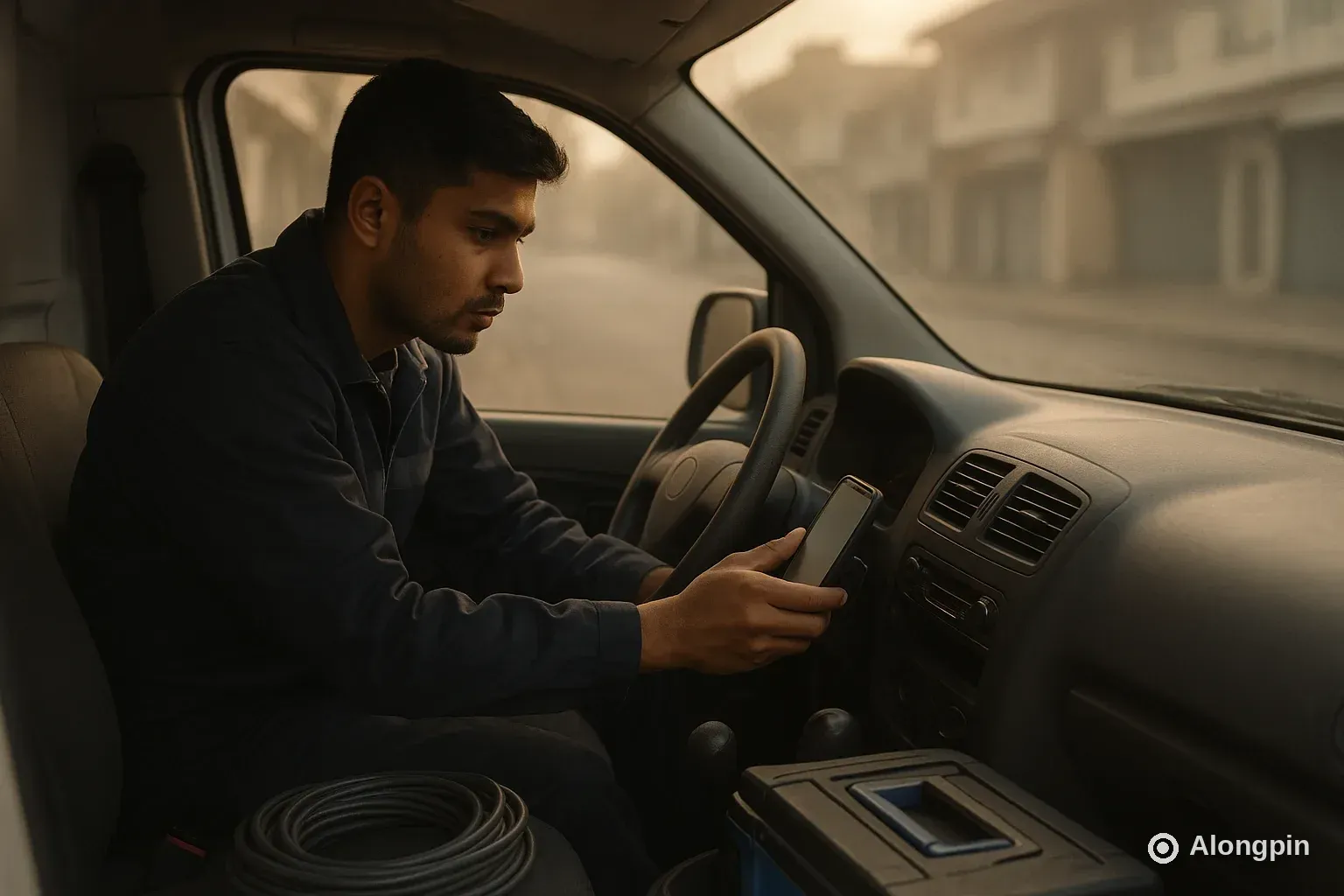
To use a phone as a GPS tracker, install a tracking app that speaks a supported protocol, such as an OsmAnd-style app, add the phone in the portal under Devices with a device ID of your choice, and enter your server address, the port for phone apps and that same ID in the app. Once the app sends its first position, the phone is one more device on the live map and in trip history. This guide is for team leads whose technicians have no tracker in the van but carry a phone anyway.
Before you start
- A phone with mobile data and location switched on.
- A tracking app that sends positions over HTTP in the OsmAnd format. The phone app page explains what such an app reports.
- A login to the portal that may add devices.
- The technician's agreement: see "Tell the person carrying the phone" below.
What a phone can and cannot do
A phone reports where it is, and nothing else the platform can act on. It raises no SOS alarm, reports no ignition, so the map can't tell a running engine from a parked van, and takes no commands. Where you need those, a wired tracker or a personal alarm reports them. For a team that needs positions, trips and arrival times at customer sites, a phone is often enough to start; the field service page shows what the platform does for mobile teams.
1. Install a tracking app on the phone
Install a tracking app that sends positions in the OsmAnd format; many free apps for Android and iPhone do. If you are unsure which protocol an app speaks, type its name or protocol into the device check. Don't start reporting yet: first give the phone a place to report to.
2. Add the phone under Devices
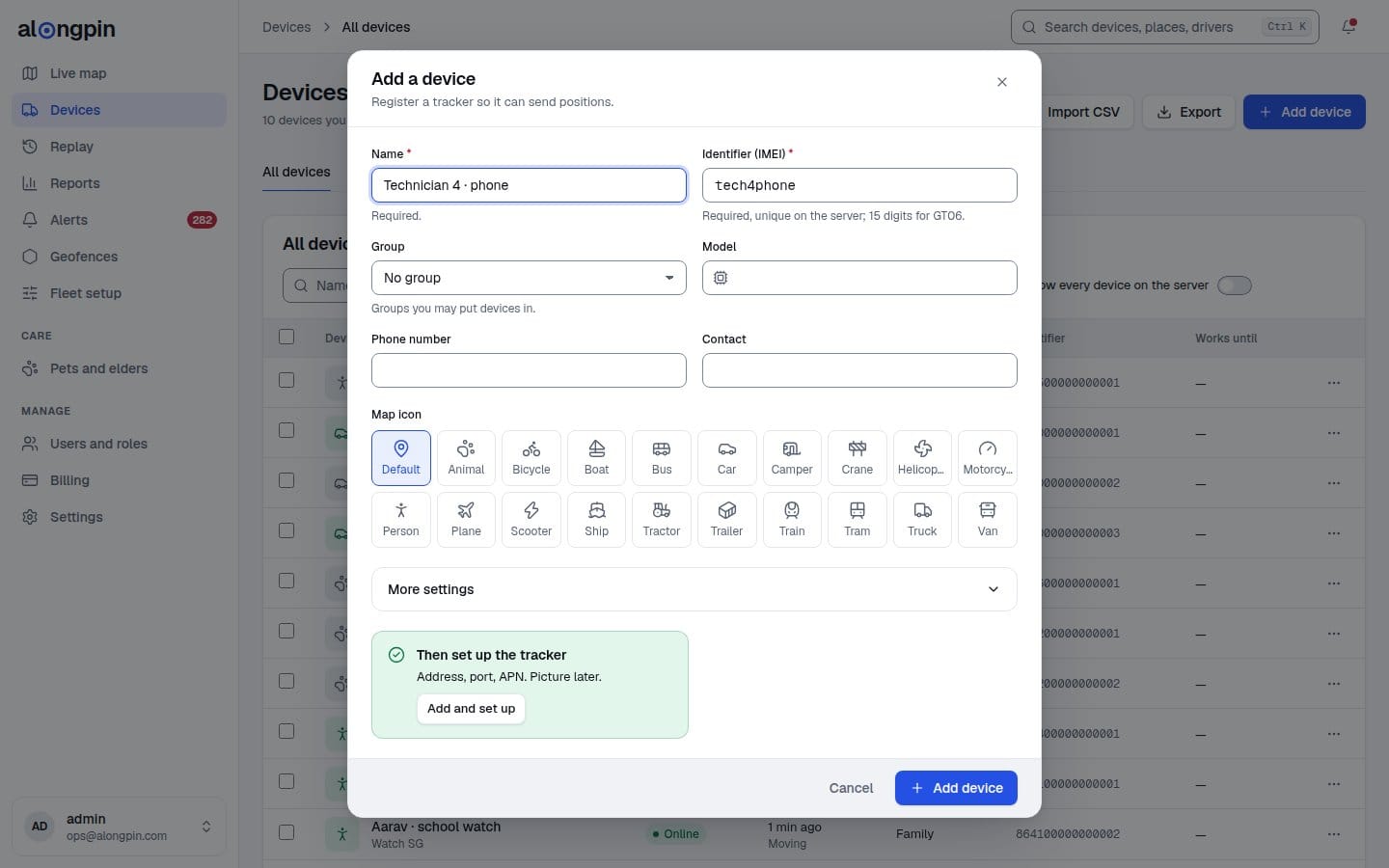
In the portal, open Devices and choose Add device. Give the phone a name your team recognises, such as the technician's name and "phone", and enter a device ID as the Identifier (IMEI). A phone has no IMEI to use here: pick a short ID of letters and digits, such as tech4phone, unique on the server, and note it for step 4. Then choose Add and set up, which saves the device and opens its tracker setup.
3. Read the server address and the port for phone apps
Set up the tracker shows the Server address and the port of each protocol. Pick OsmAnd, phone apps under Protocols this server accepts to see its port. In a standard setup it is 5055, but an operator can change it, so use the one the dialog shows. The device connection guide lists the standard ports.
Which protocols your server accepts is set by its operator. If the phone-app protocol is not switched on, the dialog says so: ask your administrator before you go further.
4. Enter the address, port and device ID in the app
Open the app's settings and fill in:
- Server: the server address and the port, usually written as one address such as
http://followed by the address, a colon and the port. Check the app's help for the exact form it wants. - Device ID (some apps say identifier): exactly the ID you entered in step 2, with the same upper and lower case.
- Interval: how often the app sends a position. A minute or two is a good start for a working day; shorter intervals use more battery.
Then switch reporting on.
5. Let the app work in the background
Phones stop apps to save battery, and a tracking app that is stopped sends nothing. On the phone:
- Allow location for the app all the time, not only while it is open.
- Exclude the app from battery saving or battery optimisation.
- Leave the app's notification visible if it shows one: that keeps it running on many phones.
These settings have different names on every phone make; look for "location", "battery" and "background" in the phone's settings.
6. Walk or drive, and check the live map
Take the phone outside and walk or drive a short way. On the live map, the phone turns Online when its first position arrives and moves with each new one. Trips and stops build up in its history like those of any other device.
A phone app doesn't keep a connection open between positions. When it stops sending, the phone turns Unknown after a while (10 minutes in a standard setup), not Offline. To hear about it, see getting an alert when a device stops reporting.
If the phone does not appear
- It reached the server, but under another ID: a phone that reports an ID no device has lands in the list of unverified trackers, under Devices → Unverified. Administrators can register it there in one step; see unverified devices. Otherwise compare the ID in the app with the one on the device, letter by letter.
- Nothing arrives: check the address, the port and the
http://part, and that the phone has mobile data. - It reports for a while, then stops: battery saving stopped the app. Go back to step 5.
Tell the person carrying the phone
A phone goes everywhere its owner goes, including home. Before you switch tracking on, tell the technician what is recorded, who sees it and why, and agree the hours: for example, the app runs during the working day and is stopped after it. Write the agreement down. Where a works council or employee representatives must be involved, involve them first.