Field service and deliveries

Know when your team arrives and leaves.

Draw a zone around each customer site and get a message when a vehicle enters or leaves. Look back at the day's route when a customer asks "were you here?"

Choose a package in the portal; you see the first invoice before you confirm.

1234Left Oak Street 1410:15 · 33 min insideArrived at Harbour Clinic10:48 · Van 5

The office

From "where are you?" to "arrived at 09:42"

Four things office staff ask, and where the answer is.

  • 01

    Customers ask when the technician will arrive.

    The live position of every vehicle.

    The office can answer from the map. Optionally give a customer a read-only link to one vehicle.

  • 02

    Nobody knows when a visit started or ended.

    Arrival and departure events for every zone.

    The geofence report lists entered, left and time inside per stay.

  • 03

    A complaint arrives days later.

    Trip history.

    Replay the route and the events of any day.

  • 04

    Vehicles get used outside hours.

    Calendars.

    A zone or an alert rule only fires inside, or outside, working hours.

One visit, three steps

Built around the customer site.

The zone, the message, and the row in the report that shows the stay.

01Draw the zone

Draw a zone around each site

Draw a circle, a polygon or a corridor along a route. Name it, colour it, and attach it to the vehicles or groups that should be checked against it. Optionally add a speed limit that applies inside.

  • Circle, polygon or route corridor on the map
  • Attach a zone to one vehicle, a group or the whole team
  • A speed limit per zone, if you want one
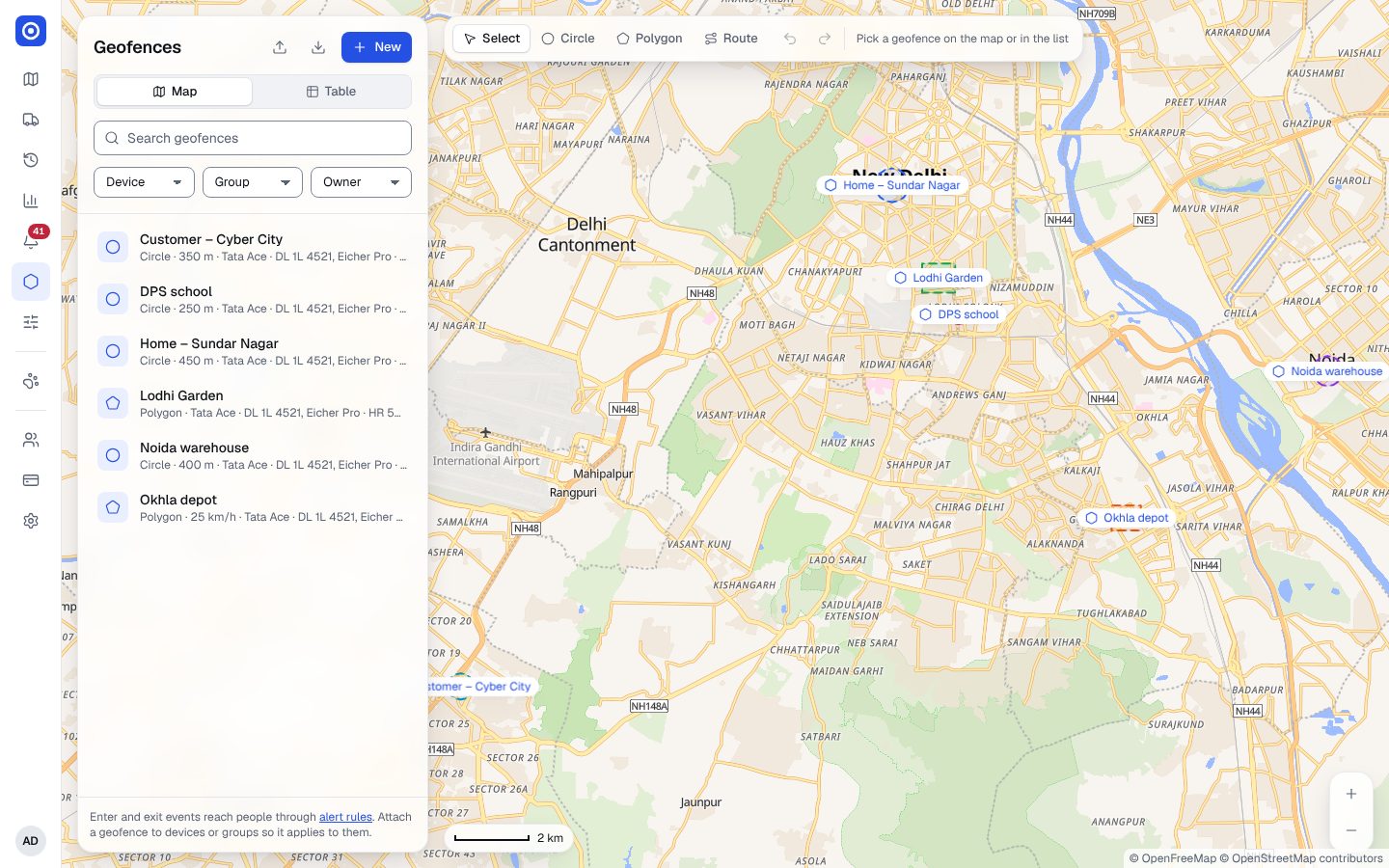
Geofences in the portal: a circle around a customer site and the vehicles attached to it

02Get the message

A message on arrival, a message on departure

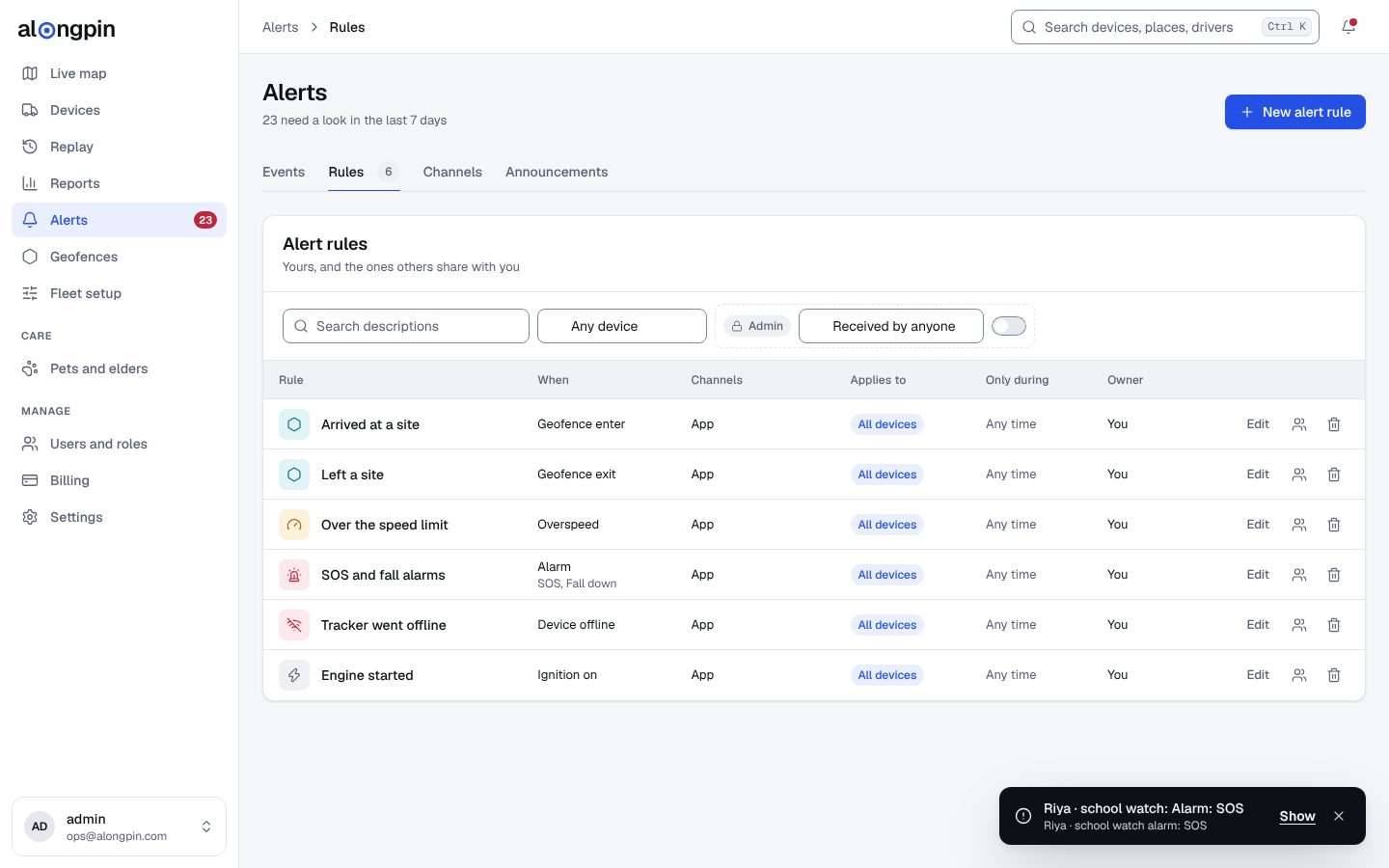
Make a rule for "Geofence enter" or "Geofence exit", narrowed to the zones you pick. Choose who is told and how, and add a calendar so the rule only runs in the hours that matter.

  • Rule narrowed to selected zones only
  • Push, email, SMS, Telegram or webhook
  • See on each zone which rules use it

SMS and Telegram depend on the channels switched on for your account.

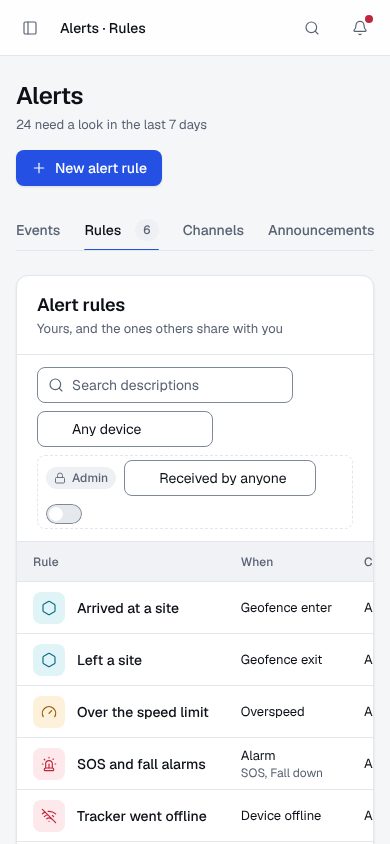
Notification rules in the portal: a geofence enter rule with its zones, channel and calendar
An arrival alert as it appears on a phone

03Keep the proof

Proof of where a vehicle was, and for how long

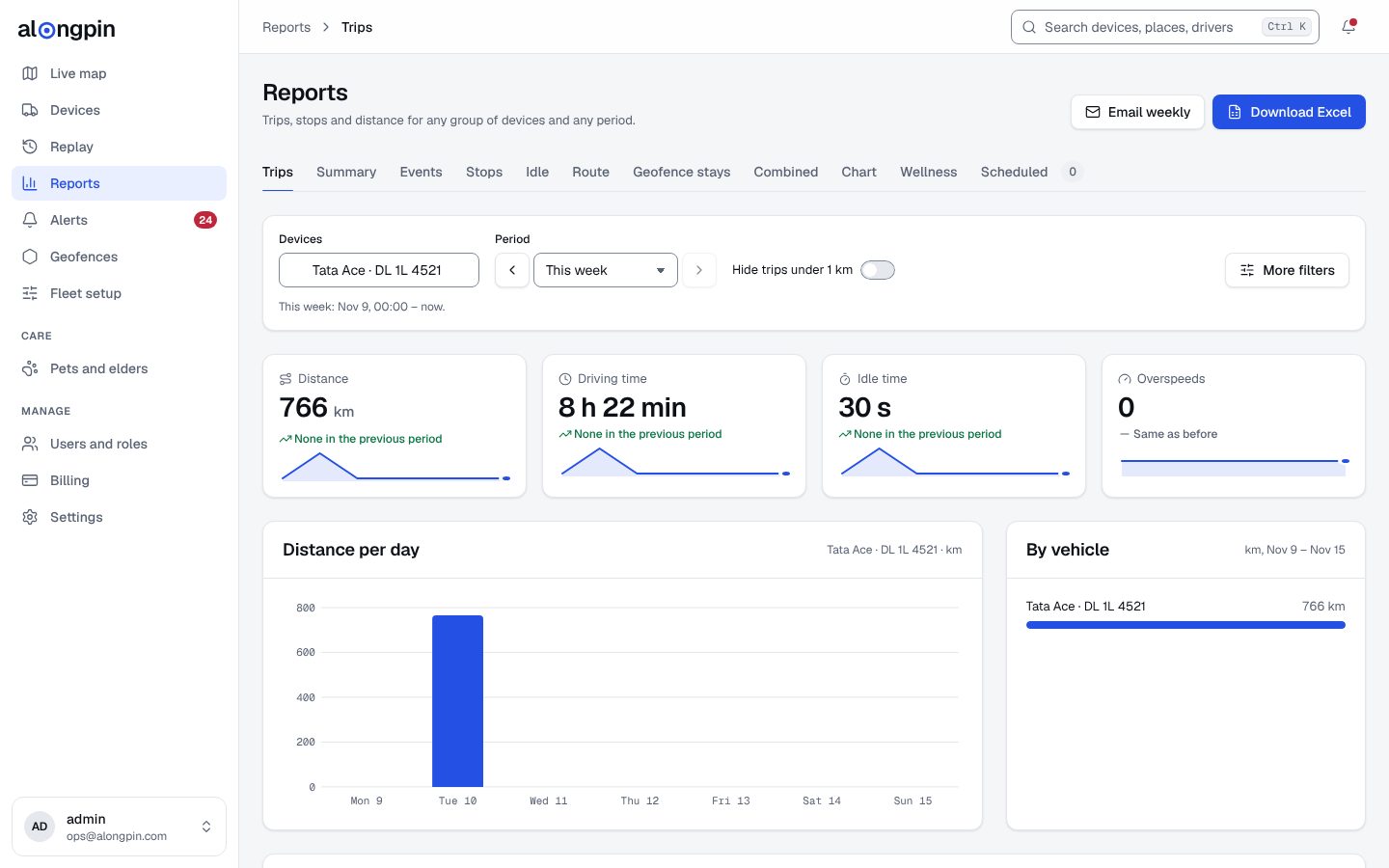
The geofence report lists each stay in a zone with entered, left, time inside, distance and speeds. Replay any trip on the map with the events along it. Download as CSV or Excel, or schedule it to arrive each evening.

  • One row per stay: entered, left, time inside
  • Replay the route with speed and events
  • Export or schedule

The platform records a vehicle's position and time. It does not collect signatures or photos of delivery. A phone with an app is not a replacement for a delivery-proof app.

A geofence report in the portal: one row per stay with entered, left and time inside
What a geofence report holdsExample rows
ZoneVehicleEnteredLeftTime inside
Oak Street 14Van 509:4210:1533 min
Harbour ClinicVan 510:4811:2032 min
Mill Lane 3Van 211:0512:311 h 26 min

The working day

Commands and calendars around the visit

Ask a tracker for its position, and let zones and rules follow the hours you work.

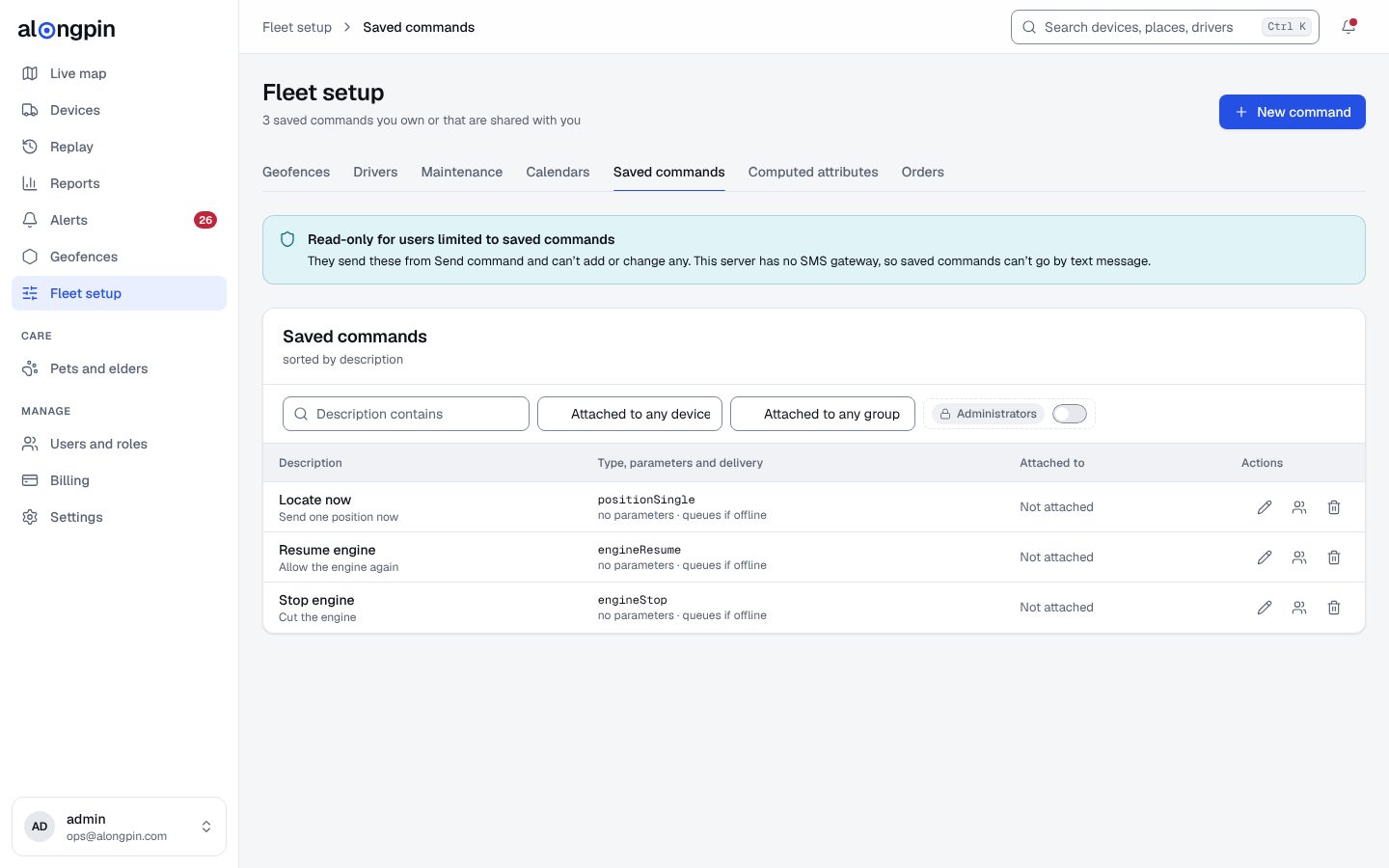
Commands in the portal: a queued command waiting for an offline tracker and the history of sent ones

Management

Ask the tracker, even when it is offline

Send "position now" or "report every 60 seconds" to a device, or one command to a whole group. If the tracker is offline the command waits in a queue and goes out when it reconnects. See what was sent, by whom and what became of it.

  • Position now, periodic reporting and other commands the device supports
  • Queued when offline, with cancel
  • Command history of the last 90 days

Which commands are available depends on the tracker model.

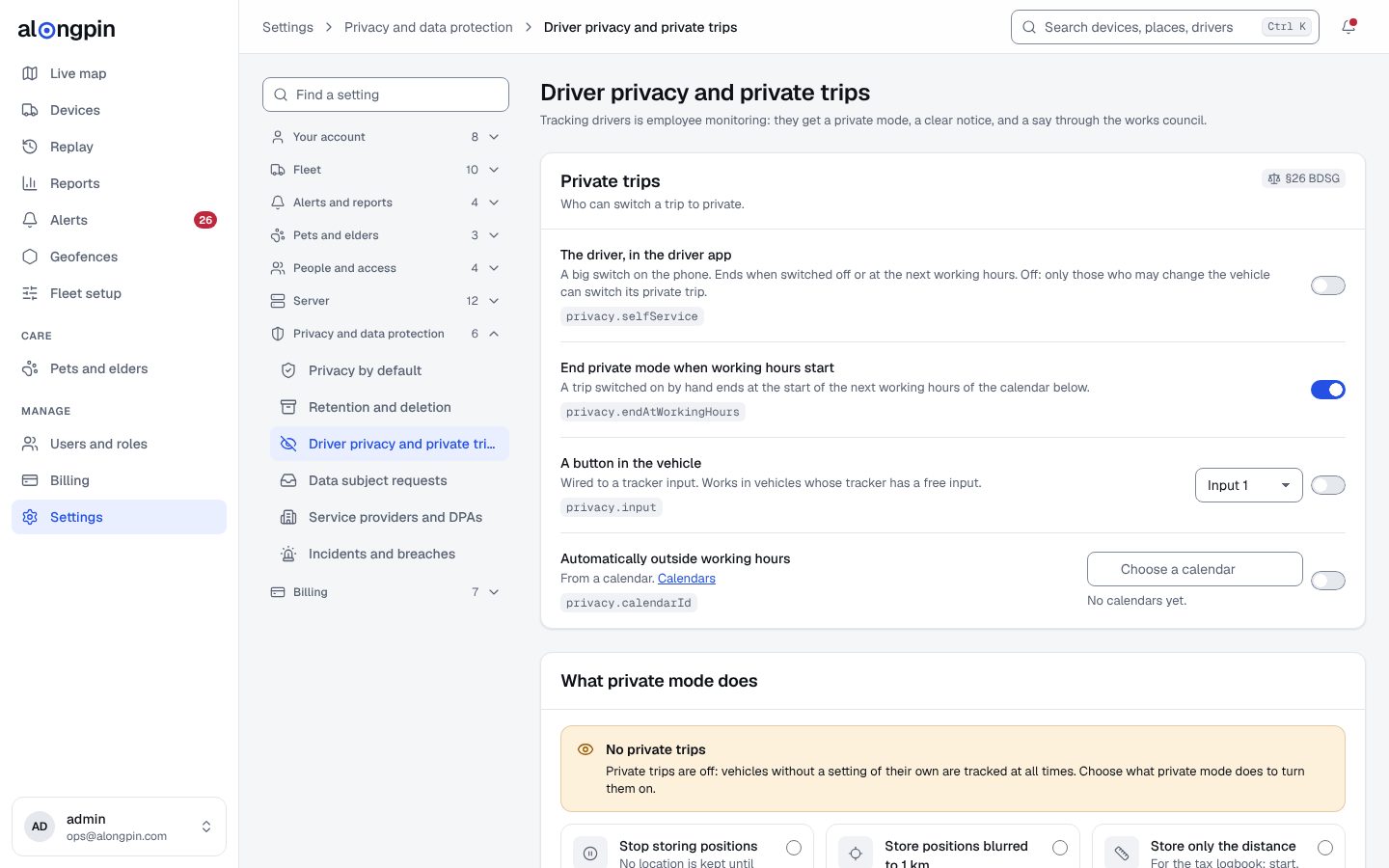
Working hours in the portal: the calendar that limits tracking and the rules that use it

Management

Rules that follow your working day

Create a calendar such as "weekdays 08:00 to 18:00" or import an iCalendar file. Use it on zones, alert rules and scheduled reports so alerts and events respect the hours. Where staff must not be tracked after hours, working hours also drive private-trip settings.

  • Weekly schedules or imported calendar files
  • Geofence events only happen while the calendar is in progress
  • Scheduled reports sent when a calendar period ends
All features

Devices

Vehicle trackers, or the phone in the driver's pocket

For vans use a vehicle tracker. For couriers on foot or by bike you can use a phone as the tracker.

A phone as tracker needs the phone to stay on, with location allowed and a data connection. Battery use is the phone's.

We do not sell hardware.

How teams use it

Stories from customers, in their words, published by our team.

No stories published yet

Customer stories appear here once our team publishes them. In the meantime, book a demo and we will walk you through a setup like yours.

All customer stories

Pay per device

Packages set the price, the features and the number of devices. Start with a free trial where the package has one, and change plan any time.

No packages are offered yet

The platform's administrators have not published any package.

FAQ

Questions people ask first

Does it prove a delivery was made?

It proves a vehicle or phone was inside a zone at a time, and for how long. It does not capture signatures or photos of the delivery.

Geofences and places

How accurate is an arrival alert?

It depends on the tracker's position fix and how often it reports. The platform checks each reported position against your zones, so use a zone a little larger than the building.

Check if your device works

Can I track people on foot or bikes?

Yes, with a personal tracker or a phone used as a tracker. Tell staff, and agree rules for private time before you start.

Phone app as tracker

Can I limit tracking to working hours?

Yes. Set working hours so positions outside them are blurred, reduced to distance only or not stored, and let drivers switch a private trip on themselves where you allow it. By default an SOS ends a private trip and sends the real position.

Driver privacy and working hours

What if the tracker is offline when I send a command?

The command is queued and sent when the tracker reconnects. You can cancel it while it waits.

Remote commands

Our vans drive the same round every day. Is there something for that?

Yes, with the Routes add-on. A route has its stops in a fixed order, recipients get an "approaching" message with a private live page, and dispatch hears about a missed stop or a late run.

Delivery routes

Where is my data hosted?

Run it on your own servers, or let us host it for you. A data processing agreement is available.

Data processing agreement

Know when the team gets there

Create an account, or let us set up your first customer zones in a demo. Choose a package in the portal; you see the first invoice before you confirm.

Chat with us