Care
How to set medication and appointment reminders
Keep medicines, check-ups and expiring documents in the care profile, each with a date and reminder days. You and the contacts you choose are reminded by app, email or text message before each date.
Ashish Srivastava4 min read
To set medication reminders for an elderly parent, you add each medicine as a health record of kind Medication in their care profile, with its next refill date, and choose how many days before that date the reminders go out and through which channels. Appointments and expiring documents work the same way. The profile's owner, the family members it is shared with for health data, and the contacts you mark all receive the reminders. This guide is for carers who keep track of tablets, check-ups and papers that run out.
Before you start
- A care profile for the person. If there is none yet, see creating a care profile for an older relative.
- On a server that requires consents, an active health consent of the person or their legal representative. Without it, health records stay locked and no reminders go out for them.
- The medicines, doses and refill dates, and the dates of coming appointments.
A record for the family, not medical advice. The portal keeps what you enter and reminds you of the dates. It does not check doses or interactions; that is for the doctor and the pharmacist.
What a medication reminder is here
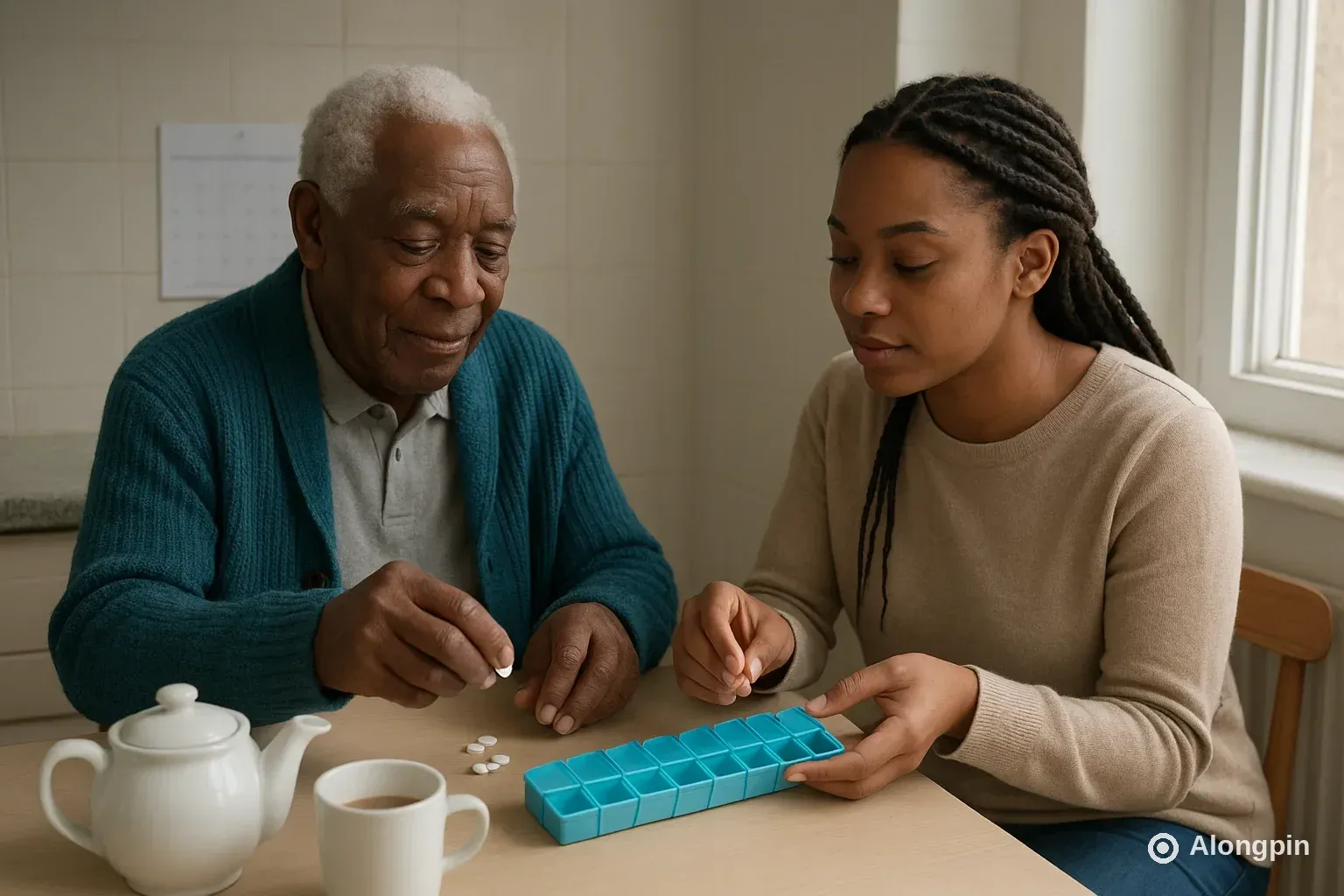
Each medicine is a plan: what was prescribed, how often, from when, and when it needs refilling. Reminders count down to the Next refill date. The portal does not log the doses taken and does not ring at pill time every day. For daily dose times, a pill organiser or the watch's own alarm is the better tool.
1. Open the profile's health records
Open Care → Pets and elders, choose the profile, and go to Records and documents. The Medication, Vaccinations and Conditions views each show one kind of record; Add record creates a new one.
2. Add a medication or an appointment with its date
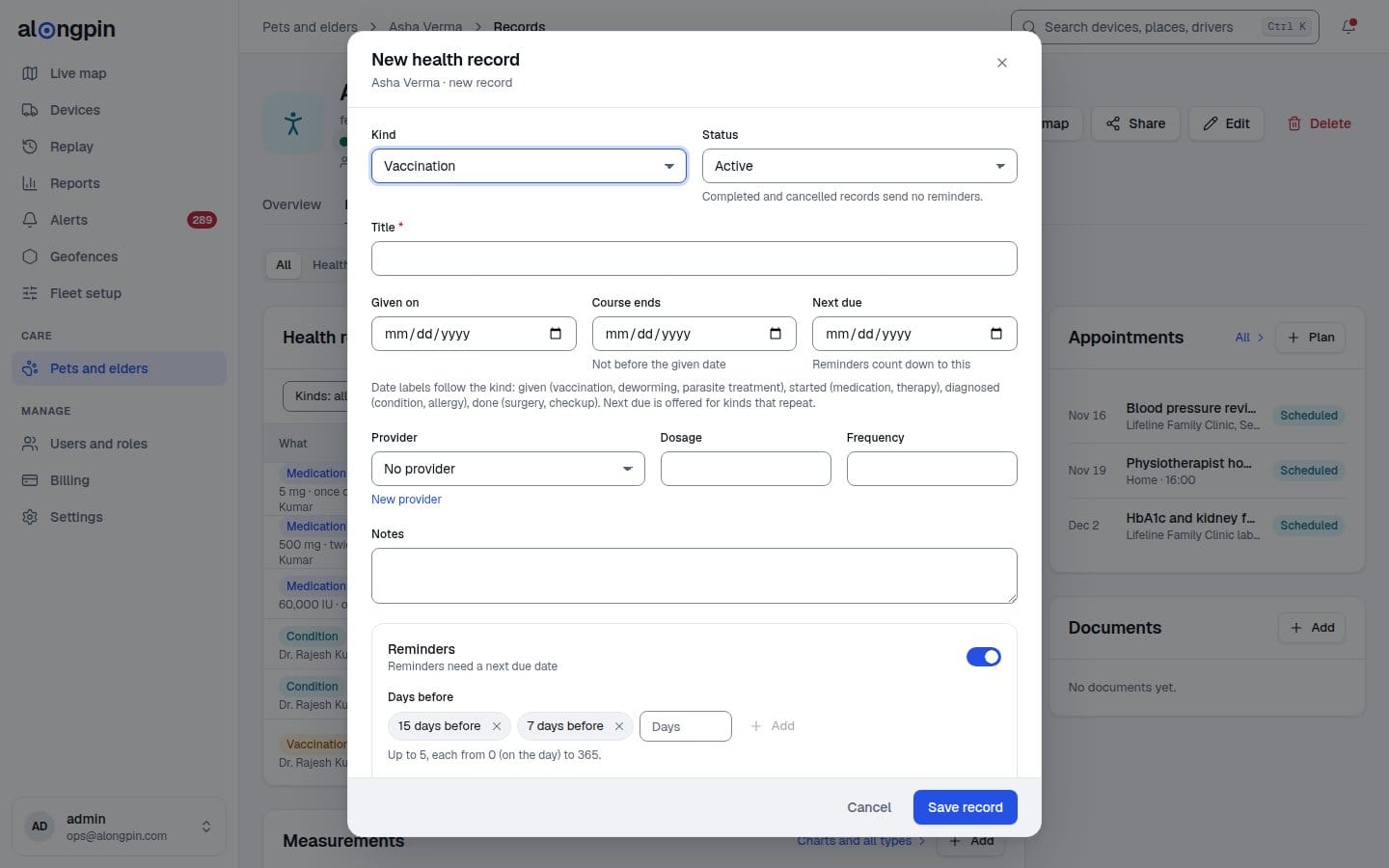
For a medicine, choose Add record and fill in:
- Kind: Medication.
- Title: the medicine's name.
- Dosage and Frequency, for example 500 mg, twice daily with meals.
- Started, and Course ends for a course with an end.
- Next refill: the date the reminders count down to.
- Provider: the pharmacy or doctor, if you keep them under Providers.
For a check-up, choose New appointment on the profile, pick the Kind (Doctor visit, Checkup, Home visit…), the Start time and the Location. Only scheduled appointments are reminded of.
Documents that expire, such as an insurance policy or an identity card, go under Documents with their expiry date, and are reminded of in the same way.
3. Choose the reminder days
Under Reminders, Days before starts at 15 and 7 days. Change them to what suits you, for example 10, 3 and 1 day before a refill, or add 0 for a reminder on the day itself. An item takes up to five reminder days. Below, You will be reminded on lists the dates.
Reminders go out at 09:00 in the profile's time zone on each of those days, unless your administrator set another time. The profile's time zone is under Edit on the profile.
4. Choose app, email or text message
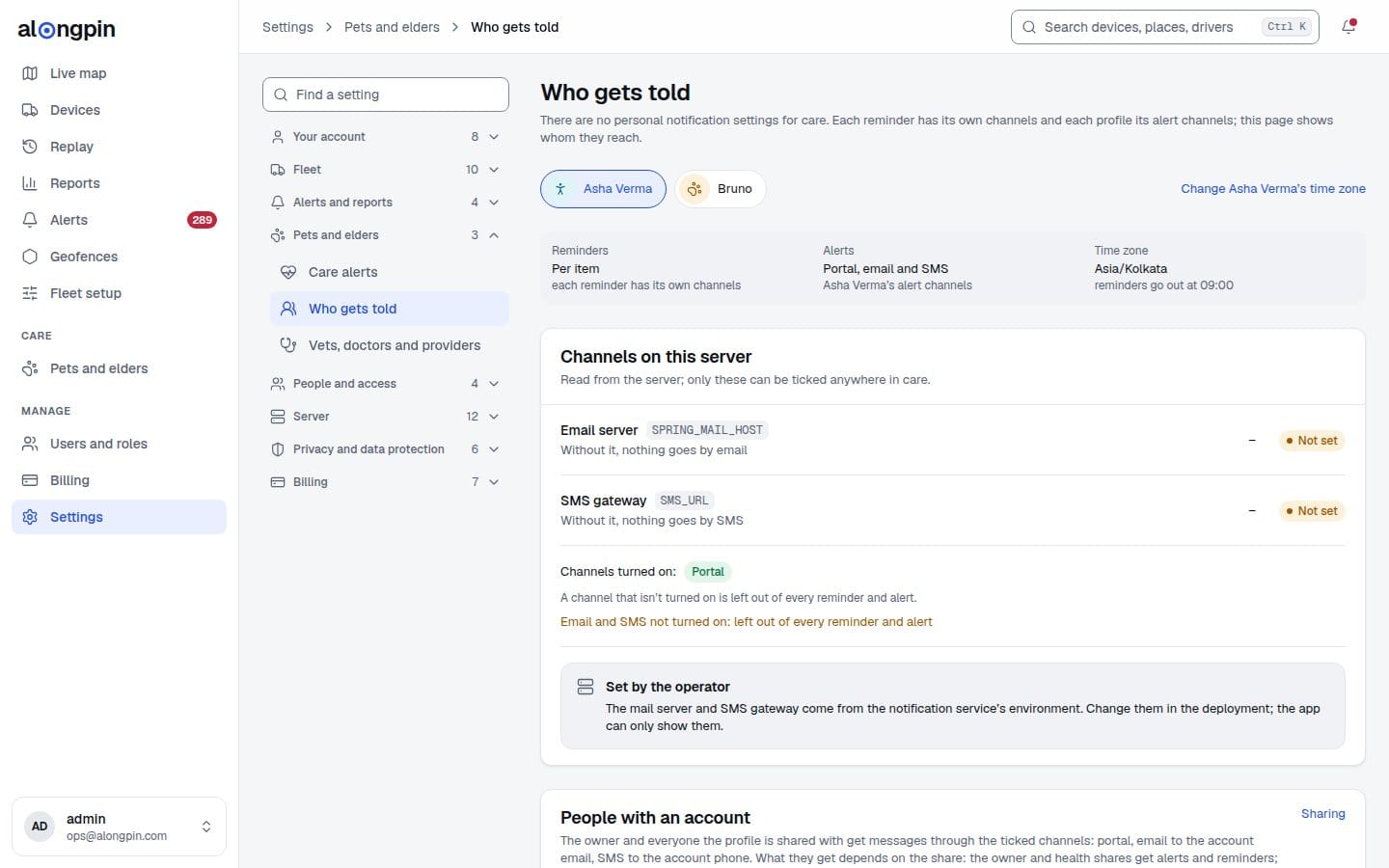
Under Channels, tick Portal, Email and SMS as you need. Portal shows the reminder to people signed in at the time; Email goes to each person's account email and to contacts' email addresses; SMS goes to each person's account phone and to contacts' mobiles. With no channel ticked, the reminder goes nowhere. Save the record.
5. Mark the contacts who receive reminders
Reminders go to the profile's owner and to the people it is shared with for health data, through the ticked channels. People without an account, such as a sister abroad or a neighbour who collects the prescriptions, can receive them as contacts: open Contacts, edit the person and tick Receives reminders. They need an email address or a mobile number.
The Who gets told page under your care settings lists, per profile, who receives reminders and alerts, and through which addresses.
A family member with a location-only share gets no reminders. The guide to sharing a care profile explains the kinds of share.
6. Check what is due, overdue and coming up
The notification center lists everything dated, from 30 days back to a year ahead, in three groups: Overdue, Due soon and Upcoming. Each item shows its reminder notices: which went out, through which channels, and which are scheduled.
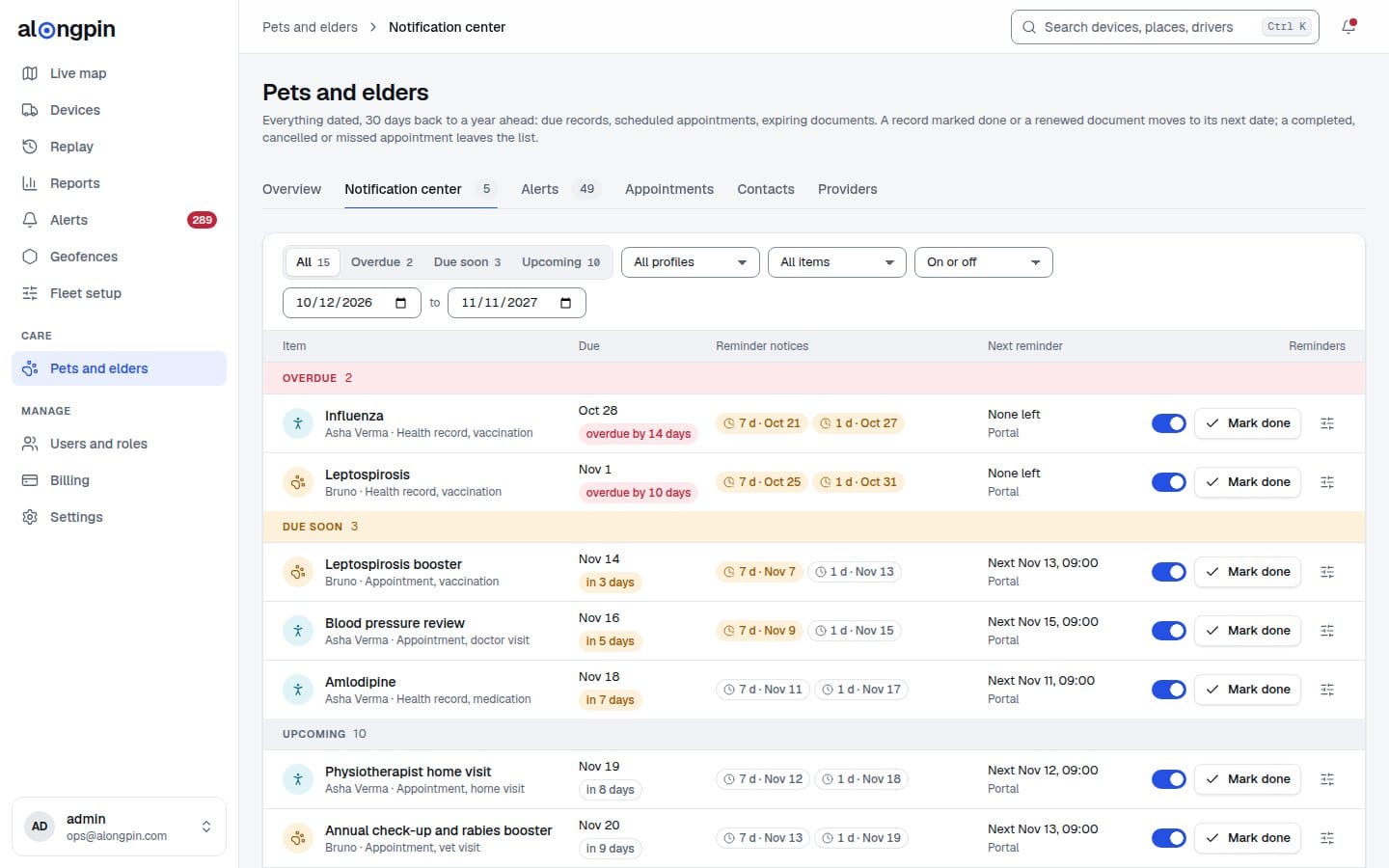
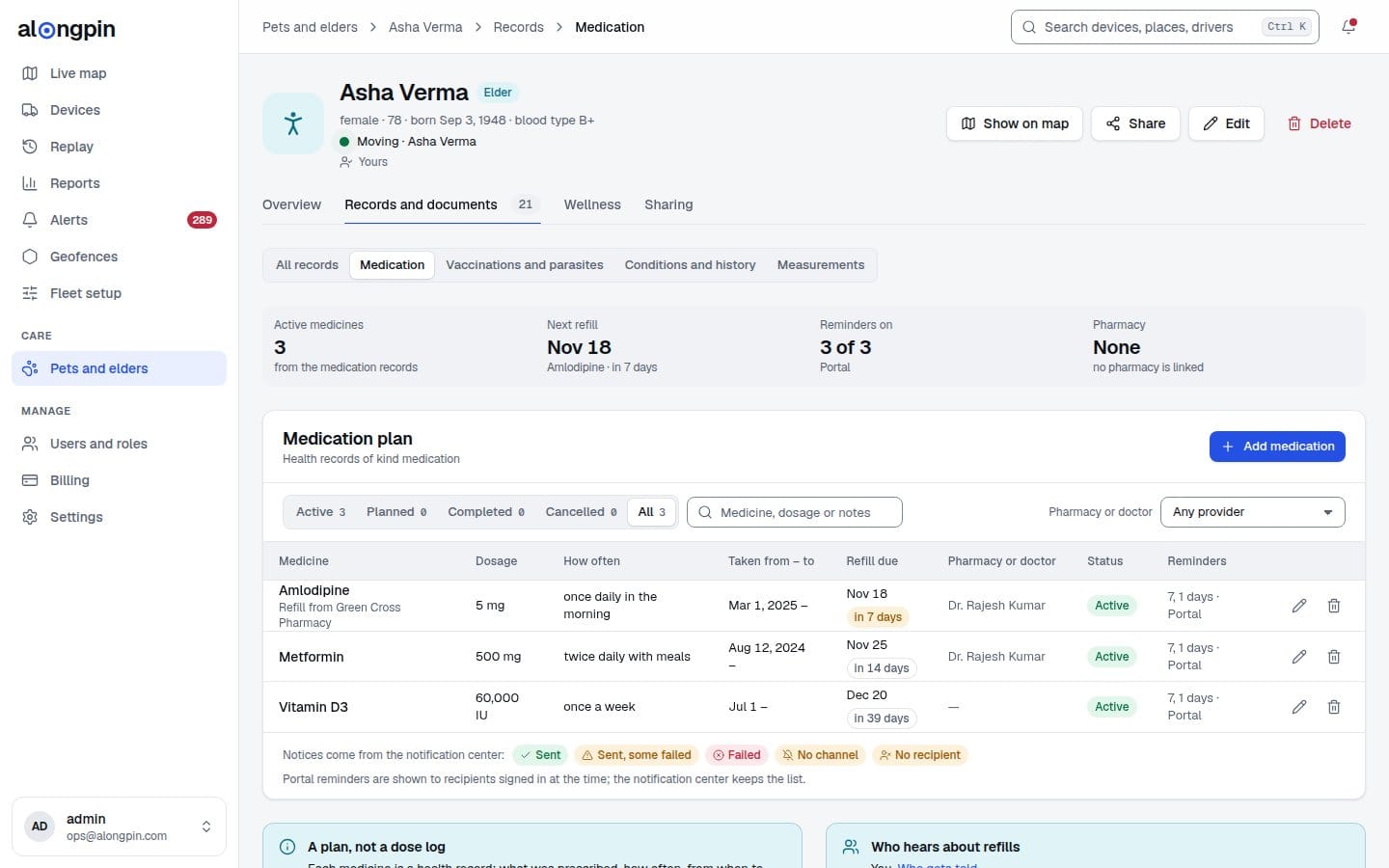
When a refill is collected, choose Mark done and enter the next refill date. The record moves to its new date and the reminders start again. A medicine that has been stopped is closed with the status Completed: it sends no more reminders.
The Medication plan of the profile shows all medicines at a glance, with the next refill and whether reminders are on.
Watch out for
- Up to five reminder days per item. More are refused; pick the ones that give you time to act.
- Text reminders need the SMS channel switched on. If your server has no text message gateway, an SMS-only reminder shows No channel and goes nowhere. Tick Email as well.
- No date, no reminder. A record without a Next refill or Next due date is kept, but never reminded of.
- A reminder whose date has passed is not sent. Add new items well ahead of their date.
Measurements such as weight or blood pressure go in the same records area; the health readings page shows what can be kept. See also the care profiles page and how families use it for elder care.