Care
How to see heart rate and other readings from a health watch
For family carers: where a health watch’s heart rate and other readings appear in the care profile, how to add your own measurements and daily goals, and how to share health data with a doctor until a date.
Ashish Srivastava4 min read
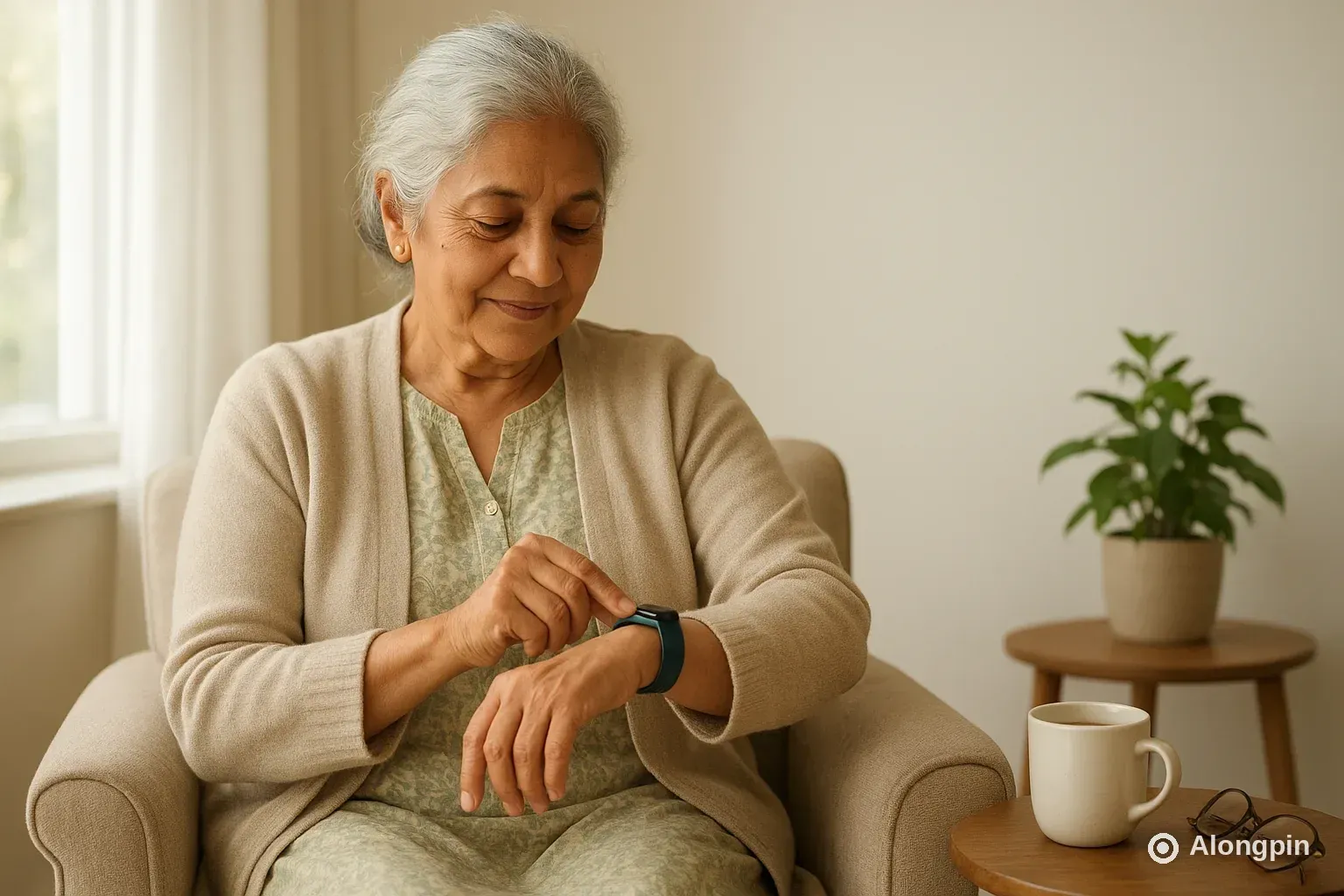
With a heart rate monitoring watch for an elderly relative, the readings show in your relative’s care profile. The latest heart rate, blood oxygen, blood pressure and body temperature the watch sent appear on the profile’s Overview under From the watch, and the Wellness tab shows each day’s heart rate (average, lowest and highest) next to steps and active time. Readings you take yourself, such as blood pressure after a visit or weight, are added as measurements and kept over time. A reading appears only when the watch sends it, and it is a record for the family and the doctor, not medical advice. This guide is for family carers whose relative wears such a watch.
Before you start
- A watch that reports the readings you want. Many watches report position, steps and SOS, but no heart rate.
- The watch already added under Devices and showing on the map.
- Your relative’s consent to keep health data, or their legal representative’s.
1. Check that the watch model reports the reading
Look up the model on the watches page or ask the seller which values it sends: heart rate, blood pressure, blood oxygen, body temperature, steps. The platform shows a value only when the watch reports it; it cannot measure anything the watch does not. If a reading never appears, see health readings not showing.
2. Link the watch to the care profile and record the health consent
Open Pets and elders and your relative’s profile. In the profile’s settings, choose the watch as its tracker, so the map, wellness and alerts use it. Then open the Consents tab and record what your relative agreed to:
- Who gives consent: your relative, or a legal representative with a power of attorney.
- What they agree to: Health covers measurements, records and documents; Location covers the watch’s position and the alerts.
- The consent text that was shown, then save.
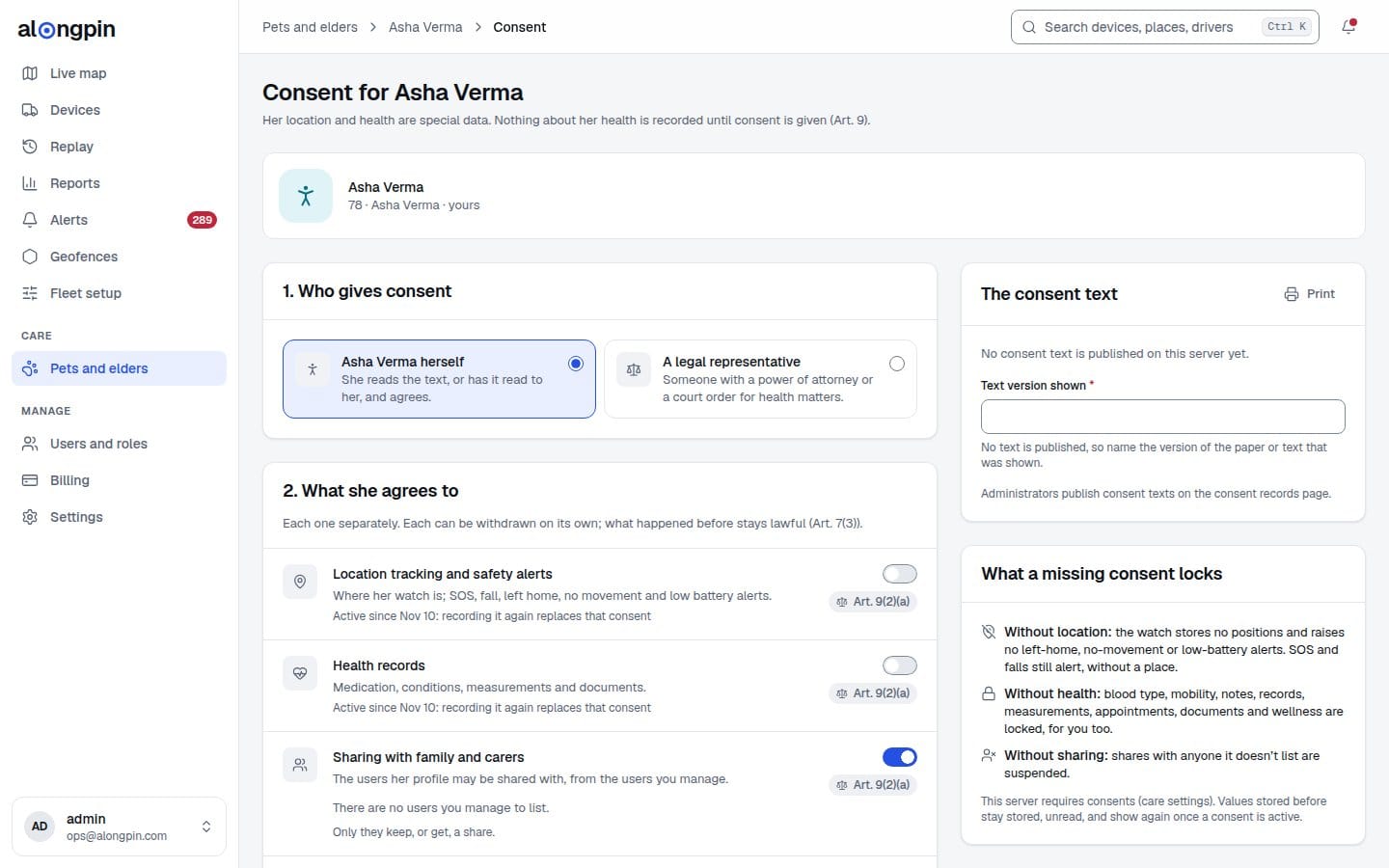
Where your installation requires consents, a profile without an active health consent keeps its health data locked, for you too, until one is recorded. Nothing is deleted meanwhile.
3. Open the health readings of the profile
On the profile’s Overview, the card From the watch shows the latest values the watch sent: heart rate, Oxygen, Blood pressure and Body temp., with the battery and the time of the latest position. As the card says, these are the latest values only: save a reading as a measurement to keep it in the history.
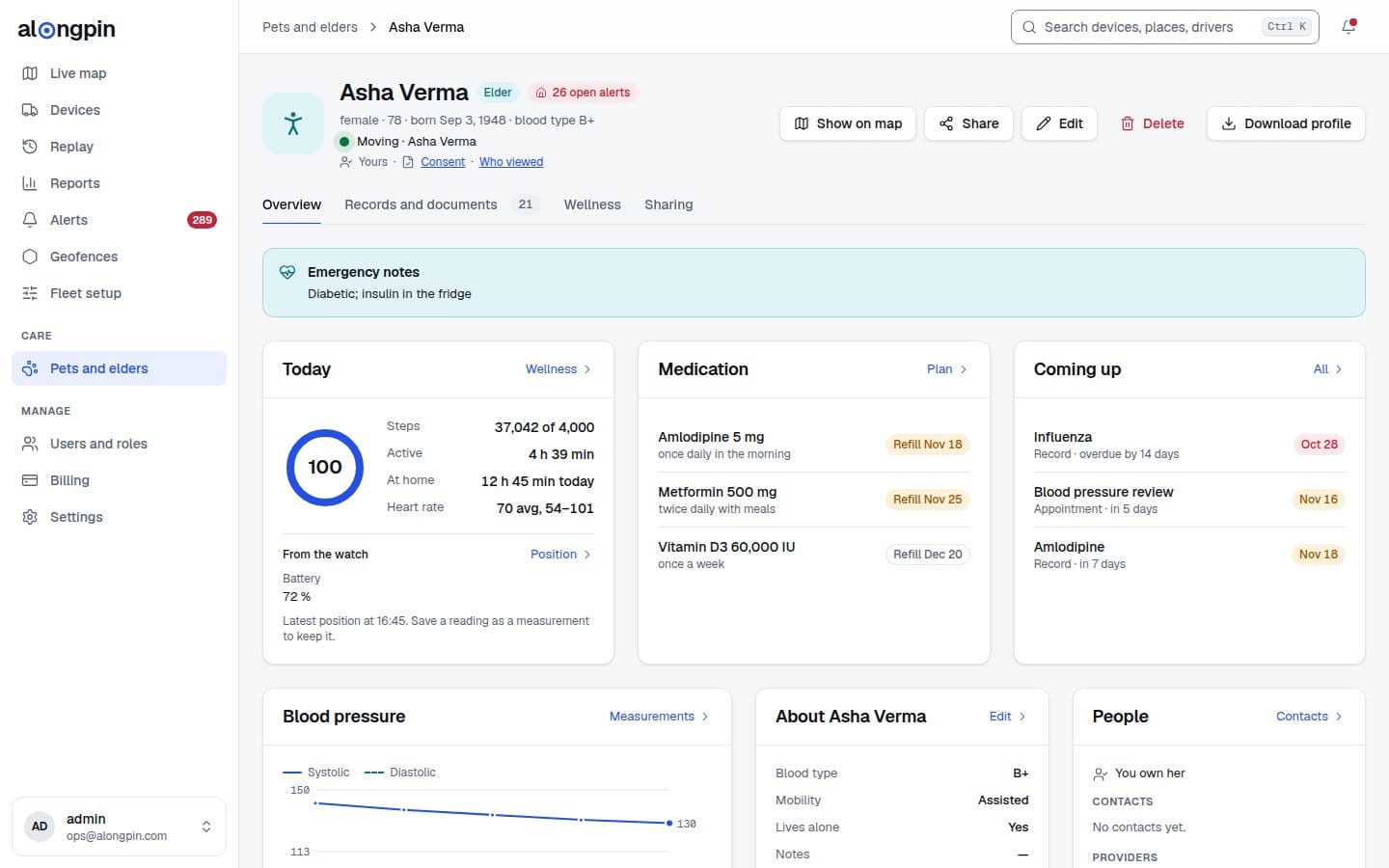
The Wellness tab shows the days: steps, active time, distance, time at home, rest and the day’s heart rate as average with its lowest and highest value, when the watch reports it.
4. Enter a reading by hand
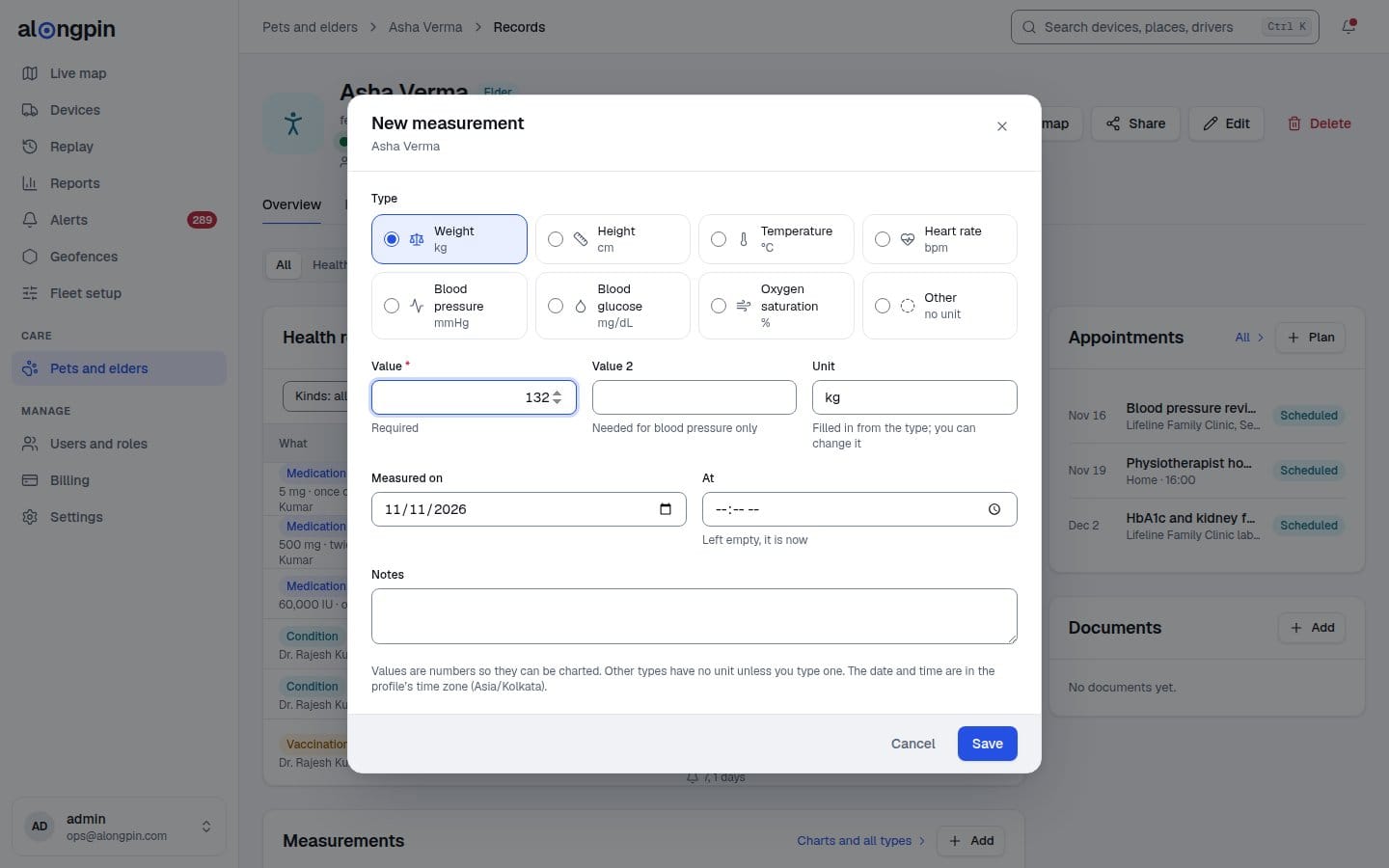
Open Records and documents → Measurements and choose Add measurement:
- Type: heart rate, blood pressure, weight, temperature, blood glucose, oxygen saturation, height or other.
- Value, and for blood pressure Value 2, the diastolic value.
- Unit is filled in from the type; you can change it.
- Measured on and At: left empty, the time is now.
- Notes if useful, then Save.
The measurements list draws each type over the chosen period and lists every reading, newest first. Times are in the profile’s time zone.
5. Set daily goals for steps and active time
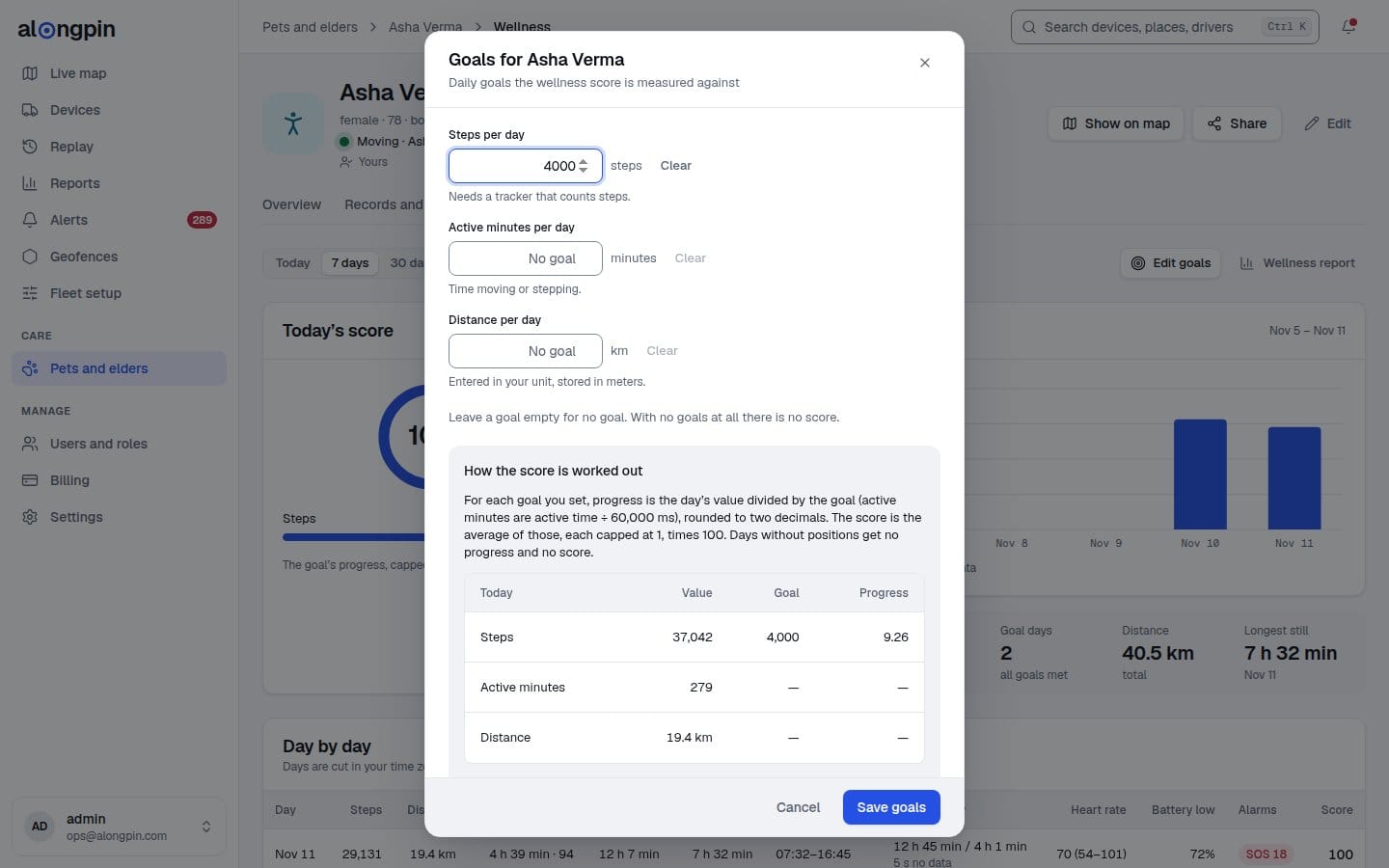
On the Wellness tab, choose Set goals (or Edit goals). Enter Steps per day, Active minutes per day and, if you like, Distance per day, and choose Save goals. Leave a goal empty for no goal. Each day then gets a score from 0 to 100 against the goals; steps need a watch that counts them.
6. Share health only with the doctor until a date
Open the profile and choose to share it. Pick the doctor (they need an account on your installation, among the users you manage), set What they see to Health data only, and enter the last day under Ends. The doctor then reads the profile and its health data, read-only, with no map, contacts, alerts or wellness, and the share ends by itself after that day.
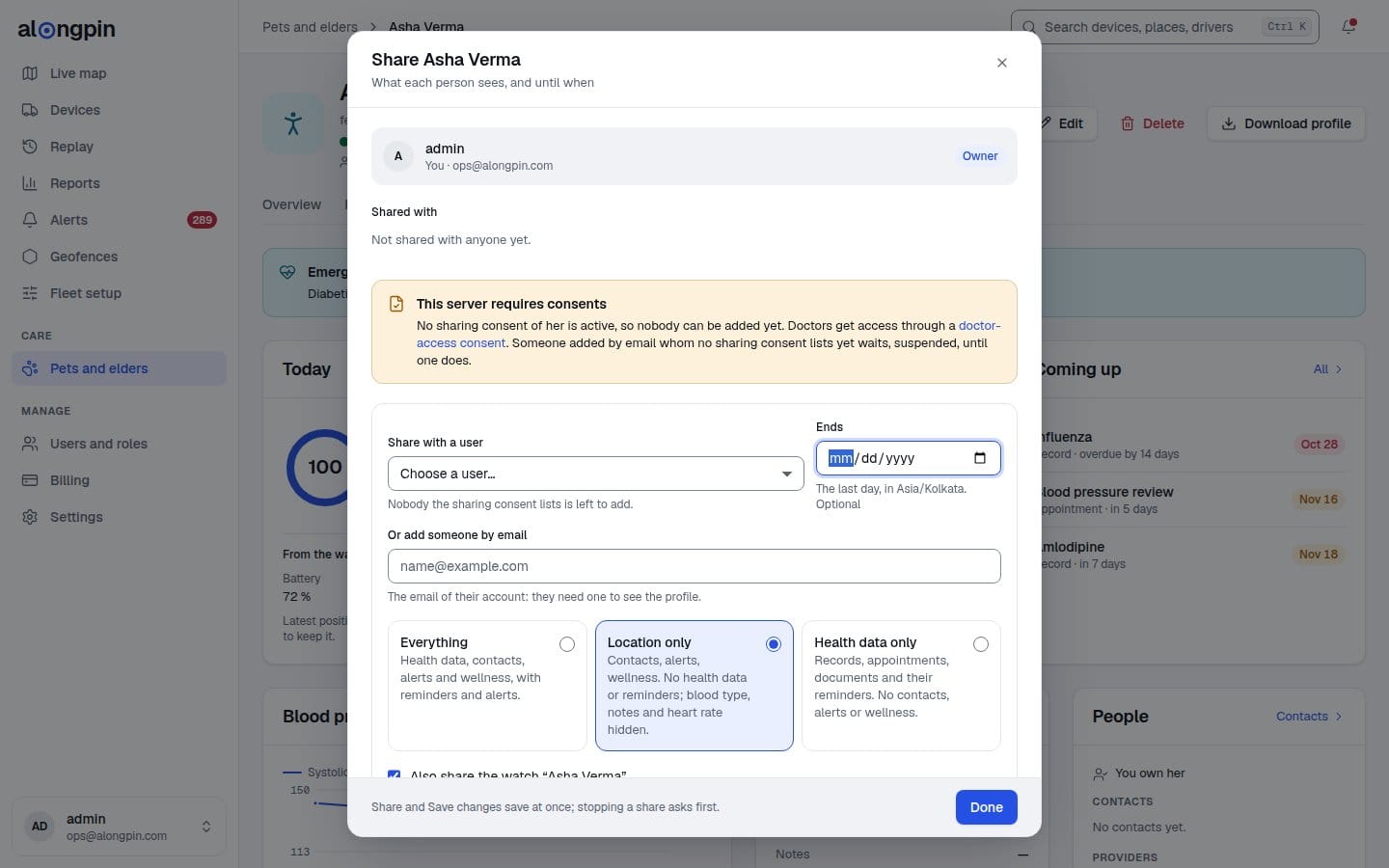
Where consents are required, a doctor gets access through a doctor-access consent instead, recorded on the Consents tab with the doctor, the practice and an Until date.
Who sees the readings
- Every read of health data is logged. The profile’s Who viewed page lists who opened which health data and when. More in consent for an elder’s data and who has read it.
- Location-only shares see the profile, contacts and alerts, but not heart rate, blood pressure or other health values.
- It is a record, not a diagnosis. Nothing here replaces a doctor, and no reading is checked against medical limits.
More on what the platform does with readings on the health readings page, and on profiles, contacts and sharing on the care profiles page.