School transport

Tell parents when the bus is near their stop.

Draw each bus route with its stops and assign the students to them. Parents get a message when the bus is approaching, late or not started, and your transport office sees every run of the day on one board.

Choose a package in the portal; you see the first invoice before you confirm.

MORNING RUN · BUS 41234Depot07:10 · left 07:10Mill Lane07:24 · left 07:26Market07:40 · expected 07:42School08:00 · expected 08:02MessagesHill School: Bus 4 hasstarted.07:10Hill School: Bus 4 is 1 kmfrom Market, about 07:42.Open the live page07:39Told for their own stop only

For parents

Parents know when to leave the house

Each student is assigned to a pick-up stop and a drop stop, with the contacts who should hear about them. A contact gets a text message or an e-mail when the bus is approaching that stop, and a link to a live page of the run.

  • "Approaching" at the distance the school sets, or one the parent chooses inside the school's limits
  • A message when the bus is late, does not start or does not run that day
  • A live page with the bus and the expected time at their stop, without a sign-in

Text messages need SMS to be set up for your account and count against a monthly limit. At the limit SMS stop and e-mail goes on.
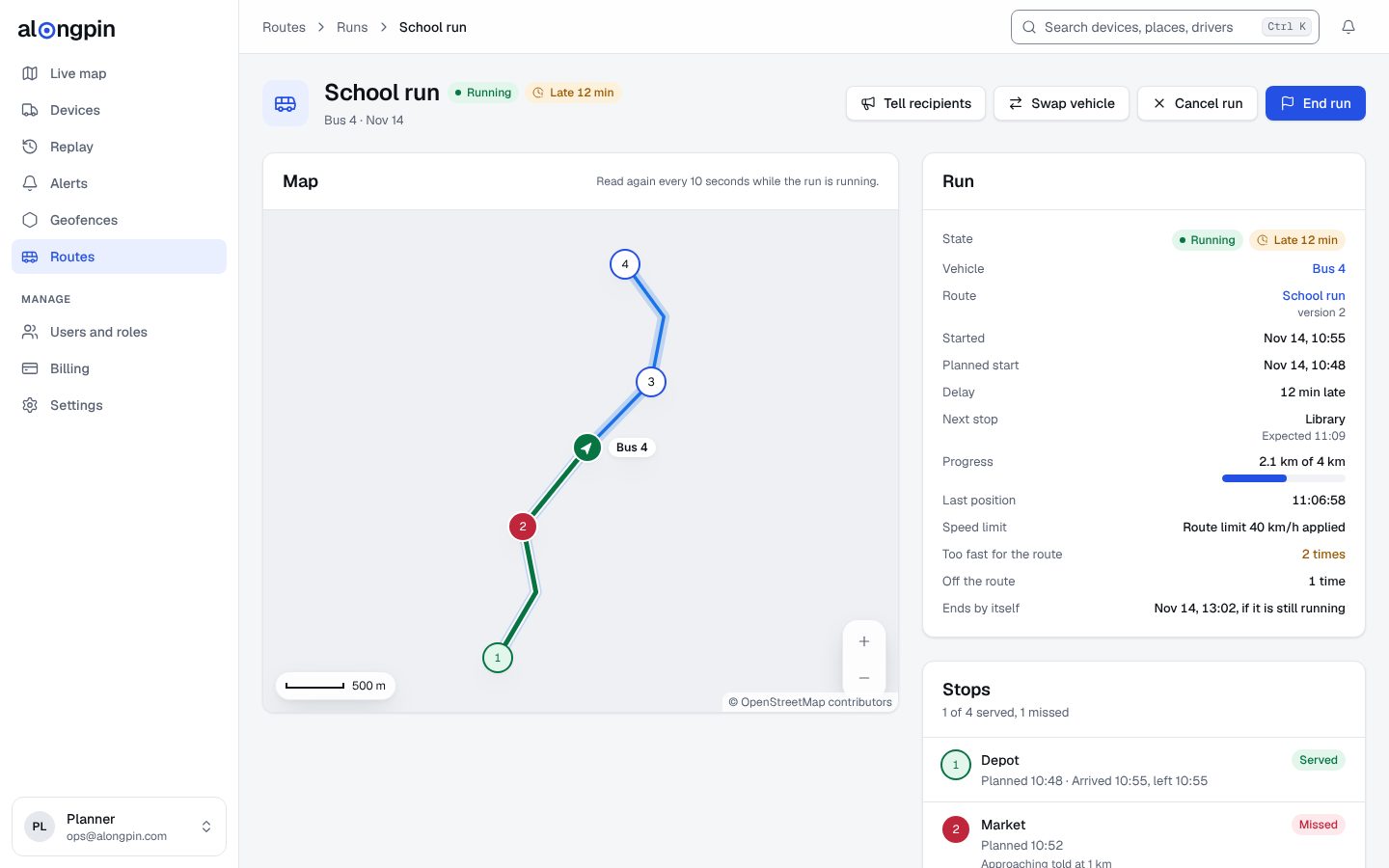
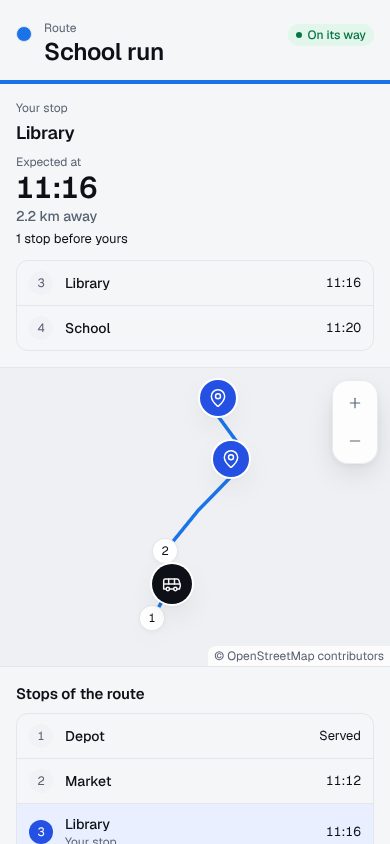
A run of a school bus route in the portal: the bus on the route line between its stops, with the delay, the next stop and what became of each stop

The transport office

Four things that go wrong on a school morning

And what the platform does about each.

  • 01

    Parents call the office to ask where the bus is.

    A message before the bus arrives.

    Contacts are told when the bus is approaching their stop, with the expected time and a link to the live page.

  • 02

    A bus breaks down or leaves late.

    "Not started" and "running late".

    Staff are alerted first. Recipients are told when staff confirm, or by themselves after a second limit.

  • 03

    A stop is passed without stopping.

    A missed stop is an event.

    It shows on the board and in the run, and can reach staff through an alert rule.

  • 04

    Holidays and changed days cause wrong messages.

    Timetables with a calendar.

    Leave out single dates, or cancel a whole day and choose whether recipients are told.

Three steps

From the route to the first run.

01Draw the route

The line the bus drives, and its stops in order

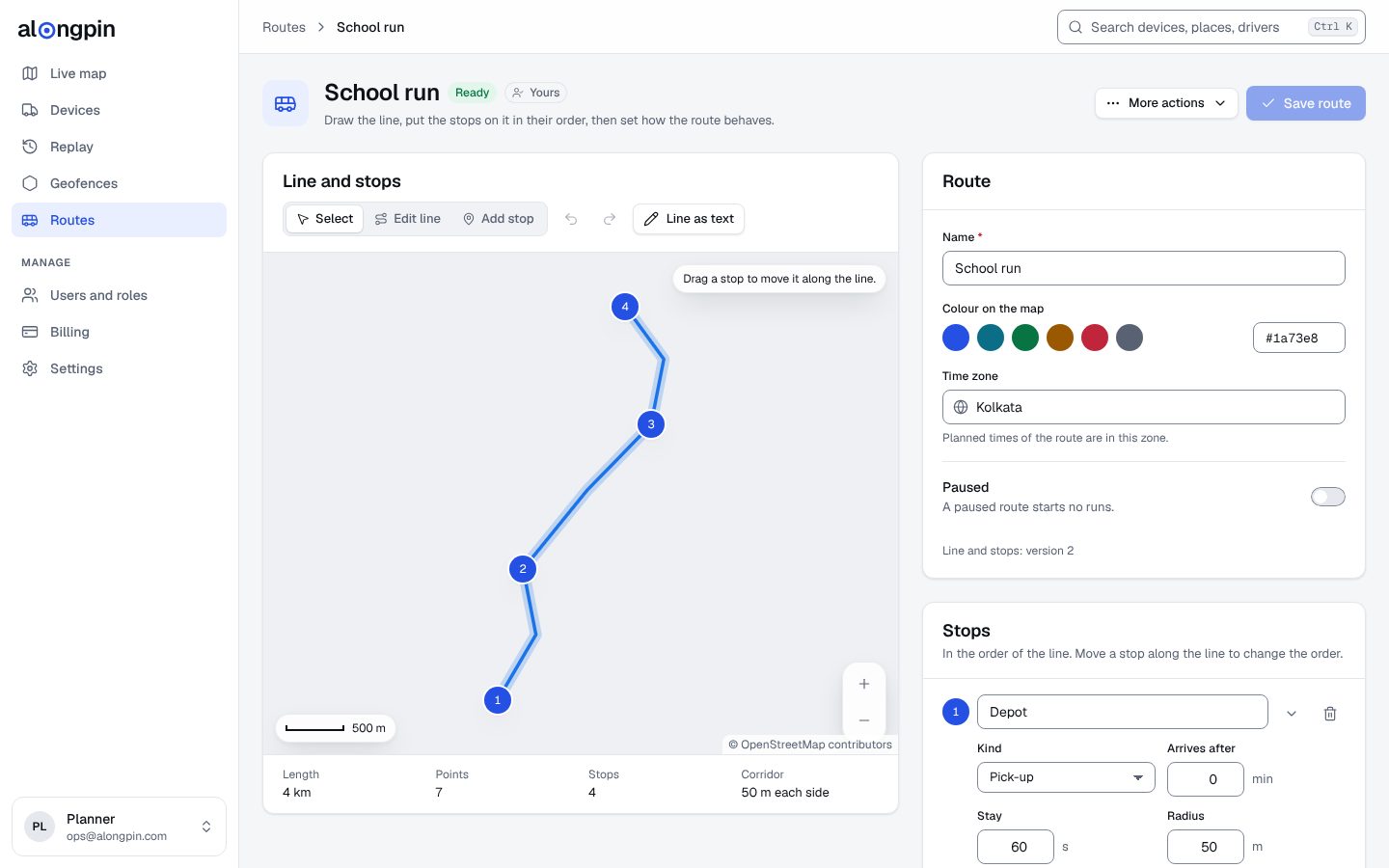
Draw the route on the map or import it from a KML, GPX or GeoJSON file. Put the stops on the line, give each a name and a planned time after the start, and copy the route reversed for the way home.

  • Pick-up, drop or both for each stop
  • A speed limit for the route, counted only while a run is on
  • Pause a route in the holidays without deleting it
The route editor in the portal: a bus route with four numbered stops on the map and the settings of each stop

02Add the students

Students at their stops, with the people to tell

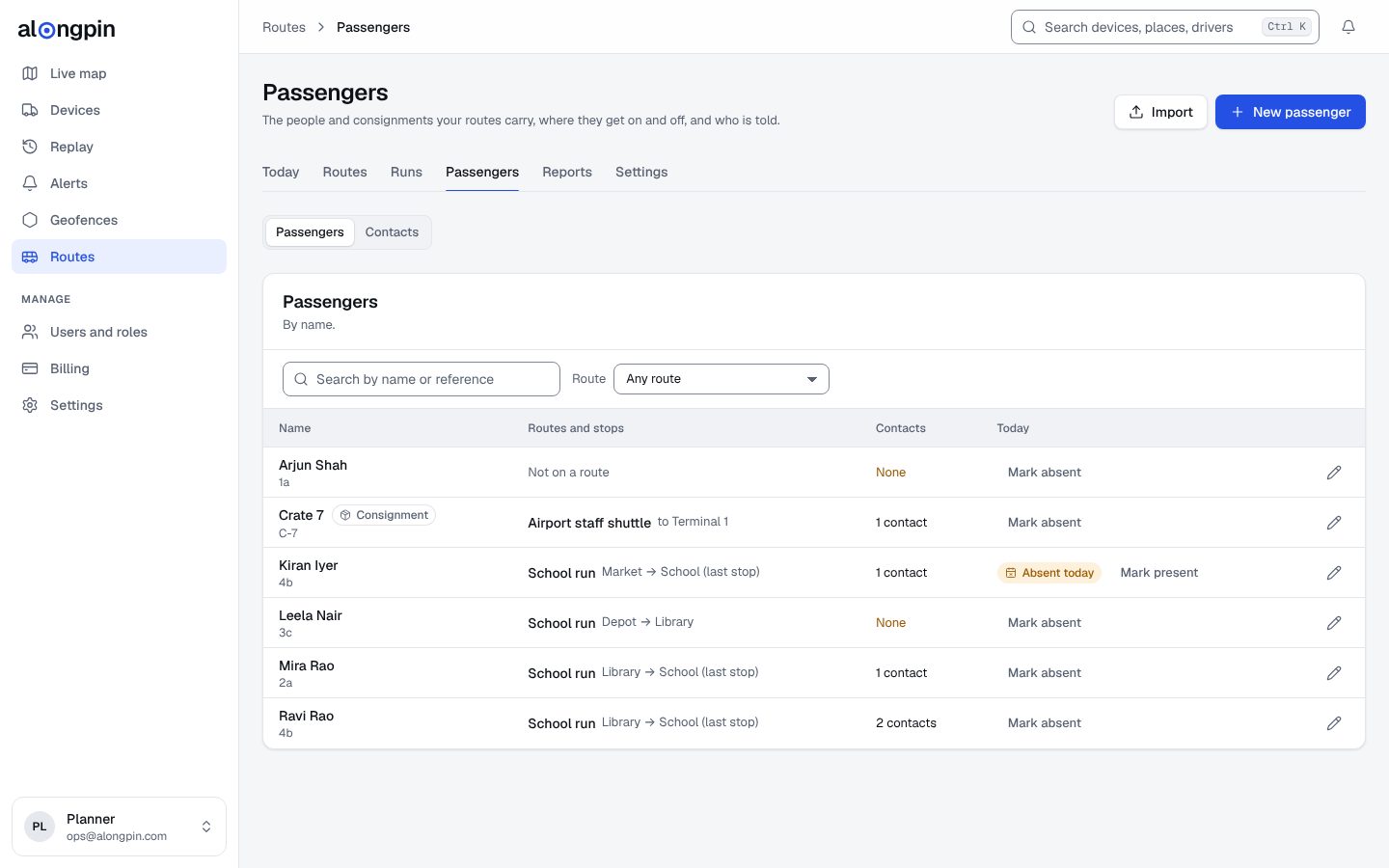
Enter the students or import them from a CSV file; the rows are checked before anything is saved. Each student has a pick-up and a drop stop and up to six contacts. A parent of two children at one stop gets one message, not two.

  • A reference such as the class next to the name
  • Per contact: SMS, e-mail or both, and which events
  • Mark a student absent for a day or longer: no messages go out for them

The names in the picture are examples.

Passengers in the portal: each with a reference, the route and stops, the number of contacts and whether they are absent today

03Set the timetable

The run starts by itself when the bus sets off

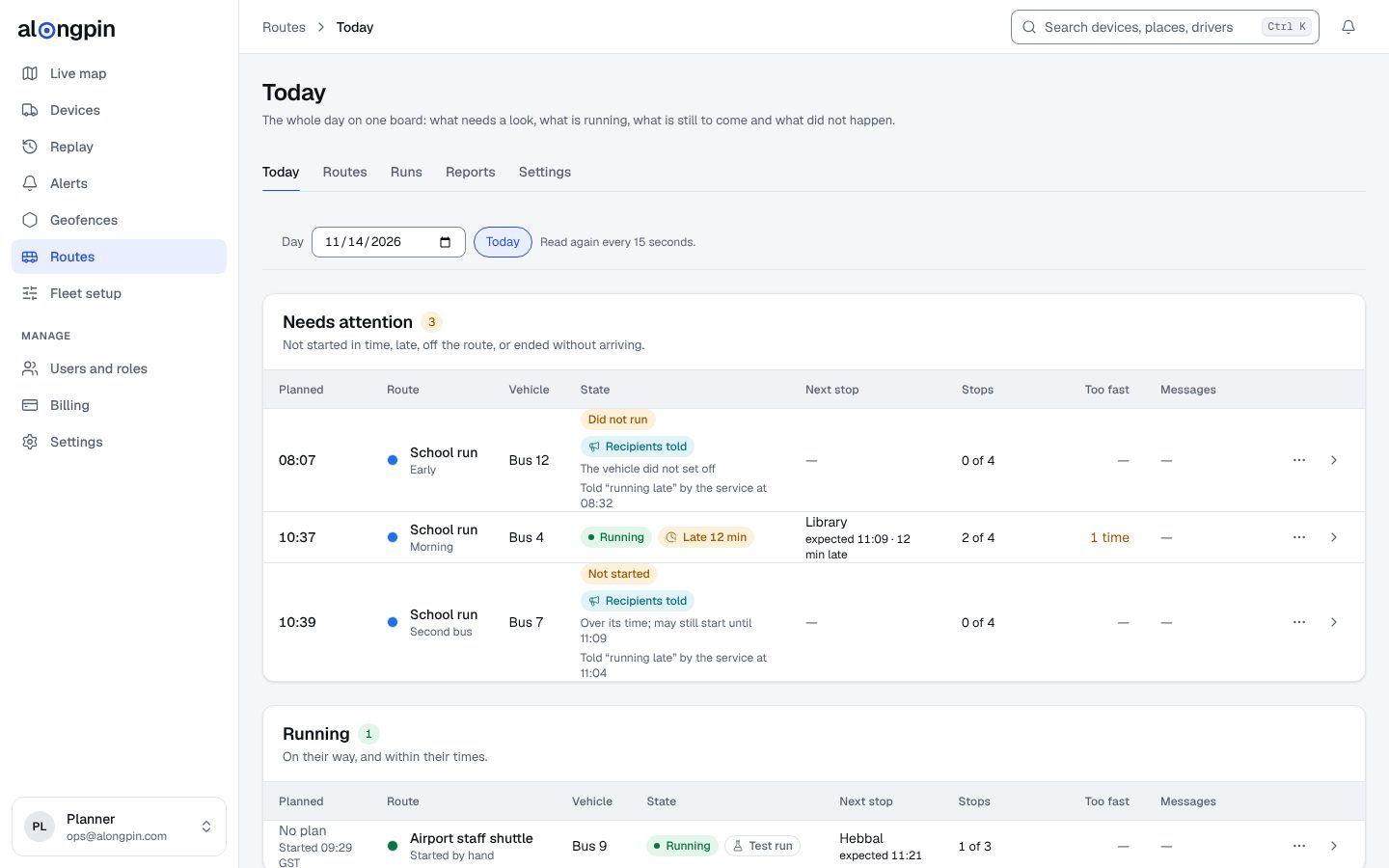
A timetable entry names the bus, the start time and the days. The run starts when that bus leaves the first stop around the planned time, and ends at the last stop. A run can also be started and ended by hand, and marked as a test so that nobody is told.

  • Weekdays or a calendar, and single dates left out
  • Give a run another bus when one breaks down; what was sent is kept
  • Tell the recipients about a delay in your own words
The board of the day in the portal: the school runs that need attention first, then the ones running, still to come and ended

After the run

Reports for the school, a record for every message

How punctual the routes were, and what each contact was sent.

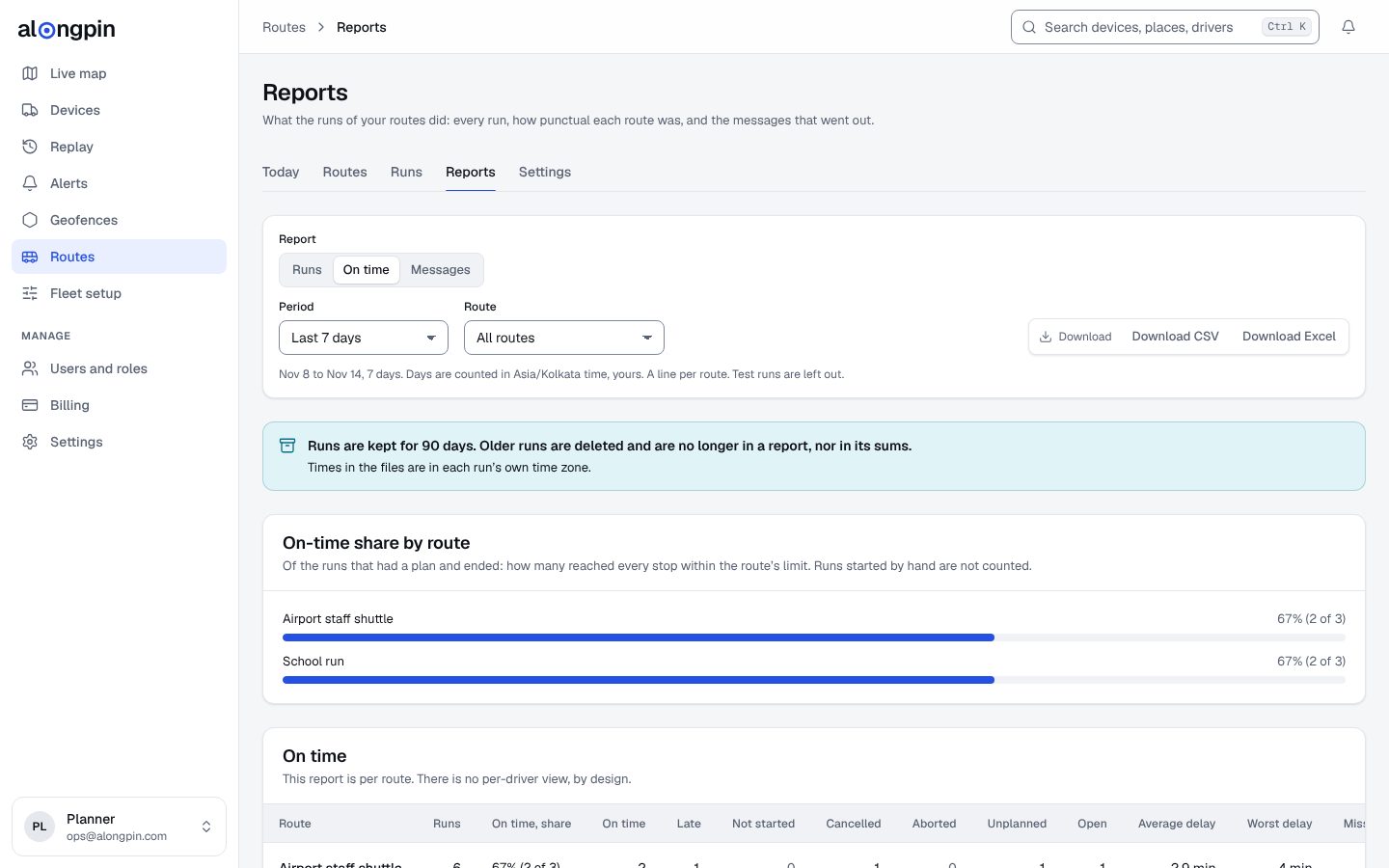
The on-time report of Routes in the portal: the share of runs on time per route, with late, cancelled and not started runs

Reports

How punctual each route was

The on-time report counts, per route and period, the planned runs that reached every stop within the limit you set, with the average and the worst delay and the stops that were missed. The runs report has one line per run.

  • Runs, on time and messages, as CSV or Excel
  • Planned against real time for every stop of a run
  • Per route, not per driver, by design
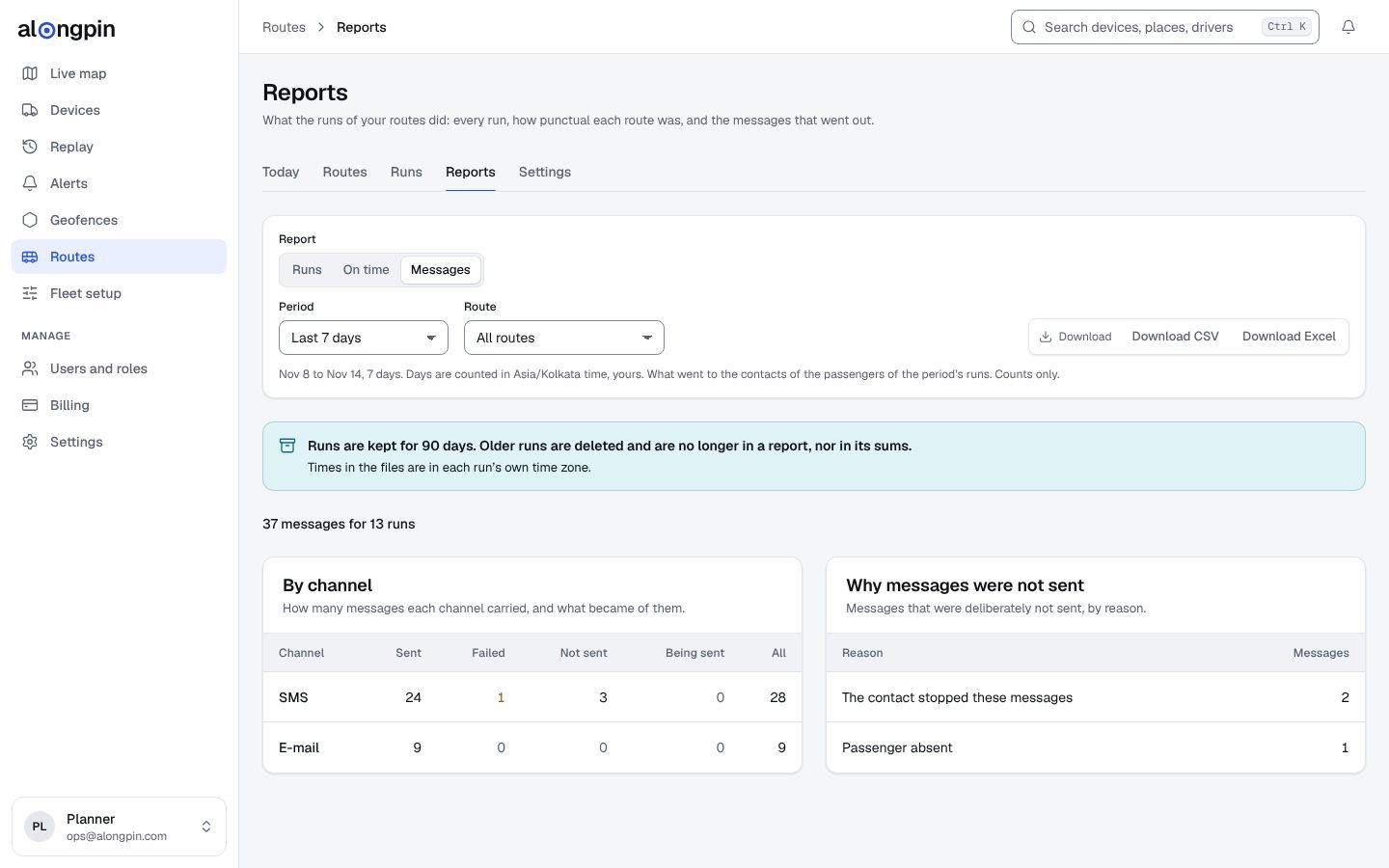
The messages report of Routes in the portal: messages by channel with sent and failed, and the reasons messages were not sent

Messages

What was sent, and what was not

Every message is recorded per run: to which contact, on which channel, sent or failed. Messages that were held back have their reason: the student was absent, the contact stopped the messages, the SMS limit was reached.

  • "Sent" means handed to the SMS gateway or the mail server
  • End the live links of a run at any time
  • A webhook for your own school system, if you have one
All features

Children's data

Children's data, handled with care

A route for a school holds the names of children and the phone numbers of their parents. The platform keeps it to what the messages need: a name, an optional reference, the stops and the contacts.

The school stays responsible for the data: you need a legal basis, and parents should know what is stored and who is told.

Run it on your own servers, or let us host it for you. A data processing agreement is available.

  • Encrypted fields

    The names, references and notes of students and the names, numbers and addresses of contacts are stored encrypted.

  • Own stop only, if you choose

    Set the route so that a parent sees the bus and their own stop, and other stops only as dots without names. No view shows other students or other contacts.

  • Messages a parent can stop

    Every e-mail and the live page carry a link that stops the messages. A text message never names a child.

  • A live page that ends

    The link in a message works for that run only and ends an hour after it. Outside a run the page shows no position.

Devices

A tracker in the bus is all it needs

The route, the stops and the messages work from the positions the bus's tracker reports.

How close to the set distance a message goes out depends on how often the tracker reports.

We do not sell hardware.

How teams use it

Stories from customers, in their words, published by our team.

No stories published yet

Customer stories appear here once our team publishes them. In the meantime, book a demo and we will walk you through a setup like yours.

All customer stories

Pay per device

Packages set the price, the features and the number of devices. Routes is an add-on that is switched on per package. Start with a free trial where the package has one.

No packages are offered yet

The platform's administrators have not published any package.

FAQ

Questions people ask first

Do parents need an app or an account?

No. A parent gets a text message or an e-mail with a link to a live web page of the run. If the school invites them by e-mail, they can also sign in to the web portal as a viewer, see only the runs of their own children, choose their messages and mark a child absent.

See routes and stops

Does it record which child got on the bus?

No. Students are assigned to stops, and their contacts are told about those stops. There is no boarding check, card reader or attendance list, and no "boarded" message.

How accurate is "approaching" and the expected time?

The distance is what is left along the route line you drew. The expected time is an estimate from that distance, the planned times and how the bus has been driving; it does not use traffic data. Both depend on how often the tracker reports.

Check if your device works

What happens when the bus does not start?

After a first limit the run shows as "not started" and staff are alerted through their alert rules. Recipients are told when staff confirm it, or by themselves after a second limit you set on the route.

See alerts

What do we have to do about children's data?

The school decides what is stored and needs a legal basis for it, such as the parents' agreement; each student's record has a date for when it was given. The platform stores the personal fields encrypted and lets you erase a student. It is not legal advice.

Privacy and GDPR

Is Routes part of every package?

No. Routes is an add-on that is switched on per package. Ask us, or see the packages on the pricing page.

See pricing

Put your first bus route on the map

Create an account, or let us set up a route with you in a demo. Choose a package in the portal; you see the first invoice before you confirm.

Chat with us