Reports
How to run your first trips report and export it
For a fleet manager at the end of the first week: run the trips report for a group, read each row, download it as an Excel workbook with a sheet per vehicle, and compare it with the summary as CSV or one sheet.
Ashish Srivastava4 min read

To run your first trips report, open Reports, stay on the Trips tab, choose a group or a few vehicles and a period, and press Show. Each row is one trip with its start, its route, the distance, the duration, the top speed and the idle time. For the vehicle trip report export, Download Excel gives you a workbook with one sheet per vehicle, and the Summary tab offers CSV and a single-sheet workbook for the same period. This guide is for a fleet manager at the end of the first week, with a few days of history to look at.
Before you start
- A few days of history: vehicles that have reported since their trackers went in.
- Access to reports for those vehicles. If Reports is missing from the sidebar, reports are switched off for your account; ask your administrator.
- Your time zone and units set under Settings → Your account → Map and display. Reports show times and distances in them, the files too.
1. Open Reports and choose Trips
Choose Reports in the sidebar. The report types run along the top: Trips, Summary, Events, Stops, Idle, Route, Geofence stays and a few more. Trips comes first and opens by default.
2. Pick a group or vehicles and the period
Under Devices, pick one or more vehicles, or under Groups, a group such as one depot. Leave both empty to report on All devices you can see. Then choose the period: Today, Yesterday, This week, Previous week, This month, Previous month or Custom. For a first look, This week is a good start. Press Show.
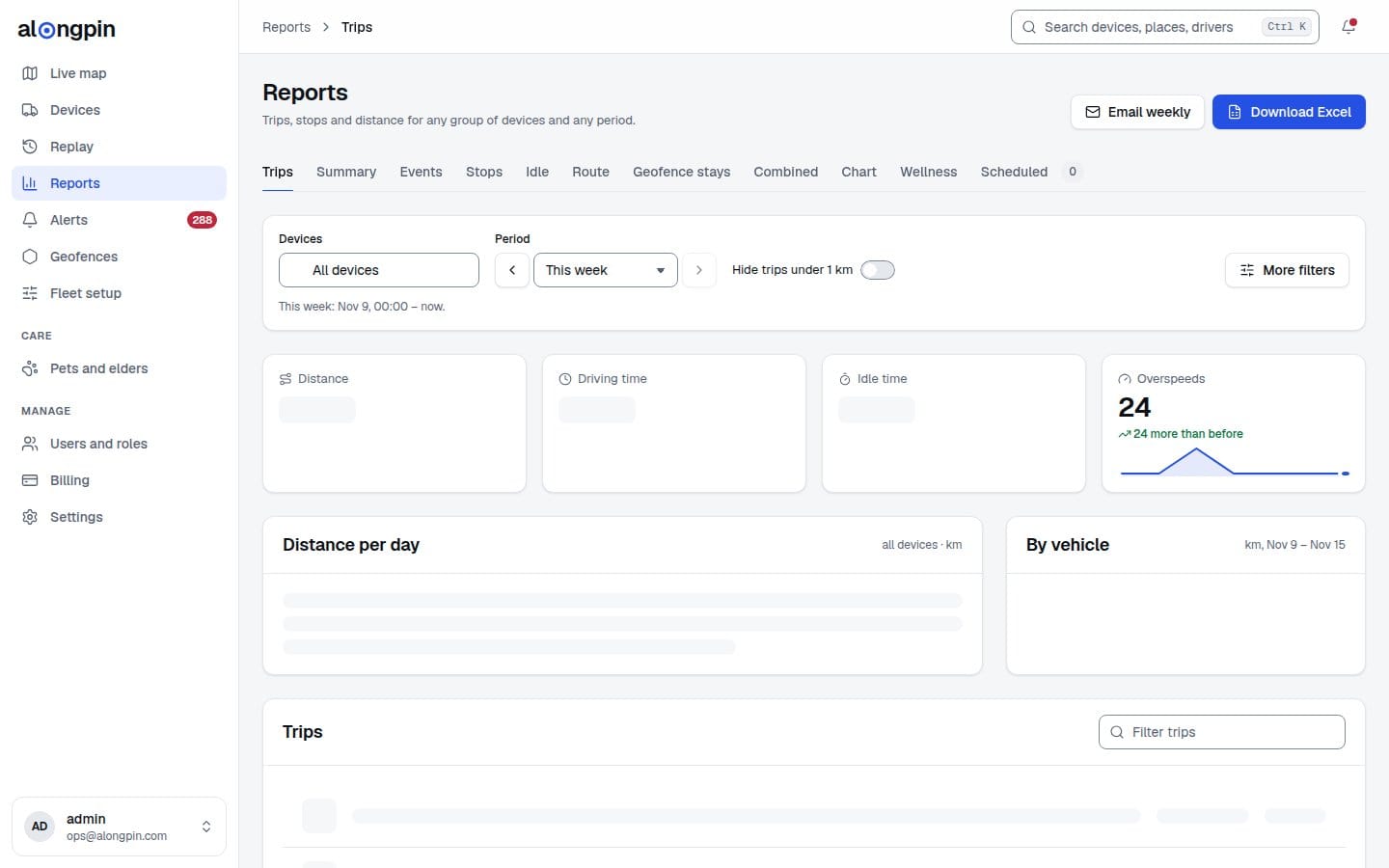
More filters adds a Driver choice for the trips of one driver, where drivers are identified by card or key. If the period is longer than your server allows, the form says so under the period and the report does not run; choose a shorter one.
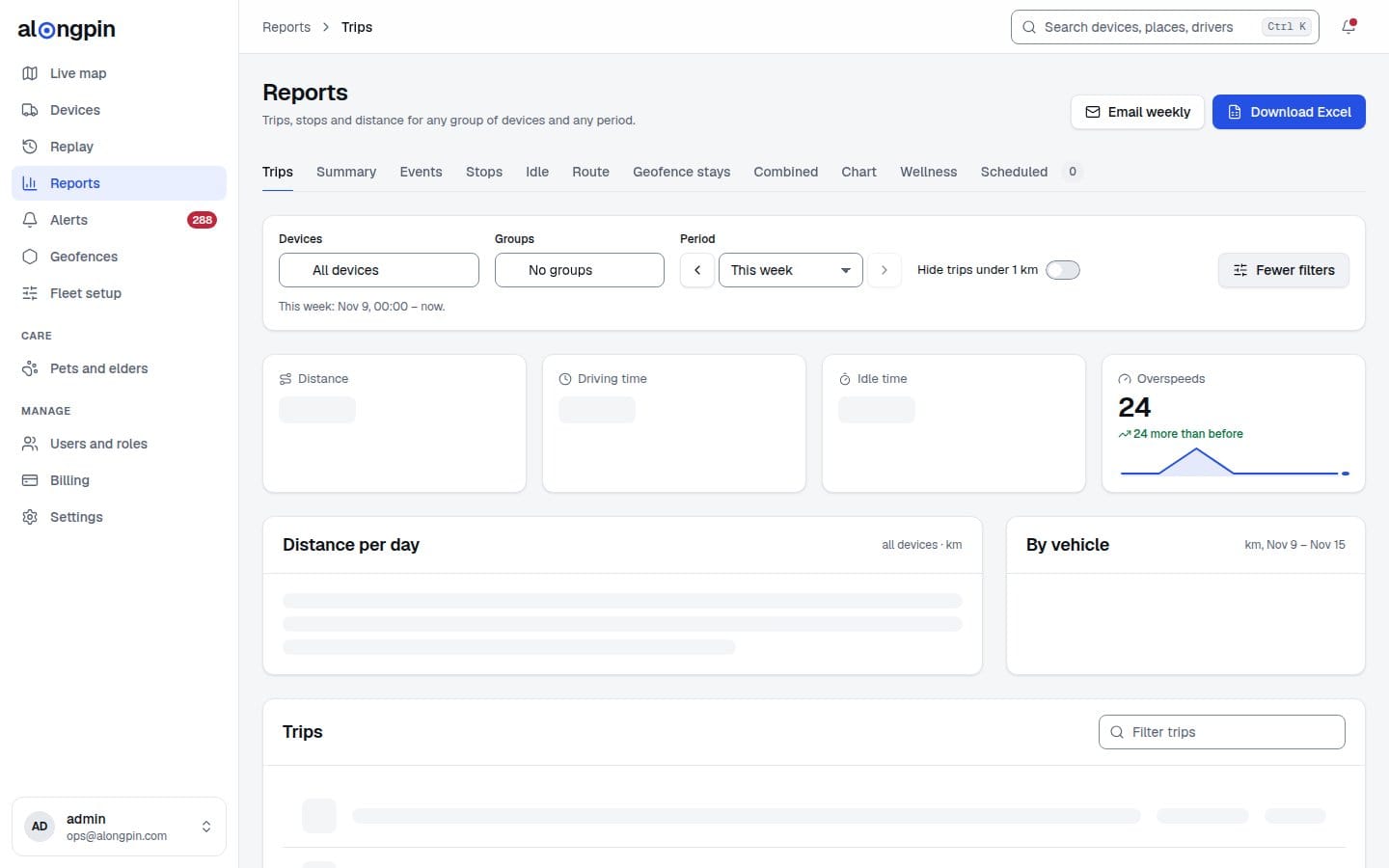
3. Read the totals and a row
At the top, Totals of the period gives Distance, Driving time, Idle time and Overspeeds, each compared with the previous period of the same length. Distance per day and By vehicle show where the kilometres went.
Each row of the Trips table holds one trip:
| Column | What it shows |
|---|---|
| Device | The vehicle, with the driver when one was identified |
| Start | When the trip began |
| Route | Where it started and where it ended |
| Distance | How far it went, in your units |
| Duration | From start to end |
| Top speed | The highest speed, marked when it is above the vehicle's speed limit |
| Idle | Time standing with the engine on during the trip |
Replay on a row opens that trip on the map. A private trip shows as Private trip with its distance and no places. The switch Hide trips under a short distance takes out small moves, such as a van moved across the yard, and Search finds trips by place or vehicle.
4. Download as an Excel workbook
Choose Download Excel. The workbook has one sheet per vehicle, named after it, with one row per trip. Its columns are Start, Start address, End, End address, Distance, Duration, Moving time, Idle time, Average speed, Top speed, Spent fuel and Driver. The download keeps the short-trip switch and the search you set on the page.
Times are local times in your time zone, durations are hours and minutes, and distances and speeds are in your units, with the unit in the column title. The file is ready to filter and add up without converting anything.
5. Try one sheet, or CSV, from the Summary
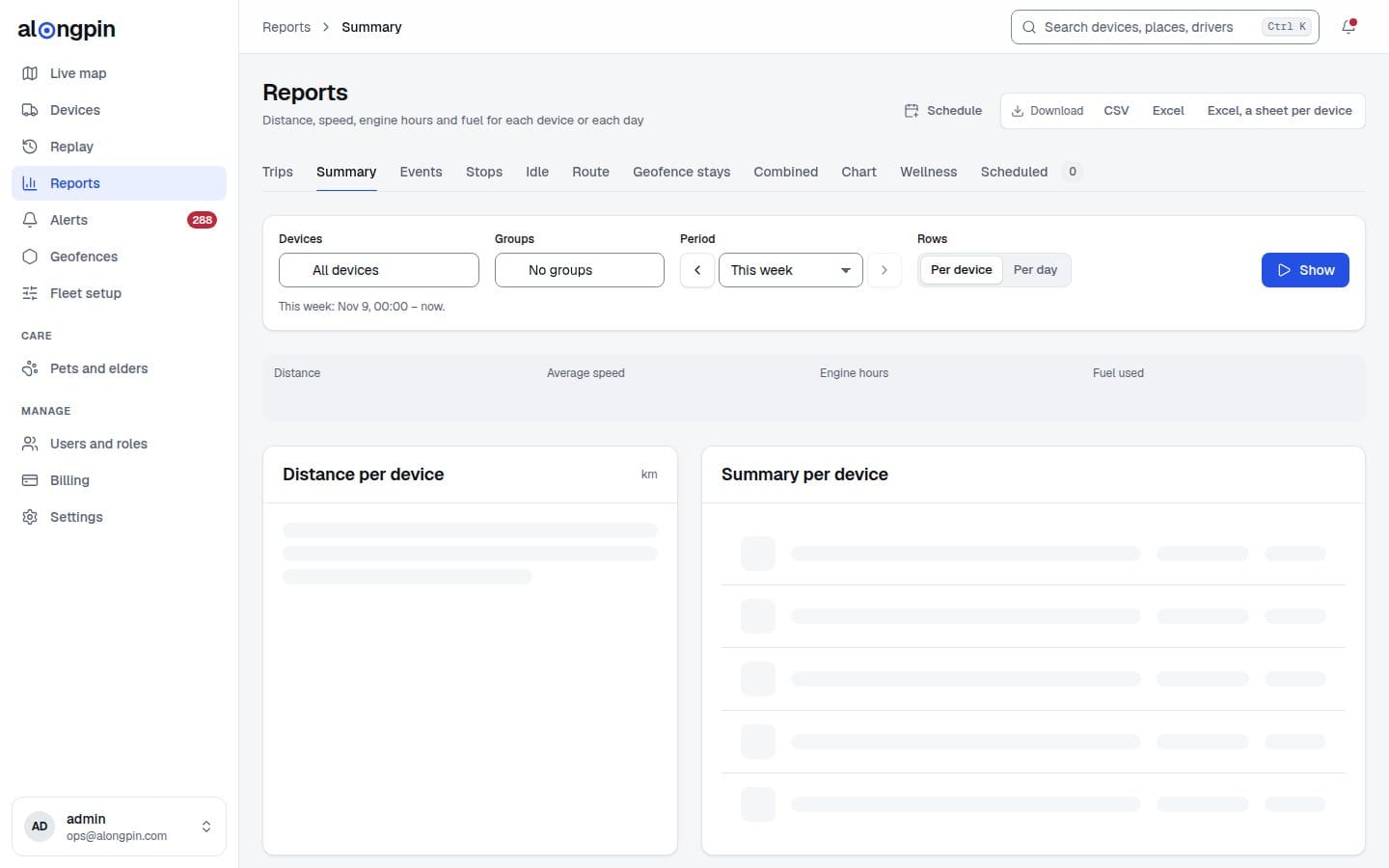
A sheet per vehicle suits a monthly file per van. For one table across the fleet, open the Summary tab with the same group and period and press Show. Under Download it offers CSV, Excel with one sheet, and Excel, a sheet per device.
6. Run a Summary for the same period to compare
The Summary has one row per vehicle for the whole period: Distance, Average and Top speed, Engine hours, Fuel and the Odometer, with a total for all vehicles. Switch Rows to Per day for one row per vehicle and day. A vehicle's trips and its summary should come out close in distance. A large difference usually means short movements that never became a trip, or a stretch in which the tracker sent nothing.
Watch out for
- Fuel columns stay empty unless the tracker reports fuel: a fuel counter, a level in litres or a tank percentage. Fuel figures in reports explains where they come from.
- Idle time needs ignition or engine hours from the tracker. A vehicle whose tracker reports neither shows no idle time, which is not the same as no idling.
- Times are in your time zone, in the file too. A colleague in another time zone sees the same trips at their own local times.
- A trip needs real movement. In a standard setup a trip begins after about five minutes or half a kilometre of movement, and ends after five minutes standing still, or as soon as the ignition goes off where trips follow the ignition.
The reports page lists every report type, trip history and replay covers looking at a trip on the map, and the fleet solution shows how teams use both. For the details of the download formats, read running a report and downloading it as CSV or Excel; once the report is a weekly habit, schedule it so it arrives by e-mail.