Pet collars
How to set a home zone for your dog or cat
For pet owners who want a message when the collar leaves the garden: draw the zone, make it a little larger than the fence, link it to the pet’s profile as its home, and choose who is told.
Ashish Srivastava4 min read
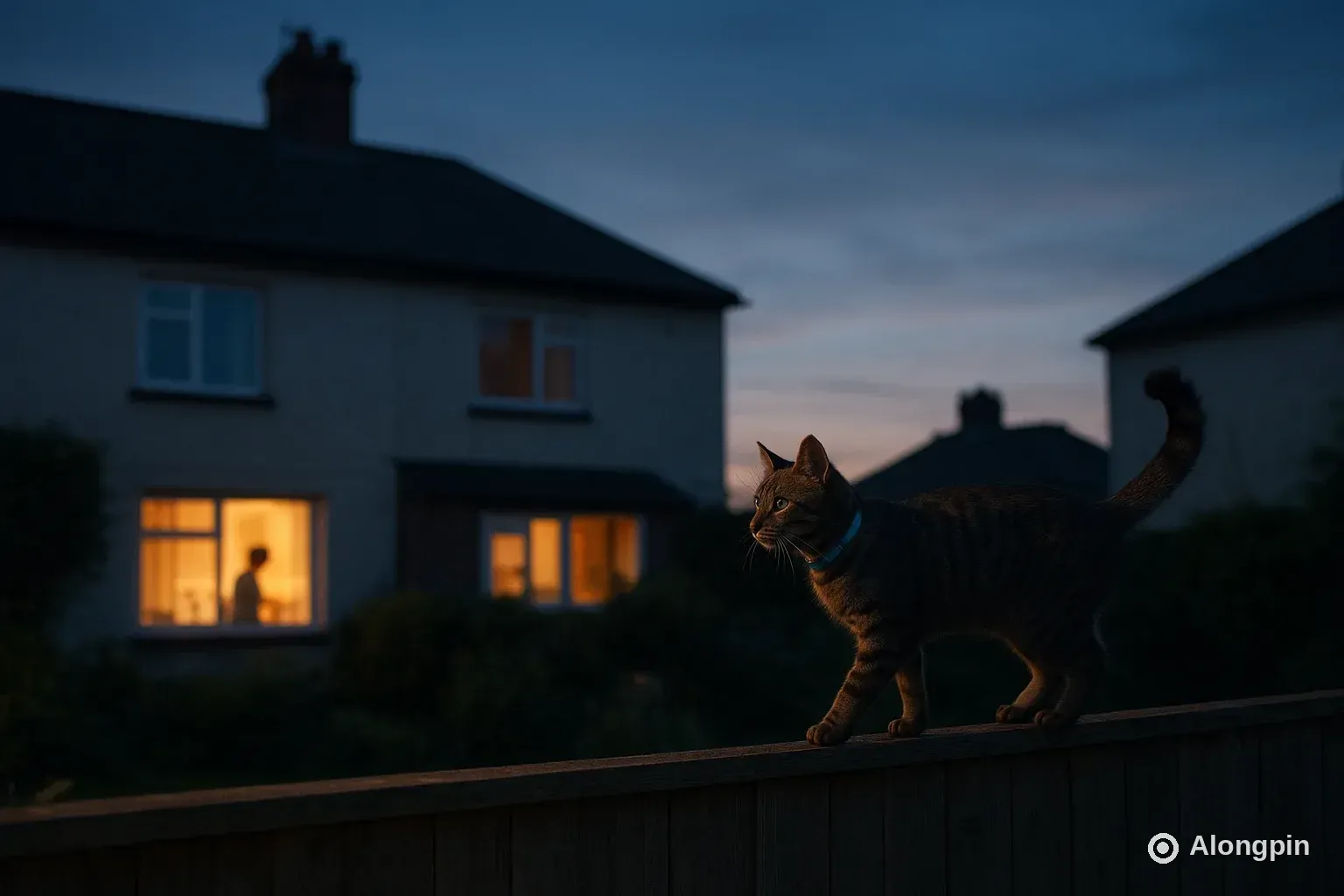
To get a pet GPS geofence alert when your dog or cat leaves the garden, draw a zone around your house and garden under Geofences, choose it as the Home of your pet's profile, and switch on Left home in the care alert settings. Saving the profile links the home zone to the collar, so the collar reports leaving it, and everyone the profile is shared with, plus the contacts you pick, get the message. This guide is for pet owners whose collar is already connected; if it is not yet, start with connecting a GPS pet collar.
Before you start
- A connected collar that shows on the live map.
- A pet profile, or two minutes to create one in step 1.
- The people who should hear about it: a partner with their own account, or a neighbour by email or text message.
1. Create the pet's profile and link the collar
Open Pets and elders and choose Add a pet or elder. Pick a pet, fill in the name and species, and under Which tracker does Bruno wear? pick the collar. When the setup asks Where is Bruno's home?, choose No home for now if you have not drawn the zone yet; you link it in step 4. The profile is saved after the tracker, home and vet steps, and the later steps (photo, contacts, records) can be skipped and done from the profile.
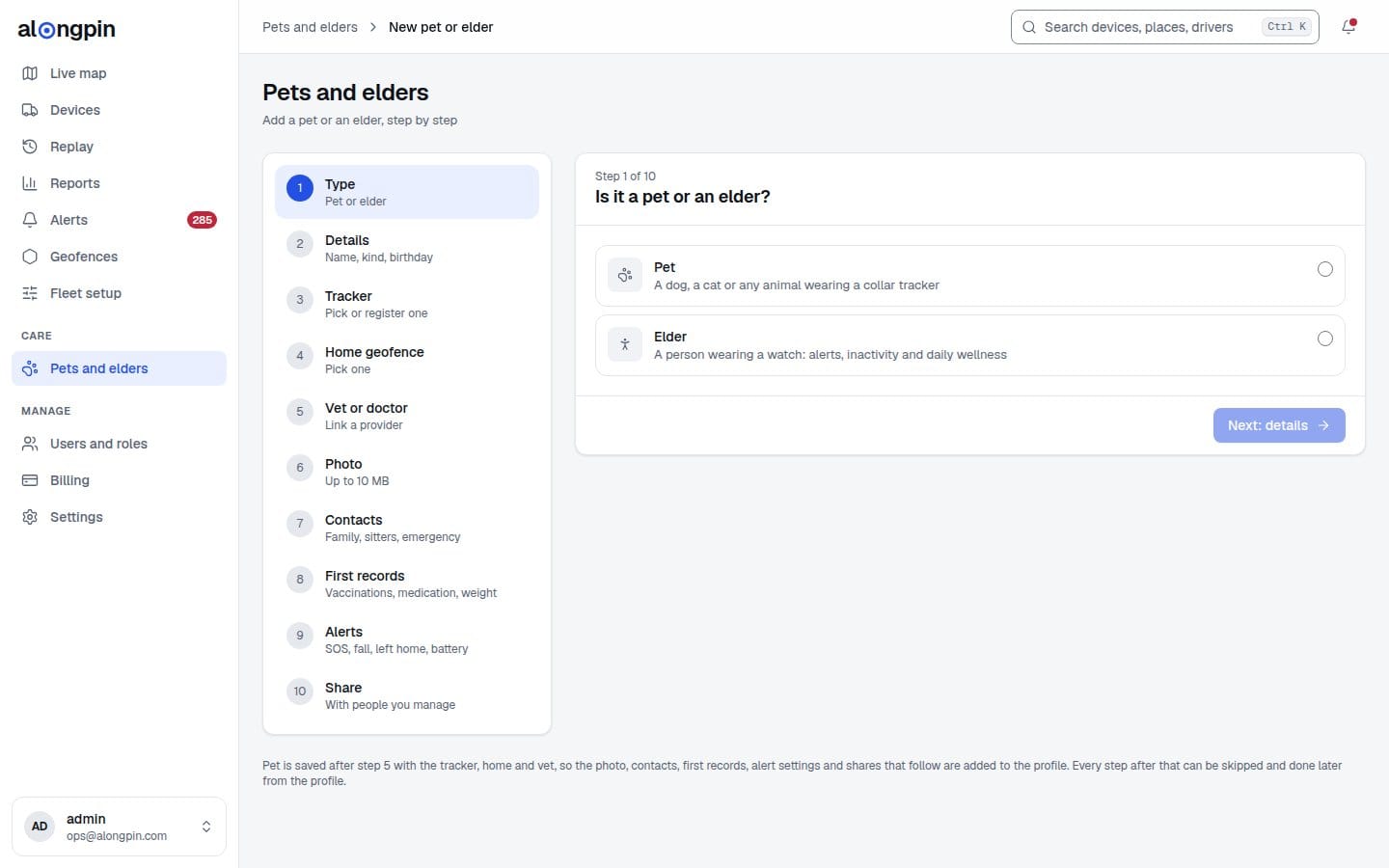
Linking the collar makes its map icon an animal.
2. Draw a zone around the house and garden
Open Geofences and choose New. For a garden with straight fences, the Polygon tool follows the boundary: click each corner and click the first corner again to finish. For a house in open land, a Circle is quicker. Name the zone so the alert reads well, such as "Home", and save it.
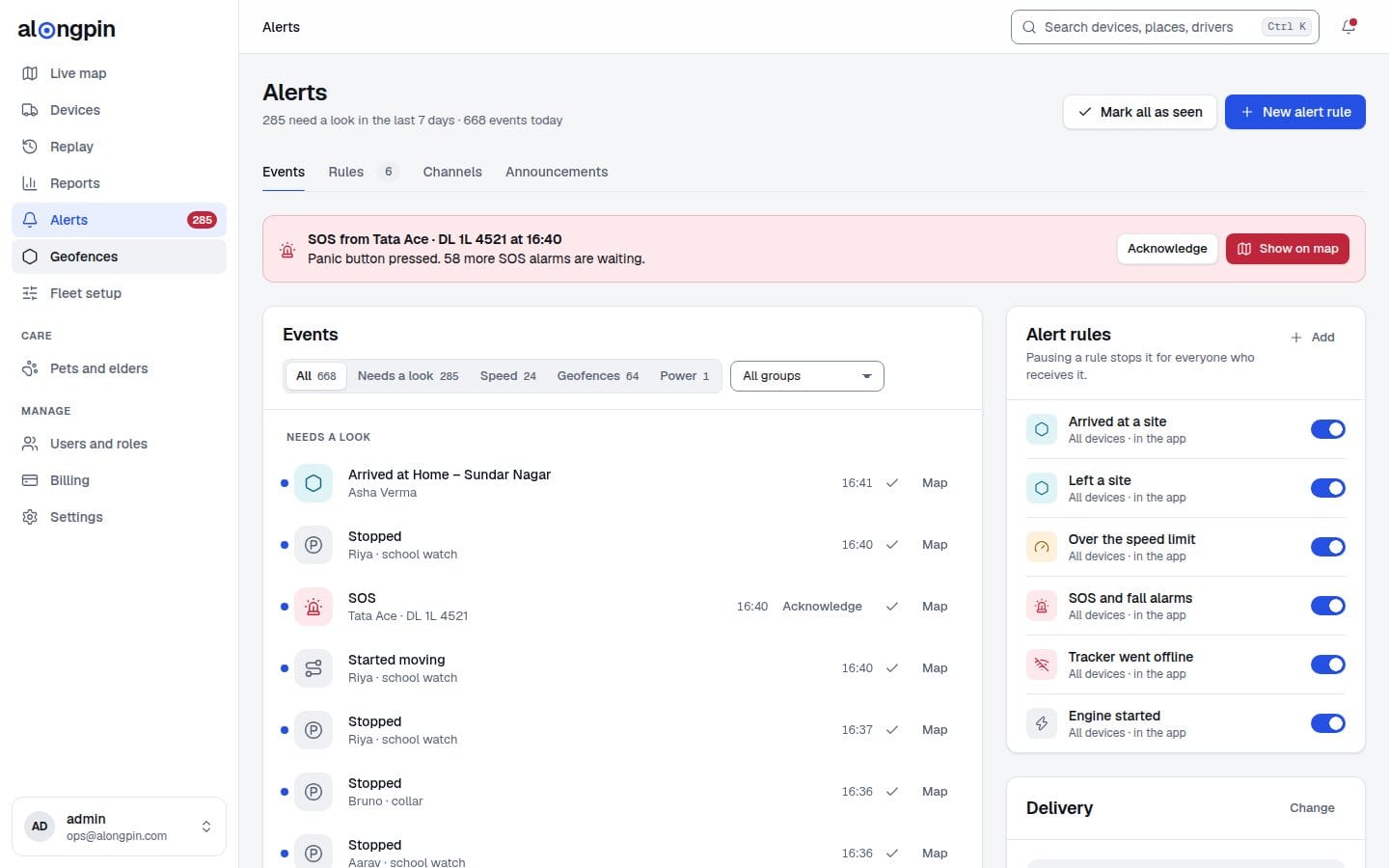
3. Make it a little larger than the fence line
Draw the zone a few metres outside the fence, not along it. Positions wander by a few metres even in the open, and more next to the house walls. A zone that hugs the fence line raises left-home alerts from normal GPS drift while your dog is lying in the flower bed. A cat that roams the neighbours' gardens every evening may need a much larger zone, or you will hear about every round. Setting a home zone for a person or pet has more on choosing the size.
4. Link the zone to the profile as the home zone
Open the pet's profile and edit it. Under Tracker and home, pick the zone as Home and choose Save profile. Saving links the home zone to the collar, so you do not have to attach it on the zone's page. A profile has one home zone; for a holiday house, change the home while you are there.
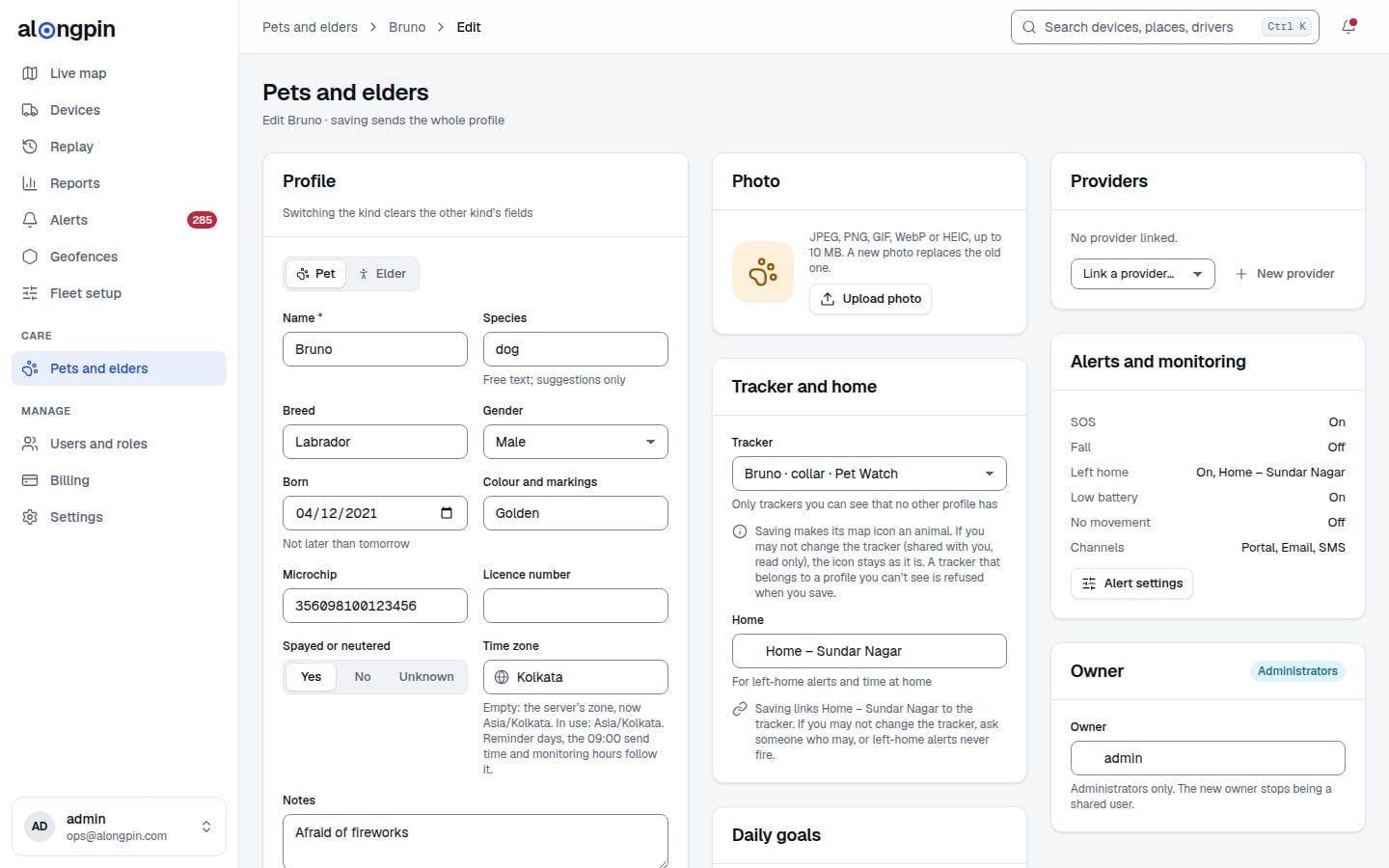
If the collar belongs to someone else and is only shared with you, linking needs the right to change it: the profile then says the home is not linked, and leaving it raises no alert until someone who may change the collar saves the profile.
5. Choose who gets the alert
Open Settings, then Care alerts, and pick the pet. Switch on Left home and, under Send alerts by, tick the channels. Only the channels your server has switched on can be ticked: text messages, for example, need the SMS channel to be switched on for your account.
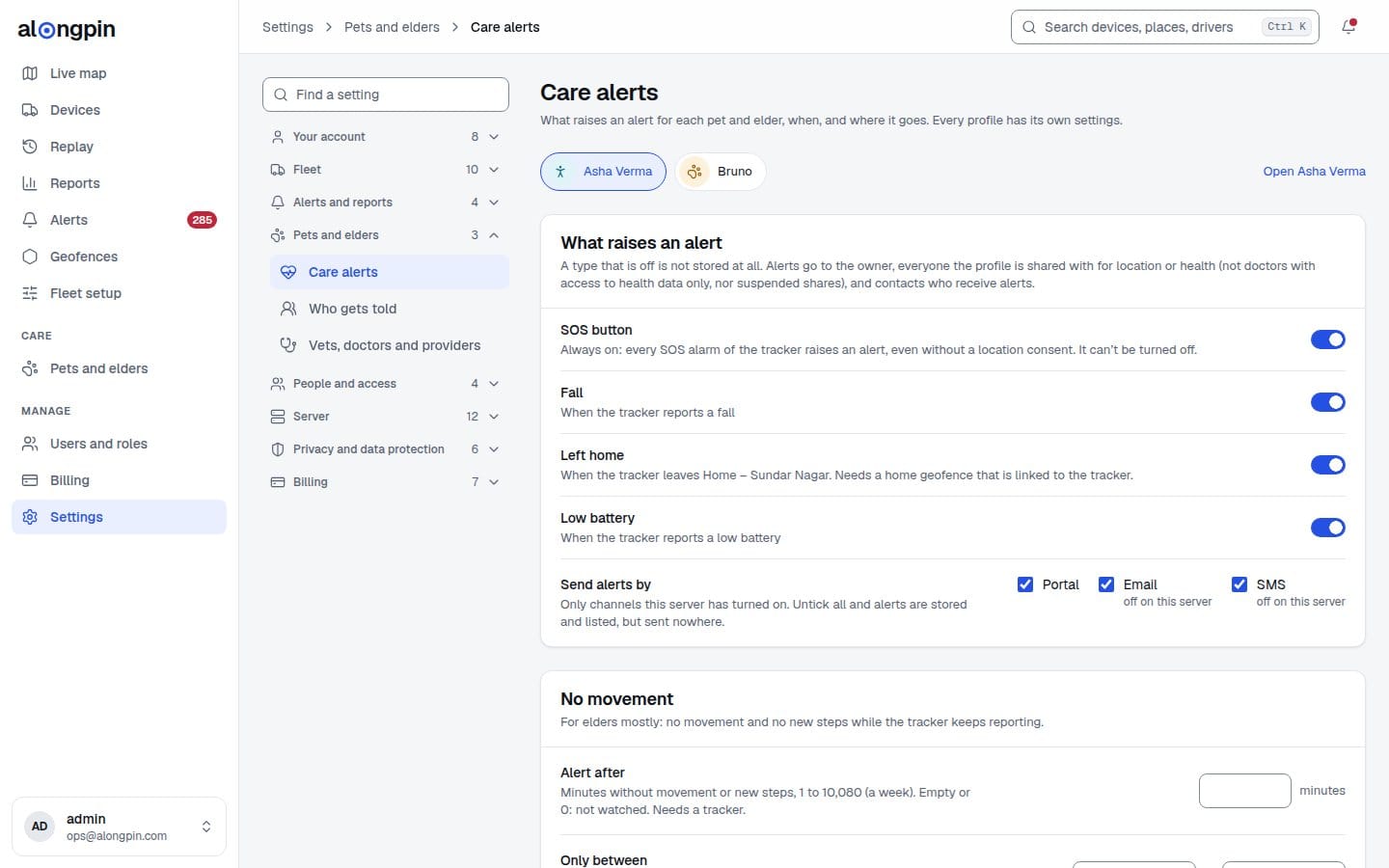
The alert goes to:
- You, as the profile's owner.
- A partner or family member with their own account: share the profile with them, for everything or for location only.
- A neighbour or a sitter without an account: add them under Contacts with Receives alerts, and they get it by email or text message.
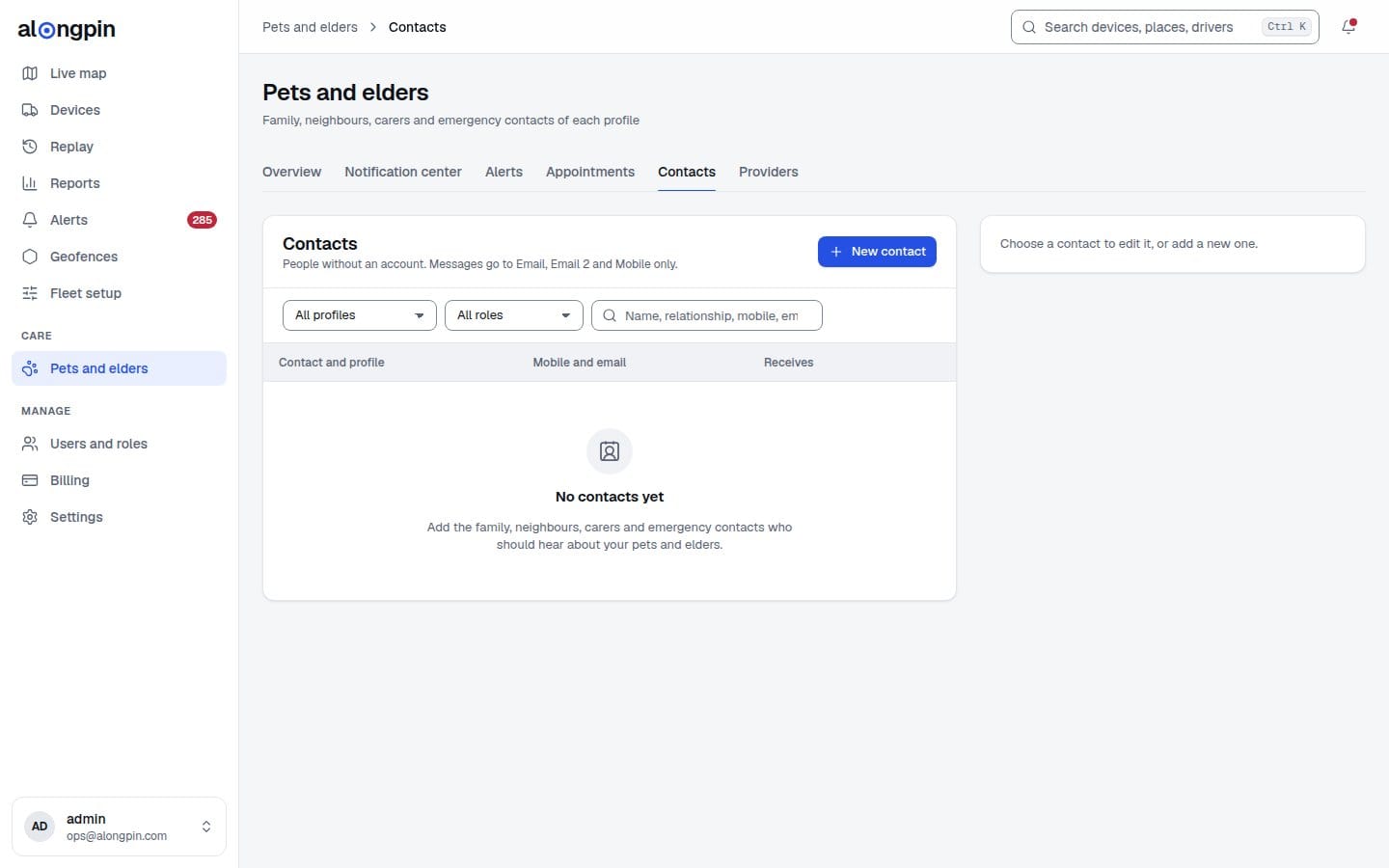
By default, emails and text messages say only that there is a new alert for your pet and ask the person to open the app, so no position leaves the platform by mail or text. Contacts without an account therefore know to call you.
6. Carry the collar out of the zone to test
Take the collar off, carry it out of the gate and well past the zone's edge, and wait. The alert comes with the first position the collar sends from outside, so a collar that reports every few minutes takes a few minutes. You should get "Bruno left home" with the time. If nothing arrives, check that the home is linked (step 4), Left home is on, a channel is ticked, and the collar was reporting; why a geofence alert did not arrive goes through the rest.
7. Add a low-battery alert
A flat collar sends nothing, and no home-zone alert can come from it. In the same Care alerts settings, switch on Low battery: you hear when the collar reports a low battery, in time to charge it. This works with collars that report a low-battery alarm, which most do; check your model.
More about zones is on the geofences page, about channels on the alerts page, and about what collars report on the pet collars page. The pets solution shows how the profile, reminders and the home zone work together.