Devices
Vehicle trackers you can already buy
A wired or plug-in tracker with a SIM reports position, ignition and the alarms it raises. Point it at our server, and the vehicle shows up on your map.
Choose a package in the portal; you see the first invoice before you confirm.
What it reports
Position, ignition and the tracker’s own alarms
A vehicle tracker reports what its hardware can measure. Where a device does not report something, the platform does not show it.
Position
Position from GPS and mobile cell.
Ignition and power
Ignition on or off, battery and charging, mobile signal.
Alarms
SOS and other alarms the tracker raises: overspeed, vibration, power cut, tampering.
Commands
Engine stop and resume where the tracker and its wiring support it, and custom text.
| On the platform | Vehicle tracker |
|---|---|
| Position (GPS) | Yes |
| Indoor position (Wi-Fi, cell) | Cell |
| Ignition and engine | Yes |
| SOS alarm | Yes |
| Fall alarm | No |
| Heart rate and other health readings | No |
| Steps | No |
| Photos, clips, live video | No |
| Commands | Yes |
Typical models: GT06-type trackers (Concox and look-alikes) and many other protocols with a SIM. “Cell” means an indoor position comes from the mobile cell only.
How to connect one
Connect a tracker in three steps
No software to install on your side. The tracker sends its position to our server.
Get the server address and port
Each protocol has its own port on our server. You get the address and the port for your device's protocol from the tracker setup page of your account or from us.
Device connection guideSet up the device
Enter the address, port and, if needed, your mobile operator's APN. Most trackers take this as a text message you send from your own phone to the tracker's SIM card. The platform itself does not send text messages to trackers.
Setup guidesSee it on the map
Add the device with its ID (usually the IMEI), or let it connect first and approve it from the list of unverified devices.
What uses it
What the platform does with a tracker’s reports
- Live mapMoving, idle, parked and offline are shown by colour, shape and word. Positions arrive live, with no refresh.
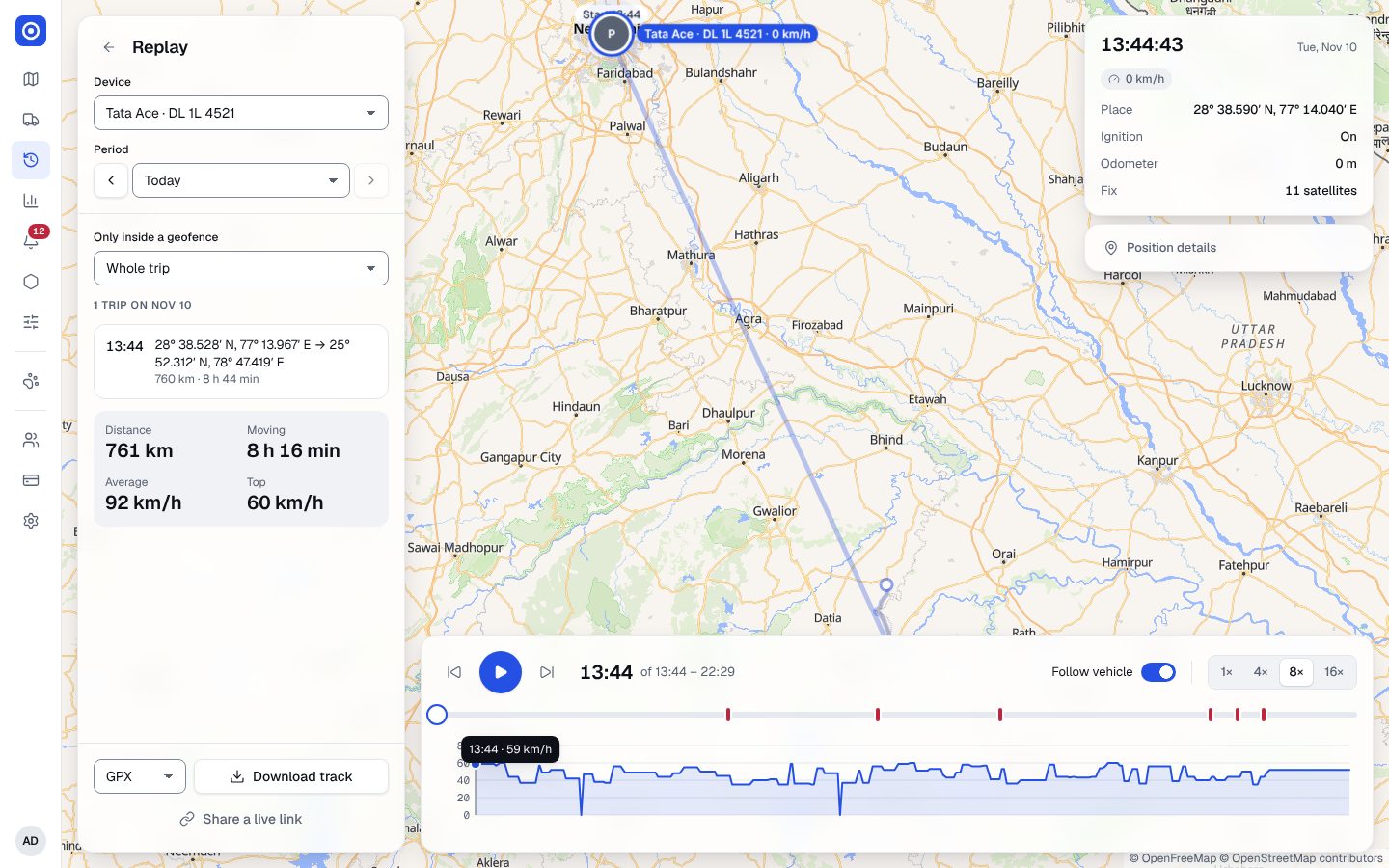
- Trip history and replayEach trip shows start and end, distance, top and average speed, driving time and idle time. Replay it with the events along the route.
- Driver behaviour and idle timeOverspeed, engine-on standing time and harsh braking or cornering where the device reports it. No automatic driver score.Idle time needs a device that reports ignition or engine hours.
- Geofences and placesDraw a zone around a depot or a customer site and get an event when a vehicle enters or leaves it.
- Remote commandsSend a command to one tracker or a whole group. If the tracker is offline the command waits in a queue and goes out when it reconnects.
- Reports and exportsTrips, stops and summary reports for any period, as CSV or Excel, with engine hours where the device reports them.Fuel figures appear only when the tracker reports fuel.
Hardware
We do not sell hardware
Use a compatible tracker you already have or buy from any seller. Enter the model, the maker or the protocol name from the manual to see whether the platform decodes it.
Vendor and model names are examples of device families the platform decodes. We do not sell or endorse hardware.
Who it serves
Built for vehicles that work
FAQ
Questions about vehicle trackers
Which vehicle trackers work?
What does a tracker need?
Can I stop the engine from the platform?
Can I see fuel use?
Can I move a tracker to another vehicle or replace it?
Setup guides
Setup guides for vehicle trackers
- How to replace a tracker and keep its planFor fleets that swap a faulty tracker or move one to another vehicle: connect the new unit, move the subscription to it under Billing, put it in the same group and check what was attached to the old device alone.
- How to approve an unverified deviceFor account administrators: a tracker that connects before anyone added it waits under Devices, Unverified. Recognise it by its identifier, protocol and last contact, give it a name and group, and register it in one step.
- How to connect an H02 tracker to AlongpinFor installers and owners of low-cost H02 trackers: from the identifier on the label to a first position on the map. Add the device, read the H02 port in Set up the tracker, send the server command from your phone and wait for Online.
- How to set up an OBD plug-in tracker in your own carFor private owners and small businesses without an installer: find the protocol of your plug-in tracker, add it by IMEI, send it the server address and port, plug it in and see your first trip in Replay.
Put your first vehicle on the map today
Create an account, or let us show you the platform with your own vehicles. Choose a package in the portal; you see the first invoice before you confirm.