Tracking
Replay any trip, with what happened on the way.
Open a past day and watch the route again, with the speed at every point and the stops, overspeed and arrivals along it. Then download the track as CSV, GPX or KML.
Choose a package in the portal; you see the first invoice before you confirm.
How it works
From a question to the route in three steps
- 01
Choose a device and a period
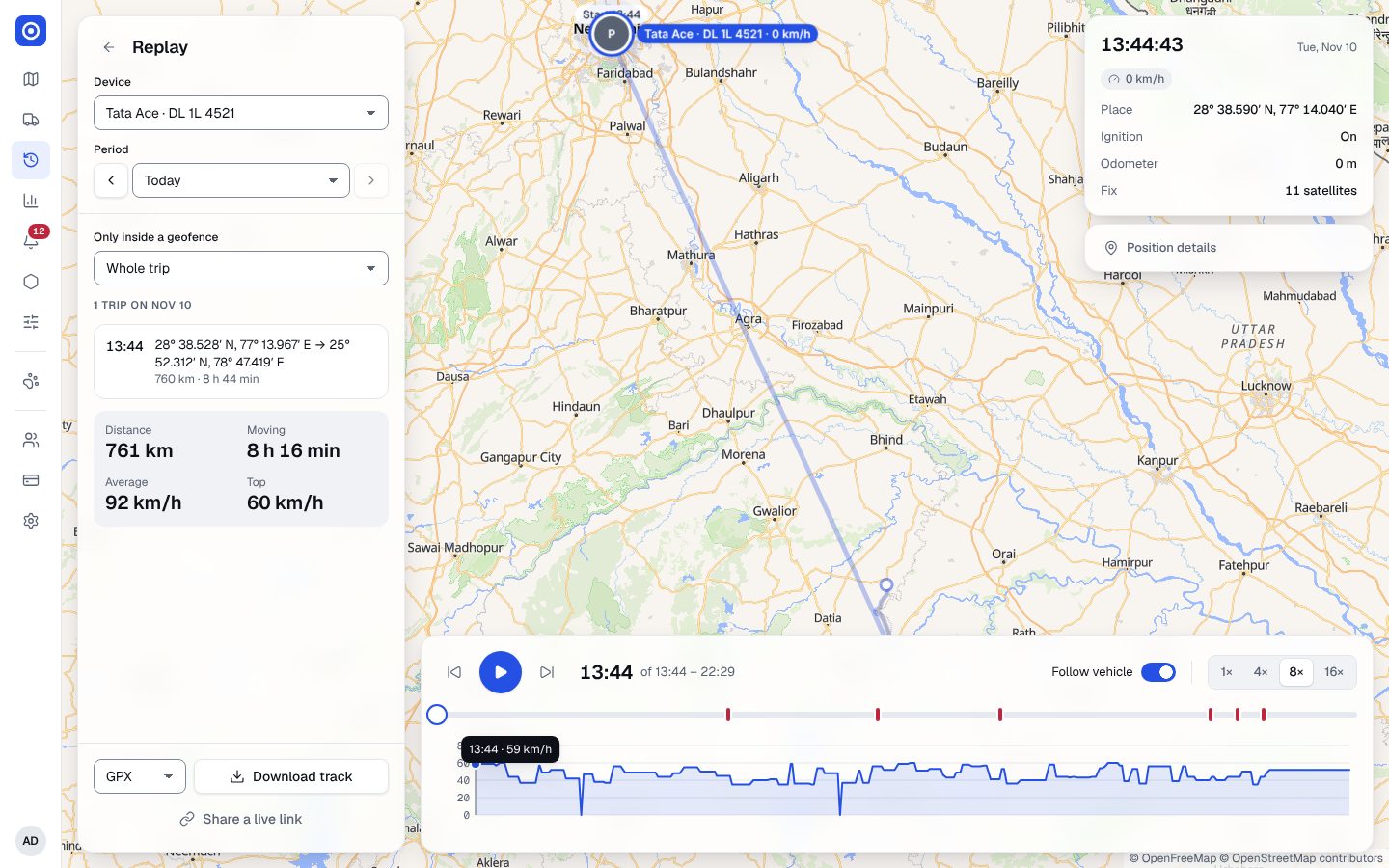
Today, yesterday, this week or your own dates. Narrow it to the positions inside one geofence when only a site or a depot matters.
- 02
Replay the route
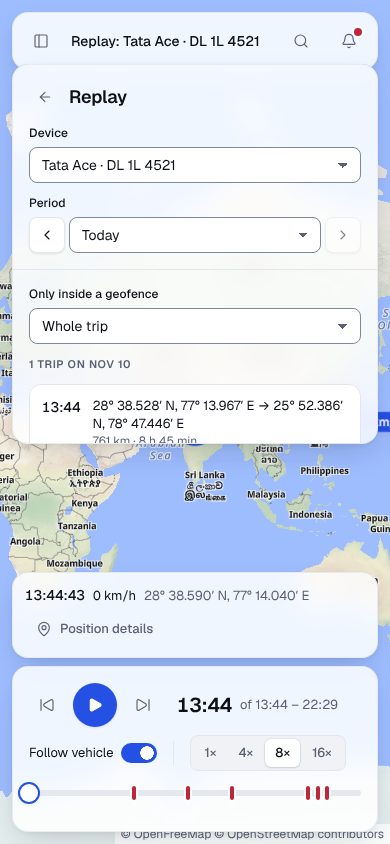
The route is drawn on the map and the marker follows it in time, at 1×, 4×, 8× or 16× speed. Each position has its time and speed, and the events along the way are marked where they happened.
- 03
Take the track with you
Download the raw history for another tool: a row per position, or a track that opens in a mapping app. Several devices can go in one file.
In the product
The route on the map, the positions beside it
Pick a row to find it on the map, or a point on the map to read its time and speed.
Along the route
The events are on the map where they happened
A line alone does not say why a trip took an hour. The marks on it do.
Stops
Where the device stood and for how long.
Overspeed
The speed and the limit that was passed, by device limit or by a limit set on a zone.
Arrivals and departures
Each geofence the device entered or left, with the time.
Alarms
An SOS or another alarm the device reported, at the place it was raised.
Each trip, as a row
The trip list shows the same history as figures, per vehicle or for the whole fleet.
- Start and end, with the place
- Distance
- Top speed and average speed
- Driving time
- Idle time with the engine on
- The driver, where the tracker reads a card or key
Idle time needs a device that reports ignition or engine hours. Vehicles that report neither show no idle time.
Reports and exportsDownload
Your tracks are yours to take
Choose the devices, the period and the format. Each device becomes its own track.
- CSV
- A row per position: times, place, speed and every attribute the device sent.
- GPX
- A track per device, for GPS and mapping apps.
- KML
- A line per device, for Google Earth.
- KMZ
- The same KML, zipped.
<!-- van-12.gpx -->
<trk>
  <name>Van 12</name>
  <trkseg>
    <trkpt lat="52.5163" lon="13.3777">
      <time>2026-03-03T09:02:11Z</time>
    </trkpt>
    <!-- one point per position -->
  </trkseg>
</trk>
A sample of the GPX form. The same positions are available over the API.
Who uses it
Four questions a replay answers
A complaint arrives days later
Open the day, replay the route and see when the vehicle was at the address and for how long. The geofence report lists each stay in a zone with entered, left and time inside.
Field service and deliveriesA mileage dispute at return
Run a trips or summary report for the rental dates to see the distance driven, the top speed and the stops. Distance comes from the tracker's odometer when it reports one, otherwise from the platform's own count.
Rental and assetsA route that took longer than planned
Replay the trip with the events along it, then read the trip list: driving time, idle time and stops for one vehicle or for the whole fleet.
Fleet and logisticsWhere were they today?
Replay a day with the stops on the way: home to school, the time at school, and back.
Personal and child safety
FAQ
Questions about trip history
How long is trip history kept?
Which formats can I download a track in?
How exact is a replayed route?
Does a replay prove a delivery was made?
Can drivers keep private trips out of the history?
What if the tracker had no signal on the way?
See where every trip went
Create an account, or let us replay a day with your own devices. Choose a package in the portal; you see the first invoice before you confirm.