Geofences
Setting a home zone for a person or pet
Draw a zone around the home and choose it as the home geofence of a pet's or elder's care profile, for a left-home alert and the time at home in the daily view. Sized so the garden and GPS drift don't raise alerts.
Ashish Srivastava3 min read
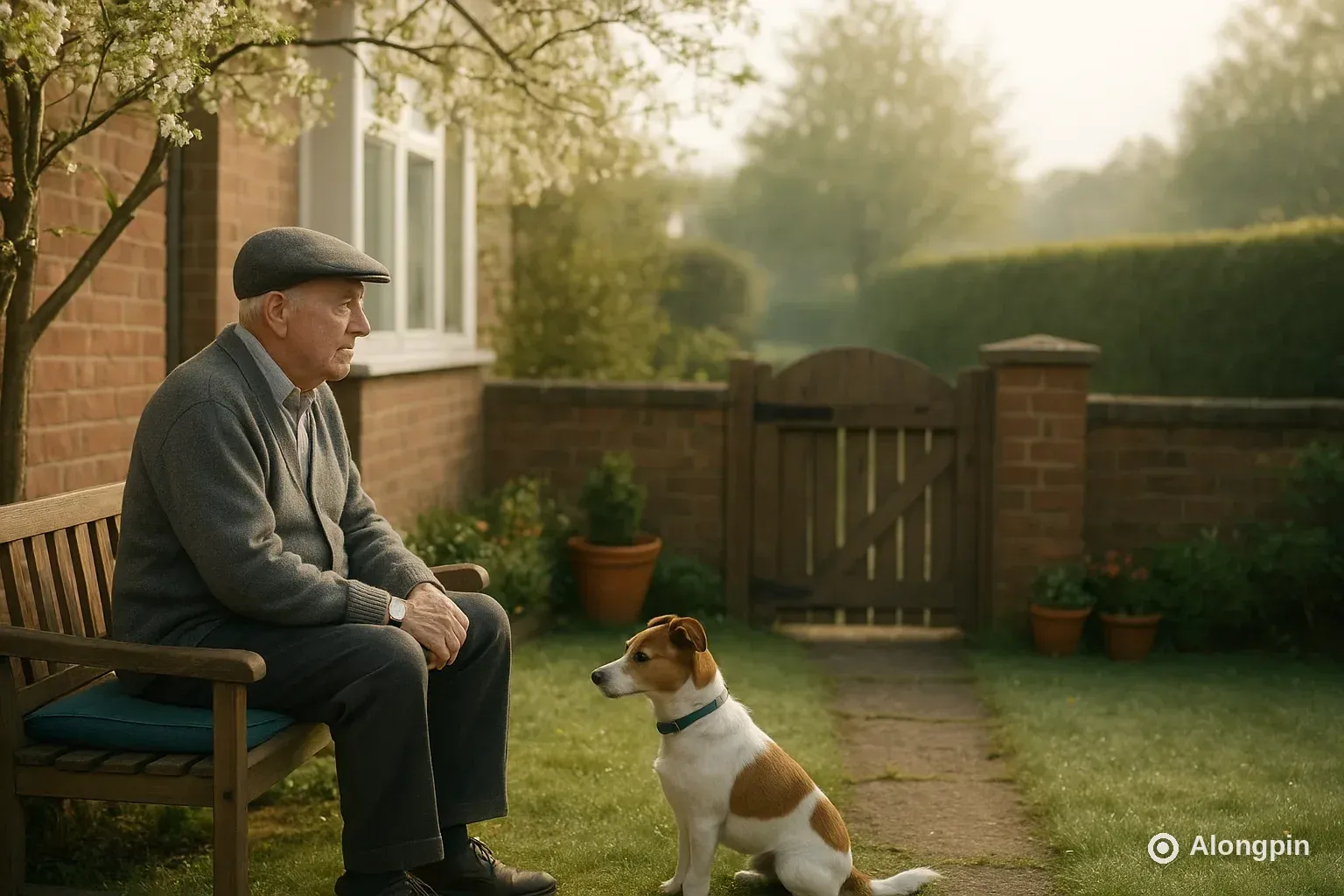
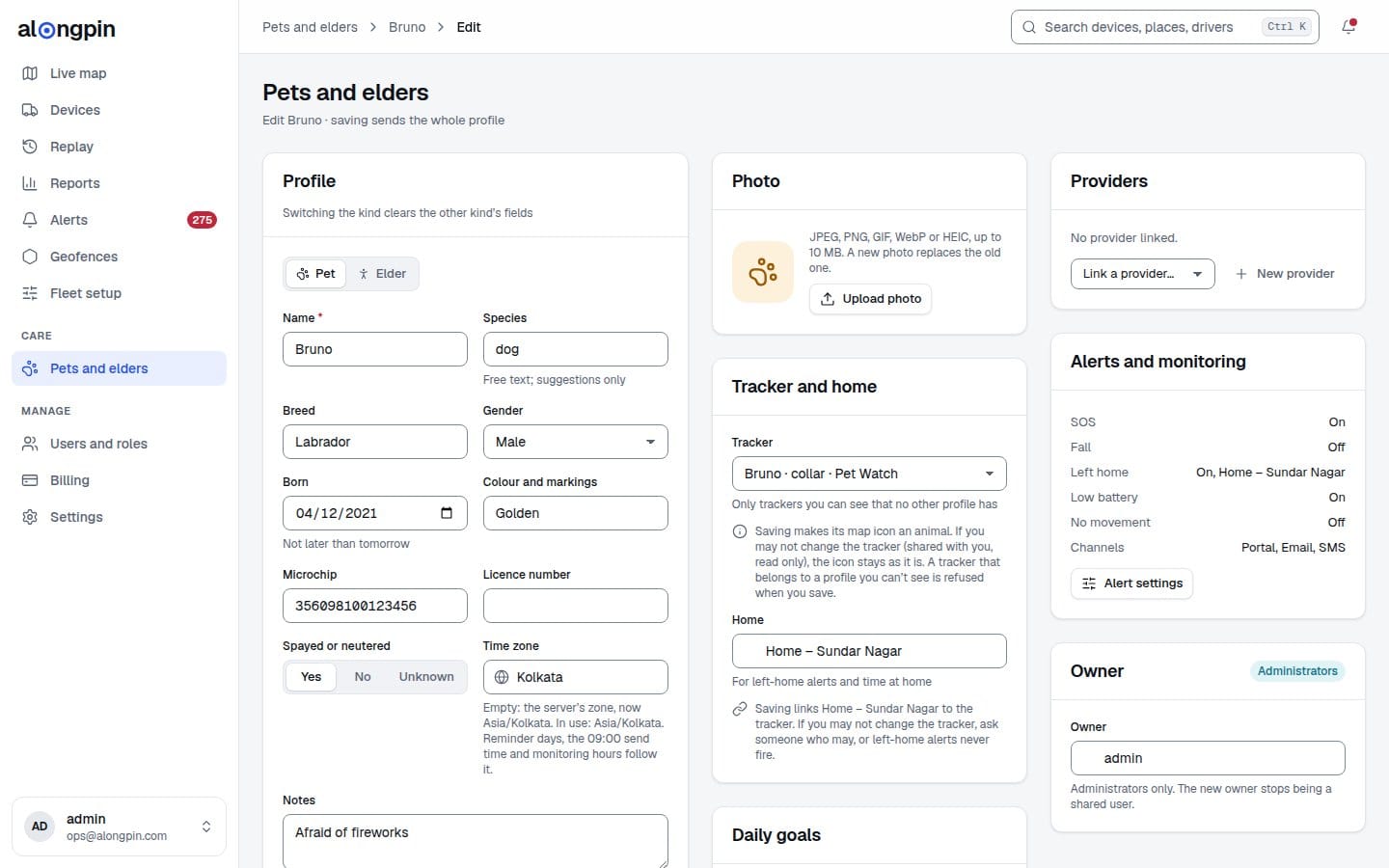
A home zone alert tells you when the tracker of a pet or an elderly relative leaves home. In Alongpin the home is a geofence chosen on the care profile: draw a zone around the house and garden under Geofences, open the profile under Pets and elders, choose the zone as Home under Tracker and home, switch on Left home under the alert settings, and save. The same zone gives the At home time in the daily wellness view.
Key takeaways
- The home is an ordinary geofence; the care profile points to it.
- Saving the profile links the home to the tracker. If you may not change the tracker, ask someone who may, or no left-home alert fires.
- Left home is off until you switch it on, with the channels it goes out on.
- Draw the zone with a margin around the garden, so drift indoors doesn't raise false alerts.
Draw a zone around the home
- Open Geofences in the menu and choose New.
- Choose the Circle tool, click the house, then click again at the edge. For a long garden or a farm, use Polygon and click around the plot.
- Name it so others recognise it, such as "Mum's home" or "Bruno: home", and press Save.
Choose it as the home geofence of the care profile
- Open Pets and elders and select the profile.
- Edit the profile. Under Tracker and home, check that the right watch or collar is the Tracker, and choose the zone under Home.
- Save the profile.
Saving links the home zone to the tracker, so that the tracker reports entering and leaving it. If the tracker is shared with you read-only, the portal says the home isn't linked: leaving it then raises no alert until someone who may change the tracker saves the profile again. When you set up a new profile, the step Where is … home? does the same.
What the leaving-home alert does
Under Alerts and monitoring, switch on Left home and choose the channels. When the tracker leaves the home zone, a care alert is raised, such as "Bruno left home", and sent:
- to the profile's owner and the people it is shared with;
- to contacts on the profile who are set to receive alerts;
- through the profile's channels: in the portal, by email and by text message, as your server offers them.
Emails and text messages carry by default only a short note to open the app, so that nothing about the person's whereabouts leaves the portal; the full text is in the portal. The alert stays until someone acknowledges it.
For an elder whose server requires consent, the watch raises leaving-home alerts only while the location consent is active. SOS and fall alerts still come. More on profiles is on the care profiles page, and on caring for a parent on elder care.
Time at home in the daily view
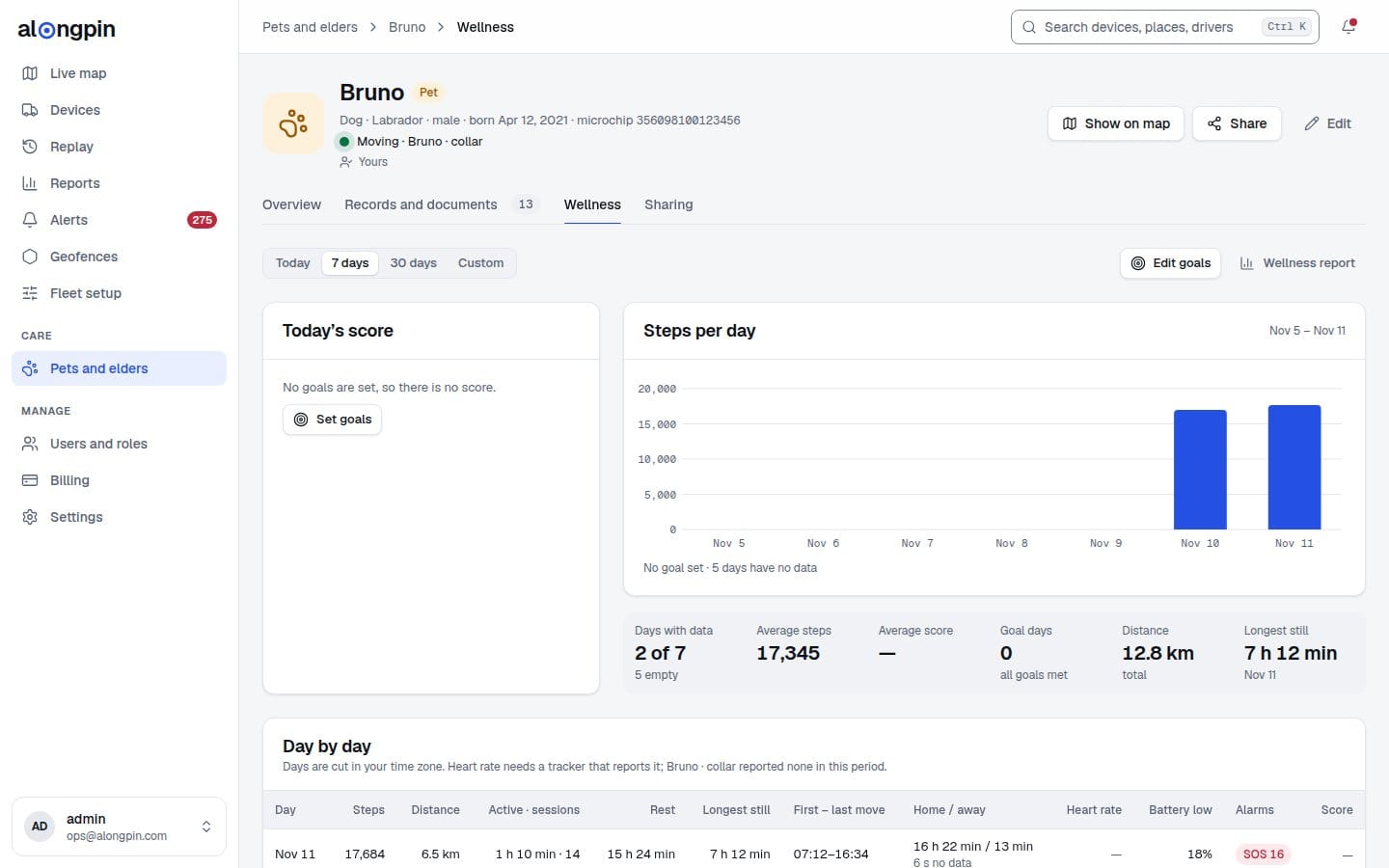
The profile shows At home for today, and Wellness shows the time at home and away for each day. Stretches with no position, for example when the watch was switched off, count as no data rather than home or away. The time at home needs the home zone, but not that it is linked; the alert does.
Size the zone so garden and GPS drift do not cause alerts
A watch or collar indoors often has a weak GPS fix, and its position can wander out of a tight circle without anyone moving. A dog in the back garden is not "leaving home". So:
- Draw the circle to cover the house, the garden and the drive, plus a margin. For a terraced house, a circle that reaches the neighbours' gardens is better than one that cuts through the kitchen.
- For a large plot, follow the boundary with a polygon and keep the line outside the fence.
- If you get alerts while nobody has left, open the alert's position on the map: a point just outside the edge means the zone needs to be larger.
- Some trackers report rarely to save battery; a walk round the block may then raise no alert at all. See the guide to your pet collar for how often it reports.
The geofences page explains zones in general.
Frequently asked questions
Can two profiles share one home?
Yes. A couple living together, or two dogs, can use the same home zone.
What happens if the home zone is deleted?
The profile has no home any more: no left-home alerts and no time at home until you choose a new one.