Fleet management
Moving, idle, parked, offline: reading vehicle status on a map
What moving, idle, parked, offline and unknown mean on a live fleet map, how each is shown, why idle needs the ignition, what an offline vehicle's last known position tells you, and when to act.
Ashish Srivastava7 min read

Vehicle status in GPS tracking tells you, at a glance, what each vehicle is doing right now: driving, standing with the engine on, standing with the engine off, or out of contact. Alongpin's live map shows four everyday states, Moving, Idle, Parked and Offline, plus a fifth, Unknown, for a device that has gone quiet. Each state comes from two things the tracker reports, whether it is moving and whether the ignition is on, and from whether the tracker is still connected. Reading them correctly saves a dispatcher from chasing a van that is only in an underground car park, or from trusting a position that is three hours old.
Key takeaways
- Moving: connected and driving. Idle: standing, ignition on. Parked: standing, ignition off or not reported. Offline: the tracker closed its connection. Unknown: nothing has arrived for a while.
- Each state has its own colour, marker symbol and word, with how long it has lasted.
- Idle needs a tracker that reports the ignition; without it, every standing vehicle shows parked.
- Offline and unknown vehicles stay on the map at their last known position, which may be old.
- The movement line shows where a vehicle has been in the last hour; clusters group vehicles that stand close together.
- Act on a state when it lasts longer than it should, not the moment it changes.
The states and how they are shown
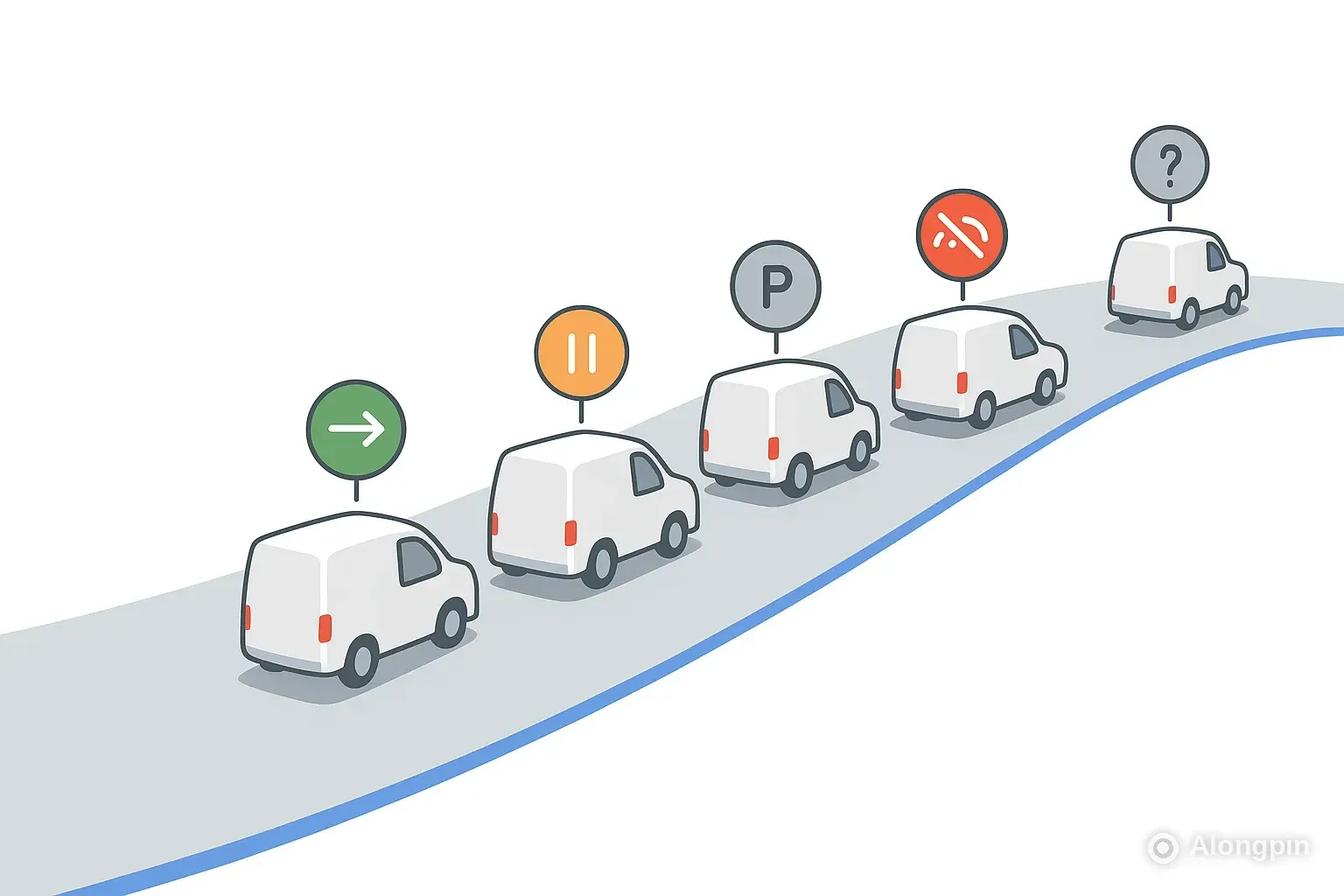
Every vehicle has exactly one state at a time. It shows in three ways, so it can be read from across the room and without relying on colour: a colour, a symbol on the map marker, and a word in the fleet list with how long the state has lasted.
| State | What it means | On the marker | In the list |
|---|---|---|---|
| Moving | Connected and driving | A filled arrow pointing the way it is heading | "Moving" with its speed |
| Idle | Connected, standing still, ignition on | A pause symbol | "Idling 6 min" |
| Parked | Connected, standing still, ignition off or not reported | The letter P | "Parked 2 h" |
| Offline | The tracker closed its connection | A crossed-out signal symbol | "Offline 8 min" |
| Unknown | Nothing has arrived for a while (10 minutes in a standard setup), or nothing is known yet | A question mark | The time since the last report |
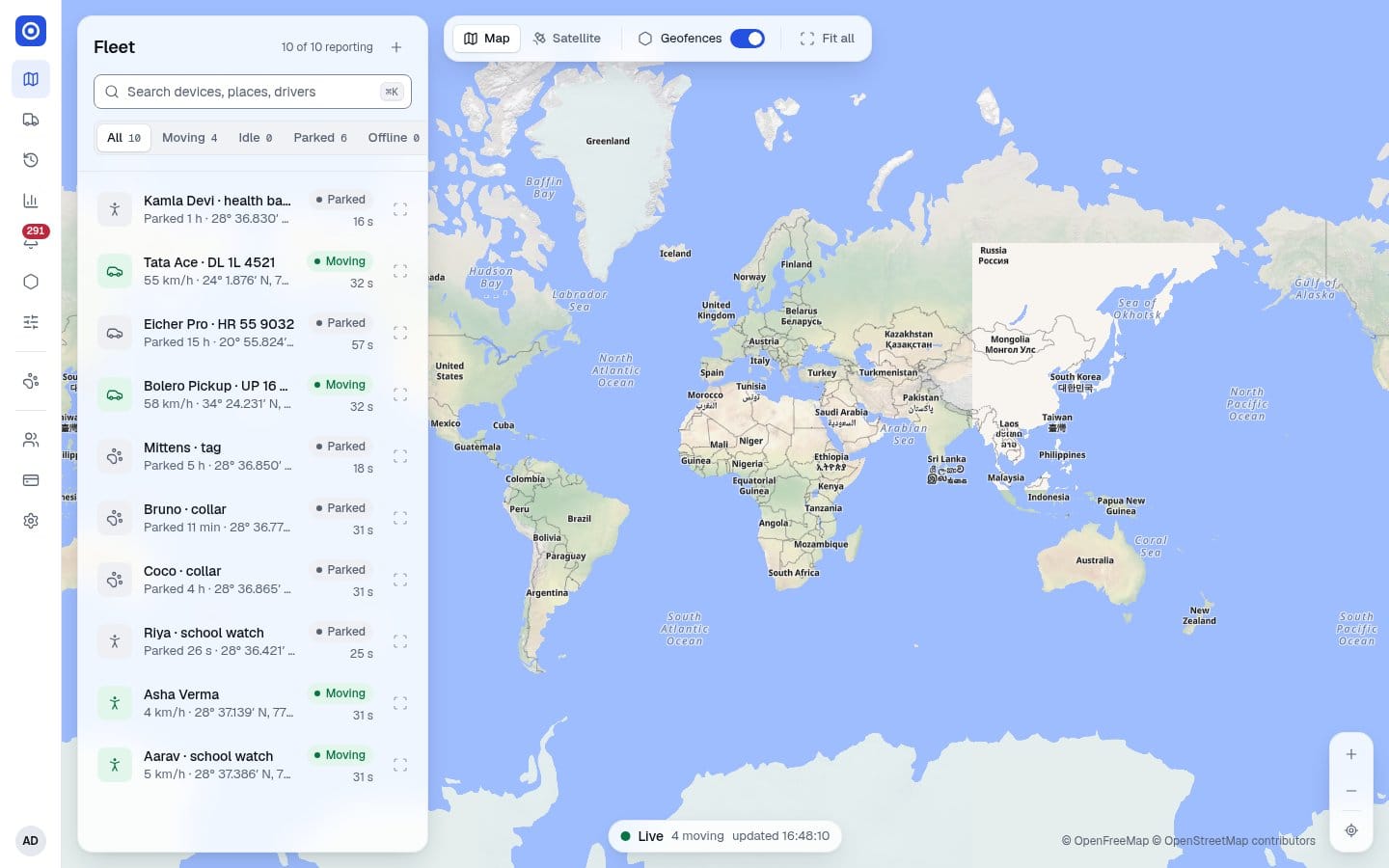
Moving is shown in green, idle in amber, offline in red, and parked and unknown in a neutral grey, so the vehicles that need a look stand out. Above the fleet list, the chips under Filter by status count the vehicles in each state; choose one to show only those vehicles on the list and the map, and All to bring the rest back.
Idle versus parked: the role of ignition
Idle and parked both mean the vehicle is standing still. The difference is the engine, and the platform only knows about the engine through the ignition signal the tracker reports.
- Idle is standing with the ignition on: a driver waiting at a customer with the engine running to keep the cab warm, a refrigerated van at a loading bay, a truck in a queue at a gate. Idling costs fuel, which is why it has its own report.
- Parked is standing with the ignition off. It is also what a standing vehicle shows when its tracker reports no ignition at all.
That second point catches people out. A tracker whose ignition wire is not connected, a battery tracker, a phone running the app: none of them can tell the platform that the engine is on, so a van idling outside a school for twenty minutes shows Parked. Select the vehicle and look at Ignition in its panel. On since 12:15 or Off since 09:02 means the tracker reports it and idle works; Not fitted means no ignition data has arrived. Why a vehicle shows idle or parked covers the details, and the vehicle trackers page explains which kinds of tracker report the ignition.
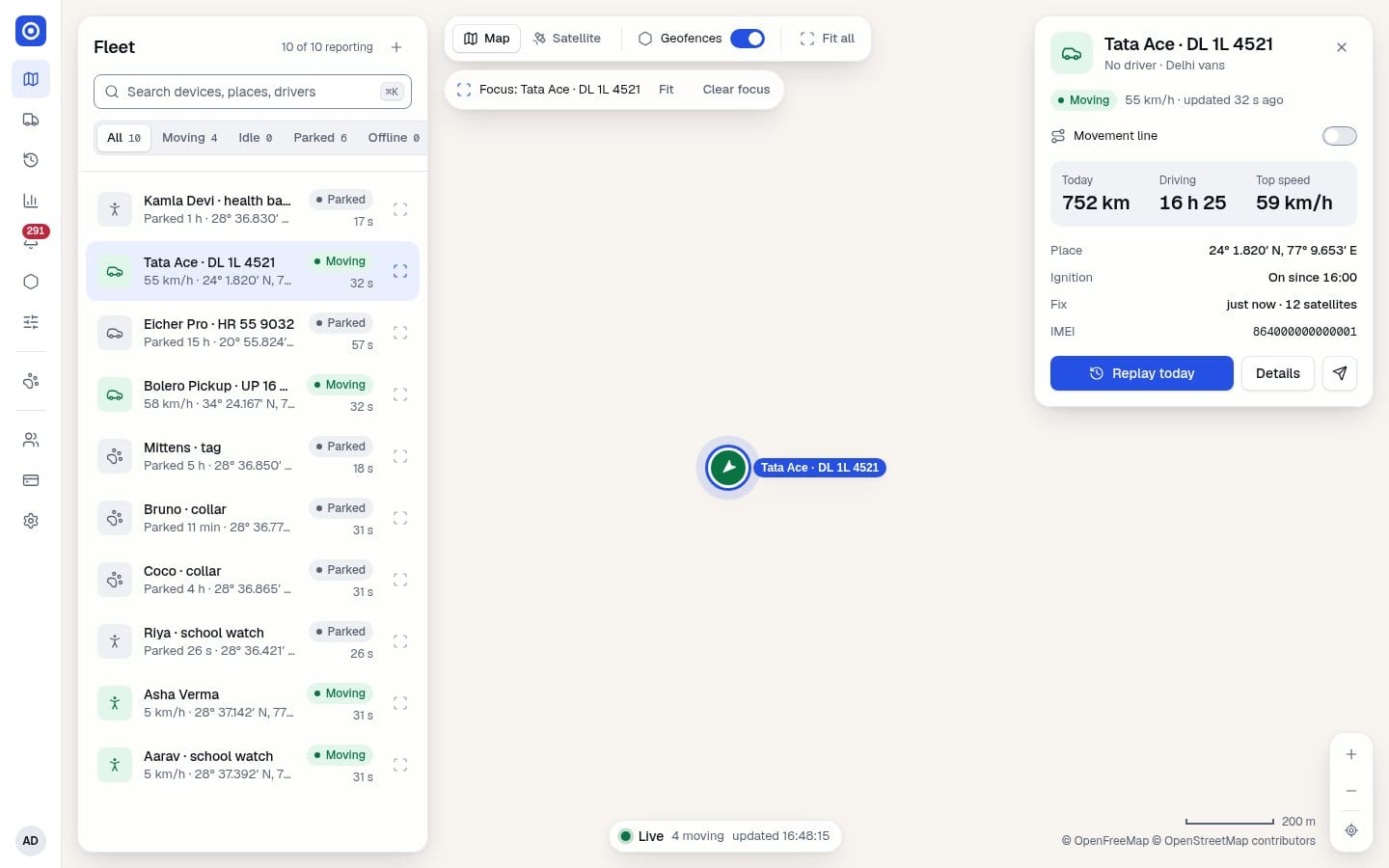
A vehicle counts as moving when the tracker says so, or, for trackers that do not, when its speed is above about 2 km/h; slower readings are treated as GPS drift. A stop is recognised after the vehicle has stood still for a short while, so "Parked 5 min" may have begun a few minutes earlier.
What offline means, and the last known position
Offline means the tracker has closed its connection to the server. A vehicle tracker that keeps a connection open does this when it loses power, loses mobile coverage, or goes to sleep. Many trackers sleep when the ignition is off and wake when it is switched on, so an offline vehicle in a car park overnight is often perfectly normal.
Unknown means nothing has arrived for longer than the server's status timeout. Phones running the app and trackers that do not hold a connection go to unknown rather than offline when they stop reporting.
In both states, the marker stays where the vehicle last reported, and the list says how long ago that was. That is the last known position, not the current one. A vehicle that has been offline for three hours may be anywhere within three hours' drive. Treat the position as a starting point: where it was, and when.
Common reasons for an offline vehicle that is not a fault:
- an underground car park, a tunnel, a steel-framed warehouse or a valley without coverage;
- a tracker that sleeps while the vehicle is parked;
- a vehicle on a ferry or in a workshop with its battery disconnected.
If a vehicle stays offline while it should be driving, why a device shows offline goes through the checks: power, the SIM's data, the server address and port, and the identifier.
The movement line behind a vehicle
A state is a moment. To see which way a vehicle has been going, select it and switch on Movement line in its panel. A line appears along the route it has taken in the last hour and grows with each new position. A parked van with a line that ends at a customer's address has arrived there; an idle truck whose line circles a block may be looking for a way in. Gaps in coverage show as straight segments between the last point before and the first point after. Showing the movement line of a device explains why parts of the line can be missing.
Clusters when many vehicles are close together
At a depot, or when you zoom out over a city, markers would sit on top of each other. The map then draws them as one round bubble with a number: the count of vehicles it holds. Select the bubble or zoom in and it splits into individual markers again. A bubble hides the states of the vehicles inside it, so when you need to read them, zoom in, filter by status, or put the vehicles you care about in focus; vehicles in focus always keep their own marker. Why devices merge into a bubble with a number covers clusters in full.
When to act on a state and when to wait
Most state changes need nothing from you. The ones worth acting on are states that last longer than they should, or appear where they should not:
| You see | Usually means | Act when |
|---|---|---|
| Idle for a long time | Engine running while waiting | It is a pattern for the same vehicle, or a long idle where no wait is expected |
| Parked at an unexpected place | An unplanned stop, a breakdown, a lunch break | It lasts well beyond a normal break, or the driver does not answer |
| Offline while it should be driving | Coverage, power or tracker problem | It does not come back after a few minutes on the move |
| Offline at night in the depot | A sleeping tracker | Only if it does not come back in the morning |
| Unknown on a phone | The app stopped reporting | The person should be working and has not reported for a while |
| Moving outside working hours | Unauthorised use or an authorised call-out | Always check, ideally with an alert rule on an out-of-hours calendar |
For the cases that matter at night or when nobody is watching the screen, set alert rules rather than relying on the map: Device offline or Status unknown for trackers that go silent, Started moving on an out-of-hours calendar for vehicles that should not move. The live map page shows what else the map does, and the fleet solution page shows how alerts and reports fit around it.
How Alongpin helps
Alongpin (alongpin.com) is a GPS tracking platform you open in a browser or on your phone. Your trackers, in the vans, trucks and cars you already run, show on one live map with trips, stops, idle time and alerts; reports and scheduled reports answer the questions this article raises, and users and roles let each depot see its own vehicles. Check your trackers in the device check, read how it works for fleets, and start on the pricing page.
Frequently asked questions
Why does a parked vehicle sometimes show moving for a moment?
A GPS jump in a car park or near tall buildings can look like movement. It settles with the next positions.
Why does a phone never show offline?
Phones running the app send each report on its own instead of holding a connection, so they go to Unknown when they stop reporting.
Can I see how long a vehicle has been in its state?
Yes. The list shows the duration next to the state, such as "Idling 6 min" or "Parked 2 d".