Live map and trips
Showing the movement line of a device
How to switch on the movement line to see the route a device has just taken on the live map. It starts with the last hour and grows as the device moves; for older routes, use replay.
Ashish Srivastava3 min read

To show a route trail on the live map, select the device and switch on Movement line in its panel. A line appears along the route it has taken in the last hour, and it grows with every new report while the device moves. It is a quick way to see where a vehicle has just come from without leaving the live map.
Key takeaways
- Movement line is a switch in the device's panel on the live map.
- The line starts with the last hour and grows as the device reports.
- Several devices can have their line on at once.
- For a route from earlier today or another day, use replay.
Switch the movement line on
- On the live map, select the device in the Fleet list or on the map. Its panel opens.
- Switch on Movement line. The switch shows while the device has a location.
The line appears at once with the route of the last hour, drawn in blue behind the marker. As new positions arrive, it grows, ending where the marker is, so it never runs ahead of the vehicle.
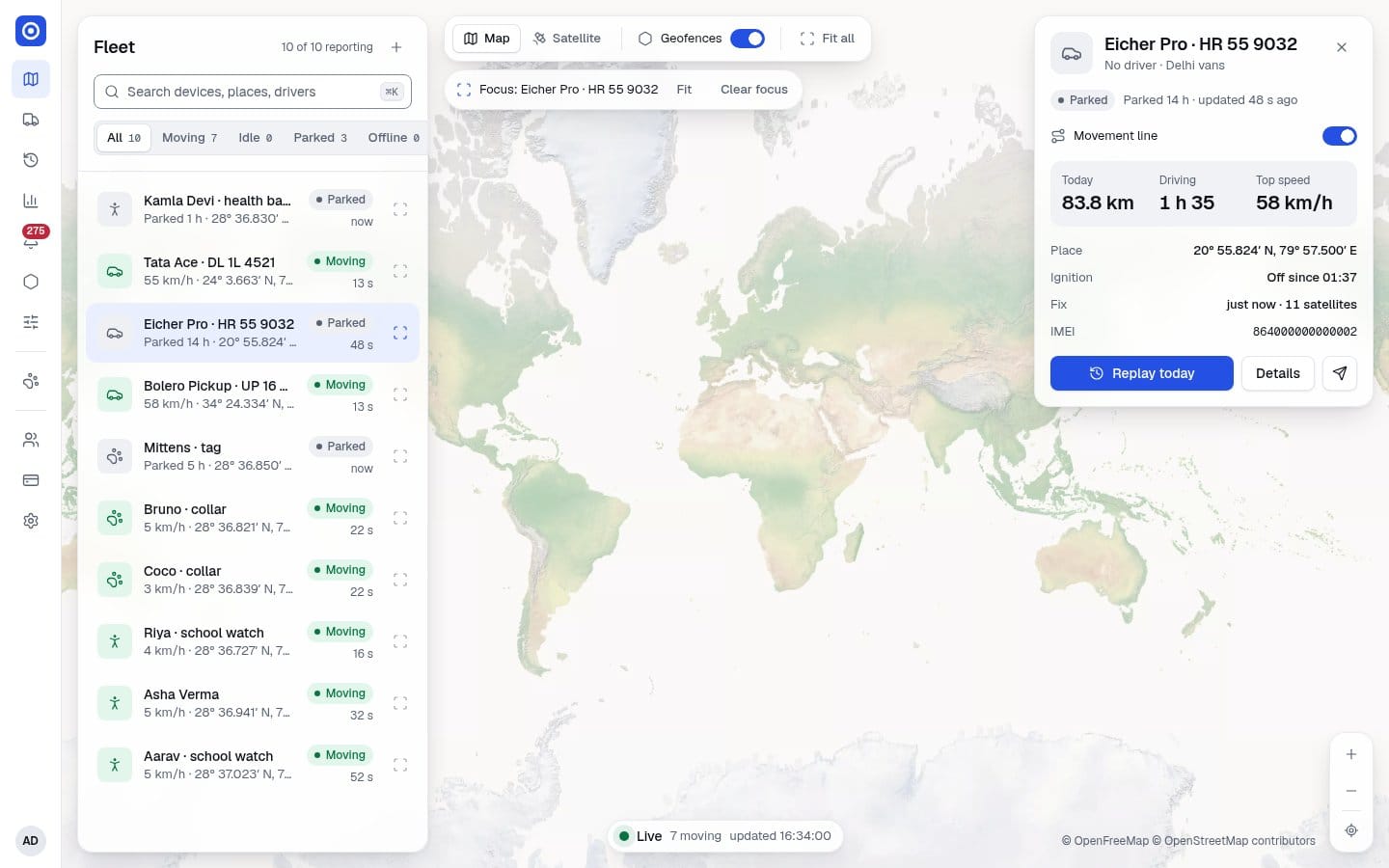
To follow several vehicles, open each one's panel and switch its line on too. Each line belongs to its device. Combined with focus, which keeps several devices in view, you can watch a few vehicles and their recent routes at the same time.
It starts with the last hour and grows
When you switch the line on, the portal reads the device's route of the last hour, so you see something straight away instead of waiting for the next report. From then on, every report adds a point. The line stays on while the page is open and comes back after a reload, because it is part of the page's address. Very long lines keep their newest part.
Movement line or replay?
The movement line answers "where has this vehicle just been?" on the live map. Replay and trip history answer the wider questions:
| Movement line | Replay |
|---|---|
| The last hour, then live | Any day or period you choose |
| On the live map, next to every other device | On its own page, one device at a time |
| A line, nothing more | Played back with stops, events, speeds and a scrubber |
The same panel has Replay today, which opens the replay of today's route for that device.
Why part of the line can be missing
- Private trips: while a private trip runs, or outside working hours where the fleet has set working hours, positions come without a location or blurred to about a kilometre, so the line has no exact points for that time. How private trips work is explained under driver privacy.
- Gaps in reporting: when the tracker could not report, for example in a tunnel, an underground car park or an area without mobile signal, or while it was switched off, there are no points in between. The line joins the last point before the gap to the first one after it with a straight segment.
- No valid fix: positions the tracker marks as having no valid GPS fix are left out, so the line does not jump to a wrong place.
- The tracker reports rarely: a tracker that reports every few minutes draws a line with straight cuts across corners. That is the tracker's interval, not a fault on the map.
Switch it off again
Switch Movement line off in the device's panel. Closing the panel does not switch it off: the line stays for that device until you turn it off.
On a phone
At phone width, the device sheet on the live map has no movement line. Use Replay today to see the route on a phone.
Frequently asked questions
Can I make the line show the last three hours?
No. The movement line always starts with the last hour. For a longer period, use replay.
Do colleagues see my movement lines?
No. Lines are part of your own view of the live map.