Fleet management
How to trial fleet tracking software before you commit
A trial gives a real answer when you test with your own vehicles and your own questions. A six-step checklist: three questions, two or three trackers, one zone, alert and report, a dispatcher and a driver, data protection, and the decision.
Ashish Srivastava6 min read
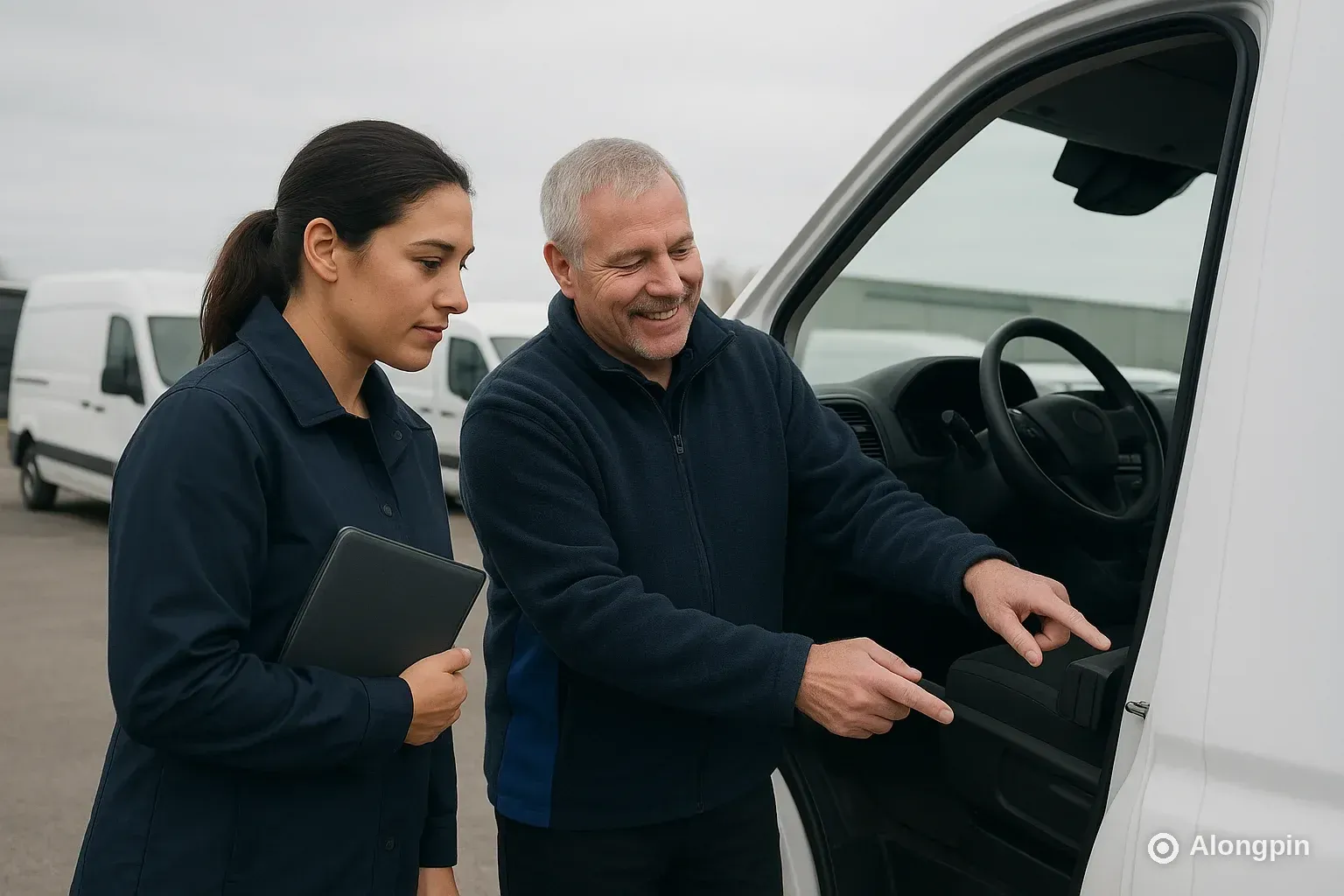
A fleet tracking free trial gives you a real answer only if you go in with questions, test with your own vehicles and involve the people who will use it every day. The short version: decide three questions the trial must answer, connect two or three of your own trackers, set up one zone, one alert and one report, put a dispatcher and a driver in front of it, check data protection before going wider, and decide at the end on package, payment and roll-out. A sales demo shows what the software can do; a trial shows what it does for your fleet.
Key takeaways
- Write down three questions before you start, and judge the trial only on those.
- Use your own trackers: check the models in the device check, then connect two or three vehicles that do different work.
- One zone, one alert and one report are enough to learn how the platform behaves.
- The dispatcher and a driver will tell you more in ten minutes than a week of reading.
- Before rolling out, check the driver notice, roles, retention and the data processing agreement.
Before you begin
You need:
- Two or three vehicles whose work you know well, ideally different: a van that visits customers, a truck on longer runs, a vehicle that stands a lot.
- Trackers for them, either ones you already have or one or two new units, each with a data SIM.
- An account: sign up and choose a package; where a package has a free trial, it starts without a card. The pricing page shows which packages offer one.
- Two to four weeks, so the trial covers normal days, a busy day and at least one weekend.
If you would rather see the platform first with someone who can answer questions, book a demo. Many buyers do both: a short demo to check the fit, then a trial with their own vehicles.
Step 1: Decide the three questions the trial must answer
Everything else follows from these. Good trial questions are specific and can be answered from the data:
- "Can we tell a customer, with evidence, when our van arrived and left?"
- "How much time do our trucks spend waiting at the two distribution centres?"
- "Will we hear within ten minutes if a vehicle moves at night?"
- "Can the dispatcher see where everyone is without phoning?"
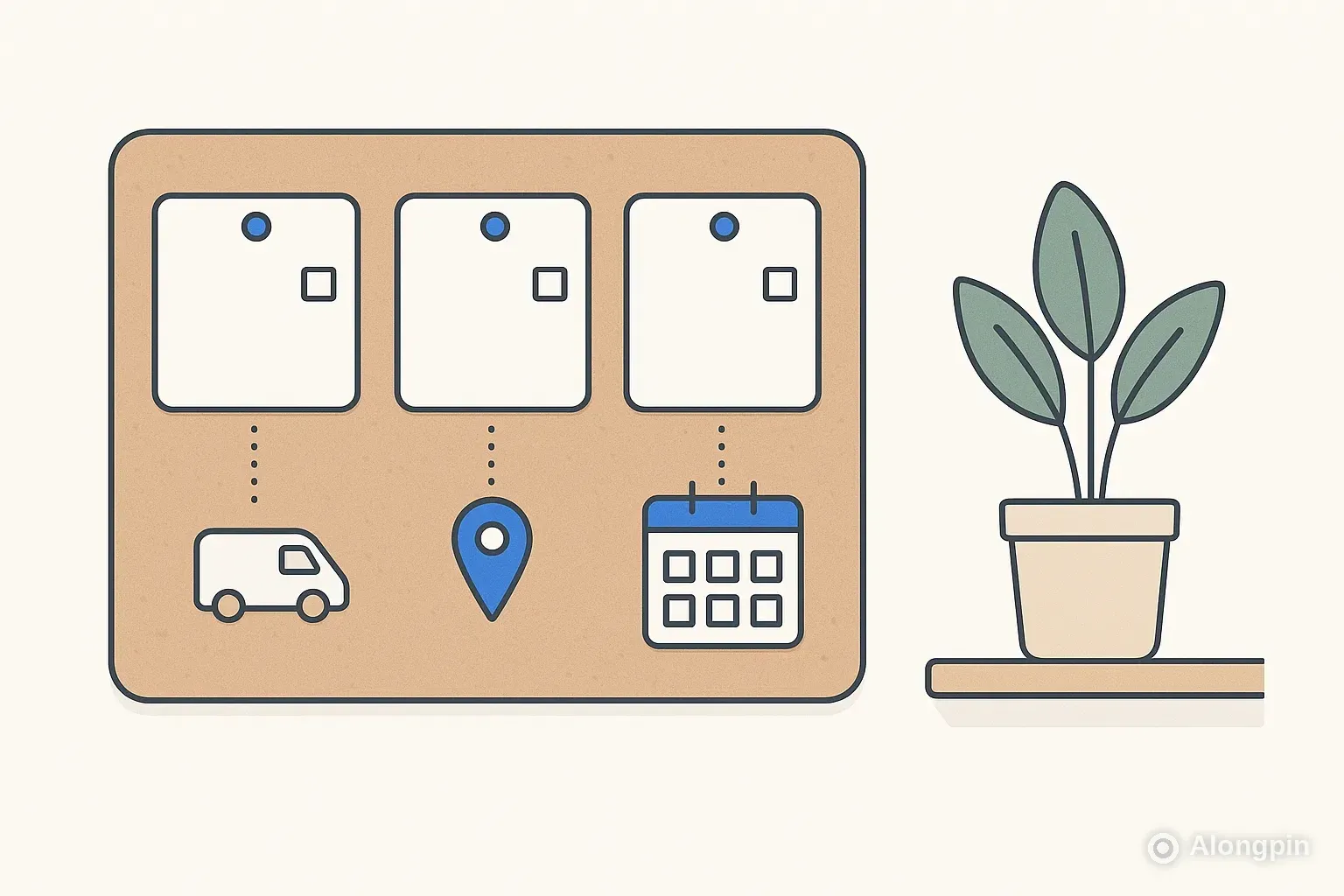
Write the three on one page with what a good answer looks like. At the end, you score the trial against that page, not against a feature list.
Step 2: Check your trackers are supported and connect two or three
The platform can only show what the tracker sends, and only if it decodes the tracker's protocol.
- Check the model in the device check. A match means the protocol is decoded; models in a family can still differ, so treat the trial as the real test.
- Add the device in the portal with Add device, using its IMEI.
- Set up the tracker with the server address and port the portal shows for its protocol. For GT06-type trackers, the setup guide on connecting a GT06-type wired tracker goes step by step.
- Watch it come online on the live map.
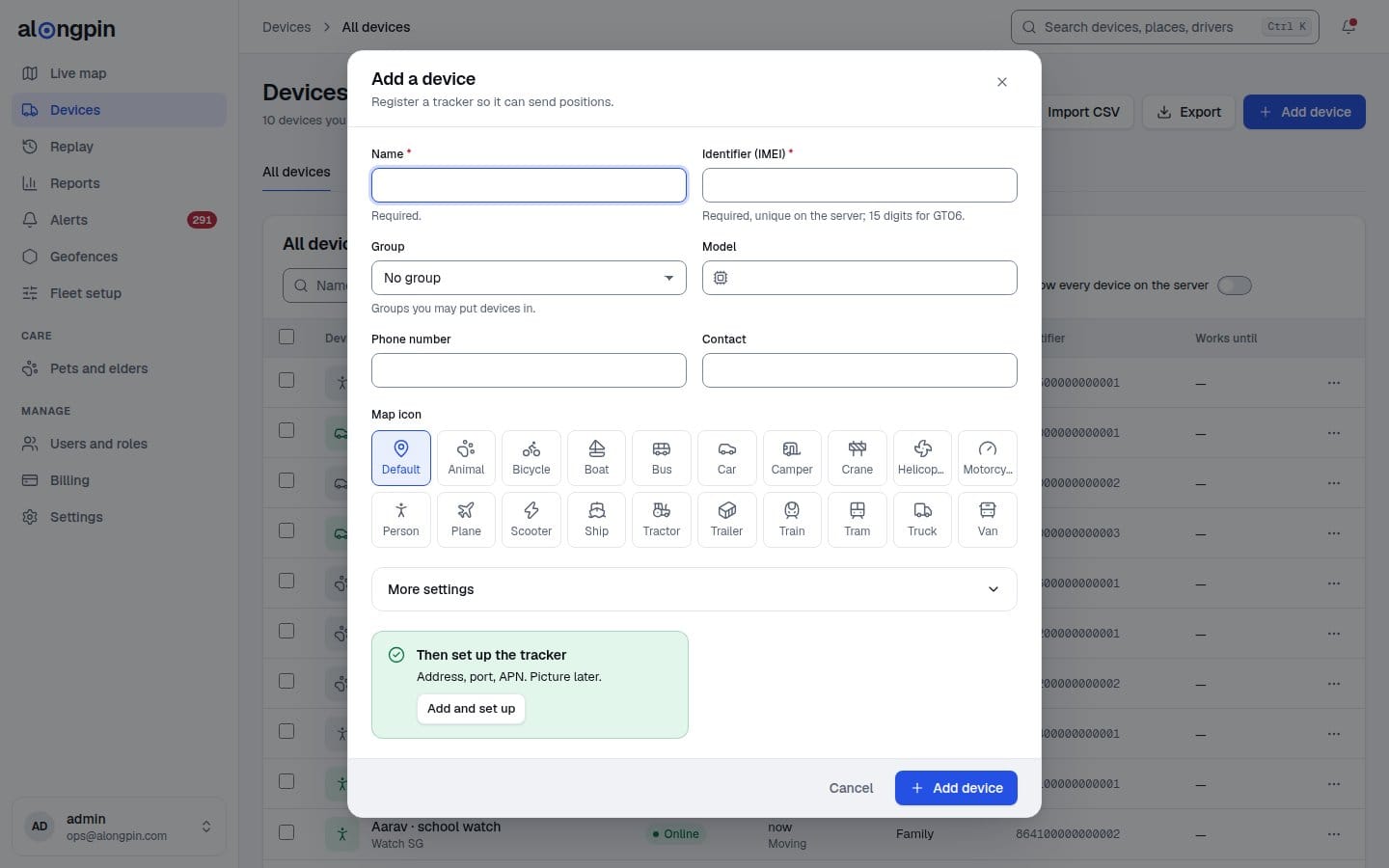
If a tracker connects but does not appear, it may be waiting under Unverified devices, where an identifier the server does not know yet is kept for you to approve. The help article on a device not appearing after connecting explains what to check.
Leave the trackers running for a full day before judging anything. Check that trips start and end where you expect, that the ignition is reported, and that positions keep coming in places with weak coverage.
Step 3: Set up one zone, one alert and one report
Resist switching everything on. One of each teaches you how the platform behaves:
- One zone. Draw a geofence around the depot or a regular customer. After a day, the vehicle's events show when it entered and left.
- One alert. Pick the alert that matches one of your questions, for example movement out of hours, and send it to yourself. Use Test these channels to check the message arrives where you expect.
- One report. Run the trips report for a week, or the Stays report for your zone, and download it as Excel. Then use Schedule this report so it arrives by email every Monday.
Ask of each: does it answer one of the three questions? If not, adjust it once, then move on.
Step 4: Involve a dispatcher and a driver
The people who will use the platform daily see things a buyer does not.
- The dispatcher: sit them at the live map for an hour on a normal morning. Can they find a vehicle by typing its name in the fleet search? Do they understand the states (Moving, Idle, Parked, Offline, Unknown)? What do they look for that is not there?
- A driver: explain what is recorded, show them their own trips, and ask what worries them. Drivers who understand the system are far less likely to unplug it.
If your account can add users, give the dispatcher their own user with a role limited to what they need, rather than sharing your sign-in. That also tests roles before you roll out.
Step 5: Check data protection before going wider
A trial on three vehicles is easy to forget about; a roll-out across the fleet tracks everyone. Before you go wider, check:
- The driver notice. Drivers should know what is recorded, why, and who sees it. The article on writing a vehicle tracking notice for drivers lists what to cover.
- Roles. Who sees which vehicles, and who may send commands or export data.
- Retention. How long positions and events are kept on your installation.
- Private use. If drivers take vehicles home, decide how working hours and private trips are handled.
- The data processing agreement for the hosted service, and the list of sub-processors.
- Local rules, such as a works council's agreement where the law requires it.
Step 6: Decide on package, payment and roll-out
Go back to your page of three questions and mark each one answered, partly answered or not answered. If two of three are answered, the platform is probably right; the third may need a different tracker, a different report, or a process change on your side.
Then decide:
- Package: per device, or one price for the whole account up to a device limit. The pricing page shows both.
- Payment: card, PayPal, Razorpay or bank transfer, depending on what your installation has switched on. Enter your billing details so invoices carry your company and tax number.
- Roll-out: which vehicles next, who fits the trackers, who trains the dispatchers, and when the driver notice goes out.
When a trial ends, the first invoice is issued. Pay it to carry on; if you let it lapse, the devices on that plan stop and nothing is charged.
Common mistakes in a fleet software evaluation
- Testing with the vendor's demo data only. It always looks good. Your own vehicles, roads and coverage are the test.
- Switching on every alert. The trial drowns in notifications and nobody reads them.
- One person evaluates alone. The dispatcher's and a driver's view arrive after you have signed.
- Buying trackers before checking them. Check the model, then test one unit.
- Leaving data protection for later. It is easier to set roles and retention before forty people have access.
How Alongpin helps
Alongpin (alongpin.com) is a GPS tracking platform you open in a browser or on your phone. Your trackers, in the vans, trucks and cars you already run, show on one live map with trips, stops, idle time and alerts; reports and scheduled reports answer the questions this article raises, and users and roles let each depot see its own vehicles. Check your trackers in the device check, read how it works for fleets, and start on the pricing page.
Frequently asked questions
How long should a fleet tracking trial last?
Long enough to cover ordinary days, a busy day and a weekend: usually two to four weeks. The length of a free trial is set per package.
Do I need a card for the free trial?
No. Where a package has a trial, it starts without an invoice and without a card.
Can I keep the trial data if I subscribe?
Yes. Subscribing carries on with the same account, so the trips and events from the trial stay, within the history your package includes.