Reports
Seeing how long vehicles stayed in a zone
How to use the geofence stays report to list each visit of a vehicle to a customer site, depot or other zone, with the time it entered, left and stayed, for proof of time on site.
Ashish Srivastava3 min read
A time on site report comes from geofences: draw a zone around each customer site, depot or yard, and the geofence stays report lists every visit of a vehicle to it, with when it entered, when it left and how long it stayed. That is the record dispatchers and field service teams use as proof of time on site.
Key takeaways
- Open Reports → Geofence stays, choose the vehicles, the zones and the period.
- Each row is one stay: Entered, Inside (the time in the zone), distance and top speed.
- A stay still going on at the end of the period shows still inside.
- A zone counts only when it is attached to the vehicle or its group.
Run the report
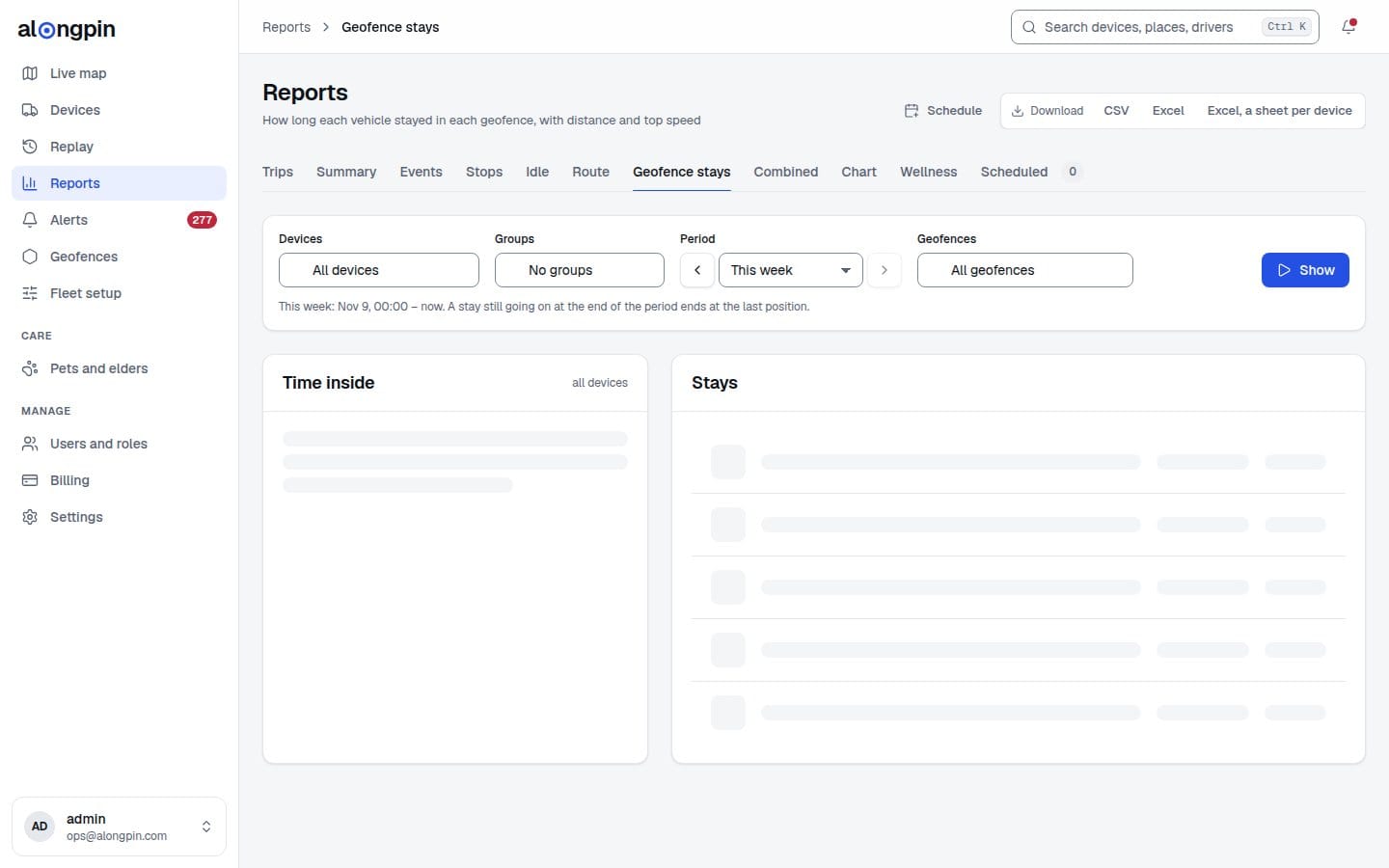
- Open Reports and choose the Geofence stays tab.
- Choose the Devices or Groups.
- Under Geofences, keep All geofences or pick the zones you need, such as one customer's sites.
- Pick the period and press Show.
Above the table, Time inside per geofence adds the stays up per zone. Below it, the table lists every stay, sorted by the time it started.
One row per stay
Each row is one visit of one vehicle to one zone:
- Device and Geofence: which vehicle, which zone.
- Entered: when it came in, and until when it left.
- Inside: the time it spent in the zone.
- Distance and Top speed inside the zone, useful on a large yard or a route corridor.
A vehicle that leaves and comes back gives two rows. Two vehicles at the same site give a row each.
Stays cut by the period
- still inside: the vehicle had not left by the end of the period. The stay ends at its last position, so its time inside will grow if you run the report again later.
- inside before the period: the vehicle was already in the zone when the period began. The stay is counted from the start of the period, not from its real arrival.
For a complete record of a visit, choose a period that starts before the vehicle arrives and ends after it leaves.
Download as CSV or Excel
Use Download and choose CSV, Excel or Excel, a sheet per device. Times are in your time zone and distances in your units, ready to attach to an invoice or a service record. For more on downloads, see reports.
Zones must be attached to the vehicle
The report is built from the moments a vehicle entered and left a zone. Those are recorded only for zones attached to the vehicle or to its group. If a zone gives no rows, check that:
- the geofence is attached: open the vehicle's settings, choose Share and attach and look under Geofences, or attach it on the group;
- the zone has no calendar that limits its events to working hours, unless that is what you want;
- the zone existed during the period: a geofence drawn or moved later does not change visits that happened before;
- the zone is large enough for the tracker's accuracy and reporting interval, so short visits are not missed.
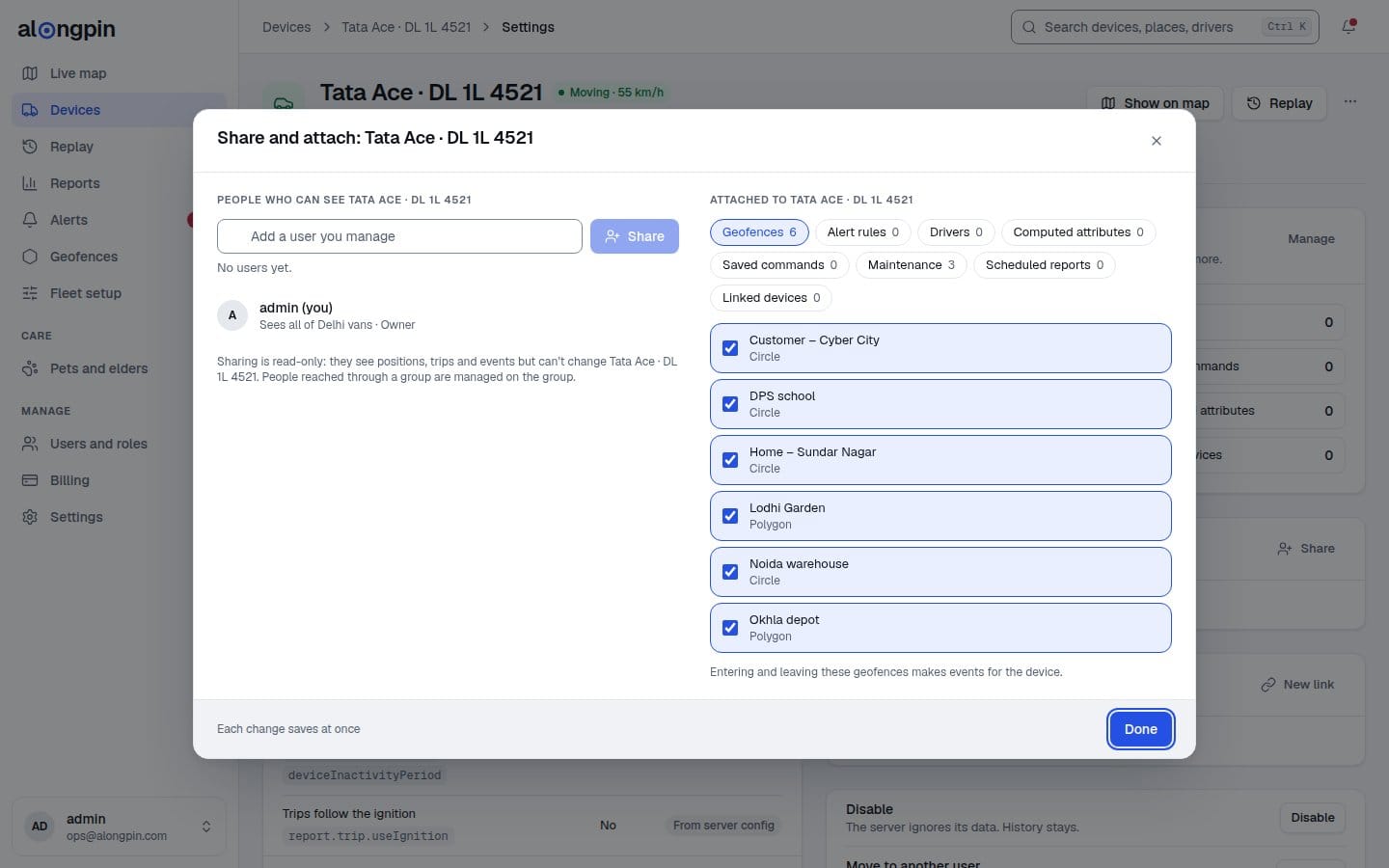
How to attach and draw zones is on the geofences page and in attaching a geofence to a device or group. For how field teams use this, see field service.
Frequently asked questions
Can I see the stays of one customer's sites only?
Yes. Pick those zones under Geofences before you press Show.
Why is a short visit missing?
The vehicle may have been inside between two positions. A shorter reporting interval, or a slightly larger zone, catches short visits.
Can I get this report every week by e-mail?
Yes: geofence stays can be scheduled; see scheduling a report.