Reports
Scheduling a report
How to set up a report that arrives by e-mail on its own: choose the report, a calendar that says when, the vehicles or groups and the people who get it, then pause or delete it later.
Ashish Srivastava3 min read
To schedule a fleet report by e-mail, you choose the report type, a calendar that says when it goes out, the vehicles or groups it covers and the people who get it. Each time a period of the calendar ends, every recipient receives an e-mail with a link to the report for the period that has just ended. A calendar from 00:00 to 24:00 every day, for example, sends each night the report for the day before.
Key takeaways
- Start from a report page with Schedule, or under Reports → Scheduled with New scheduled report.
- Trips, summary, events, stops, route, combined, geofence stays and wellness can be scheduled; idle cannot.
- Nothing is sent without a calendar, or without a recipient.
- The list shows when each report goes out next; choose No calendar: never sent to pause one.
1. Choose the report and what it covers
The quickest way is from the report itself:
- Open Reports and the report you want, such as Summary or Trips.
- Set the Devices or Groups and the filters you want in every e-mail.
- Press Schedule. The dialog Schedule this report opens with your choice under Covers.
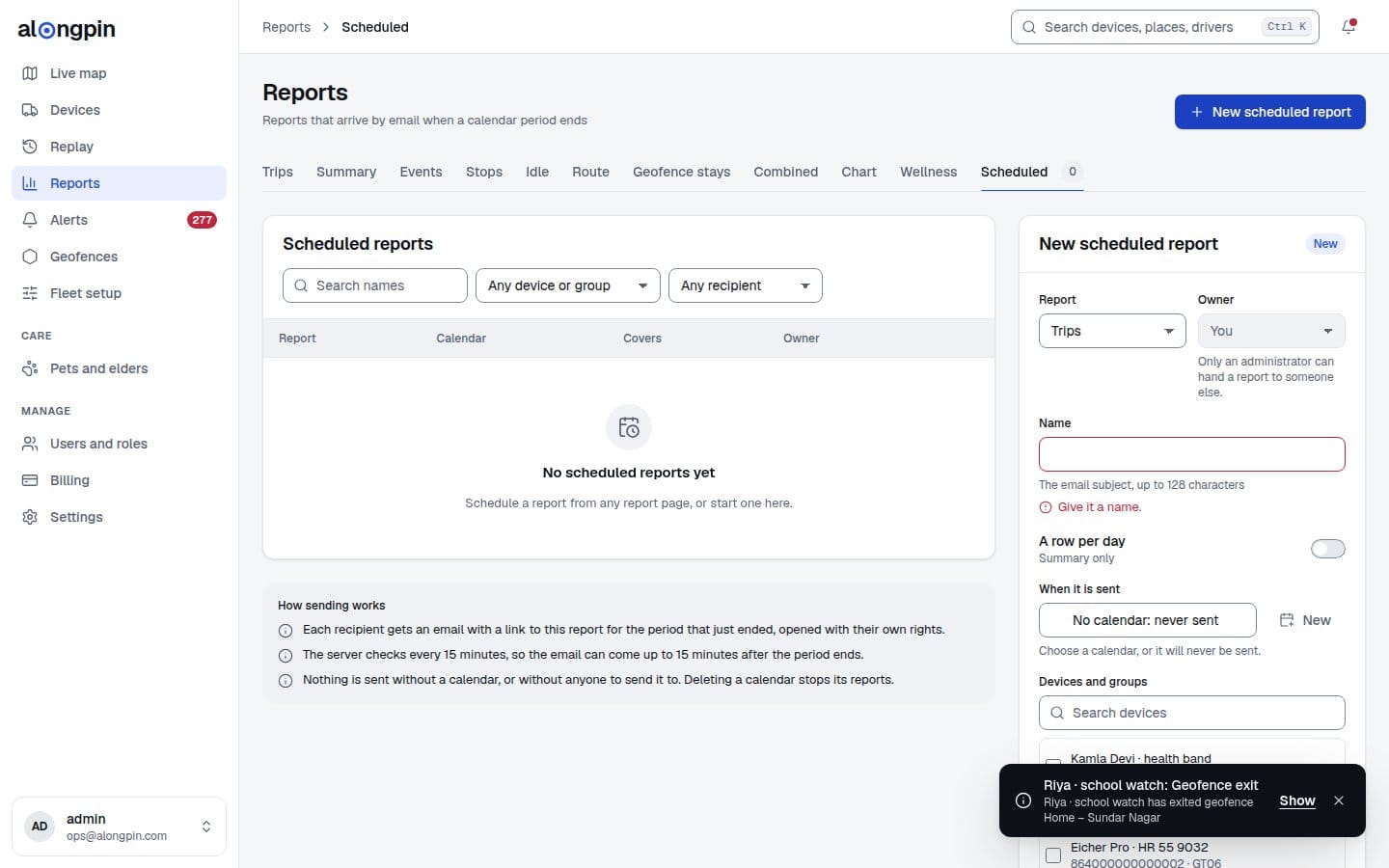
You can also open Reports → Scheduled and press New scheduled report, then pick the Report and the Devices and groups. If you leave the devices and groups empty, each reader sees every device they can see.
The idle report and the chart cannot be sent on a schedule. For a summary, tick A row per day to get one row per vehicle and day.
Give the report a Name: it becomes the e-mail's subject.
2. Pick or create the calendar
Under When it is sent, choose a Calendar. The report goes out when each period of the calendar ends, up to 15 minutes later, and covers that period. The calendar sets the period, not the dates you had in the filter.
If you have no suitable calendar, New calendar takes you to the calendar editor (also under Fleet setup → Calendars):
- Daily: one period from 00:00, with To 00:00 and Ends the next day ticked, repeating daily. Each night brings the report for the day before.
- Weekdays only: the same period, repeating weekly on Monday to Friday.
- Weekly or monthly: a period in the simple editor lasts 24 hours at most, so a report covering a whole week or month needs a calendar made from an iCalendar file whose event spans the week or month. Choose Upload .ics in the calendar editor.
Check the calendar's Time zone: midnight means midnight there. Scheduled report at the wrong time explains what happens when zones differ.
3. Choose who gets it
You receive the report by default. Under Other recipients (or Sent to), add the people you manage; each gets the e-mail with a link and opens the report with their own rights. Recipients must be users of your account: see scheduled report recipients and users and roles.
Press Schedule (or Create). The report is listed under Reports → Scheduled.
See when it is sent next
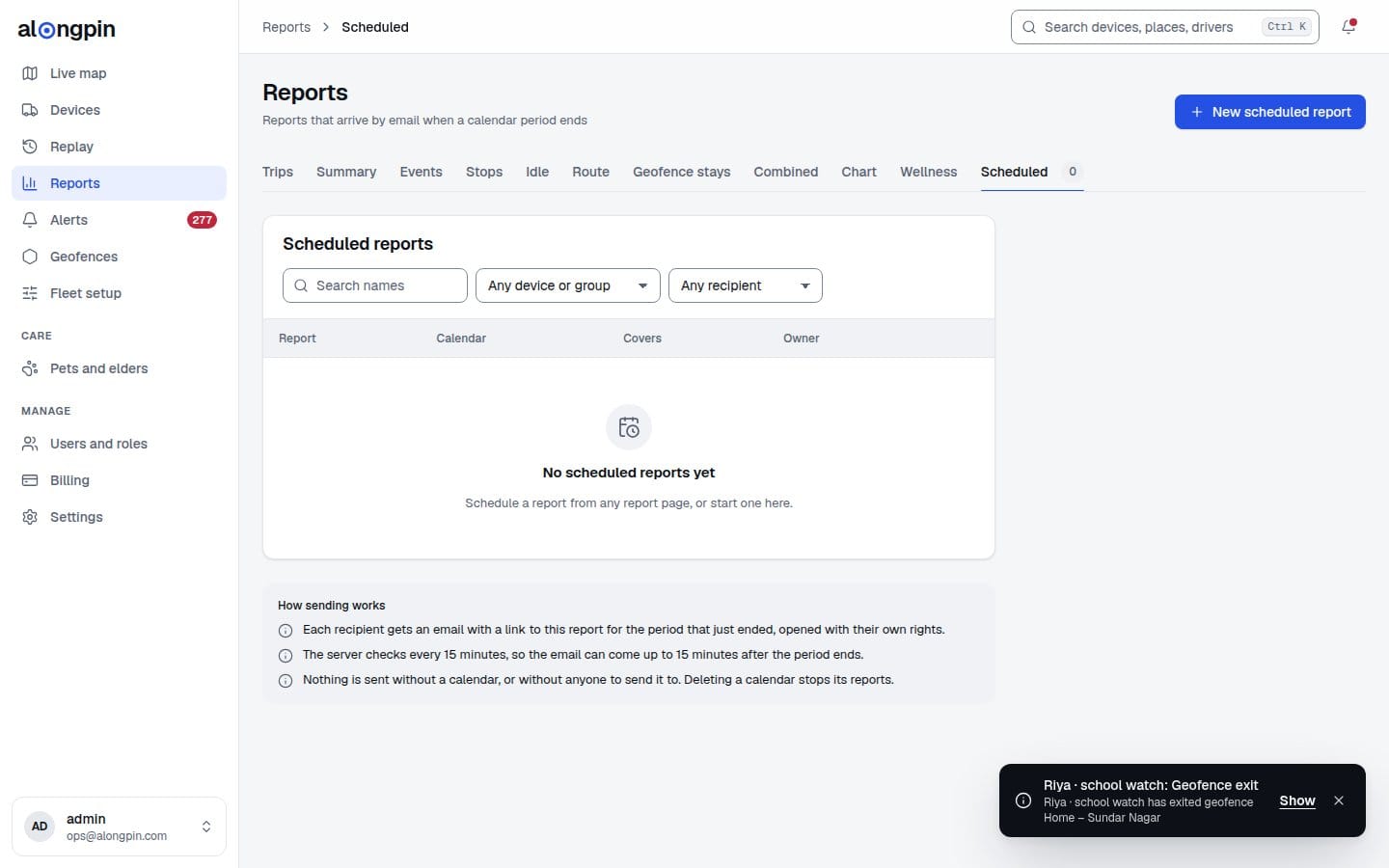
The Scheduled tab lists every scheduled report you own or receive, with its calendar, what it covers and to whom it goes. Each row shows Next: with the time it goes out next and Last sent with the last time it went out. Nothing to send next means the calendar has no period ahead or the report has no recipient.
Pause or delete the schedule
- Pause: open the report, set When it is sent to No calendar: never sent and save. Nothing goes out until you choose a calendar again.
- Delete: open the report and press Delete. It is deleted for good and its recipients stop receiving it.
Deleting a calendar also stops every report that uses it. Only the owner of a scheduled report, or an administrator, can change it; a recipient sees it read-only.
More on what scheduled reports can do: scheduled reports and reports.
Frequently asked questions
Can I send a report to an address outside the account?
No. Recipients are users of your account. Add the person as a user first.
Why did the report arrive a few minutes after midnight?
The server checks every 15 minutes, so the e-mail can follow the end of the period by up to a quarter of an hour.