Reports
Scheduled report recipients and why the e-mail holds a link
Who receives a scheduled report, how to add or remove recipients, why each e-mail carries a link instead of an attachment, and what a recipient needs to open the report.
Ashish Srivastava3 min read

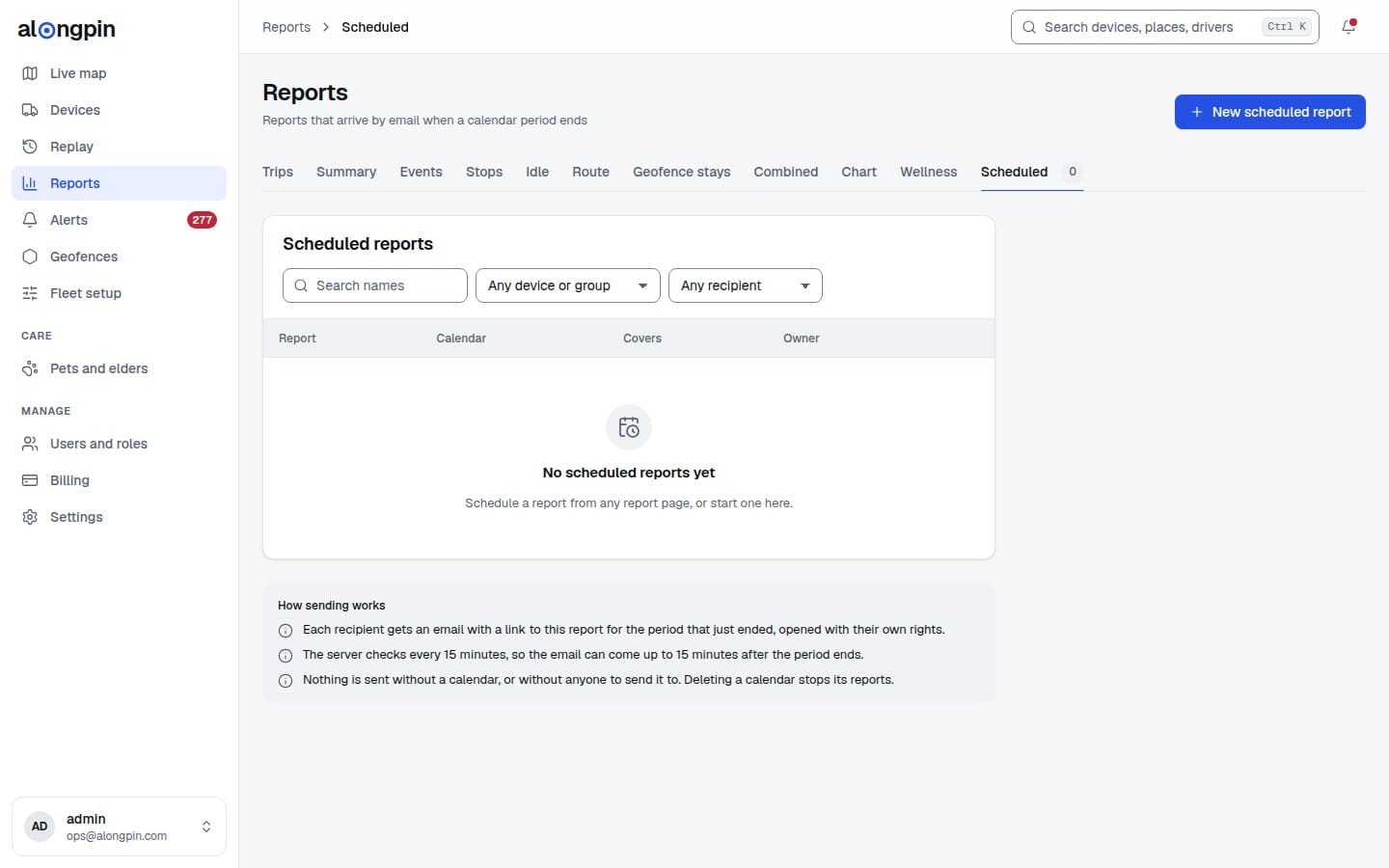
Scheduled report recipients are users of your account. Each recipient gets an e-mail with a link to the report in the web app, not a spreadsheet attached. The link opens the report for the period that has just ended, and the recipient sees it with their own rights: only the vehicles their role or sharing covers. To send a report to someone who has no account, create a user for them first.
Key takeaways
- Recipients are users linked to the scheduled report; the creator is a recipient by default.
- You can add only people you manage, under Sent to or on the user's Connections.
- The link opens the report in the portal; download it there as CSV or Excel.
- Each recipient sees only the devices they may see, and must be signed in.
Add or remove a recipient
- Open Reports → Scheduled and choose the report.
- Under Sent to, add a person from the list, or remove one.
- Press Save.
Only the people you manage are listed. If the report also goes to people you do not manage, the form says that some more recipients are not shown to you; they stay as they are. In the list, a report you receive from someone else reads like "to You and 1 more".
You can also work from the person's side: open Users and roles, choose the user, open Connections and add or remove the report under Scheduled reports.
Why the e-mail holds a link
The e-mail's subject is the report's name, and its text says which report is ready and for which period, followed by the link. The report itself is worked out when the link is opened. That has three effects:
- No vehicle data sits in an inbox. A forwarded e-mail shows nothing to someone who cannot sign in.
- Each person sees only their own vehicles. A dispatcher and a branch manager can share one scheduled report; each sees the devices they may see.
- Access ends at once. When you remove a user or take a vehicle away from them, their old links stop showing it.
What a recipient needs to open it
- An account and a sign-in. The link opens the portal; after signing in, the report runs for the period in the link.
- The right to run reports on those vehicles. A user with the No reports restriction receives no scheduled e-mails at all, and neither do disabled or expired accounts.
- The vehicles. The report shows only devices the recipient can see. If the report covers no devices or groups, it shows every device the reader can see.
Someone who has no account cannot get the report. Create a user for them under Users and roles → Add user, share the vehicles they should see, then add them to the report. A read-only user is often right for an outside reader; see users and roles.
Download it as CSV or Excel
After the report opens, use Download and choose CSV, Excel or Excel, a sheet per device. The file shows times in the reader's time zone and the reader's units.
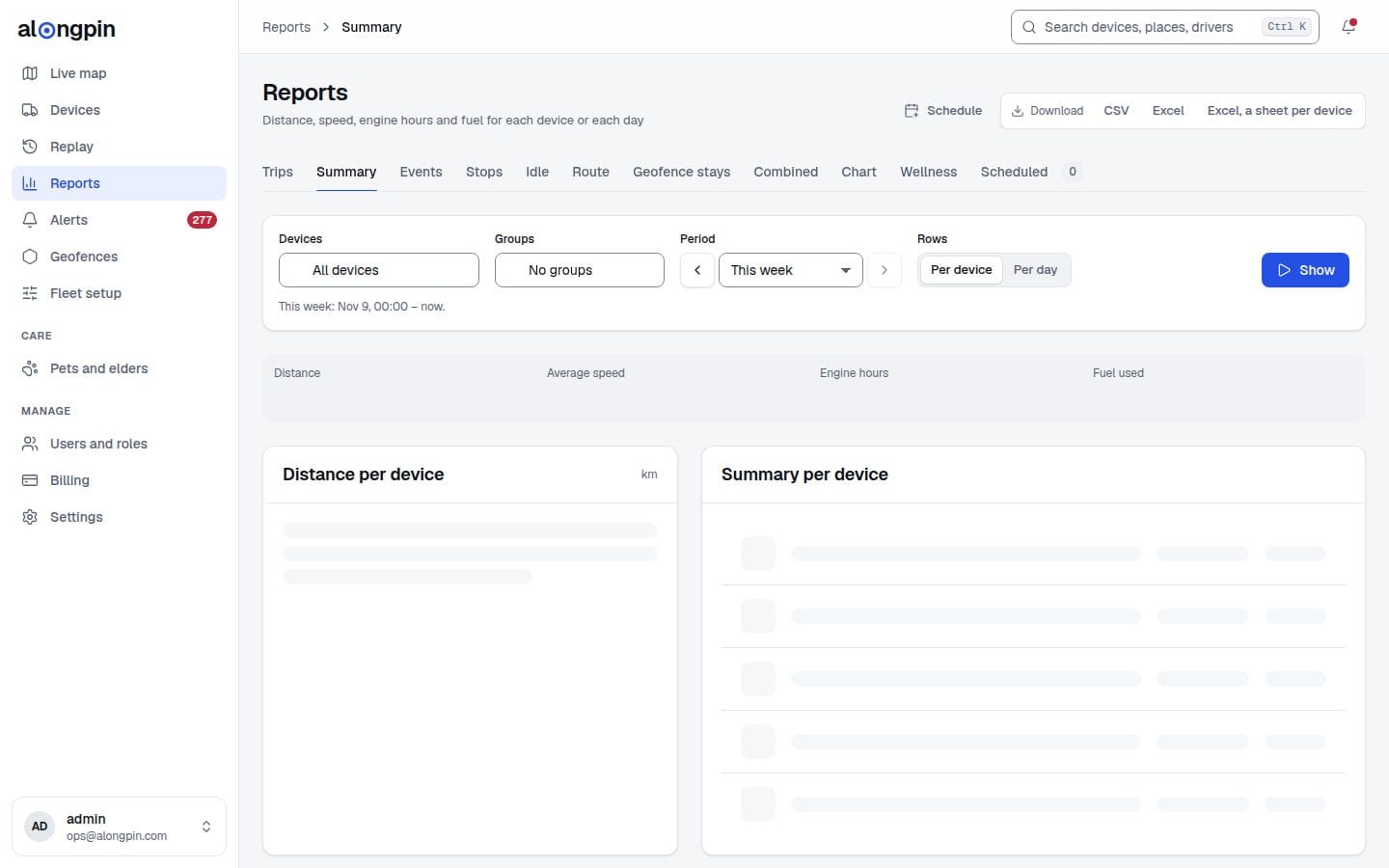
To set a report up from the start, see scheduling a report; for e-mails that come late or not at all, see scheduled report at the wrong time. More on scheduled reports and reports.
Frequently asked questions
Can I send the report to my customer's e-mail address?
Only if your customer has a user in your account. There is no way to send a scheduled report to another address.
Can a recipient change the report?
No. Only its owner, or an administrator, can change or delete it. A recipient sees it read-only, with the owner's name.