Geofences
Attaching a geofence to a device or group
A geofence raises enter and exit events only for the devices it is attached to. How to attach it to one vehicle or a whole group, see where it is attached, detach it, and add the alert rule.
Ashish Srivastava4 min read

To assign a geofence to a vehicle, open Geofences in the menu, pick the zone, and under Attached to choose Change: tick the vehicle, or a group to cover every vehicle in it, and save. A geofence raises enter and exit events only for the devices it is attached to, directly or through a group. Then add an alert rule for Geofence enter or Geofence exit, or the events are recorded but nobody is told.
Key takeaways
- A new zone applies to no device until you attach it.
- Attaching to a group covers every device in the group and its subgroups, including devices added later.
- The zone's page shows where it is attached and which devices are inside it now.
- You can attach only to devices and groups you may change.
Attach a geofence to a device
- Open Geofences and pick the zone on the map or in the list. A zone you have just drawn needs to be saved first.
- In the panel, under Attached to, choose Change. The dialog Attach and share opens.
- Under Devices and groups it applies to, find the vehicle with Find a device or group to add and add it. It shows as Will be added.
- Press Save changes.
You can also start from the vehicle: open it in Devices and choose Share and attach from the device's menu, or use Manage next to Geofences on its Settings tab.
To attach several zones at once, switch the Geofences page to List, tick the zones, choose Attach to devices or groups, pick the devices and groups, and press Attach. Links that already exist stay.
Attach it to a group so every device in it is covered
Attaching to a group is the easiest way to keep a fleet covered: a vehicle added to the group later gets the zone without anyone remembering to attach it. In the same dialog, add the group instead of single vehicles. A group passes the zone on to every device in it and in its subgroups.
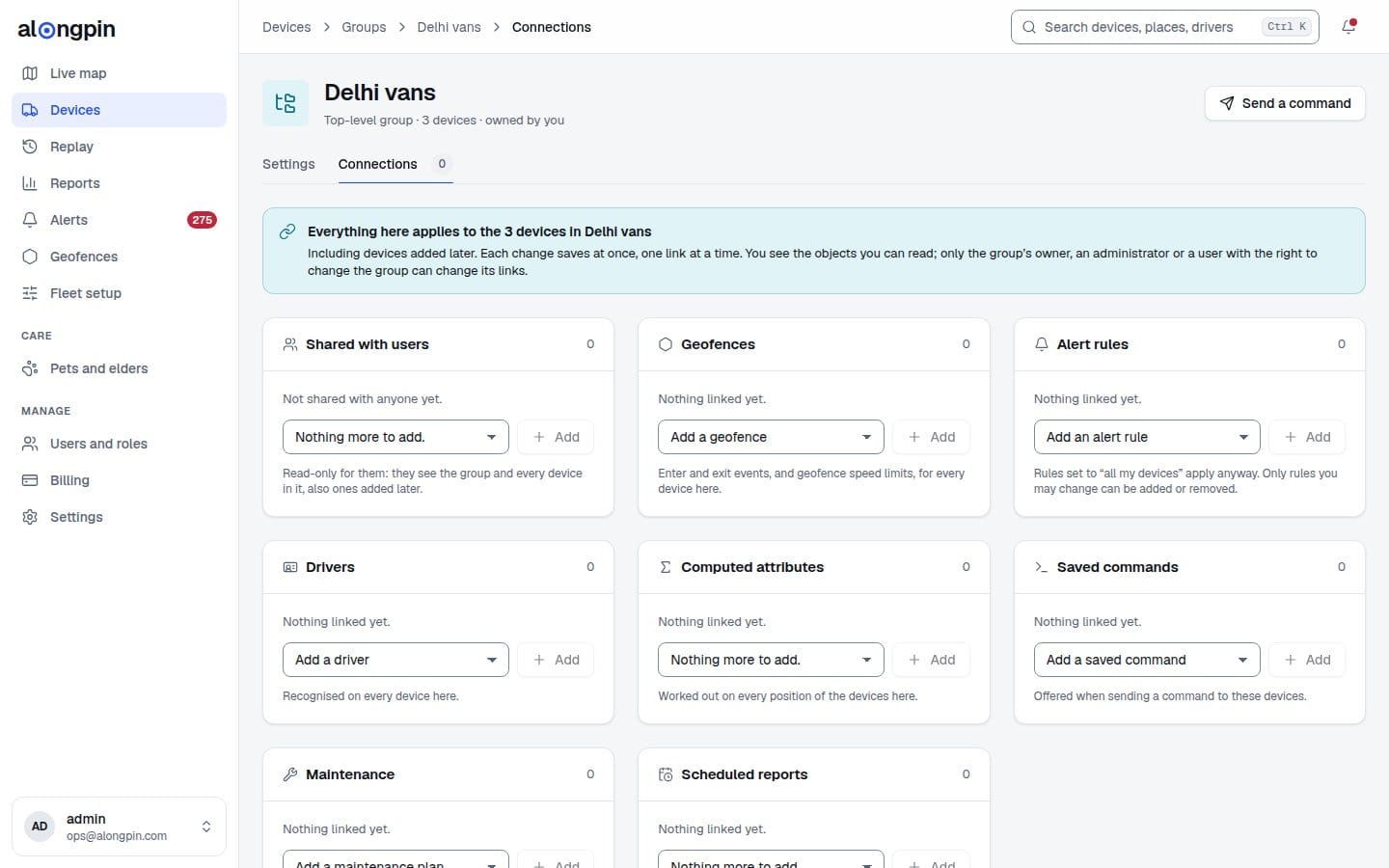
From the group's side: open Devices, the Groups tab, select the group, open Connections, and add the zone under Geofences.
See the devices and groups a geofence is attached to
Select the zone's name in the list to open its page. Attached to lists each group with its devices and each device attached directly. Inside now shows which attached devices are inside the zone at their latest position, which you can compare with the live map.
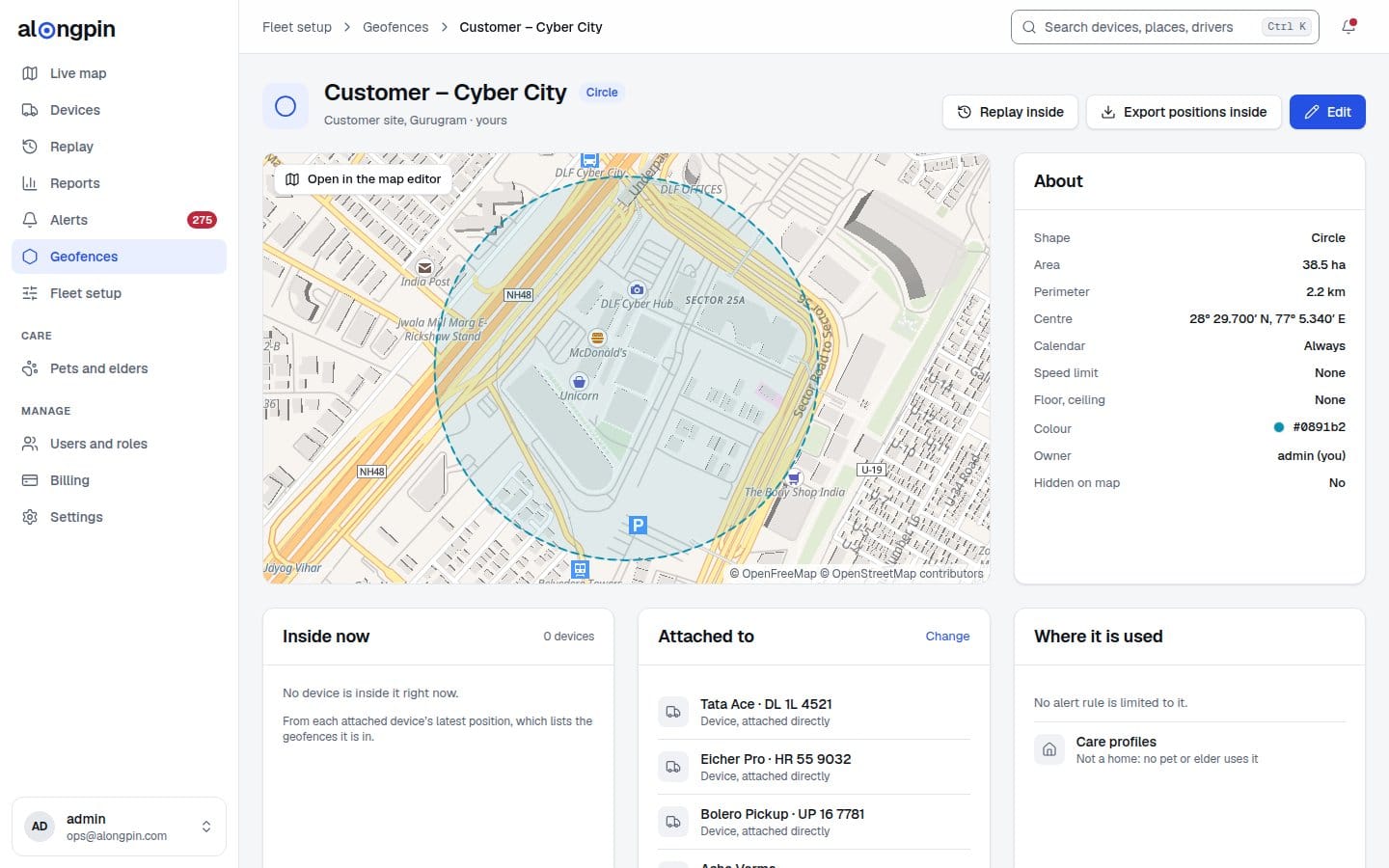
If it reads Nothing attached: it applies to no device, the zone raises no events at all. Not attached to any of your devices or groups means it is attached elsewhere, to devices you cannot see. In the list, the Attached to column shows the same at a glance, and the Attached to device and Attached to group filters find the zones on one vehicle. Those filters show direct links only: a zone attached to the vehicle's group applies too.
Detach it again
Open Change (or Attach or detach on the full form) again, remove the device or group so it shows Will be removed, and press Save changes. The zone stops applying to it from the next position. Past events stay.
Devices and groups you cannot change stay attached, with a note saying so. Only the devices and groups you may change are listed for adding.
Add an alert rule, or nobody is told
Attaching makes the device raise Geofence enter and Geofence exit events. They appear under Alerts and in the reports, but no message goes out until a rule says so:
- Open Alerts, the Rules tab, and choose New alert rule.
- Under When this happens, choose Geofence enter or Geofence exit.
- To limit it to some zones, tick them under Only these geofences; with none ticked it fires for every zone.
- Pick the channels under Tell people by, press Create rule, then choose the devices and the people who receive it.
The rule's devices and the zone's devices both count: a rule fires only for a device that the rule applies to and that the zone is attached to. More on rules and channels is on the alerts page, and on zones on the geofences page.
Frequently asked questions
I shared a zone with a colleague. Does it apply to their vehicles?
No. Sharing lets them see it and attach it to their own devices; it applies only where it is attached.
Do I need to attach a pet's or elder's home zone?
Saving the care profile attaches the home zone to its tracker for you, if you may change the tracker.