Reports
Listing overspeed and harsh driving events
How to list overspeed and harsh driving events for a period with the events report, what each row tells you, where harsh braking comes from, and why the platform keeps a list rather than a driver score.
Ashish Srivastava3 min read
A speeding report in GPS tracking is the events report filtered to overspeeds: every time a vehicle went faster than its limit in the period, with the speed, the limit, the place and the time. The same report lists harsh braking, harsh acceleration and harsh cornering, where the tracker reports them. It is a list of events, not a driver score: Alongpin does not rank drivers.
Key takeaways
- Reports → Events, with Overspeed and, for harsh driving, Alarm among the Event types.
- An overspeed row shows the speed and the limit that applied at that place.
- Harsh driving events appear only where the device reports them, or where the server works them out from speed changes.
- Tell your drivers what is recorded and why.
Run the events report
- Open Reports and choose the Events tab.
- Choose the Devices or Groups and the period.
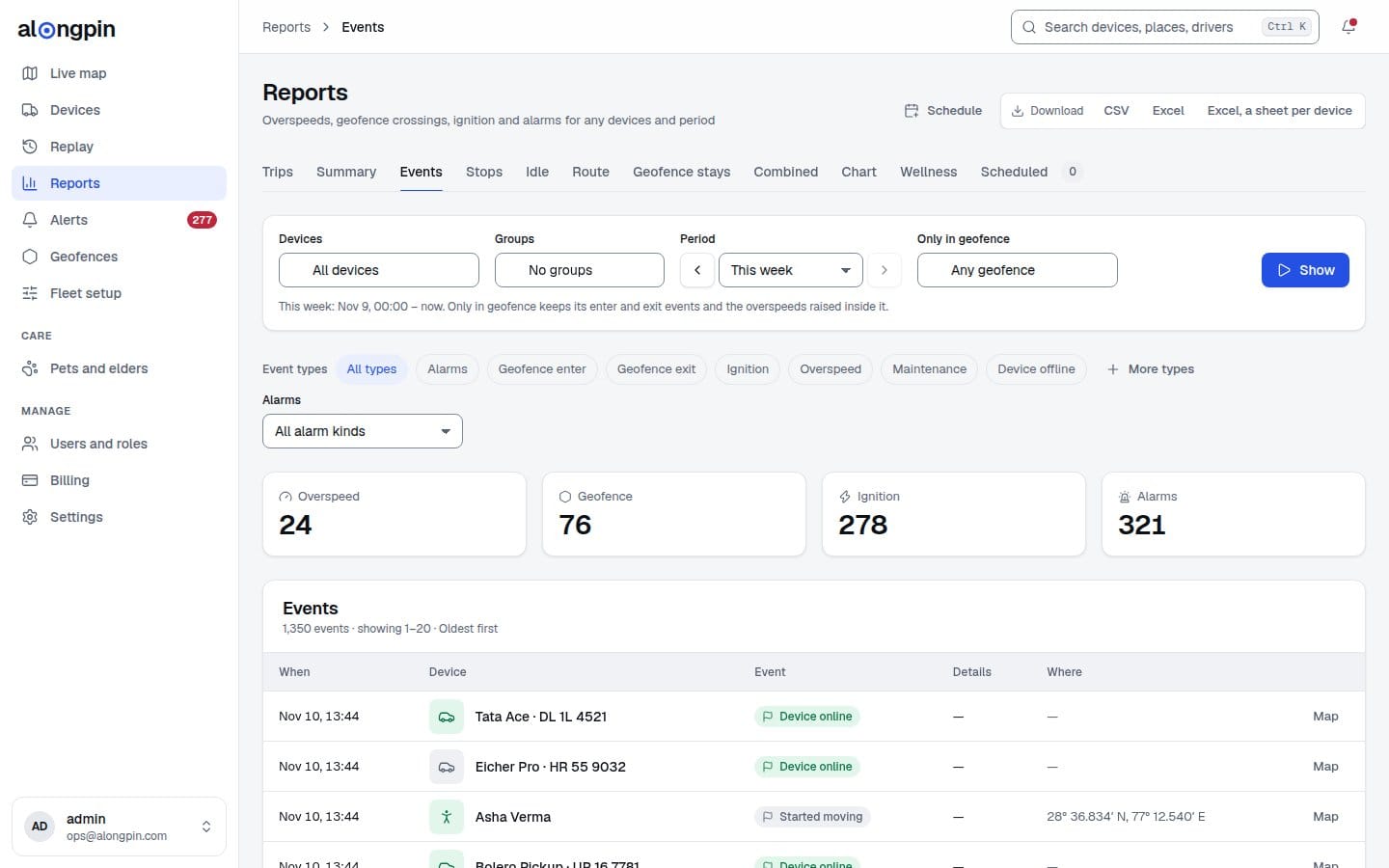
- Under Event types, choose Overspeed. For harsh driving, add Alarm, then narrow Alarms to Hard braking, Hard acceleration and Hard cornering.
- Press Show.
Above the table, Events of the period by kind counts overspeeds, geofence events, ignition and alarms. The table lists the events oldest first, with When, Device, Event, Details and Where. To keep only the overspeeds inside one zone, such as a school area, choose it under Only in geofence.
Overspeed: speed and limit at the place
An overspeed row's details read like "72 km/h, limit 50 km/h". The limit is the one that applied where it happened:
- the speed limit of a geofence the vehicle was in, when the zone has one;
- otherwise a limit the tracker reports for the road, where it does;
- otherwise the vehicle's own Speed limit, set on the device, its group or the server.
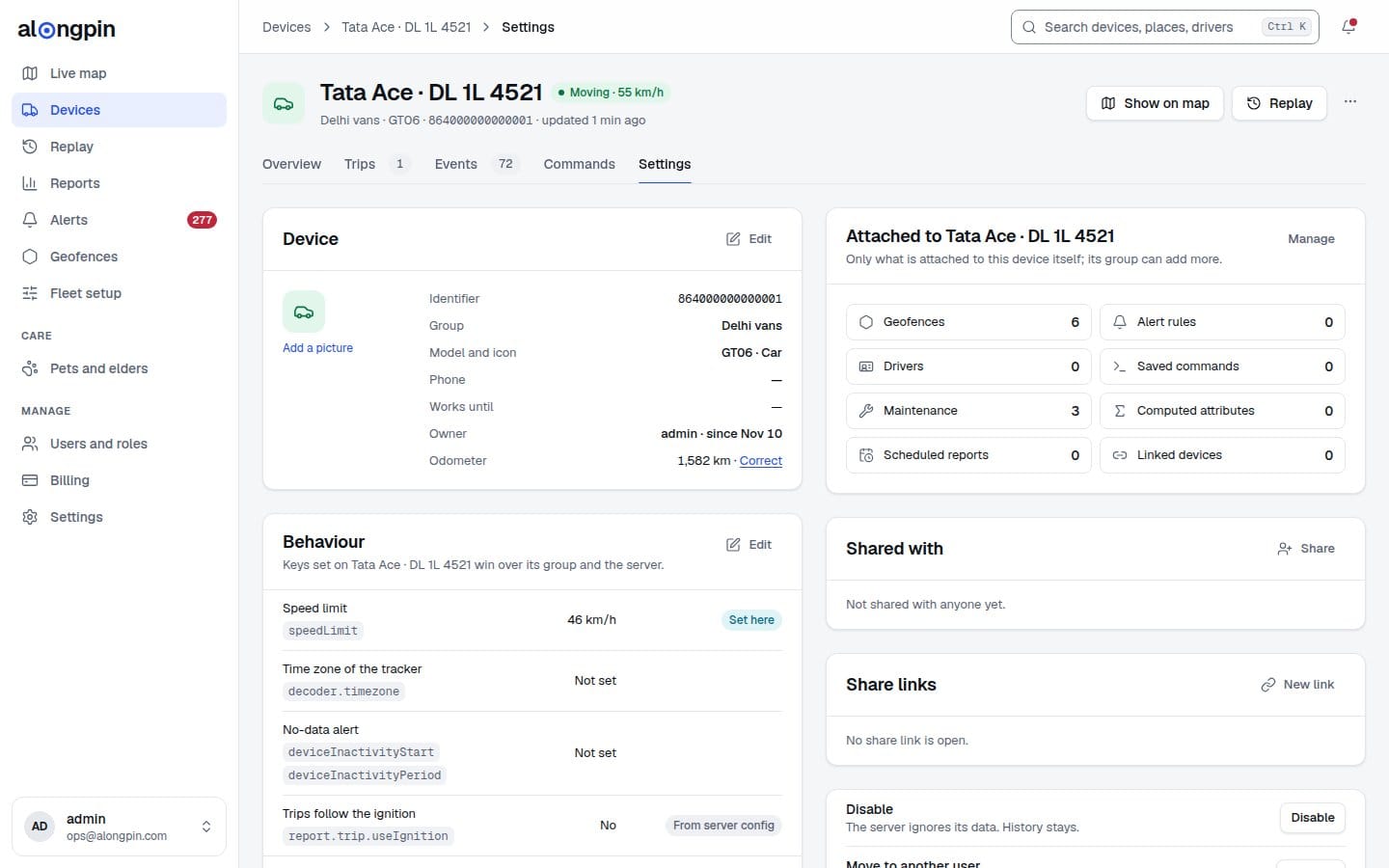
A vehicle with no limit anywhere raises no overspeed events. Set one in the vehicle's settings under Behaviour, or on its group.
Harsh braking and similar events
Harsh braking, acceleration and cornering come from two places:
- The tracker. Many vehicle trackers and dashcams detect them with their own motion sensor and send them as alarms. Which kinds, and how sensitive, depends on the device and its configuration.
- The server. Where your administrator has set thresholds, the server raises harsh acceleration and braking from the vehicle's speed changes.
If neither applies, the list has no harsh events, even for a rough driver.
See an event on the map and in its trip
Each row has Map, which opens the event on the map at its place. To see what happened before and after, open the Trips tab for that vehicle and day and use Replay on the trip around the event's time, or open Replay from the menu.
What the list is and is not
The list shows what was recorded: which vehicle, when, where, how fast. It does not say who was driving unless your vehicles identify drivers, and it gives no ranking or score. A single overspeed on a slip road and a habit of speeding on every trip look the same in one row; read the list over a few weeks before drawing conclusions. More on driver behaviour and on running reports in reports.
Tell drivers what is recorded
Drivers should know that speed and harsh events are recorded, why, and who sees them. Your account can show drivers a privacy notice, and private trips outside working hours can be kept out of reports. See driver privacy.
Frequently asked questions
Can I get a weekly speeding list by e-mail?
Yes. Set the event types, then press Schedule; see scheduling a report.
Why are some overspeeds missing?
An overspeed is raised only when the speed stays above the limit for a minimum time, and only from the positions the tracker sends. A short burst between two positions can go unseen.