Reports
Running a report and downloading it as CSV or Excel
Pick devices or groups and a period, run any report in the portal and download it as CSV or as an Excel workbook with one sheet or one sheet per device, in your time zone and units.
Ashish Srivastava4 min read

To export a fleet report to Excel or CSV, open Reports, pick the report's tab, choose devices or groups and a period, press Show, then open Download and choose CSV, Excel or Excel, a sheet per device. The file has labelled columns, times in your time zone and distances in your units, so it is ready to sort, filter or hand on without reworking it.
Key takeaways
- Every report downloads the same way: run it, then Download and pick a format.
- Excel puts every row on one sheet; Excel, a sheet per device gives each vehicle its own sheet.
- Times follow your time zone and distances, speeds and durations your units, as set under Settings → Your account → Map and display.
- Email to me sends the workbook to your own address when e-mail is set up for your account.
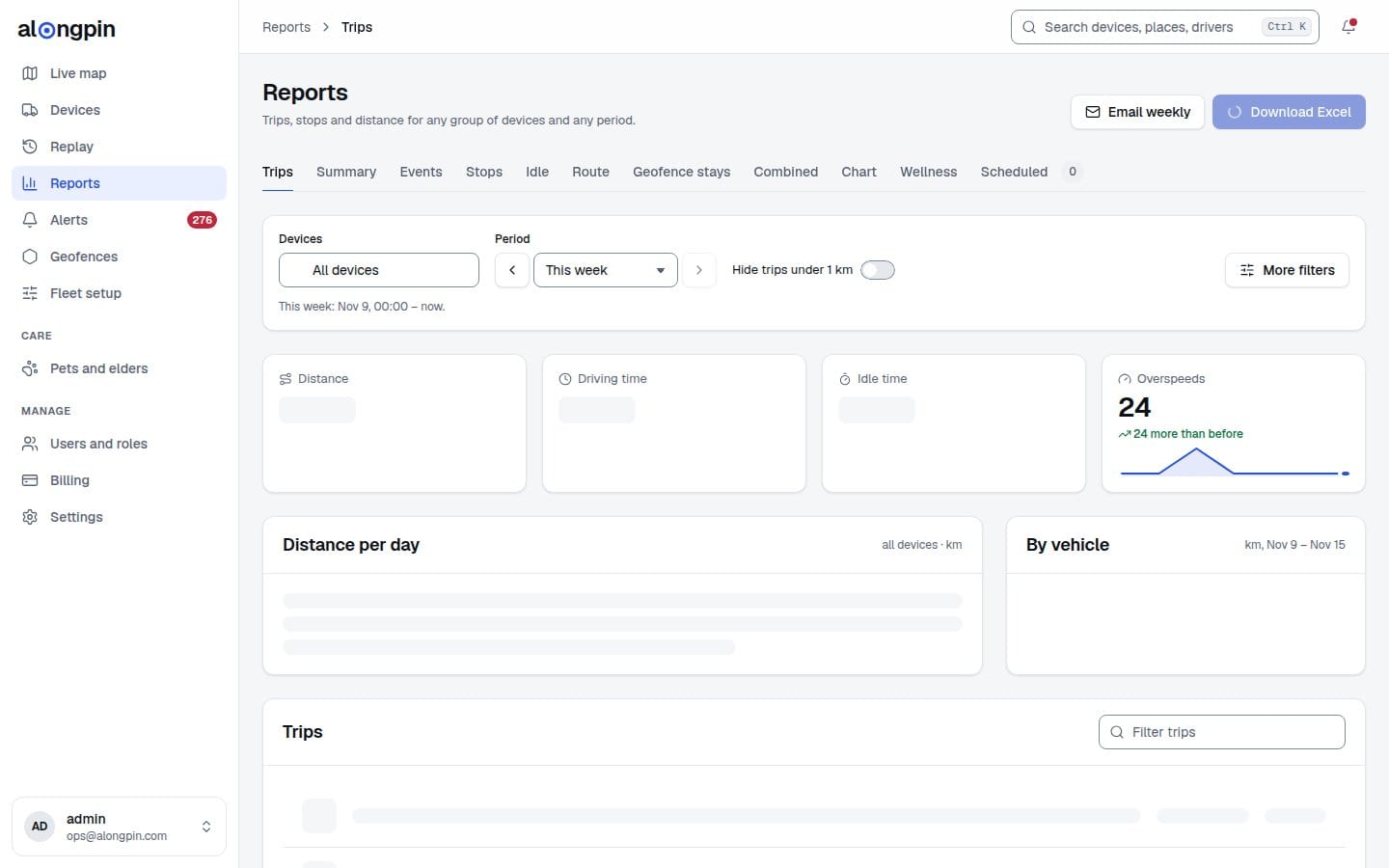
1. Choose the report, the devices and the period
Open Reports in the menu and pick the tab of the report you need: Trips, Summary, Events, Stops, Idle, Route, Geofence stays, Combined or Wellness. If you are unsure which one, report types and how they differ says what one row means in each.
In the filters:
- Under Devices, choose one or more vehicles. Leave it on All devices for every device you can see.
- Under Groups, choose groups to include every device in them and in their subgroups. A device chosen twice appears once.
- Choose the period: Today, Yesterday, This week, Previous week, This month, Previous month or Custom with your own start and end.
Some reports have their own choices, such as the event types in Events, Per device or Per day in Summary, or a geofence in Route. If your account's server limits how long a report may cover, the form says so and asks for a shorter period.
2. Run it and read it on screen
Press Show. The report appears with its totals, a chart or map where it has one, and the table below. Long periods over many devices can take a moment, because the report is worked out from the full history when you ask for it. On screen, a long route report shows the first part of its positions; the download always holds every row.
3. Download it as CSV or Excel
Open Download above the report and choose:
| Format | What you get |
|---|---|
| CSV | One table, the device in the first column. Opens in any spreadsheet or database tool. |
| Excel | A workbook with one sheet holding every row, the device first. |
| Excel, a sheet per device | A workbook with one sheet per vehicle, named after it. Handy when each driver or site manager gets their own tab. |
The columns carry their unit in the header, such as Distance (km) or Duration (h:mm). Durations are hours and minutes, times are local date-times, and Excel cells hold real dates and numbers, so sums and filters work at once. A summary on one sheet, or in CSV, ends with an All N devices row that adds up distance, fuel, engine hours, idle and moving time across the vehicles; for one vehicle per day it reads Total.
4. Choose the columns
On the Route, Combined and Wellness reports, Columns lets you pick and order the columns, including any attribute the device sent in the period, such as a temperature or fuel level. The download holds the columns you chose; those marked On screen only stay out of it. Other reports download their standard set of columns.
5. Check the time zone and units
Times in the file are in your time zone and distances, speeds and volumes in your units, as set under Settings → Your account → Map and display. If your administrator applies one set of settings to everyone, the account's time zone and units are used instead. Change them before you download if the file is going to someone in another region.
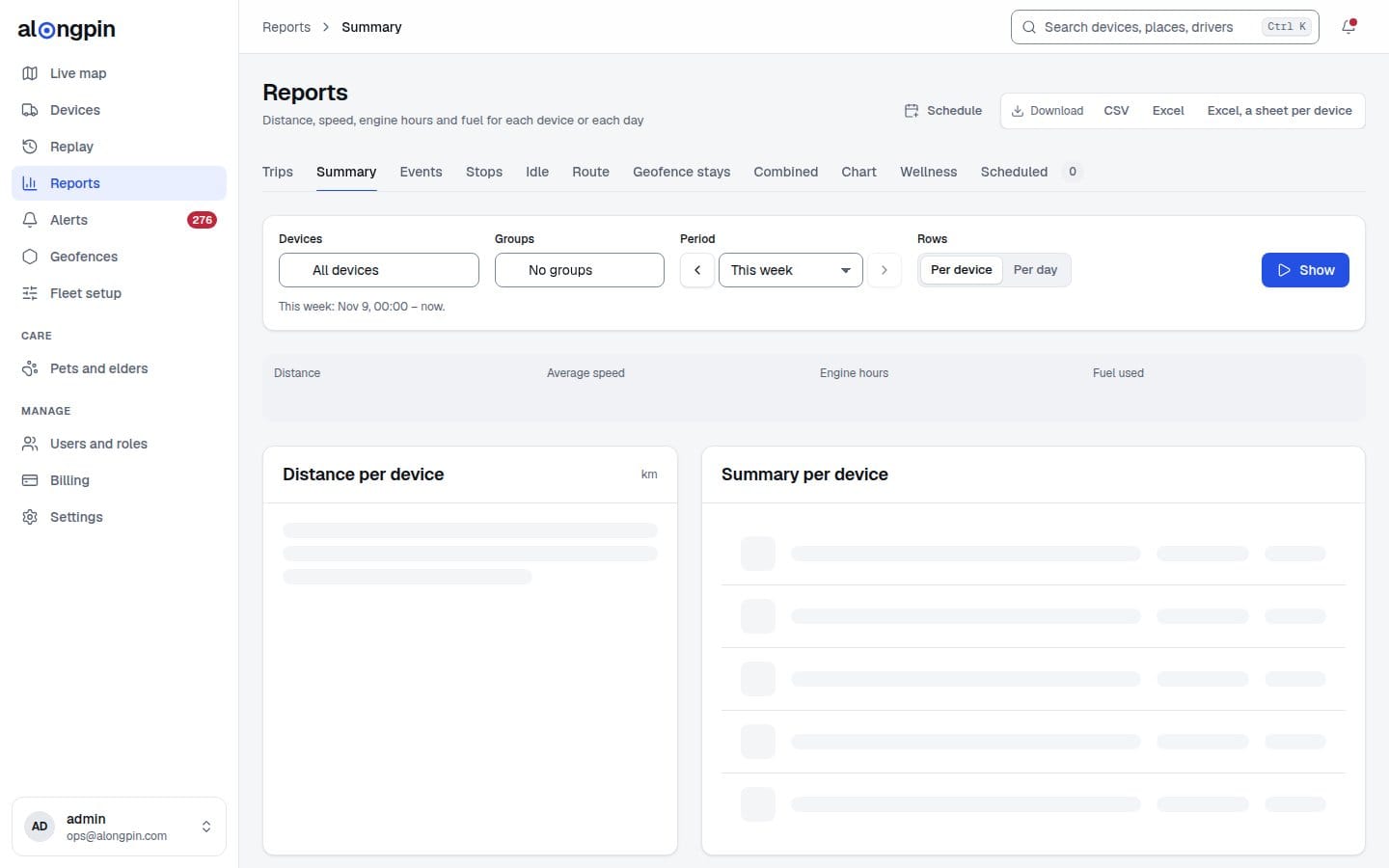
6. E-mail the report to yourself
Email to me sends the report as an Excel attachment to the e-mail address of your account, which is useful for a long report you want to open later. It appears when e-mail is set up for your account. To receive a report automatically every morning or every Monday, use Schedule instead; see the scheduled reports page and scheduling a report.
Frequently asked questions
Why does the file have more rows than the screen?
The screen shows a page at a time, and a long route report shows only its first positions. Downloads always hold every row of the period.
Can I get the raw position history for another mapping tool?
Yes. In the Route report, Export positions downloads the positions as CSV, GPX, KML or KMZ, one track per device.
Why is my report empty?
The devices sent nothing in that period, or the data is older than your account keeps it. The reports feature page and the fleet solution describe what each report needs from the tracker.