Reports
Fuel figures in reports: where they come from
Why fuel shows in some trips and summaries and stays empty in others: the three kinds of fuel data a tracker can send, the order the reports use them, the tank capacity setting, and what to check when the column is empty.
Ashish Srivastava4 min read

A fuel consumption report from a GPS tracker is only as good as the fuel data the tracker sends. In Alongpin, fuel appears in trips, stops and summaries only for devices that report fuel: either a counter of fuel used, a fuel level in litres, or a level in per cent combined with the tank capacity you enter. A tracker that sends none of these shows no fuel, however long it drives.
Key takeaways
- Fuel figures need a tracker connected to a fuel source: the vehicle's data bus, a fuel sensor, or a probe in the tank.
- Reports use a used-fuel counter first, then the level in litres, then the level in per cent times the Fuel capacity.
- A level in per cent gives no figure until you set the tank capacity on the device, its group or the server.
- Figures worked out from a level sensor are approximate; a counter is more exact.
Where fuel appears
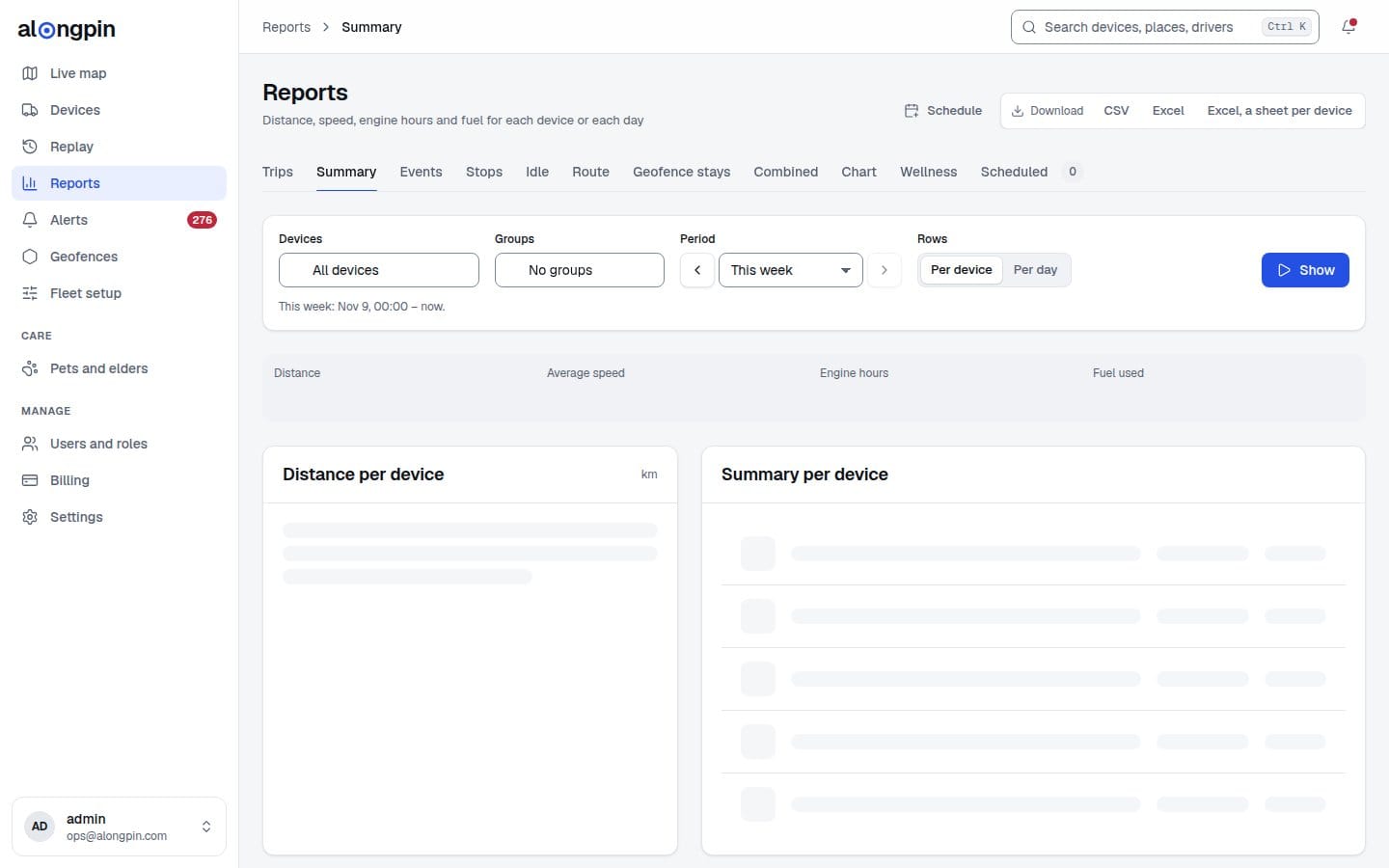
Open Reports and choose Summary: the Fuel used total of the period sits next to distance and engine hours, with a figure per 100 km when distance was driven, and each row has a Fuel column. Trips and stops carry the fuel spent too. When none of the chosen devices reports fuel, the total says No fuel data. Fuel is shown in the volume unit you chose under Settings → Your account → Map and display.
The three sources, in the order they are used
For each trip, stop or summary row, the platform takes the first source the device's data has:
- A used-fuel counter. Trackers read from the vehicle's data bus (CAN or OBD) often send the total fuel the engine has used. The report takes the difference between the start and the end. This is the most exact source.
- The fuel in the tank, in litres. Some sensors report how many litres are in the tank. The report adds up what the level dropped by.
- The fuel level in per cent, with the tank capacity. Many trackers only report a percentage. The report turns it into litres with the Fuel capacity set for the device. Without a capacity, a percentage gives no figure at all.
Whether your tracker sends any of these depends on the model, how it is wired and how it is configured. The vehicle trackers page explains the kinds of trackers; the tracker's own manual says which fuel values it can read.
Setting the tank capacity
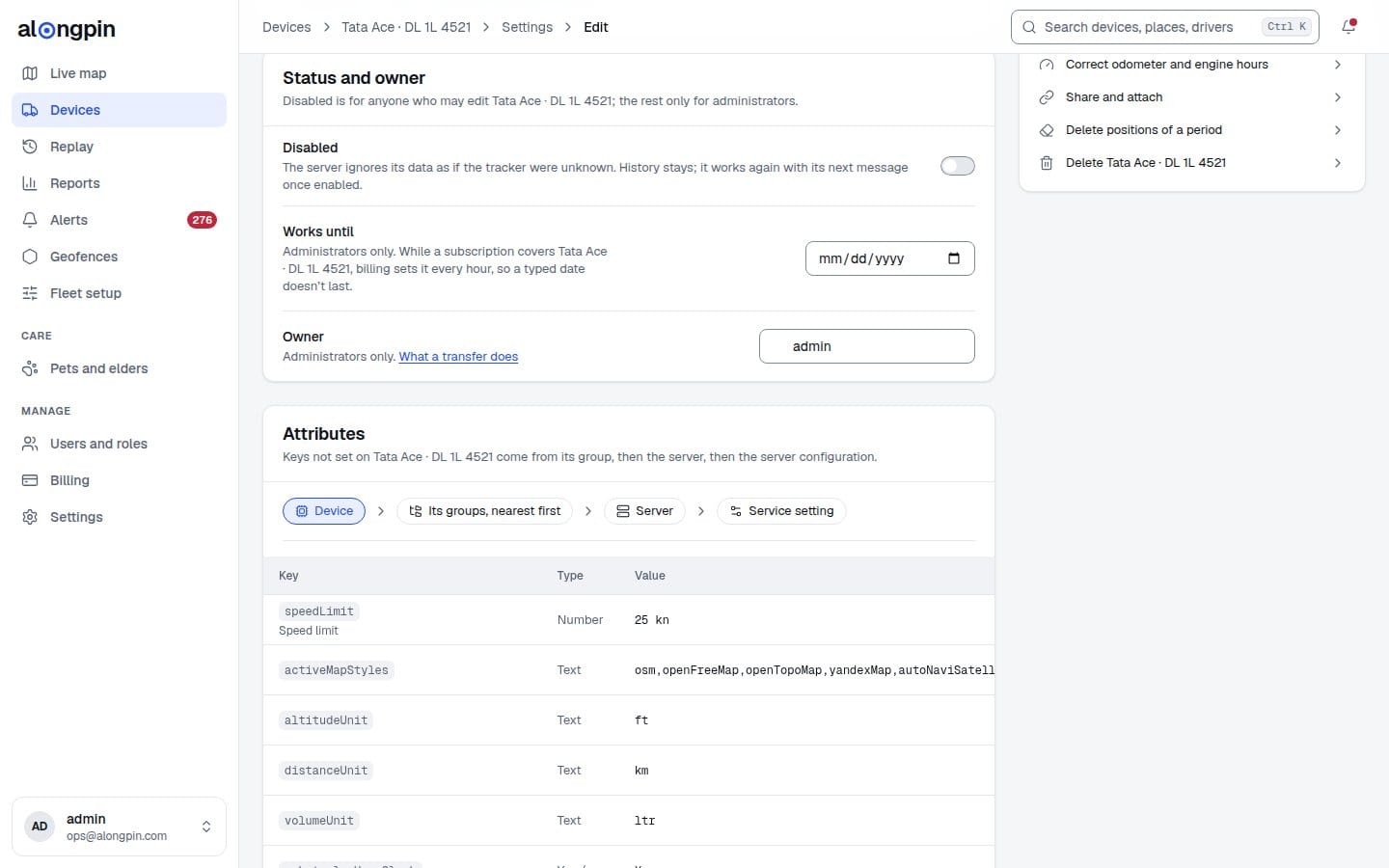
The tank capacity is an attribute called Fuel capacity. You can set it on one device, on a group so it applies to every device in it, or ask an administrator to set it for the whole server. A device's own value wins over its group's, and the group's over the server's.
- Open Devices, pick the vehicle and choose Edit.
- Under Attributes, choose Add attribute and pick Fuel capacity from the known keys.
- Enter the size of the tank as a plain number, in the same unit the tracker reports fuel in (usually litres), and save.
For a group, open the group under Devices → Groups and add the same key under its attributes. A value that is not a number above 0 is ignored.
Why figures from a level sensor are approximate
A level sensor measures fuel that moves. On a slope, under braking or on a rough road the reading swings, and a sensor reports in steps, so a short trip may show a little more or less than was really used. Refuels and drains are left out of the figure when the platform recognises them as Fuel increase and Fuel drop events, which happen only when fuel thresholds are set for the device. Over a week or a month the errors tend to even out; for single short trips, treat the figure as an estimate. A used-fuel counter from the vehicle's data bus does not have this problem.
Empty or zero: what to check
- Does the device send fuel at all? Open Reports → Chart, choose the vehicle and a recent period: the values you can plot are the ones it sends. Look for Fuel used, Fuel or Fuel level. If none is there, the tracker sends no fuel and the reports cannot show any.
- Only a percentage? Set the Fuel capacity as above. Reports run after that use it, also for earlier periods.
- The right period? A summary of days when the vehicle did not move shows no fuel used.
- Stuck at one value? A level that never changes points to a wiring or sensor problem; check it with whoever installed the tracker.
For what reports can show across a fleet, see reports and the fleet solution. To run and download a report step by step, see summary per period or per day.
Frequently asked questions
Can Alongpin measure fuel without a sensor?
No. The platform does not estimate fuel from distance. It shows what the tracker reports.
Does setting the tank capacity change old reports?
Reports are worked out when you run them, so a summary of last month run after you set the capacity uses it. Rows kept from an archive (periods older than the stored positions) keep the figures they had.