Field service
Vehicle tracking for electricians and HVAC contractors
Vehicle tracking for HVAC contractors and electricians with service contracts: zones at contract sites, a visit list per site from the geofence report, a monthly record for the customer, van servicing before busy seasons, and what tracking does not record.
Ashish Srivastava6 min read

Vehicle tracking for HVAC contractors and electricians earns its keep on service contracts. When you have agreed to inspect a building's heating twice a year, or check an office's air handling every month, the customer will eventually ask you to show that the visits happened. A tracker in each van, a zone around each contract site and a monthly geofence report give you a dated visit list per site: when a van arrived, how long it stayed and when it left. This guide shows how to set that up, how to turn it into a record for the customer, how to plan van servicing around your busy seasons, and what tracking cannot show.
Key takeaways
- Draw a zone around each contract site and keep it for the life of the contract.
- The Geofence stays report lists every visit per site, with arrival, time inside and departure.
- Export the month as Excel or CSV and send it with your service report.
- Maintenance plans by distance, engine hours or date keep the vans themselves serviced before the rush.
- Tracking records the van's visit, not the work done. Keep the job sheet for that.
Service contracts and the need for visit records
Planned maintenance contracts are the steady part of an HVAC or electrical business: boiler and heat pump servicing, quarterly checks on rooftop units, periodic inspection of emergency lighting, electrical testing on a schedule. They come with obligations, and increasingly with questions:
- a facilities manager asks for proof of last quarter's visits before renewing;
- a landlord disputes whether the technician came at all;
- an insurer wants to know when a site was last serviced after a failure.
Job sheets signed on site are the primary record, but they get lost, smudged or left unsigned when nobody is at reception. A record from the van's tracker is independent of paperwork: it shows when a vehicle of yours was at the address.
Step 1: Draw a zone at each contract site
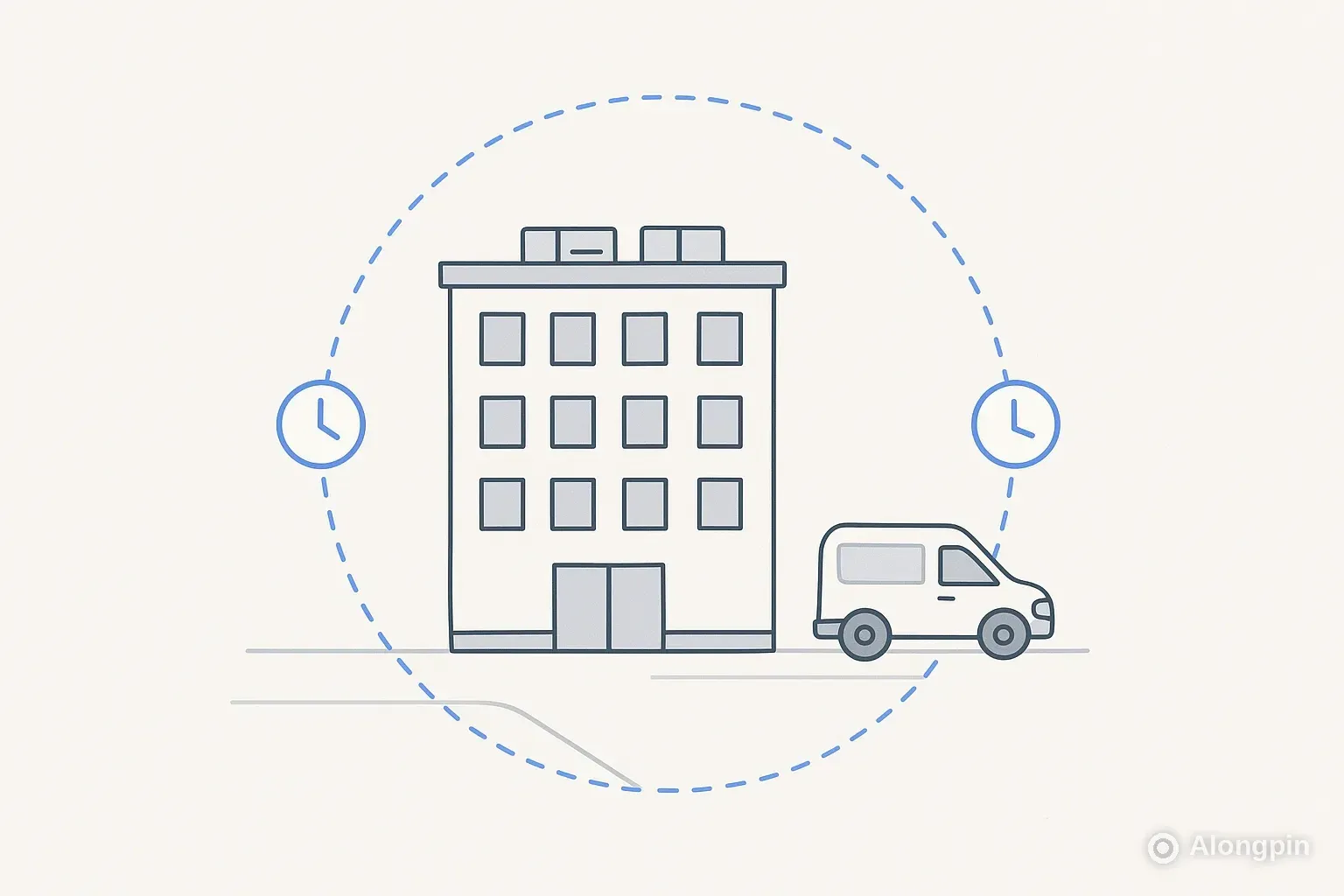
A zone (a geofence) is an area you draw on the map. Open Geofences, draw a circle or a polygon around the site, and name it after the contract: "Riverside Offices · plant room", "Greenfield School". A few tips:
- Size it to the site, not the street. Include the car park where the van stands, not the café next door.
- Use a polygon for large sites such as a hospital or an industrial estate, where a circle would spill into neighbouring premises.
- Attach the zones to your vans, or to a group with all your vans, so that each van records entering and leaving them.
- Keep them for the life of the contract. The report can only list visits to a zone that existed and was attached when the visit happened, so draw it before the first visit and leave it in place.
If your vans also pass the site on the way to other jobs, give the zone a calendar of working hours so it only counts during the day. How to set up geofences at customer sites walks through the drawing, and the geofences page shows the shapes available.
Step 2: Read the visit list per site
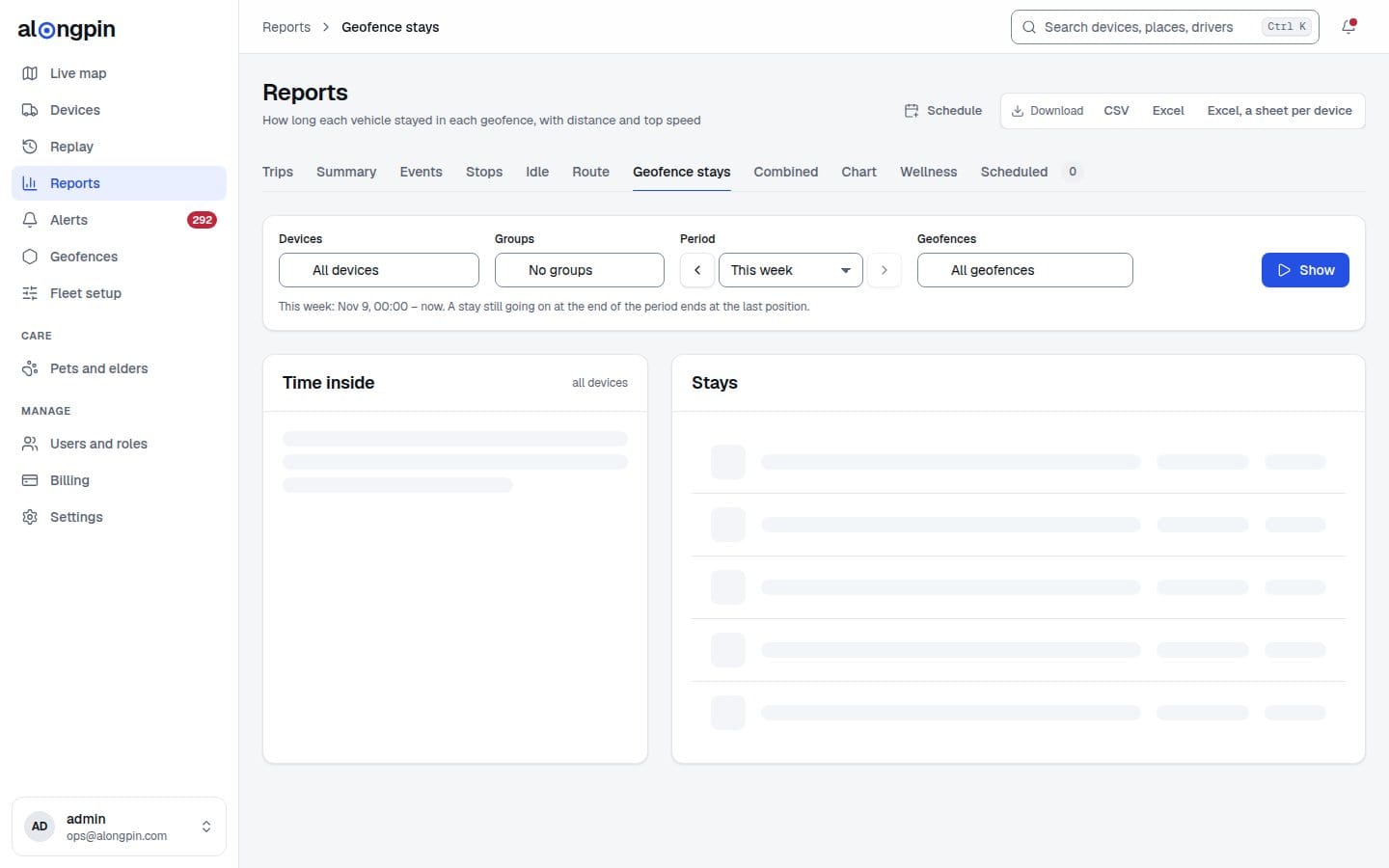
Each time a van enters and leaves a zone, the platform records a stay. Open Reports, choose Geofence stays, pick the vans (or the group), the zones and the period, and you get one row per visit:
- Device: which van;
- Geofence: which site;
- Entered: when it arrived;
- Inside: how long it stayed, with the time it left;
- Distance and Top speed inside the zone, which mostly matter on large sites.
The report also adds up Time inside per geofence, so you see at a glance that Riverside Offices had three visits totalling five hours this quarter. A stay that was still going on at the end of the period is marked still inside.
Step 3: Make a monthly record for the customer
Customers do not want access to your tracking system; they want a document. At the end of each month or quarter:
- Run Geofence stays for that customer's zones and the period.
- Download it as Excel, Excel, a sheet per device or CSV, with times in your time zone.
- Attach it to your service report or invoice, next to the job sheets.
For your own team, a report can arrive by email when a calendar period ends: choose Schedule this report, pick a calendar (monthly, for instance) and the people in your company who should receive it. Each recipient gets an email with a link to the report, opened with their own rights in the portal, which is why the export is the better format for the customer. See scheduling a report.
The reports page lists every report type and how to export it.
Step 4: Plan van servicing around busy seasons
HVAC work comes in waves: heating in autumn and winter, cooling in summer. The worst time for a van to go in for a service, or to break down, is the first cold week. Maintenance plans in Fleet setup help you keep the vans themselves in order:
- By distance: an oil change every so many kilometres, from the distance the platform counts for each van or from its own odometer where the tracker reports it.
- By engine hours, for vans with long idling on site.
- By date: an inspection every twelve months.
Set Warn before to get an earlier "due in" warning, and add an alert rule so the office hears about it. Before a busy season, look at which vans will reach their mark in the next few weeks and bring their service forward; if you service a van early, move its First mark at so the next reminder comes at the right point. How to set up maintenance plans and reminders covers the details.
What tracking does not record: the work itself
Be clear with customers, and with yourself, about what a geofence stay shows. It shows that a van of yours was inside the zone from one time to another. It does not show:
- who was in the van, unless the tracker reads a driver card or key and you record drivers;
- what work was done, what was tested or replaced, or whether the system passed;
- visits on foot or in a technician's own car, which have no tracker.
The record that the work was done is still the job sheet, the test certificate and the commissioning record. The tracking report backs those up with independent times. Used together, they answer most disputes before they start.
Tell your technicians what the trackers record and when. Vans that go home in the evening should have private time: working hours as a calendar, and positions outside them blurred, reduced to distance or not stored. The field service solution describes the set-up for trades with customer visits.
Common mistakes
- Zones drawn after the visit. A stay is only recorded for a zone the van knew about at the time.
- One huge zone for a business park. Visits to three different contract sites merge into one.
- Sending the customer a link. Scheduled report emails open in the portal; customers need the exported file.
- Treating a stay as proof of work. It is proof of presence.
Getting started
Fit a tracker in each van, draw zones for your top ten contract sites, and run the Geofence stays report at the end of the first month. If you would like help setting up your contract sites, book a demo and we will go through it with you.
How Alongpin helps
Alongpin (alongpin.com) is a GPS tracking platform you open in a browser or on your phone. Your technicians' vans or phones appear on the live map; geofences at customer sites record arrivals and time on site, and driver privacy keeps time off private. See how it works for field service, check your trackers in the device check, or sign up.
Frequently asked questions
Can the customer log in and see the visits?
You could give them an account limited to their site's data, but most customers prefer the monthly file. A share link to a van shows its live position, not visit history.
Does it work for electricians as well as HVAC?
Yes. Any trade with recurring visits to fixed sites can use zones and the geofence report the same way.
What if a visit is missing from the report?
Check that the zone existed and was attached to that van on the day, and that the tracker was reporting. Seeing how long vehicles stayed in a zone lists the usual causes.