Field service
Reviewing a technician day with trip replay
How service managers use vehicle trip replay to answer complaints and coach fairly: when a day is worth reviewing, how to read trips and the replay, comparing with the job list, and reviewing with the technician present. No ranking.
Ashish Srivastava6 min read
Vehicle trip replay lets a service manager review one technician's day from the record: every trip with its start, end, distance, driving time and idle time, and the route played back on the map with the events along it. Used fairly, it settles a customer complaint in minutes and gives coaching something concrete to talk about. Used badly, it becomes surveillance. This article shows when a day is worth reviewing, how to read the trips and the replay, how to compare them with the job list, and how to have the conversation with the technician in the room.
Key takeaways
- Review a day for a reason: a complaint, a disputed invoice, a request from the technician, or coaching both sides agreed to.
- The trips of a day give start, end, distance, driving time and idle time for each journey.
- Replay draws the route and moves along it in time, with stops, speed and events where they happened.
- Compare with the job list before you draw any conclusion.
- Facts first, with the technician present. No ranking, no score.
When a day is worth reviewing
Most days need no review at all. The data is there, but looking at every technician's every day helps nobody and erodes trust. Good reasons to open a day:
- A customer complaint: "the engineer was only here twenty minutes", "nobody came", "the van blocked our gate for an hour".
- A disputed invoice: hours billed and hours on site do not match.
- A request from the technician: they want to show that a job took as long as they said, or that the traffic was the problem.
- Coaching agreed in advance: a new technician and their mentor look at a week together, or a team works on idle time.
- An incident: a reported accident, a speeding complaint from the public, damage to the van.
"I wonder what he did on Tuesday" is not on the list. Agree the reasons with your team and keep to them.

Trips of the day: start, end, distance, driving and idle time
Open the van under Devices and go to its Trips tab, or run the Trips report under Reports for the van and the day. The day is split into trips: a trip starts when the van moves and ends when it has stood still for a few minutes (or when the ignition goes off, where set up that way). For each trip:
- Start and end, with the time and, where the platform has the address, the place;
- Distance;
- Driving time and idle time: time standing with the engine on;
- Top speed and average speed;
- The driver, where the tracker reads a driver card or key.
Idle time needs a tracker that reports the ignition or engine hours; a van whose tracker reports neither shows none. Between the trips are the stops, which are usually the jobs.
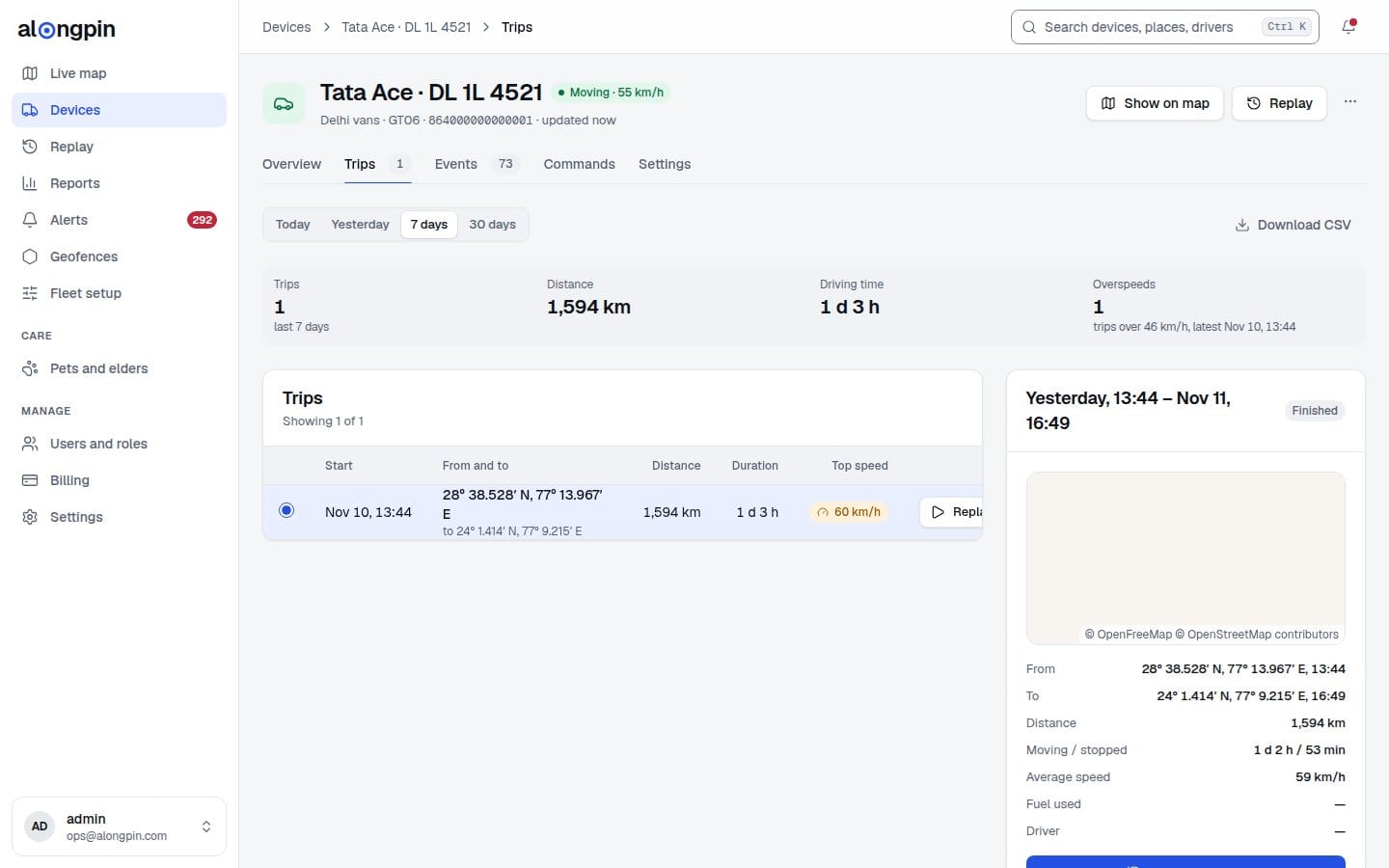
Read the day as a story before you look at any detail: left home at 07:40, first job 08:15 to 10:05, second 10:40 to 11:20, depot for parts, third job from 13:00. Most questions are answered here. Trip history and replay describes the trip list and the replay in full.
Replaying the route with the events along it
When the trip list is not enough ("where exactly did he park?", "did the van go past our site twice?"), replay it. Choose Replay on a trip, or open Replay in the sidebar and pick the van and the period. The route is drawn on the map and a marker moves along it in time, at normal speed or faster. Alongside it:
- The trips of the period, each with its places, distance and duration, to jump to;
- The stops, with how long each lasted;
- The speed over the trip, as a chart;
- The events where they happened: entering and leaving a zone, overspeed, and harsh braking or cornering where the tracker reports them.
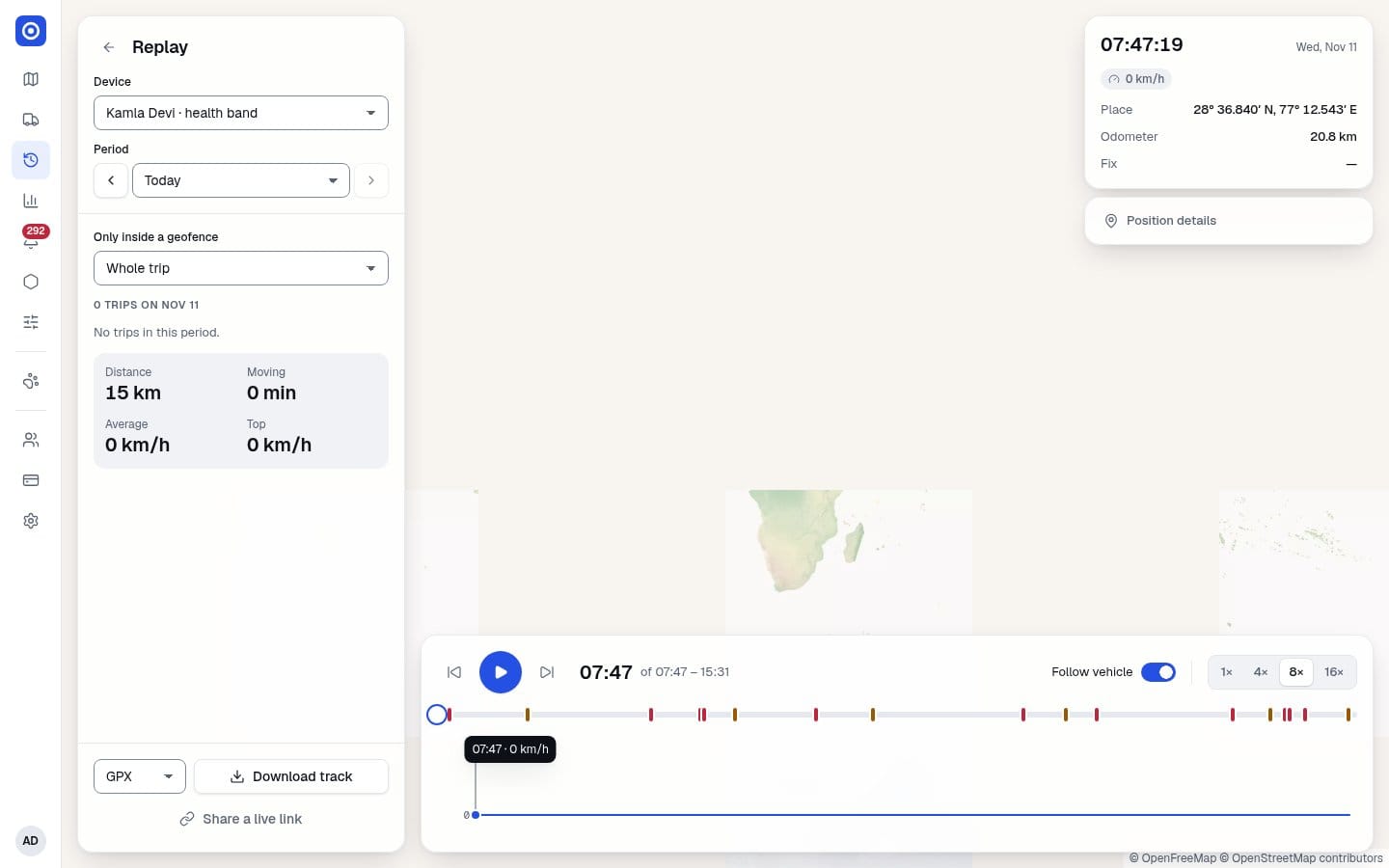
Choose Only inside a geofence to see just the part of the day at one customer site. Private trips show as a gap marked Private trip, with no route: that part of the day belongs to the technician.
Speed and harsh events are covered on the driver behaviour page. Remember that harsh braking and cornering appear only where the tracker reports them.
Comparing with the job list
The replay shows where the van was. The job list shows where it was meant to be and why. Put them side by side:
- Every job should have a stop. Match each one to a stop at or near the customer's address, with times that roughly fit.
- Look at the gaps between jobs. A long drive may be traffic, a detour for parts, or a lunch break. The trip list shows which; the technician can tell you why.
- Look at stops that are not jobs. A wholesaler, a fuel station or the depot are part of the work. A long stop somewhere unexpected is a question to ask, not a conclusion.
- Check the zones. If customer sites have geofences, the Geofence stays report gives entered, left and time inside for each visit, which is the figure a customer complaint is usually about.
Write down what you find as facts: "Van parked at Mill Lane from 10:40 to 11:20", not "only stayed forty minutes".
Having the conversation: facts first
Review with the technician, not about them. Ask them to sit with you and open the day together. Start with what the record shows and let them explain it before you form a view. Most discrepancies have plain reasons: the customer was out, the part was wrong, the satnav sent the van the long way, the job sheet was filled in at the end of the day from memory.
Some habits keep the conversation fair:
- Say why you are looking, before you open the replay.
- Show the same screen. The technician sees what you see.
- Ask, don't accuse. "What happened here?" works better than "why did you waste an hour?"
- Write down the outcome, including when the record supports the technician.
- Close it. Once the question is answered, it is answered.
Where the technician is right and the customer is wrong, the record is their best defence. Tell them that up front; it changes how replay is seen across the team.

What not to do: no ranking, no score
The platform does not score, rank or rate drivers, and no decision about a person is made by the system alone. Keep it that way in how you use it:
- No league tables of idle time, speed or jobs per day. They reward the easy rounds and punish the hard ones.
- No routine trawling through every technician's week.
- No conclusions from the record alone. A long stop is a question; the answer comes from a person.
- No review of private trips. Where vans go home, private trips outside working hours carry no route to replay, and that is intended.
Rules about monitoring employees differ by country, and in some a works council must agree how tracking data is used. Write down when days are reviewed and tell your team. The field service page shows how replay fits with zones and reports for service teams, and replaying a vehicle's trip history covers the steps in the portal.
How Alongpin helps
Alongpin (alongpin.com) is a GPS tracking platform you open in a browser or on your phone. Your technicians' vans or phones appear on the live map; geofences at customer sites record arrivals and time on site, and driver privacy keeps time off private. See how it works for field service, check your trackers in the device check, or sign up.
Frequently asked questions
How far back can I replay a day?
As far back as your installation keeps positions, 365 days in a standard setup. Your administrator sets the retention.
Can I download a replayed route?
Yes. A track can be downloaded as CSV, GPX or KML, for example to attach to a reply to a customer.
Why does a trip show no idle time?
Idle time needs a tracker that reports the ignition or engine hours. Vans whose tracker reports neither show driving time only.