Field service
Telling customers when the technician will arrive
How service firms replace all-day windows: the office sees every technician on the live map, a customer can follow one van by a read-only link that ends on its own, and an arrival alert tells the office when the van is there.
Ashish Srivastava6 min read
Telling a customer the technician's arrival time works best when the office can see where the technician is, and the customer can too if you want. With a tracker in each van, the office answers "when will he be here?" from the live map instead of phoning the technician. For customers who want to watch for themselves, send a read-only link to that one vehicle that ends on its own, and set an arrival alert so the office knows the moment the van enters the customer's zone. What the platform does not do is calculate an arrival time for you: the estimate still comes from a person who knows the roads. This guide covers each step and the wording for the customer message.
Key takeaways
- All-day windows cost goodwill; a narrower window and a live view cost little once vans are tracked.
- The office sees every technician on the live map: moving, idle, parked, and the place.
- A share link lets a customer watch one vehicle, read-only and without an account, until the link ends.
- An arrival alert tells the office when the van enters the customer's zone.
- The platform shows positions; it does not calculate arrival times. The estimate comes from your dispatcher.
Why all-day windows cost goodwill
"Between eight and six" asks a customer to give up a day for a visit that takes an hour. Some take the day off and resent it; some step out for lunch and miss the technician, which costs you a wasted trip and a second visit. The calls to the office ("is he still coming?") take a dispatcher's time all afternoon.
Narrowing the window does not need a scheduling system. It needs the office to know, at any moment, where each technician is and how the day is going. A morning window and a phone call when the technician leaves the previous job is already a long way from "sometime today".

The office view: who is on the way and how far off
The live map shows every van with its state: Moving, Idle (standing with the engine on), Parked, Offline or Unknown when it has not reported for a while. Select a van to see its place, its speed and since when the ignition has been on or off.
For the dispatcher, three habits answer most customer calls:
- Find the technician quickly. Type the van's name, the technician's name or the group in the fleet search; the search also matches the place each van is at, where the platform knows the address.
- Read the state. A van parked at the previous customer for forty minutes is still on that job. One moving towards your caller's area is on its way.
- Judge the distance yourself. The map shows where the van is and where the customer lives. How long the drive takes at four on a Friday is the dispatcher's call.
Add the van to focus, or switch on Follow vehicle, to keep it in view while you talk. The field service page shows how the office view fits with zones and reports.
A read-only link to one vehicle for the customer
Some customers would rather watch than call. A share link lets them see one van on a map, in any browser, without an account, until the link ends.
- Open the van under Devices and go to its Settings tab.
- Under Share links, choose New link.
- Fill in Label, who it is for with the job number or the customer's name. Only you see the label.
- Set Works until, date and Time: the end of the visit window, with a margin. Your server sets the longest a link may last.
- Add a PIN if your server offers one, and send it separately.
- Choose Create link, copy it and send it.
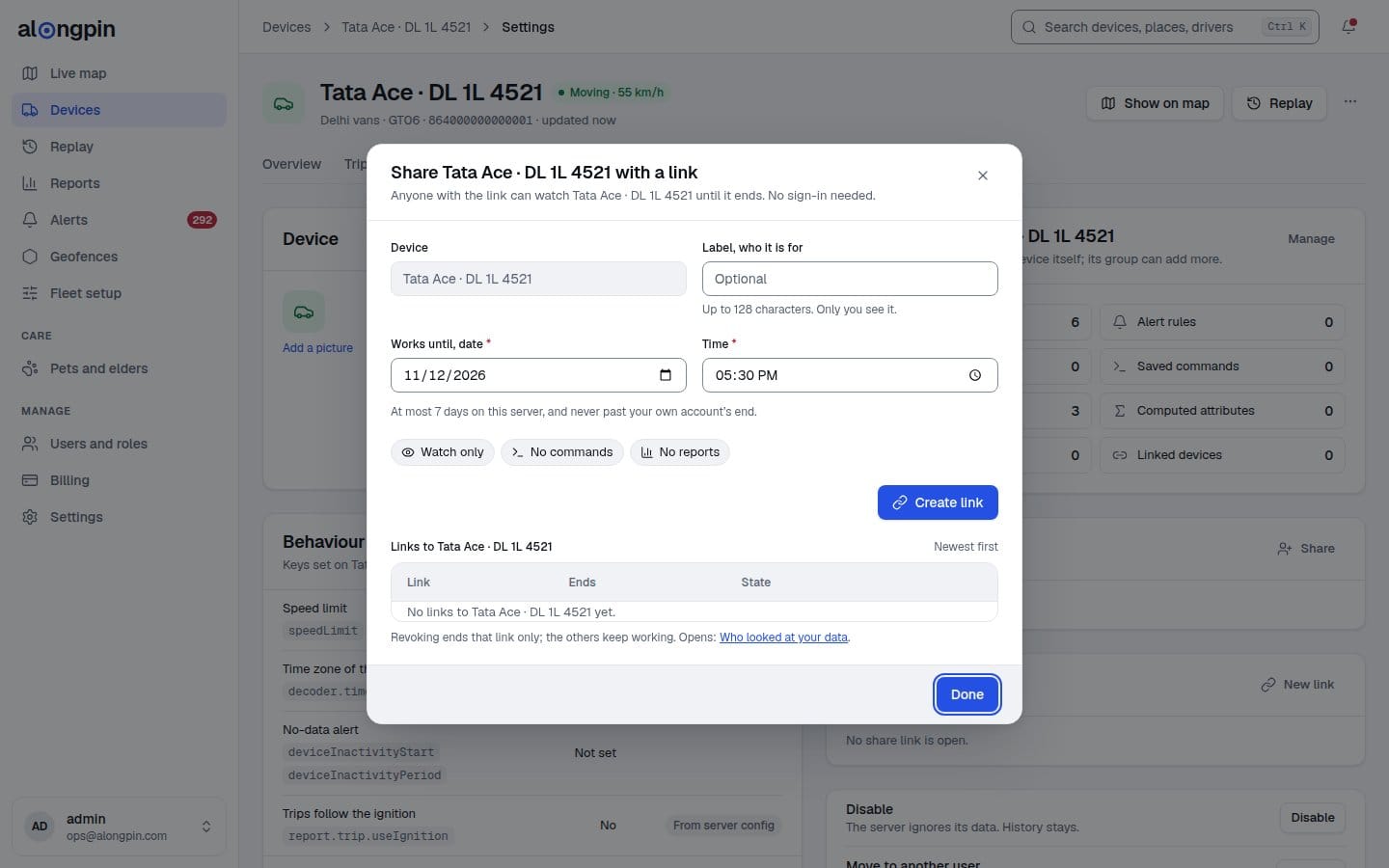
The customer sees the van's position on a map and nothing else: by default a link is for watching only, with no reports, no history and no commands. When the window is over, the link stops working by itself; revoke it earlier from the same card once the technician has arrived.
Think before you send one. A link shows the van wherever it goes until it ends, including the previous customer's street. Keep it short: send it when the technician leaves the job before, not at eight in the morning, and end it on arrival. Sharing a vehicle's location with a link covers the options.
An arrival alert for the office
A zone around the customer's address does the watching for you.
- Under Geofences, draw a circle around the customer's address, generous enough to include the street where the van will park, and attach it to the van or its group.
- Under Alerts, open Rules and choose New alert rule. Choose the geofence enter event under When this happens, narrow it to the customer zones, and pick the office's channels under Tell people by.
When the van enters the zone, the office gets a message: the technician has arrived. That closes the loop for the customer ("he's at your door") and tells the dispatcher the next job can be planned. The same zone gives a stay in the Geofence stays report afterwards, with time inside. Geofences explains how zones and their events work.
Which channels you see (push, email, text message, Telegram) depends on what the operator of your installation has switched on.
What the platform does not do: calculated arrival times
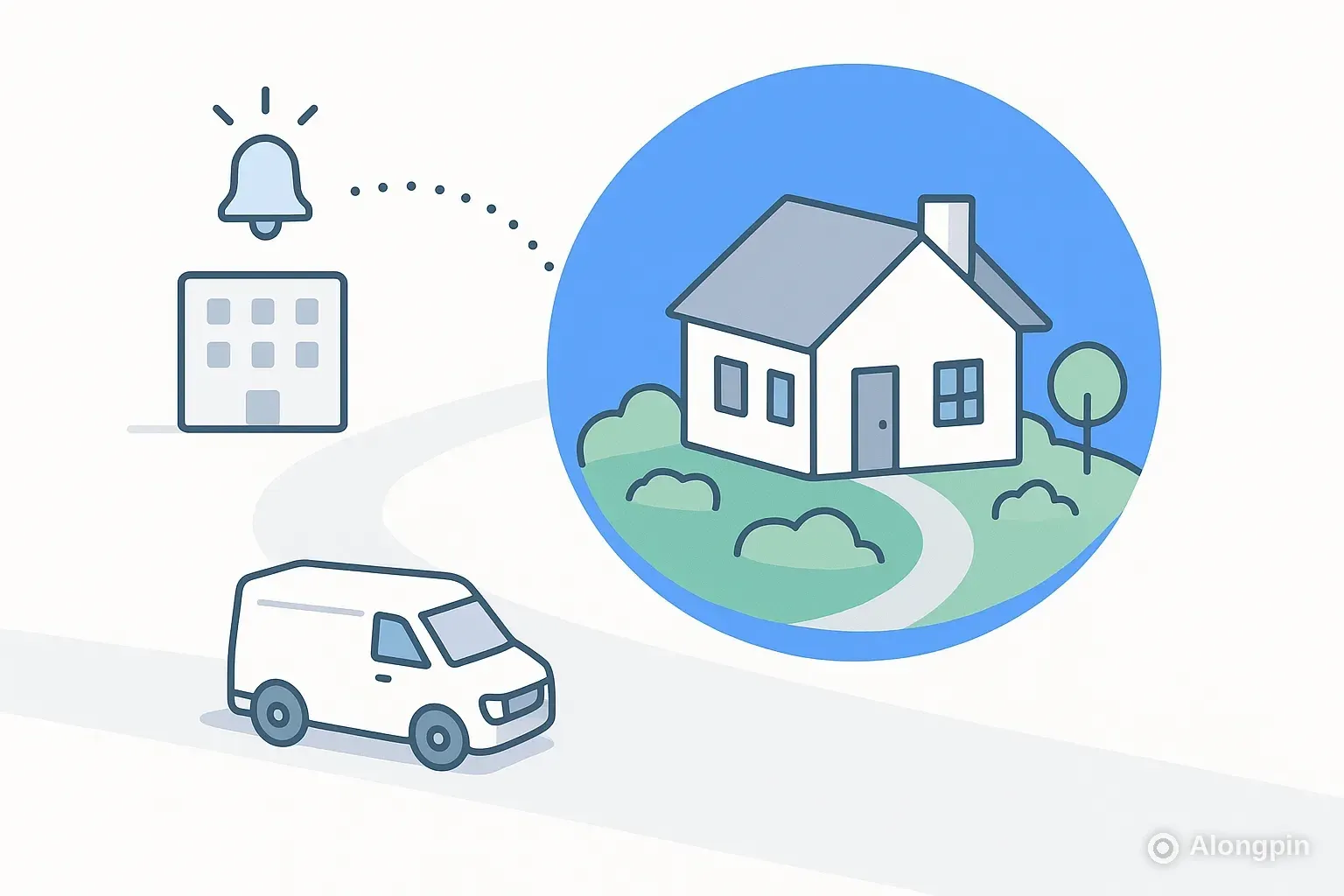
The platform shows where a vehicle is and where it has been. It does not calculate routes, predict traffic or tell the customer "arriving in 12 minutes", and it does not plan or reorder your technicians' jobs. Be careful not to promise a countdown your tools cannot give.
What it gives you is better than a guess: a dispatcher who can see that the technician has just left the previous job, ten kilometres away, can give the customer a realistic window and update it if the van stops again. A customer with a link can see the van coming and judge for themselves.
Wording for the customer message
Keep messages short, honest and clear about what the link shows. Two examples you can adapt:
When booking:
Your visit is booked for Tuesday morning, between 8:00 and 12:00. On the day, we will message you when the technician leaves the job before yours, with a link where you can see the van on a map until they arrive.
When the technician sets off:
Your technician has just left their previous job and is on the way to you. You can follow the van here until 12:00: [link]. The link shows only the van's position and stops working after the visit. Questions? Call the office on [number].
Things to avoid:
- Promising an exact time the platform does not calculate.
- Sending the link the evening before. The customer would watch the van at the technician's home or depot.
- Leaving out who to call. A map does not answer "is he running late?"
Tell technicians that customers may follow the van on the way to them, and when the link starts and ends.
How Alongpin helps
Alongpin (alongpin.com) is a GPS tracking platform you open in a browser or on your phone. Your technicians' vans or phones appear on the live map; geofences at customer sites record arrivals and time on site, and driver privacy keeps time off private. See how it works for field service, check your trackers in the device check, or sign up.
Frequently asked questions
Does the customer need an app or an account?
No. The link opens in any browser. If your server uses PINs, the customer types the PIN first.
Can the customer see the technician's other jobs?
They see the van's position while the link is open, wherever the van is. Send the link only for the last stretch, and end it when the technician arrives.
Can the platform send the customer an automatic "arriving now" message?
Alert rules notify users of your account, not your customers. The usual way is an arrival alert to the office, who then calls or messages the customer.