Fleet management
Preventing unauthorised vehicle use outside working hours
Notice a company vehicle moving when it should be parked: a depot zone, an out-of-hours calendar and an alert rule, plus tamper alarms, and how private trips change the picture where private use is allowed.
Ashish Srivastava7 min read

Unauthorised vehicle use is a company vehicle moving when, by your own policy, it should be parked: a van leaving the depot at 23:00, a truck started on a Sunday, a pool car taken home without permission. A tracking platform can notice it as it happens. In Alongpin you draw the depot as a zone, make a calendar of the hours outside work, and add an alert rule that fires when a vehicle leaves the zone or starts moving during those hours. Where drivers may use vehicles privately, the same calendar can make those hours private instead, and tracking steps back.
Key takeaways
- Write down first what "unauthorised" means: which vehicles, which hours, and whether any private use is allowed.
- A Geofence exit rule on the depot zone, with an "Out of hours" calendar under Only during, alerts when a vehicle leaves at night or at weekends.
- Alert rules fire only while their calendar is in progress, so out-of-hours alerts need a calendar that covers the out-of-hours time.
- Power cut, Tampering and Tow alarms, where the tracker raises them, catch attempts to silence or move the vehicle.
- Where private use is allowed, private trips outside working hours stop zone alerts for those hours by design.
- Replay shows exactly where the vehicle went before you talk to anyone.
Defining what unauthorised means in your policy
Tracking can only flag what your policy defines. Before you set any alert, agree on:
- Which vehicles must stay at the depot outside working hours, and which drivers may take a vehicle home.
- Which hours count as working hours, per depot or shift, including night shifts and weekend cover.
- Whether private use is allowed, for example a van taken home that the driver may use for the school run.
- Who is told when something moves out of hours, and what they are expected to do at 02:00.
Put this in the vehicle policy drivers sign, and tell drivers what is tracked and when before the alerts go live. The answers decide which of the set-ups below fits each group of vehicles. Vehicles with the same rules belong in the same group, so a rule or a privacy setting can apply to all of them at once.
An alert for leaving the depot zone at night or weekends
For vehicles that sleep at the depot, the clearest signal is leaving it.
- Draw the depot. Under Geofences, draw the yard as a circle or a polygon, with a margin around the parking rows so GPS drift does not count as leaving. Attach it to the depot's group.
- Leave the zone's own calendar empty. A calendar on a zone stops its enter and exit events outside those hours, which is the opposite of what you want here.
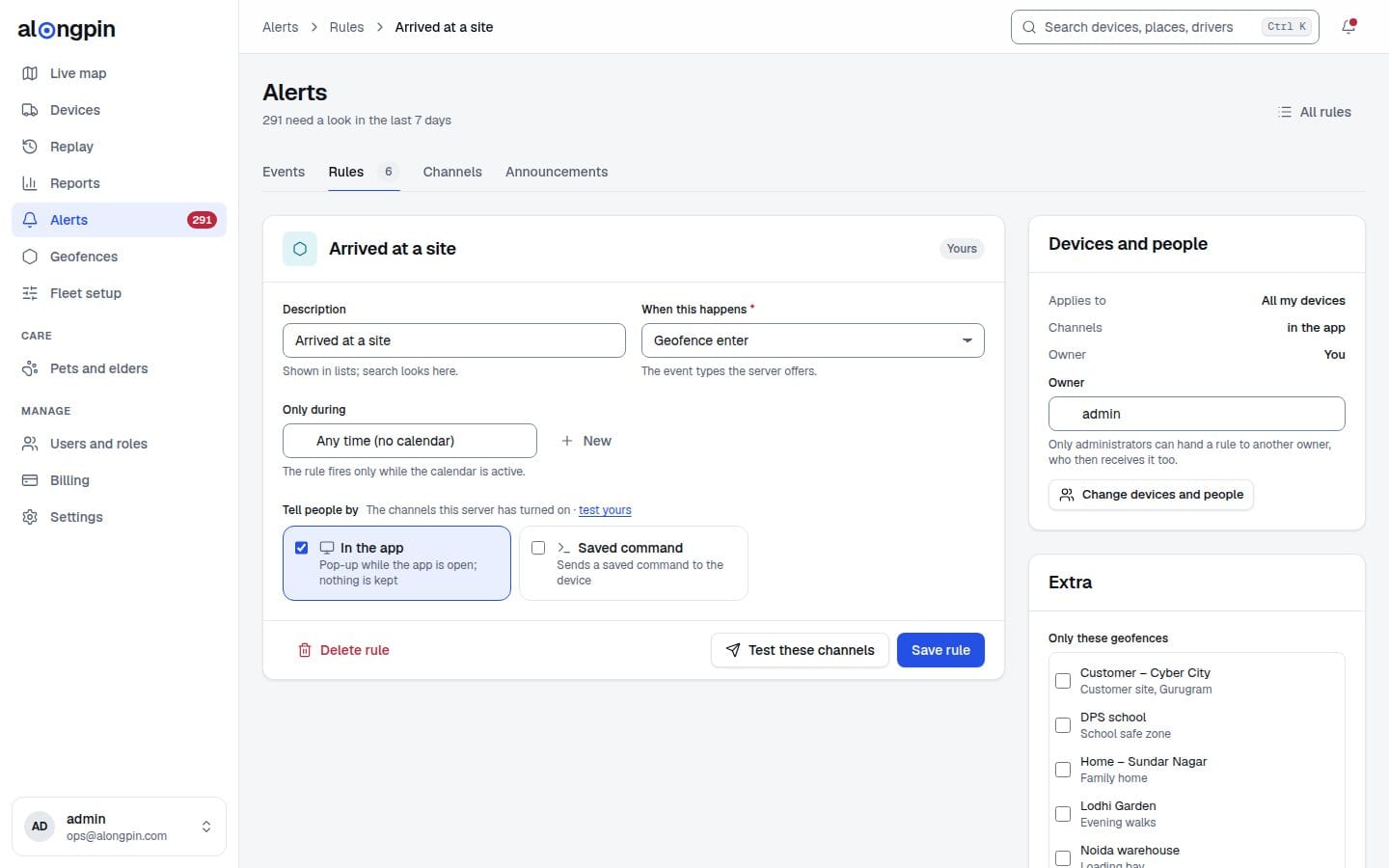
- Create the rule. Open Alerts, the Rules tab, and choose New alert rule. Under When this happens, choose Geofence exit, and under Only these geofences tick the depot.
- Limit it to out-of-hours time. Under Only during, choose the "Out of hours" calendar described in the next section.
- Choose channels that wake someone. Tick push or text message where your account offers them; In the app alone is not seen at night. Attach the depot's vehicles under Devices and people and tick the person on call under Who receives it.
For vehicles that park at drivers' homes or on customer sites instead of a depot, use Started moving or Ignition on instead of the zone exit, on the same calendar. The alerts page lists every event a rule can watch, and the geofences page explains the zone shapes.
Alert schedules built from calendars
An alert rule fires only while its calendar is in progress. There is no switch for "only outside these hours", so an out-of-hours alert needs a calendar that covers the out-of-hours time itself. Under Fleet setup → Calendars, choose New calendar, name it "Out of hours" and, with the simple schedule, add:
- A period Nights, from 18:00 to 07:00 with Ends the next day ticked, repeating Daily.
- A period for weekend days, from 07:00 to 18:00, repeating Weekly on Saturday and Sunday.
- Public holidays as extra periods, or upload an .ics file that already contains them.
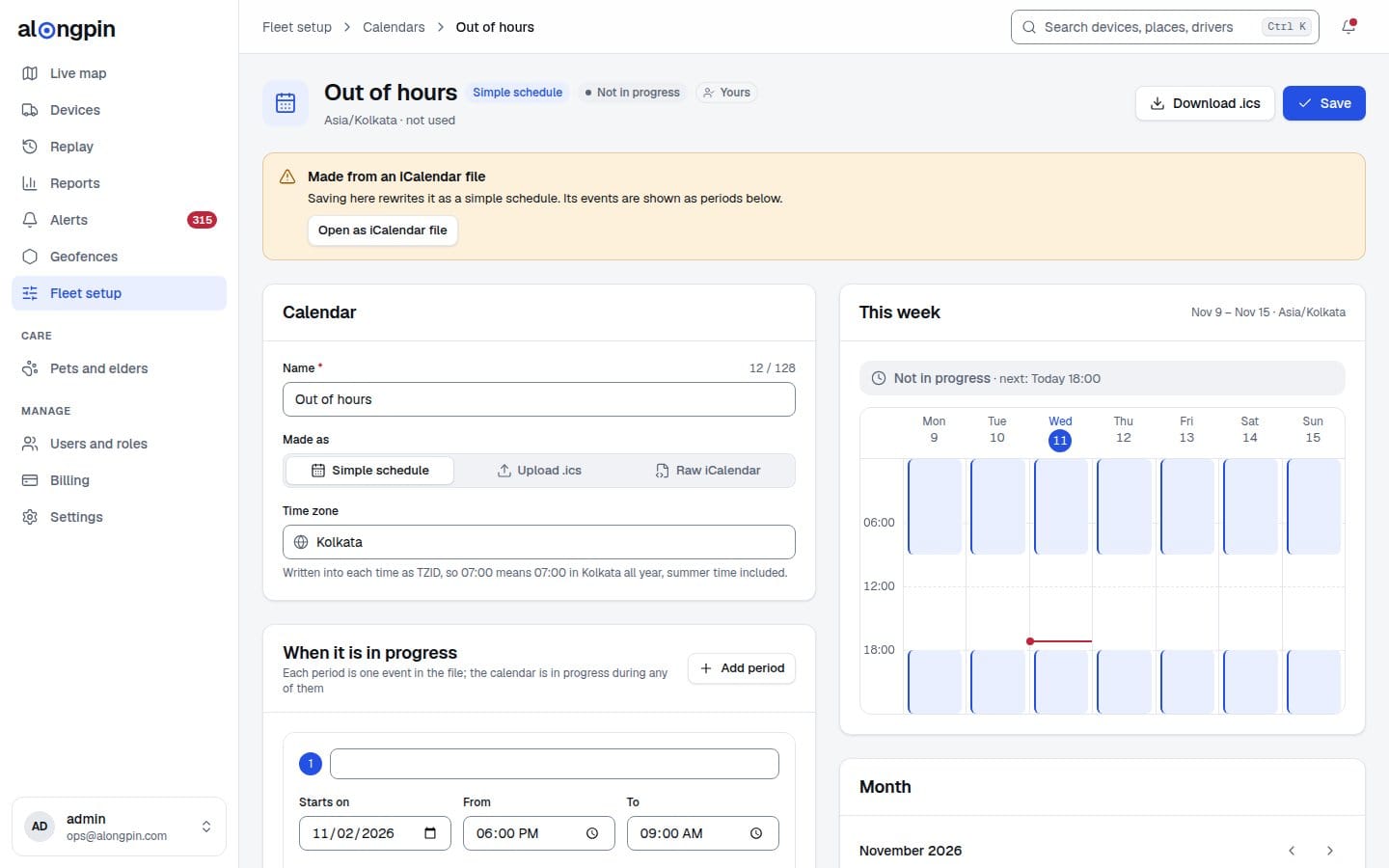
Check the calendar's Time zone so that 18:00 means 18:00 at the depot. A depot with a night shift needs its own calendar with its own hours, on its own rule. How to limit alerts to working hours with a calendar shows the calendar editor in full.
If you set personal quiet hours under Settings → Your account → Alerts and channels, your own messages are held back in that window. Add Geofence exit or Started moving to Still goes out with Let another through, or the alert you built for the night will not reach you at night.
Power-cut and tamper alarms where the tracker raises them
Someone who takes a vehicle without permission and knows it is tracked will try to silence the tracker. Many wired vehicle trackers report this as alarms of their own:
- Power cut: the tracker was disconnected from the vehicle's power. A tracker with a backup battery keeps reporting for a while and sends this with a position.
- Tampering: the tracker detected interference with itself.
- Tow: the tracker senses the vehicle being towed or lifted.
- GPS antenna cut: the antenna was disconnected.
Which of these exist depends on the tracker model and how it is set up. Create a rule with When this happens: Alarm and tick the kinds under Alarm kinds, plus rules for Device offline and Status unknown to hear when a tracker goes silent. Power cut alarm goes out during quiet hours by default. How to hear when a tracker goes offline, loses power or runs low sets these up step by step.
When private use is allowed: private trips and working hours
Some fleets let drivers take vehicles home and use them privately in the evening. Tracking every private journey then goes beyond what the business needs, and in many countries beyond what the law allows. Alongpin handles this with private trips: under Settings → Privacy and data protection → Driver privacy and private trips, an administrator or privacy officer chooses a private mode and can switch on Automatically outside working hours with a working-hours calendar. Outside those hours, positions are stored privately: blurred to about a kilometre, distance only, or not at all between the start and end of the trip, depending on the mode.
This changes what the alerts above can do, by design:
- No zone or speed events are raised from private positions, so a Geofence exit rule stays silent for those hours.
- In the blurred and distance-only modes, ignition and movement events and alarms such as Power cut and Tow still come, without the exact place; in the pause mode only the theft alarms your settings keep come through.
- An SOS ends the private time and sends the real location.
So decide per group: pool vehicles that must stay at the depot get out-of-hours alerts and no private mode; vehicles drivers take home get private time and rely on the theft alarms. A group or a single vehicle can have its own private-trip settings and working hours. Setting working hours so time off is private explains the settings, and the driver privacy page describes the modes.
Checking what happened on the trip replay
An alert says a vehicle left; the replay says where it went. Before you call the driver:
- Open the event under Alerts. Show on map places it, and Replay last 10 min plays the minutes before it.
- For the whole journey, open Replay, pick the vehicle and the night's period, and play the trip: stops along the way, how long at each, and when it came back.
- Check the obvious explanations first: an authorised call-out, a driver moving the van to let a truck out, a workshop collection.
Download the trip from the Trips report if it needs to go into a disciplinary or insurance file. Replaying a vehicle's trip history covers the replay controls.
Common mistakes
- A working-hours calendar on the rule instead of an out-of-hours one: the alert then fires during the day and stays quiet at night.
- A calendar on the depot zone: it stops the zone's exit events outside its hours, so nothing fires at night.
- Only In the app as the channel: nobody has the portal open at 02:00.
- Private mode on vehicles that must stay put: zone alerts are switched off for exactly the hours you wanted to watch.
How Alongpin helps
Alongpin (alongpin.com) is a GPS tracking platform you open in a browser or on your phone. Your trackers, in the vans, trucks and cars you already run, show on one live map with trips, stops, idle time and alerts; reports and scheduled reports answer the questions this article raises, and users and roles let each depot see its own vehicles. Check your trackers in the device check, read how it works for fleets, and start on the pricing page.
Frequently asked questions
Can I get an alert only when a vehicle moves outside working hours?
Yes, with a calendar that covers the hours outside work and a rule for Started moving, Ignition on or Geofence exit that uses it under Only during.
Does the alert work if the tracker is unplugged?
A silent tracker sends nothing more. The Power cut alarm, where the tracker reports it, and the Device offline or Status unknown rules tell you it has gone silent.
Can drivers see that they are tracked out of hours?
They should be told by your policy. Where private trips are set up, drivers see in the driver app when a trip is private.