Live map and trips
Replaying a trip
How to replay a vehicle's route for a day or a period: choose the device and period, play at up to 16×, step through stops and events, replay only inside a geofence, and open a replay from a trip or an alert.
Ashish Srivastava4 min read

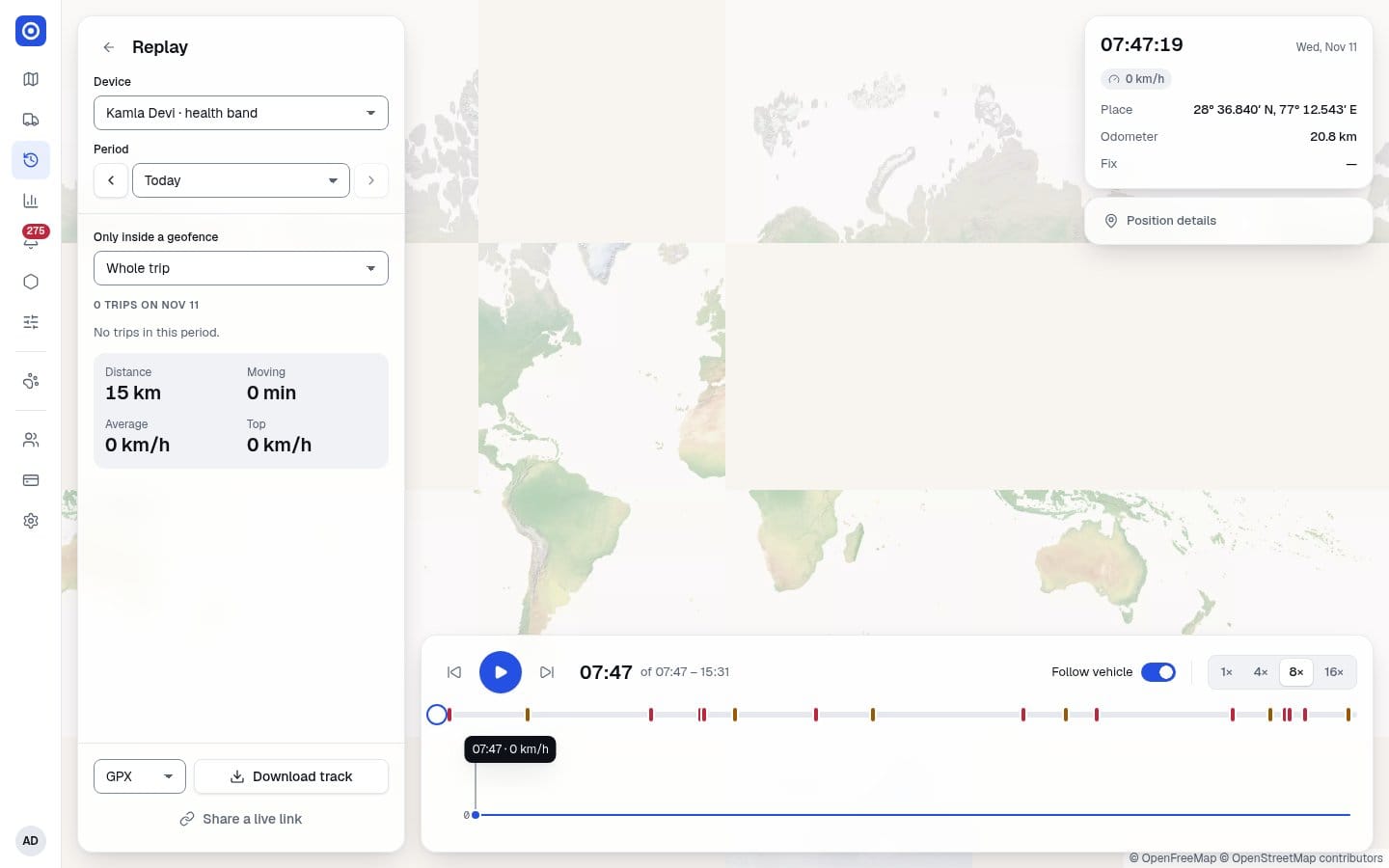
To replay a vehicle's trip history, open Replay in the menu, choose the device and the period, and press Play: the route is drawn on the map and a marker drives along it, with the speed, the place and the time under the playhead. You can play it faster, jump from stop to stop, follow the vehicle and open any point in detail. The same replay is in the mobile app, on the device's trips.
Key takeaways
- Choose the device and a period (today, yesterday, this week, last week or your own dates).
- Play at 1×, 4×, 8× or 16×; drag the scrubber to jump; Previous stop and Next event step through the trip.
- Stops, overspeeds and events such as geofence entries or alarms are marked on the track and on the timeline.
- Only inside a geofence replays just the part of the period inside one zone.
- A replay also opens from a trip, an alert, a device's page and the trips report.
Choose the device and the period
- Select Replay in the menu on the left.
- Under Device, pick the vehicle, watch or phone.
- Under Period, choose Today, Yesterday, This week, Previous week or Custom for your own start and end.
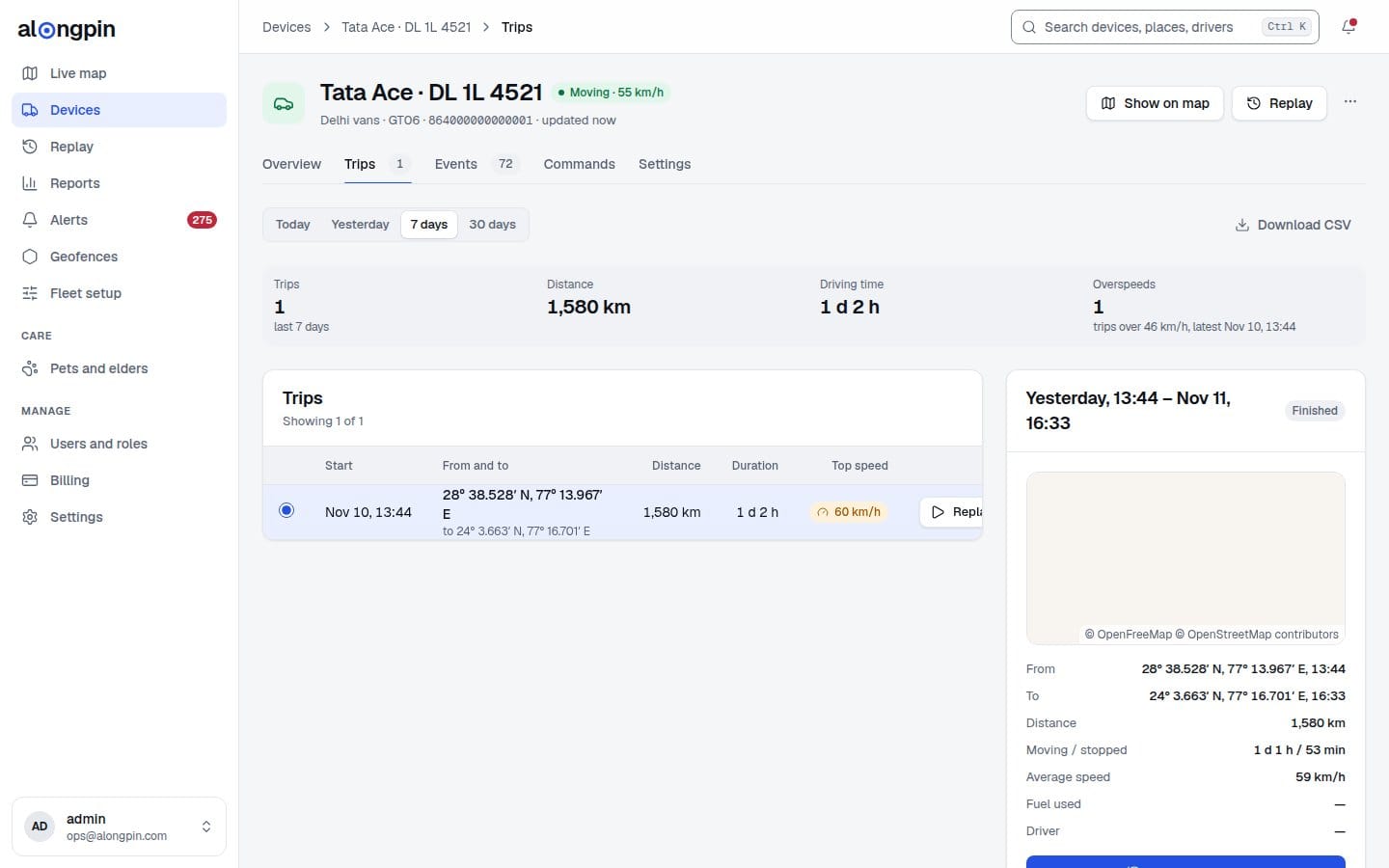
The route of the period appears with the list of its Trips beside it, each with its start and end place, distance and time. Select one trip to replay only that trip, or keep Whole period. The Figures show the distance, moving time, average and top speed of what you are replaying, and a warning lists the overspeeds with their place and time.
Long periods hold many positions and take a moment to load; the panel shows how many have arrived. If the device's plan keeps history only for a limited time, the panel says "History from" and the date, and earlier positions are not shown.
Play, pause, speed and the scrubber
The player sits at the bottom of the map:
- Play and Pause start and stop the marker.
- Playback speed: 1×, 4×, 8× or 16×. At higher speeds a long day passes in a few minutes; long gaps, such as a night parked, are skipped.
- Previous stop and Next event jump to the last stop before the playhead or the next marked event.
- Follow vehicle keeps the map centred on the marker as it moves.
- The scrubber is the timeline: drag it to any moment. Small ticks show where stops and events are, and Speed over the trip draws the speed as a chart under it, with the speed limit where one is set.
The box Position at the playhead shows the time, speed, place, heading, ignition and fix at that moment. Position details opens everything the tracker reported for that point.
Stops, overspeeds and events on the track
Along the route the replay marks each stop with its duration, sections driven above the limit, and events such as alarms, geofence entries and exits, fuel drops and refuels, and driver changes. Select a marker to see what happened and when; Open event takes you to the event itself. Which events you see depends on your access to events and on what the tracker reports.
Replay only the part inside one geofence
Under Only inside a geofence, choose a geofence to keep only the positions recorded inside it, for example the time a vehicle spent on a customer's site. Whole trip shows everything again. The filter uses the geofences recorded with each position when it arrived, so a geofence drawn later finds nothing for older trips.
Opening a replay from elsewhere
You rarely need to start from the menu:
- On the Live map, a device's panel has Replay today.
- A device's page has Replay, and its Trips tab has Replay this trip on each trip.
- An alert or event has Replay last 10 min, to see how the vehicle got there.
- The trips report has Replay on each row, and a driver's page replays their recent trips.
- Position details has Open in replay for the minutes around that point.
In the mobile app
The app's replay works the same way: open a device, pick a day or a trip from its trips, and play it with the same speeds, stops and events. See the trip history feature for what is kept and for how long, and the reports for trips, stops and summaries as tables. To watch a vehicle now rather than afterwards, use the live map.
Frequently asked questions
Why is part of a trip drawn as a straight line?
The tracker sent no positions in between, or sent them far apart. The playback jumps over long gaps. A gap labelled "Private trip" is a stretch the driver kept private.
Who can use replay?
Everyone whose access includes reports and position history for that device. If Replay is missing from your menu, ask whoever manages users in your account.