Elder care
Giving a paid carer or neighbour location-only access
How to let a home help, a neighbour or a visiting carer see where your parent is and receive alerts, without opening her health records: a location-only share with an end date, and contacts who only receive alerts.
Ashish Srivastava6 min read
To share an elderly parent's location with a caregiver without opening her health records, give the carer a Location only share of her care profile, with an end date if the arrangement is temporary. The carer then sees where her watch is, her contacts and her alerts, but not her medication, appointments, documents, blood type or notes. A neighbour who only needs to hear about an emergency does not even need that: add them as a contact who receives alerts by text message or email, without an account. This guide shows both, and how to review and end access when a carer changes.
Key takeaways
- Not everyone needs everything. Share as little as each person needs to help.
- Location only shows the profile, contacts, alerts and daily activity; it hides health data, reminders and the health fields, including emergency notes.
- Ends sets the last day of a share, after which the carer sees nothing.
- Contacts without an account receive alerts by email or SMS and see nothing else.
- Review the Shared with list whenever a carer starts or leaves.
Why not everyone needs everything
A family that relies on a home help, a visiting carer or a kind neighbour is trusting them with a lot already. Your parent's medical history, her medication list and her power of attorney do not have to be part of that. Most of these helpers need to answer two questions: is she all right, and where is she if something has happened.
Sharing less is also kinder to the helper. A carer who can see only what they need does not have to wonder what they are allowed to read, and your parent does not have to wonder who has read what. If her circumstances change, you can widen a share later.
Before you start
- A care profile you own for your parent, with her watch linked. See creating a care profile for an older relative.
- An account for the carer, if they should see the map. People who only need alerts can be contacts instead.
- Your parent's agreement. On a server that requires consents, her sharing consent must list the carer; a share made before that waits, suspended, until a consent lists them.
Step 1: Give a location-only share
Open your parent's profile under Pets and elders and choose Share. Add the carer: type Their email (the address of their account), or, if you manage users, pick them from the list. Then:
- Under What they see, choose Location only: "Contacts, alerts, wellness. No health data or reminders; blood type, notes and heart rate hidden."
- Set Relationship to Carer.
- Tick Also share the watch, so the carer sees it on the map. Without it they get the profile and alerts, but no map.
- Optionally set Ends (see step 2), then choose Share.
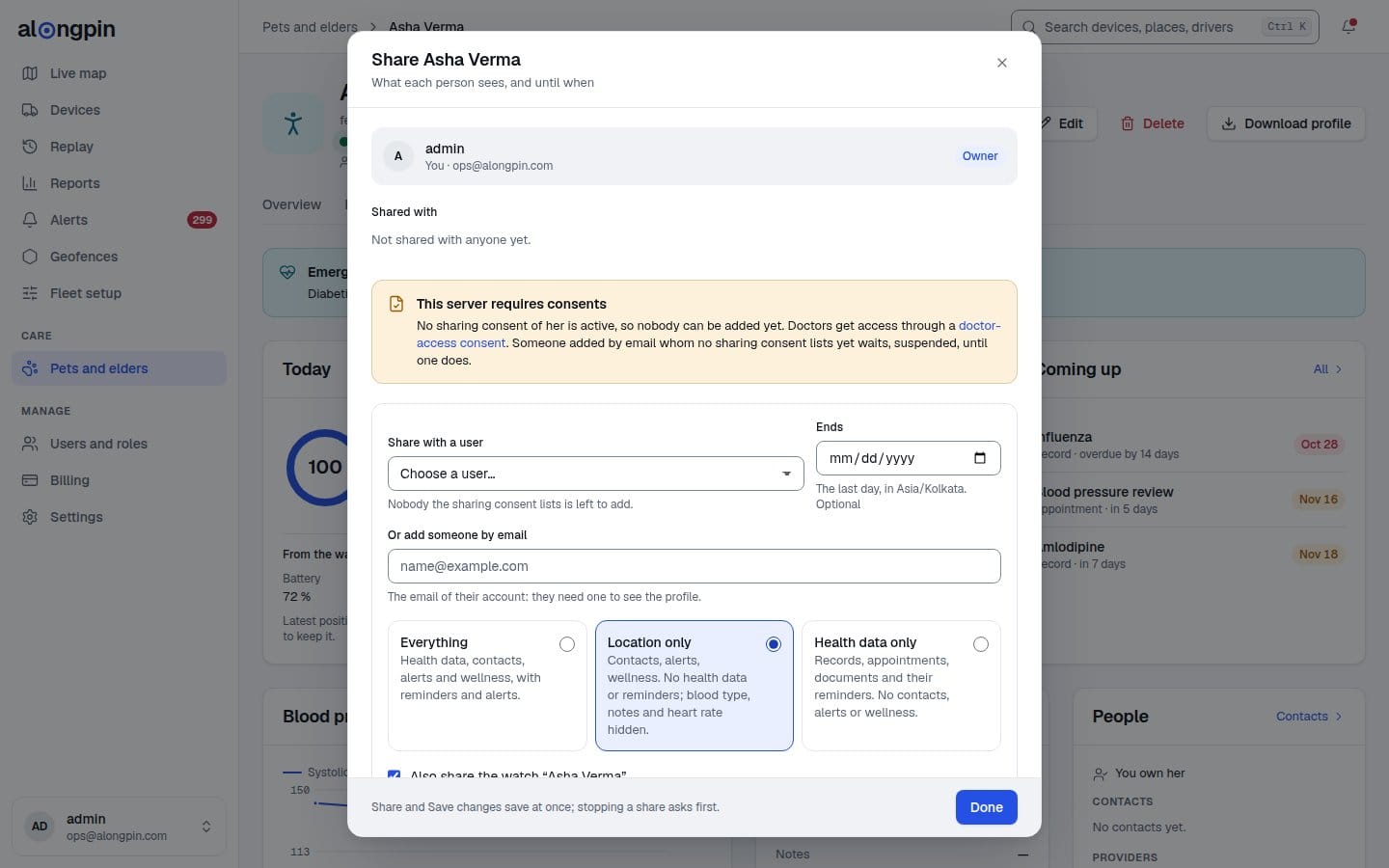
What a location-only share shows and hides
| The carer sees | The carer does not see |
|---|---|
| The profile's name and photo, and where the watch is | Health records, medication, measurements |
| Her contacts, with their numbers | Appointments and documents |
| Care alerts: SOS, fall, left home, low battery, no movement | Reminders of any kind |
| Daily activity: steps, active time, time at home | Heart rate |
| Who was told about each alert, and who acknowledged it | Blood type, mobility, lives alone, emergency notes and notes |
The carer can acknowledge an alert, so the family sees that it is being handled, but cannot change, share or delete anything. Note that emergency notes are among the hidden fields: if a carer needs to know something in an emergency, such as an allergy or where the spare key is, tell them directly.
Step 2: Set an end date so access stops by itself
Temporary arrangements are where access tends to linger. Under Ends, choose the last day: the two weeks the regular carer is on holiday, the month a neighbour is helping out, the trial period of a new agency. "After that date they see nothing and the share leaves the list." Without an end date, a share lasts until you stop it.
An end date is a good default for anyone outside the family. Renewing a share takes a minute; noticing months later that a former carer still had access is harder.
Step 3: Add contacts who only receive alerts
A neighbour two doors down, a friend from the temple or the church, a nephew in the next town: people who would come if called, but do not need to see a map. Add them under the profile's Contacts (or Pets and elders → Contacts) with New contact:
- Role: Neighbour, Caregiver, Emergency, Family or Other, and a Relationship in your own words.
- Mobile and Email: messages go to Email, Email 2 and Mobile only; landlines and the second mobile are for calling.
- Receives alerts: on. Receives reminders: usually off for a neighbour.
Contacts have no account and no login. They receive care alerts by email and SMS, by default a short message that there is a new alert for your parent, without the place, and they never see the profile or the map. Adding contacts to a care profile shows the form in detail.
Step 4: Review and end access when a carer changes
Make a habit of opening Share whenever a carer starts or leaves. The Shared with list shows every person, what they see (Everything, Location only or Health data only), the relationship and the end date.
- To end a share now, choose Stop sharing next to the person. They no longer see the profile, its location or alerts. If you shared the watch with the profile, it leaves their devices too, unless they had it before. Nothing is deleted.
- To change what someone sees, share again with another option; their history stays.
- For contacts, untick Receives alerts or delete the contact.
The owner of the profile can also see Who viewed: every read of your parent's health data, by whom and how. With location-only shares there should be nothing from the carer there, which is the point. The privacy and trust pages describe how this data is protected.
When the carer works for an agency
Home-care agencies sometimes run their own accounts with several carers. In an account with roles, an administrator can give each person access to exactly the devices and profiles they look after, and make an account read-only. The users and roles page explains how roles and scopes work. For a family sharing with one or two carers, a location-only share is usually all you need.
Common mistakes
- Sharing Everything by default. It is the first option; choose Location only deliberately for helpers.
- Forgetting Also share the watch. The carer then sees alerts but no map.
- No end date for a temporary carer. Set one now; you can always extend it.
- Assuming the carer sees emergency notes. They are hidden on location-only shares. Tell them what matters.
What success looks like
The carer knows where your parent is and hears when something happens, the neighbour gets a text if she presses SOS, and her health records stay between her, the family and her doctor. When the carer leaves, their access ends on the date you set. The care profiles page shows how shares and contacts fit together, and sharing a care profile with family, a sitter or a doctor covers every kind of share.
How Alongpin helps
Alongpin (alongpin.com) is a GPS tracking platform you open in a browser or on your phone. A parent's GPS watch or alarm becomes a care profile: SOS, fall, leaving-home and inactivity alerts reach the family and emergency contacts, and health readings, medication refills and appointments sit in one place you can share. See how it works for elder care, and check a watch in the device check.
Frequently asked questions
Can a carer see where my mother is without seeing her health records?
Yes. Share the profile for Location only and tick Also share the watch. Health data, reminders and the health fields stay hidden.
Does a neighbour need an account to get alerts?
No. Add them as a contact with Receives alerts and a mobile number or email.
Can the carer share the profile with someone else?
No. A share gives reading and acknowledging alerts only. Only the owner, administrators and managers share a profile.