Privacy and trust
Securing a family tracking account
A family account shows where people are, so sign-in matters. One sign-in per person, two-factor login, reviewing shares and links, the records of who looked and what changed, and what to do when a phone is lost.
Ashish Srivastava6 min read
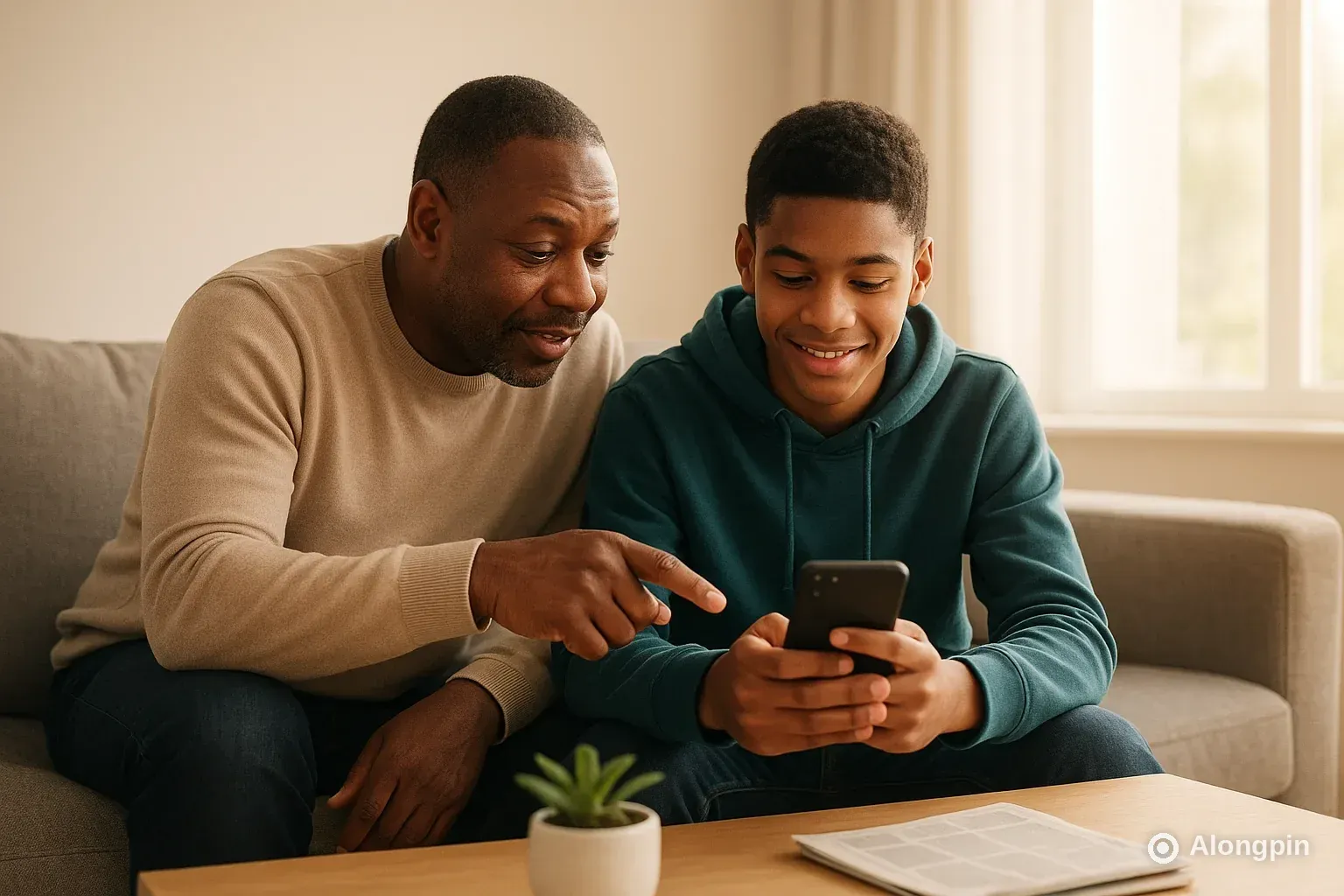
To secure a family location account, give every person their own sign-in, turn on two-factor login, check from time to time who can see what, and know what to do the day a phone goes missing. A family account shows where your children, your parents or your pets are, so the password protecting it guards more than an inbox does. In Alongpin these steps take a few minutes each, and most of them live under Settings → Your account.
Key takeaways
- One person, one sign-in: share devices and care profiles with each family member's own account instead of sharing a password.
- Turn on two-factor login under Password and two-factor, with any authenticator app.
- Review Your share links, each device's Shared with list and each profile's sharing a few times a year.
- Who looked at your data shows log-ins as you and share-link opens; administrators keep an audit log of every change.
- If a phone is lost, act from another device: change the password and ask whoever manages your account to disable it for a while.
One person, one sign-in: no shared passwords
A typical weak point in a family account is a single password that everyone uses. It feels simpler, but it means you cannot tell who did what, cannot take access away from one person without changing it for all, and the password ends up written on a fridge or in a group chat.
Alongpin is built for each person to have their own account:
- Share a device (a child's watch, the family car's tracker) with another user, read-only. They see it on their own map and get their own alerts.
- Share a care profile of a parent or a pet by the e-mail of the person's account, choosing Everything, Location only or Health data only, and an end date if it is temporary.
- Add contacts under Pets and elders → Contacts for people who only need the alerts, such as a neighbour. They get messages without any account at all.
When one person no longer needs access, you stop sharing with that person alone. How sharing and accounts fit together is on the users and roles page; sharing a care profile with family or a carer walks through the profile share.
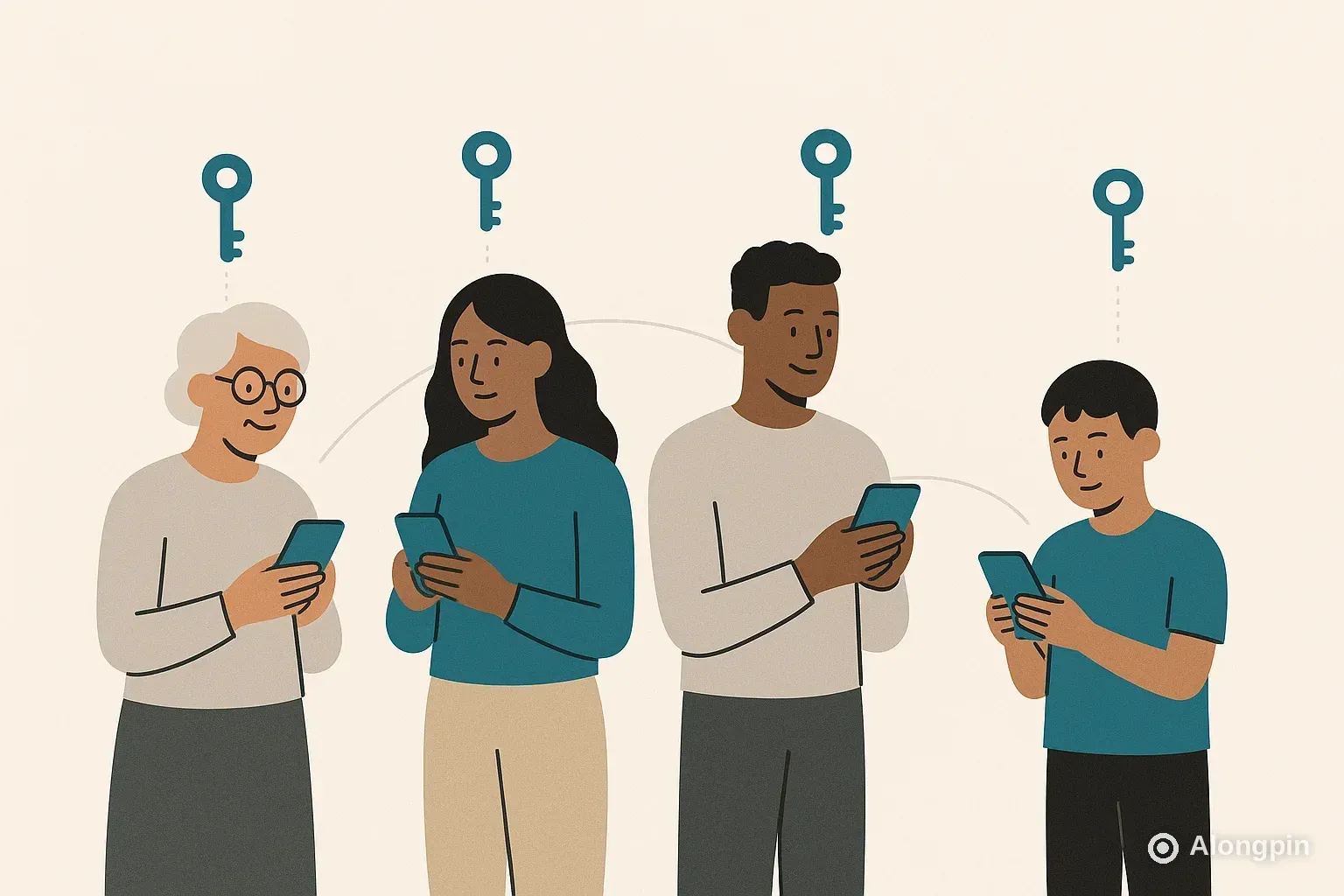
Two-factor authentication
A password can leak through a reused password elsewhere or a convincing fake sign-in page. Two-factor login adds a second step: after the password, a six-digit code from an authenticator app on your phone.
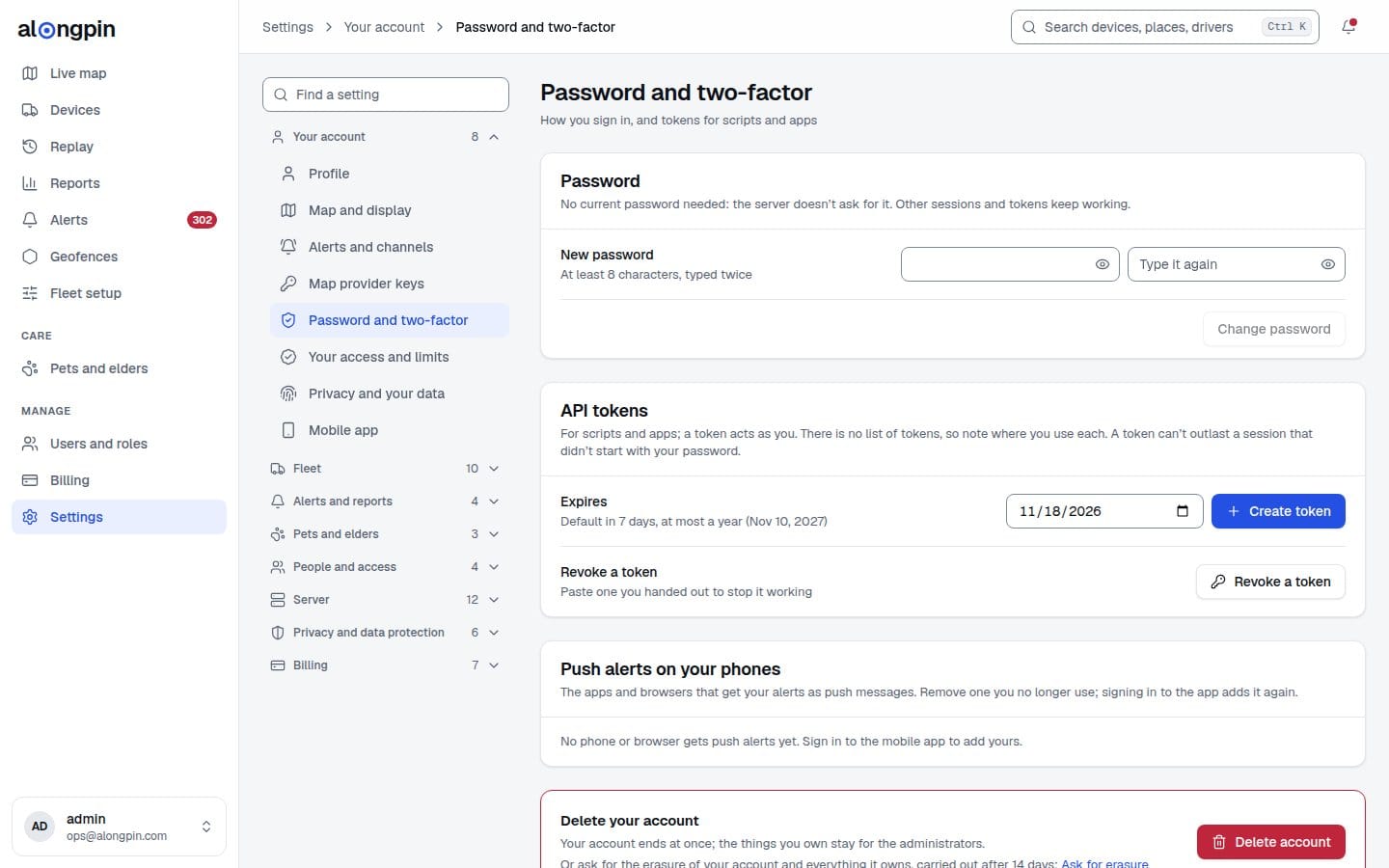
- Open the account menu, choose Profile and settings, then Password and two-factor.
- Under Two-factor login, scan the QR code with an authenticator app, or use Copy key and type it in.
- Type the code the app shows into Code from the app and choose Turn on.
The portal checks the code before it saves the key, so a wrongly scanned key cannot lock you out. From then on every password sign-in, on the web and in the mobile app, asks for the code. The section appears only when your server offers two-factor login; if you do not see it, ask its administrator. Turning on two-factor sign-in has the full steps, including moving to a new phone.
Ask each adult in the family to do the same on their own account. A strong, unique password still matters: a password manager makes that painless.
Reviewing shares and links
Access tends to grow. A link sent for a holiday, a sitter who got a profile share, an ex-partner who still sees the car. A short review a few times a year, or after any change in the family, keeps it in line with what you intend:
- Your share links, under Settings → Your account → Privacy and your data, lists every link you made with its label, what it shows, when it ends and how often it was opened in the last 90 days. Revoke any you no longer need.
- Shared with, on each device's Settings, lists everyone who can see it and how.
- Shared with, in each care profile, lists who sees it, with what scope and until when. Change what … sees narrows a share; Stop sharing with … ends it.
- Devices and Pets and elders in your own list: anything shared with you that you no longer need can be removed from your list, or left with Leave for a profile.
A share ends at once, without a message to the person. How to stop sharing a location covers every way access ends.
The audit trail of what changed
You cannot secure what you cannot see. Alongpin keeps three records you can use:
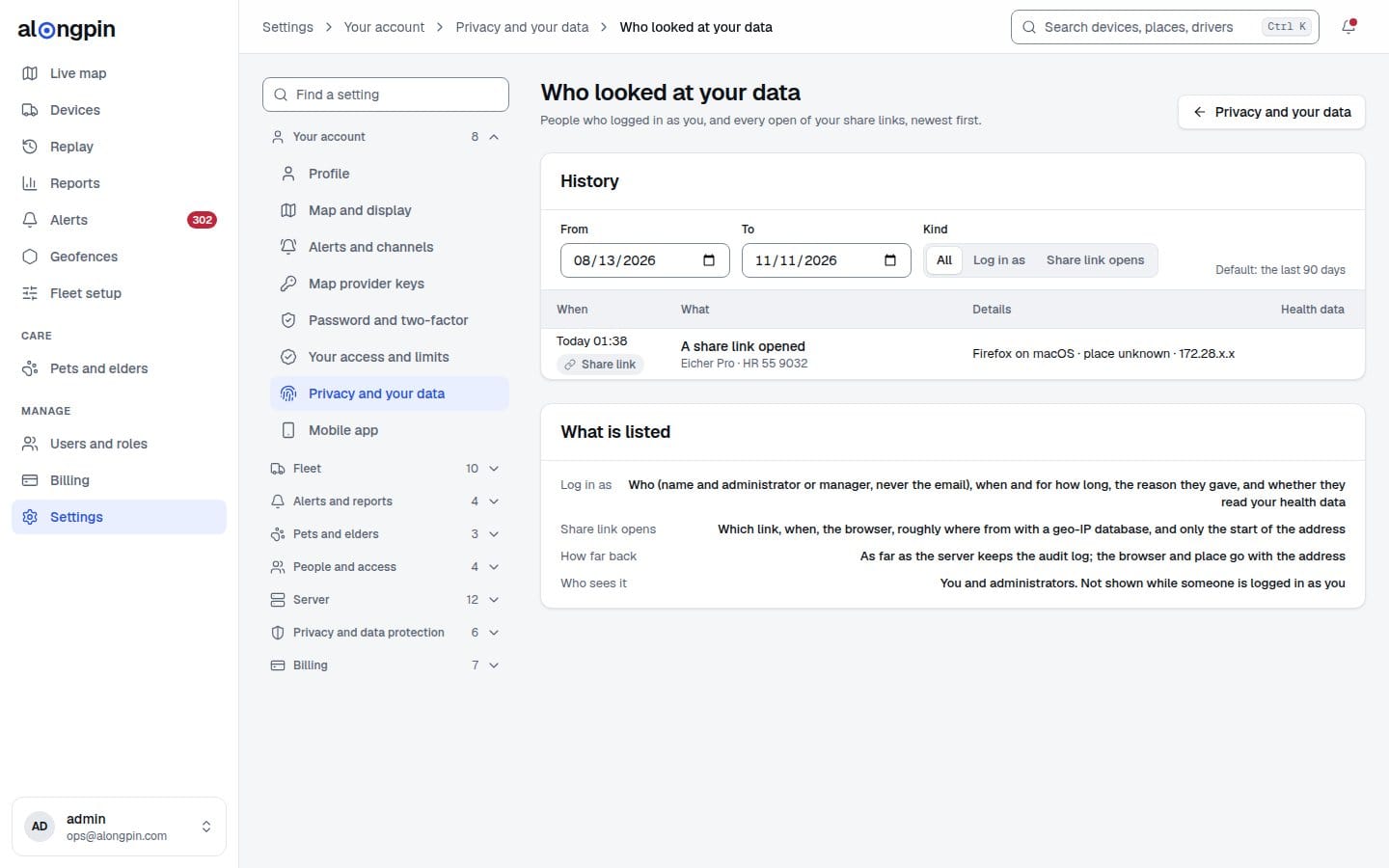
- Who looked at your data, under Privacy and your data: every time a manager or administrator logged in as you, with when, for how long and the reason they gave, and every time one of your share links was opened, with the browser and roughly where from.
- Who viewed, on an older relative's care profile: every read of their health data, by whom and how. Only the profile's owner and administrators see it.
- The audit log: the administrator of your server keeps a record of every change, including each share and unshare, and of failed sign-ins. Only administrators open it, so on a hosted service ask your provider if you need an entry from it.
If an entry surprises you, such as a link opened from a city you have never been to, revoke the link and change your password. Seeing who looked at your data explains each entry.
When a phone is lost
A lost or stolen phone may still be signed in to the app. Act from another device, in this order:
- Change your password under Password and two-factor. It stops anyone signing in again with the old one. It does not end sessions that are already open, so do the next step too.
- Ask whoever manages your account, or the administrator of your server, to disable your user for a while. Disabling applies within moments to every session and token, including the one on the lost phone. They turn it back on once you have a new phone.
- If your authenticator app was on that phone, ask them to Remove key under Two-factor login on your user, then set up a new key on the new phone.
- Check Your share links and revoke any you sent from that phone that should not stay open.
Sessions also end by themselves: in a standard setup a day unused, or 14 days with Keep me signed in on this device, and never more than 30 days after signing in. Do not wait for that. The security page explains how sign-ins and sessions are protected, and the privacy page what is kept about each person.
How Alongpin helps
Alongpin (alongpin.com) is a GPS tracking platform you open in a browser or on your phone. Location is personal data, so the platform is built around it: you decide who sees what with users and roles, every view of sensitive data is logged, retention periods are yours to set, and you can export or erase your data. Read about privacy and security, and see the privacy policy.
Frequently asked questions
Can I get two-factor codes by text message?
No. Codes come from an authenticator app on your phone, which also works without mobile signal.
My teenager wants to know who can see their location. Where do they look?
On their own account, under Privacy and your data, and on the Shared with list of their watch or phone's device, if they can open its settings. Being open about who sees what is part of keeping a family account safe.
Does changing my password sign out the mobile app?
No. A password change does not end other sessions. To cut off a phone at once, ask whoever manages your account to disable it for a while.