Privacy and data
Seeing who looked at your data
Your access history shows each time someone logged in as you, for how long and why, whether your health data stayed hidden, and every time one of your share links was opened.
Ashish Srivastava4 min read

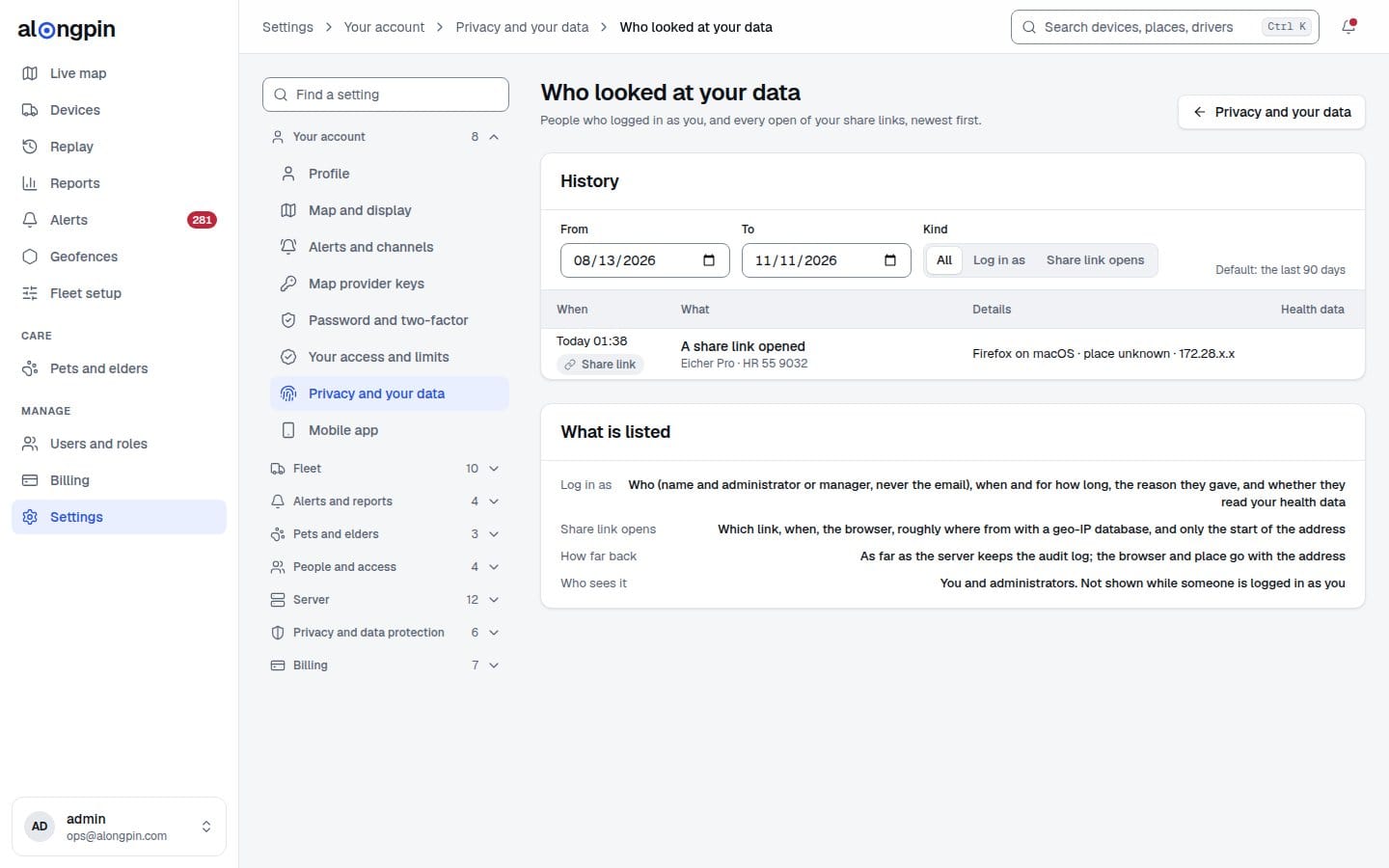
To see who accessed your tracking data, open Settings → Your account → Privacy and your data and choose Who looked at your data. The access history lists every time a manager or administrator logged in as you (when, for how long, the reason they gave and whether your health data stayed hidden) and every time one of your share links was opened, with the browser and roughly where from.
Key takeaways
- Two kinds of entries: Log in as and Share link opens, newest first, the last 90 days by default.
- A log in as you shows who (name and administrator or manager, never their e-mail), when, for how long and why.
- A share link opening shows which link, when, the browser and a rough place, never the full address.
- Only you and administrators see your history, and it is not shown while someone is logged in as you.
Open your access history
- Open the account menu, choose Profile and settings, then Privacy and your data.
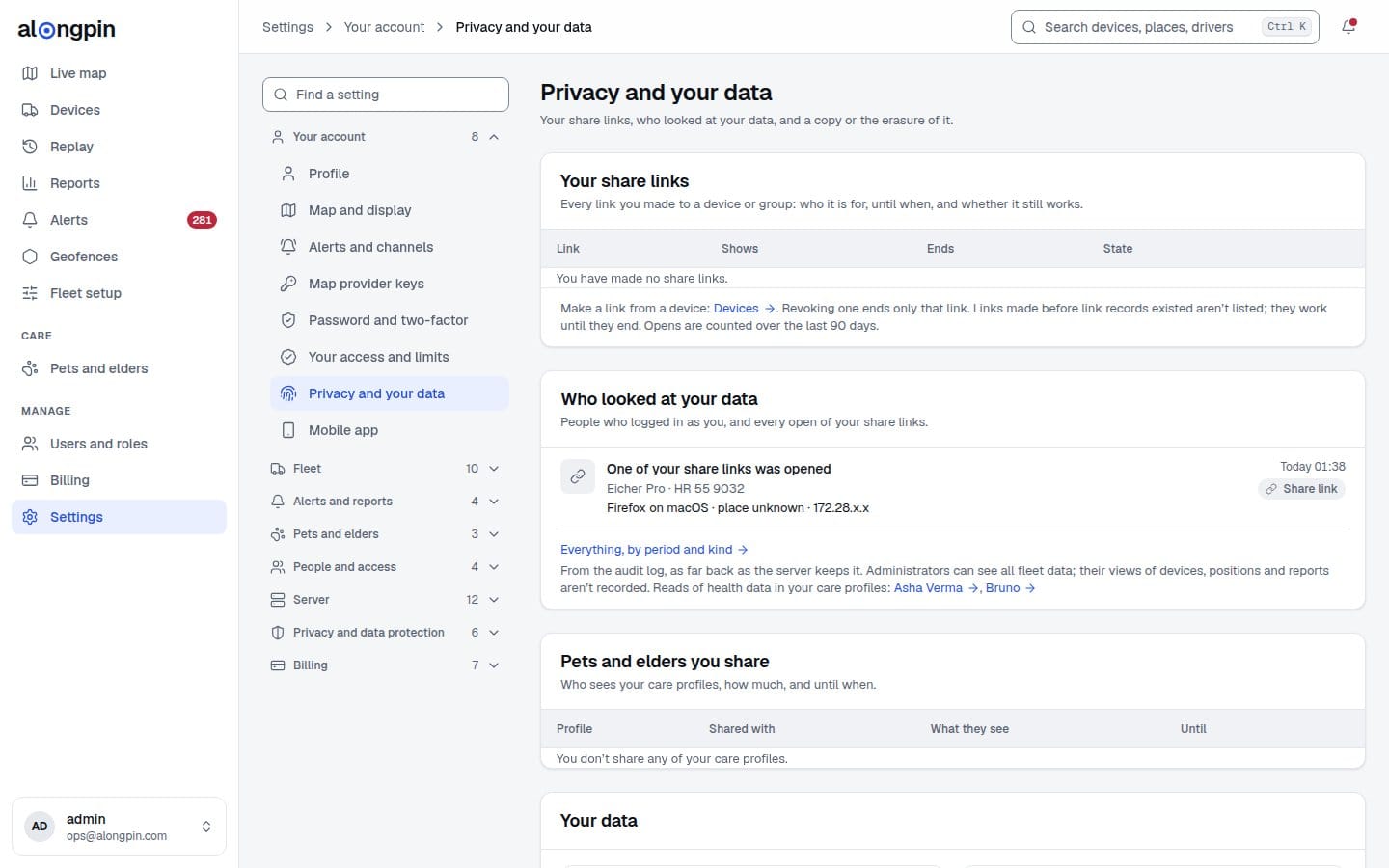
- The Who looked at your data card shows the newest entries. Open it for the full list.
- Narrow the list with From, To and Kind: All, Log in as or Share link opens. Without a choice, it covers the last 90 days.
The list reaches back as far as your account keeps its audit log.
Sign-ins as you, with the reason
Managers and administrators can "log in as" a user they manage, to see the portal as you see it, for example to check why a device is missing from your map. Each such session is an entry:
- Who: their name and whether they are an Administrator or a Manager. Their e-mail is never shown.
- When and for how long: the start and the end, or the latest it can end for a session still going on.
- Why: the reason they gave, or No reason given.
Depending on your account's privacy settings, you may also be told about a log in as you the next time you sign in, with a link to this page. Who may log in as whom is set by roles; the users and roles page explains it.
Whether your health data stayed hidden
If you use care profiles for a pet or a relative, each log-in-as entry says Health data stayed hidden, Health data was read or Health data: unknown when the care service could not tell. Under the card, Who viewed opens the separate log of who read the health data in each of your care profiles.
Share link openings: when, browser, rough place
Each time a share link you made is opened, an entry shows:
- which link, by its label, such as Your link "Plumber Tuesday" was opened,
- when,
- the browser and system, such as Firefox on Android,
- roughly where from, such as a city and country, when the server has a location database for it,
- only the start of the network address.
The browser and place are kept as long as the audit log keeps addresses; after that, the entry says they are no longer kept. Your share links on the same page shows how often each link was opened and lets you revoke one.
What to do if an entry surprises you
- A log in as you you did not expect. Read the reason. If there is none, or it does not make sense, ask your manager or your account's administrator about it.
- A share link opened by someone you did not send it to. Revoke the link under Your share links; your other links keep working. Revoking a share link shows how, and a PIN protects the links you make next.
- Something you can't explain. Change your password under Password and two-factor, and turn on two-factor login if you have not yet.
- You object to how your data is used. File a request under Your privacy requests → File a request; it goes to whoever handles privacy for your account.
What the history does not show
Administrators can see the data of every device in the account. Their views of devices, positions and reports are not recorded entry by entry, so they do not appear here. The privacy page explains who can see what, and the security page how sign-ins and access are protected.
Frequently asked questions
Can my manager hide a log in as me?
No. Every log in as you is recorded, and the entries can't be edited. They stay as long as your account keeps its audit log.
Why is the list empty?
Nobody logged in as you and none of your links was opened in the period. Try an earlier From.