Billing and account
Turning on two-factor sign-in
How to add two-factor login to your Alongpin account with an authenticator app, sign in with the six-digit code, move it to a new phone, and what to do when the phone is lost.
Ashish Srivastava4 min read

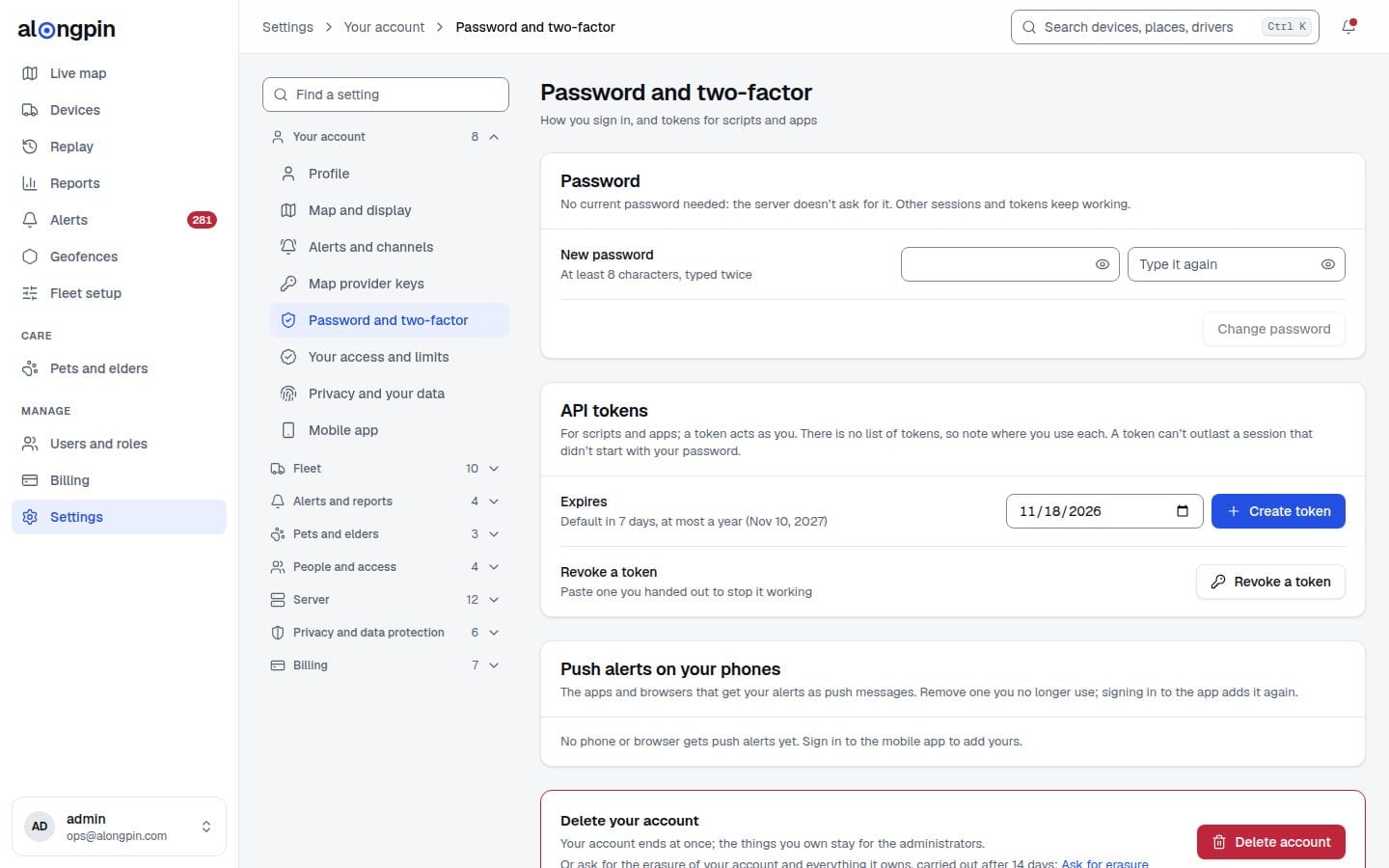
Two-factor authentication for your GPS tracking account adds a second step to signing in: after your password, you type a six-digit code from an authenticator app on your phone. To turn it on, open Settings → Your account → Password and two-factor, scan the key under Two-factor login with an authenticator app, type the code the app shows and select Turn on. From then on every password sign-in asks for that code.
Key takeaways
- Any authenticator app that reads a QR code for six-digit codes works; the portal checks your first code before saving.
- The Two-factor login section appears only when your server offers two-factor login.
- On a new phone, add a New key before you wipe the old phone.
- Lost the phone? Your administrator, or whoever manages your user, can remove the key so you can sign in and set it up again.
Before you start
You need an authenticator app on your phone: any app that adds an account from a QR code and shows a six-digit code that changes every 30 seconds. You also need to be signed in to the portal on a computer or in a phone's browser, so you can scan the code from the screen.
The Two-factor login section is shown only when the administrator of your server has turned two-factor login on. If you do not see it under Password and two-factor, ask them; the security overview explains how sign-in is protected.
Turn on two-factor login
- Open the account menu and choose Profile and settings, then Password and two-factor.
- Under Two-factor login, which shows Off, the portal makes a key and shows it as a QR code and as text: "Scan with an authenticator app, or type the key". Use Copy key if you prefer to type it into the app.
- In the authenticator app, add a new account and scan the QR code.
- Type the six-digit code the app now shows into Code from the app and select Turn on.
- The badge changes to On and the section says "Your authenticator is set up".
The portal checks the code before it saves the key, so a key that was scanned wrongly cannot lock you out. If it answers "That code doesn't match this key", check that the time on your phone is set automatically, or scan the code again.
Signing in with the code
Sign in with your email and password as before. A second page, Enter your code, then asks for the six-digit code from your authenticator app; type it and select Verify and sign in. Codes change every 30 seconds, so type the one the app shows now.
The mobile app asks for the same code after your password. Sign-ins through your organisation's single sign-on never ask for this code: your organisation's own sign-in takes care of that step.
When your account must have it
On some servers the administrator requires two-factor login. New accounts then add a key while they register, and once you have a key you cannot remove it yourself: the portal says "Your server requires two-factor login, so the key can't be removed here; an administrator can remove it." Accounts that never had a key keep signing in with their password until they add one.
Moving to a new phone
Set up the new phone before you reset or hand in the old one:
- Open Password and two-factor and select New key.
- Scan the new QR code with the authenticator app on the new phone.
- Type the code from the new phone and select Save.
The old key stops working the moment you save, so from then on only the new phone's codes are accepted. If you copy your authenticator accounts to the new phone with the app's own transfer feature, the old key keeps working and you need not change anything.
Lost the phone or the app
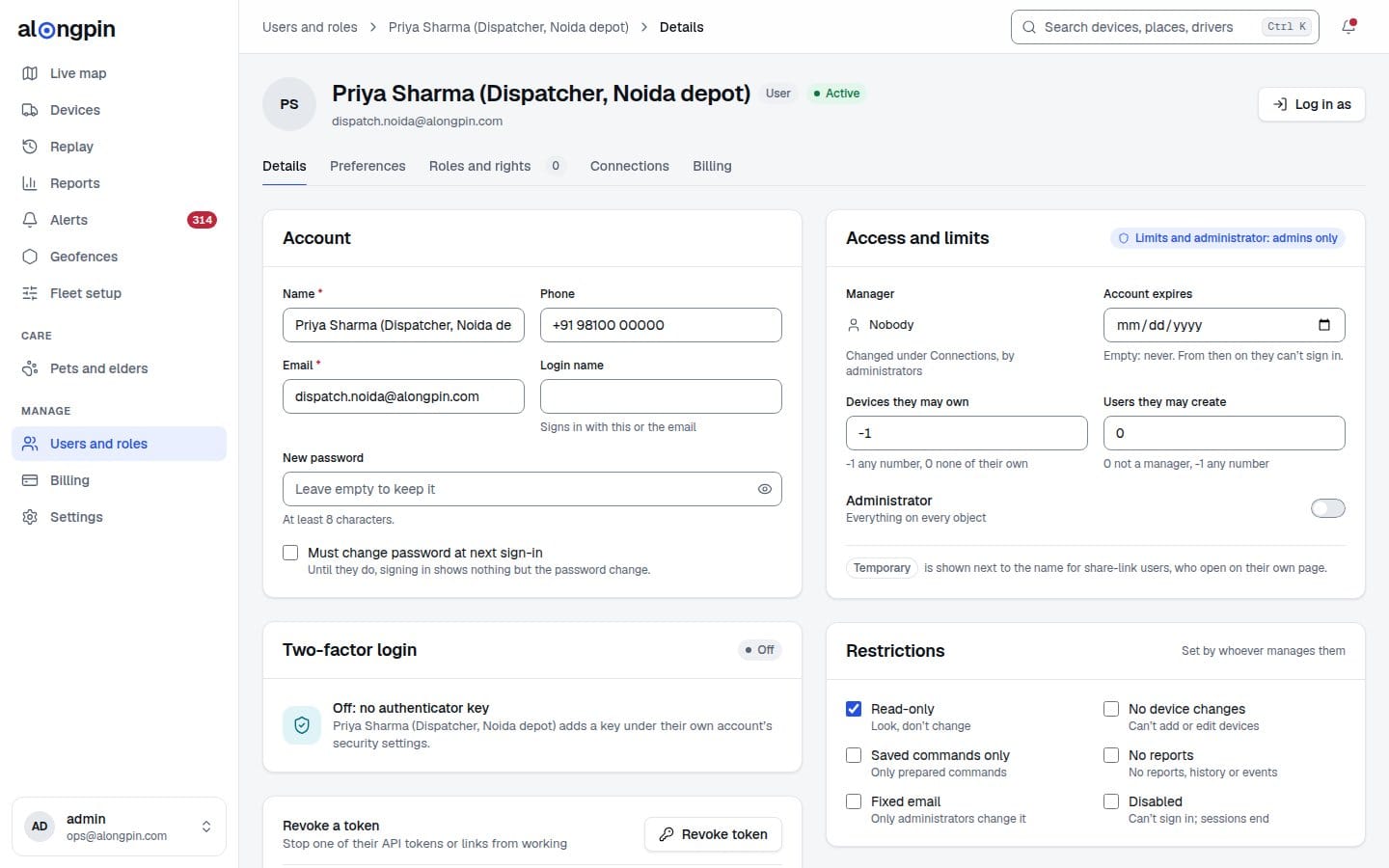
Without the codes you cannot finish signing in. Ask your administrator, or the person who manages your user, to remove your key: they open your user under Users and roles and select Remove key under Two-factor login. You then sign in with your password alone and can add a new key straight away. When your server requires two-factor login, only an administrator can remove a key. Who manages which users is explained under users and roles.
Turning it off
Where your server does not require it, select Remove key and confirm Turn off two-factor login?. Password sign-ins then no longer ask for a code, and you can set it up again at any time.
Frequently asked questions
Can I get the code by text message instead?
No. Sign-in codes come from an authenticator app on your phone.
Why is my code not accepted?
Codes change every 30 seconds and depend on your phone's clock. Set the phone's time to automatic and use the newest code. If it still fails, the app may hold an old key: ask your administrator to remove it and set it up again.
Where do I find more answers about my account?
The help center groups every article about signing in, passwords and billing under Billing and account.