Fleet management
GPS tracking for small fleets: where to start with five vans
A starter guide for businesses with a handful of vans: trackers you can fit yourself, a first week with the live map, one depot zone and two alerts, a nightly trips report, telling drivers, and choosing a package.
Ashish Srivastava6 min read
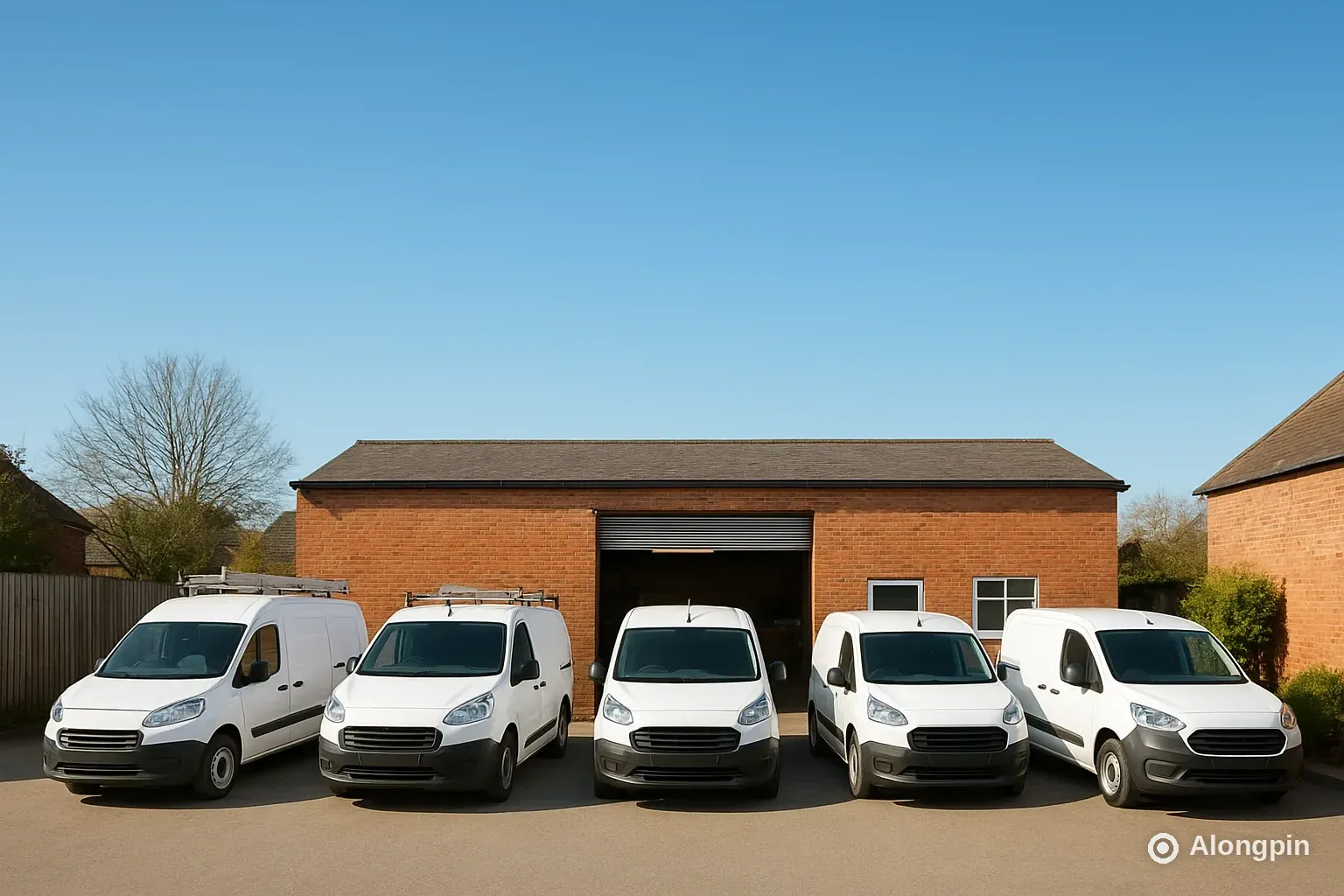
GPS tracking for small fleets works best as a week's job, not a project. For a business with five vans, the first week needs four things: trackers you can fit yourself and know are supported, the live map, one zone around your yard with two alerts, and a trips report that lands in your inbox every evening. Tell your drivers before the trackers go in, set their working hours, and leave fuel, driver cards and dashcams for later. This guide covers what a small fleet actually needs answered, and the minimum setup that answers it.
Key takeaways
- A small fleet needs three answers: where are the vans, where have they been, and is anything wrong.
- Choose trackers you can fit yourself, and check the model in the device check before you buy.
- Week one: the live map, one depot zone, two alerts, and a nightly trips report by e-mailed link.
- Tell drivers first, in writing, and set working hours so evenings and weekends stay private.
- Pay per device or per account, whichever fits five vans better.
- Leave fuel sensors, driver ID and video for later, once you know what you need.
The questions a small fleet actually needs answered
Large fleets buy tracking to plan routes and measure hundreds of drivers. A business with five vans has simpler questions, asked every day:
- Where is everyone right now? A customer is on the phone asking when the plumber will arrive.
- Where were they? An invoice is disputed, a parking fine arrives, a customer says nobody came.
- Is anything wrong? A van left the yard at two in the morning; a tracker stopped reporting; a van has been standing with the engine running for an hour.
Answer those three and tracking has paid its way. Everything else can wait until you know you need it. The fleet solution page shows the whole picture; this guide stays with the first week.

Picking trackers you can fit yourself
For five vans, an installer visit per van adds up. Two kinds of tracker can be fitted by the owner:
- Plug-in trackers for the vehicle's diagnostic socket, usually under the dashboard by the driver's knees. They take minutes to fit, draw power from the socket and move to another van just as easily. They are visible and easy to unplug, which matters if theft is a worry.
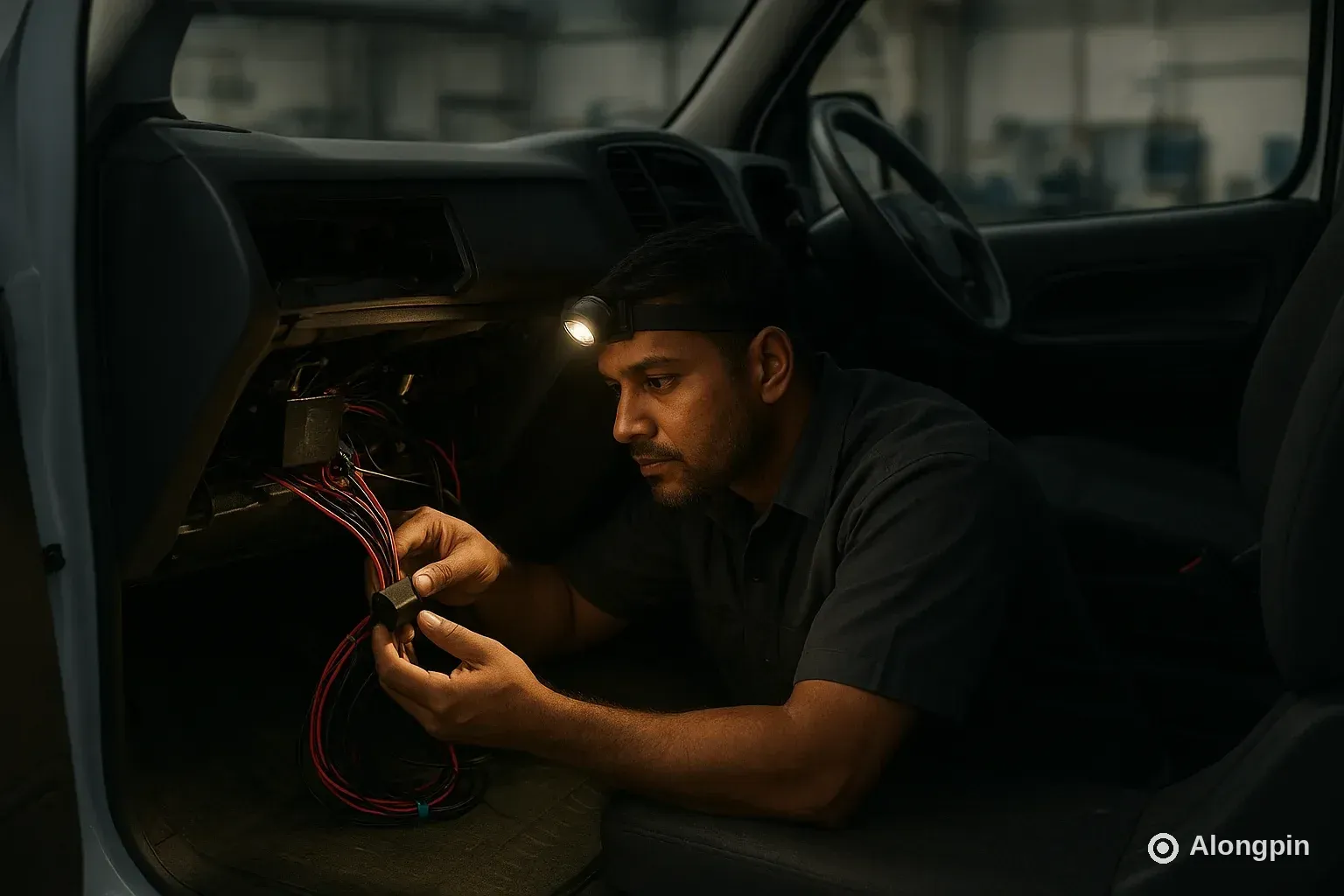
- Wired trackers with three or four wires: permanent power, ground and, on most, the ignition. They take longer, sit hidden behind the dashboard, and report the ignition reliably, which separates driving from idling from parked. Fitting one is within reach of anyone comfortable with a fuse box; otherwise an auto electrician does it quickly.
Each tracker needs a SIM card with a small data plan that works where your vans go.
Before you buy, check that the model is supported. The platform reads many tracker protocols, but not every one. Type the model or protocol into the device check, and look at the vehicle trackers page for what each kind reports. Trackers you already own may work too.
Week one: live map, one depot zone, two alerts
Day one: trackers online
Sign up, add each tracker under Devices with its IMEI and a name your team recognises ("Van 3, Ravi"), and enter the server address and port that the tracker setup shows into the tracker. Fit the tracker, and the van appears on the live map as soon as its first message arrives. Your first hour with fleet tracking walks through the setup.
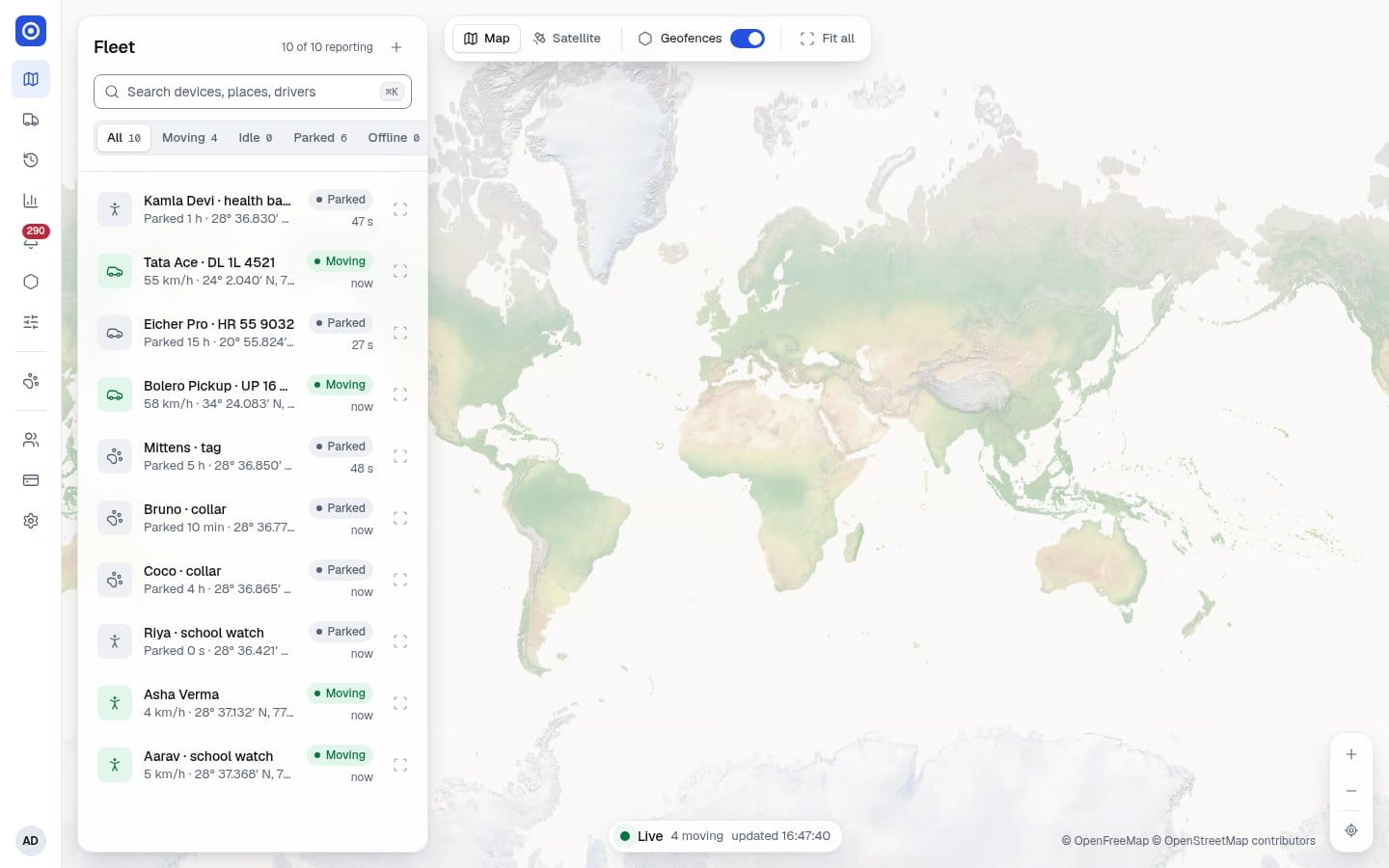
The live map shows each van as Moving, Idle (engine on, standing), Parked, Offline, or Unknown when it has not reported for a while. That alone answers "where is everyone?".
Day two: one zone around the yard
Under Geofences, draw a circle around your yard or depot, a little larger than the gate, and attach it to all five vans (or to a group that holds them). Every time a van leaves or returns, the platform records it, and the yard's visits appear in the reports. A circle geofence around the depot shows how.
Day three: two alerts
Two alerts cover most of what can go wrong for a small fleet:
- A van leaves the yard outside working hours. Create an alert rule for leaving a geofence, narrowed to the yard. Under Only during, choose a calendar for the hours when nobody should drive: create an "Out of hours" calendar, for example weekday nights from 19:00 to 06:00 and the whole weekend. A rule fires only while its calendar is active, so it stays quiet during the day.
- A tracker stops reporting, or loses power. An alert when a device goes offline, or a power-cut alarm where your tracker reports one, tells you a tracker was unplugged or a van's battery was disconnected.
Under Tell people by, choose how you want to hear: push to your phone, email, or text message and Telegram where your installation offers them. Keep it to these two for now. Too many alerts in week one and you will start ignoring them.
A nightly trips report by e-mailed link
Under Reports, open the Trips report for all five vans and today. You see each trip: start, end, distance, driving time and idle time, and the day's totals. Then choose Schedule this report:
- Under Calendar, pick or create one that ends each working evening, such as weekdays 06:00 to 20:00. When each period ends, the report for it is sent.
- Under Who gets it, you are a recipient by default; add a colleague you manage if needed.
Every evening, shortly after the period ends, an email arrives with a link to that day's trips. Two minutes with it over coffee answers most of tomorrow's "where was he?" questions. A daily scheduled report by email covers the details.
Telling drivers and setting working hours
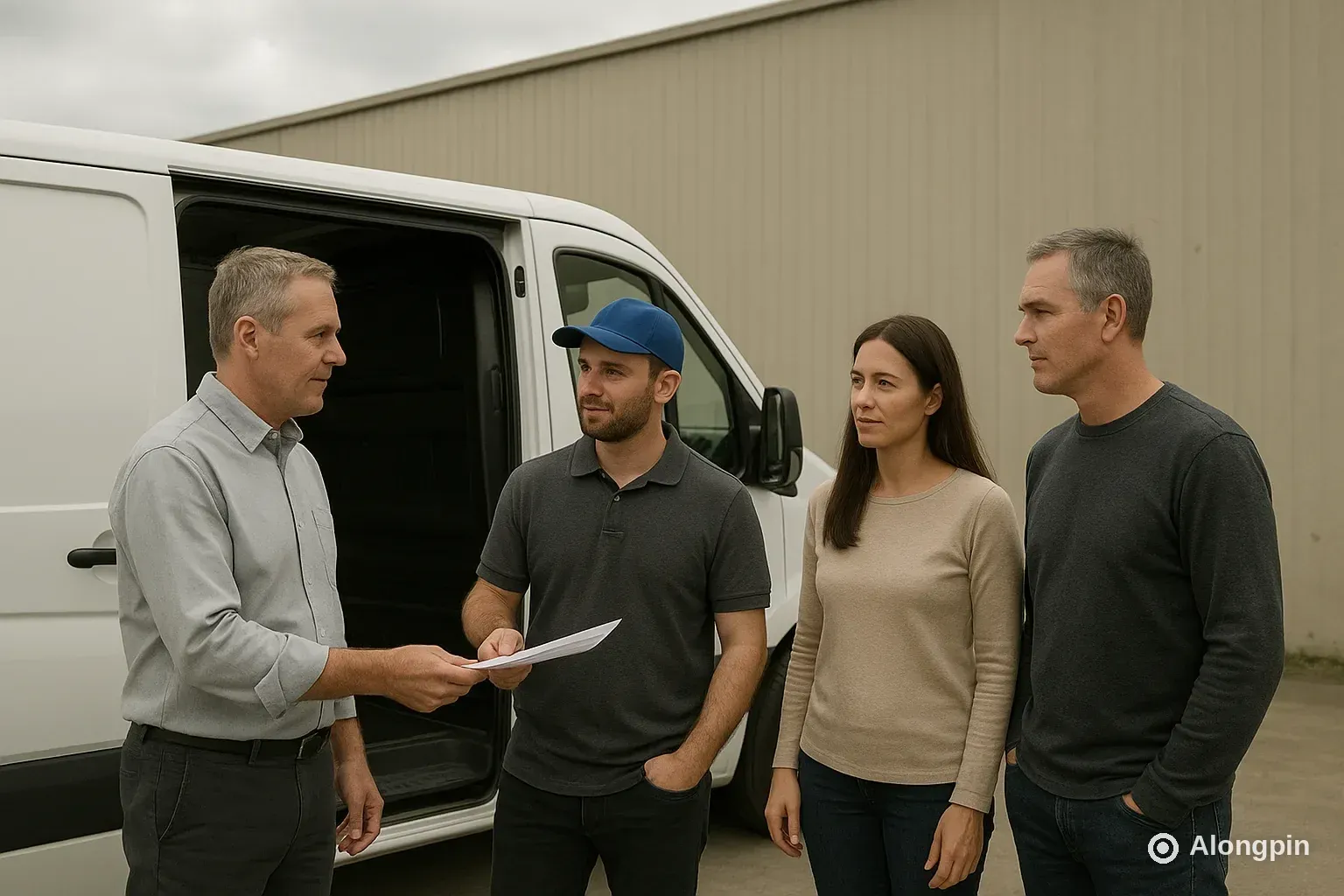
Do this before the trackers go in, not after a driver finds one. Tell each driver, in writing:
- what is recorded: position, speed, trips, and the ignition;
- why: answering customers, settling disputes, finding a stolen van;
- who sees it: you, and anyone else you name;
- when it stops: outside working hours.
If drivers take vans home, set up private trips outside working hours. With a working-hours calendar, every trip outside it becomes private: positions blurred to about 1 km, distance only, or not stored at all, depending on the mode you choose. An SOS still gets through. Rules about tracking employees differ by country; check yours before you start.
Choosing a package per device or per account
Packages come in two shapes: one that covers a single device, and one that covers a whole account with every device in it. For five vans, compare the two on the pricing page:
- Per device suits a fleet that may grow or shrink van by van, and lets you try one or two vans first.
- Per account suits a fleet that is settled, or growing, and wants one subscription for everything.
Where a package offers a free trial, the pricing page and the sign-up say so. Starting with one or two vans and adding the rest once you trust the data is a sensible way to begin. Packages per device or per account explains how each works.
What to leave for later
Once the basics run for a month, you will know which of these you need:
- Fuel figures, which need a tracker that reports fuel.
- Driver identification, which needs a card or key reader in each van.
- Dashcams, for video of the road and the cab.
- More zones and reports: customer sites, an idle-time review, maintenance reminders.
None of them is needed to answer the three questions you started with.
How Alongpin helps
Alongpin (alongpin.com) is a GPS tracking platform you open in a browser or on your phone. Your trackers, in the vans, trucks and cars you already run, show on one live map with trips, stops, idle time and alerts; reports and scheduled reports answer the questions this article raises, and users and roles let each depot see its own vehicles. Check your trackers in the device check, read how it works for fleets, and start on the pricing page.
Frequently asked questions
Is tracking worth it for only five vans?
The questions do not change with fleet size: where are they, where were they, is anything wrong. With five vans, a week of setup answers all three.
Can I move a tracker to another van later?
Yes. A plug-in tracker moves in minutes; rename the device to match the new van. A wired one needs refitting.
Do I need an app?
You can use the portal in any browser, on a computer or a phone.