Fleet management
GPS tracking for construction companies: vans, trucks and plant
One map for crew vans, tippers, plant and trailers: site zones drawn as polygons, arrival and departure records, engine hours for machines, out-of-hours alerts, and which tracker suits which asset.
Ashish Srivastava7 min read
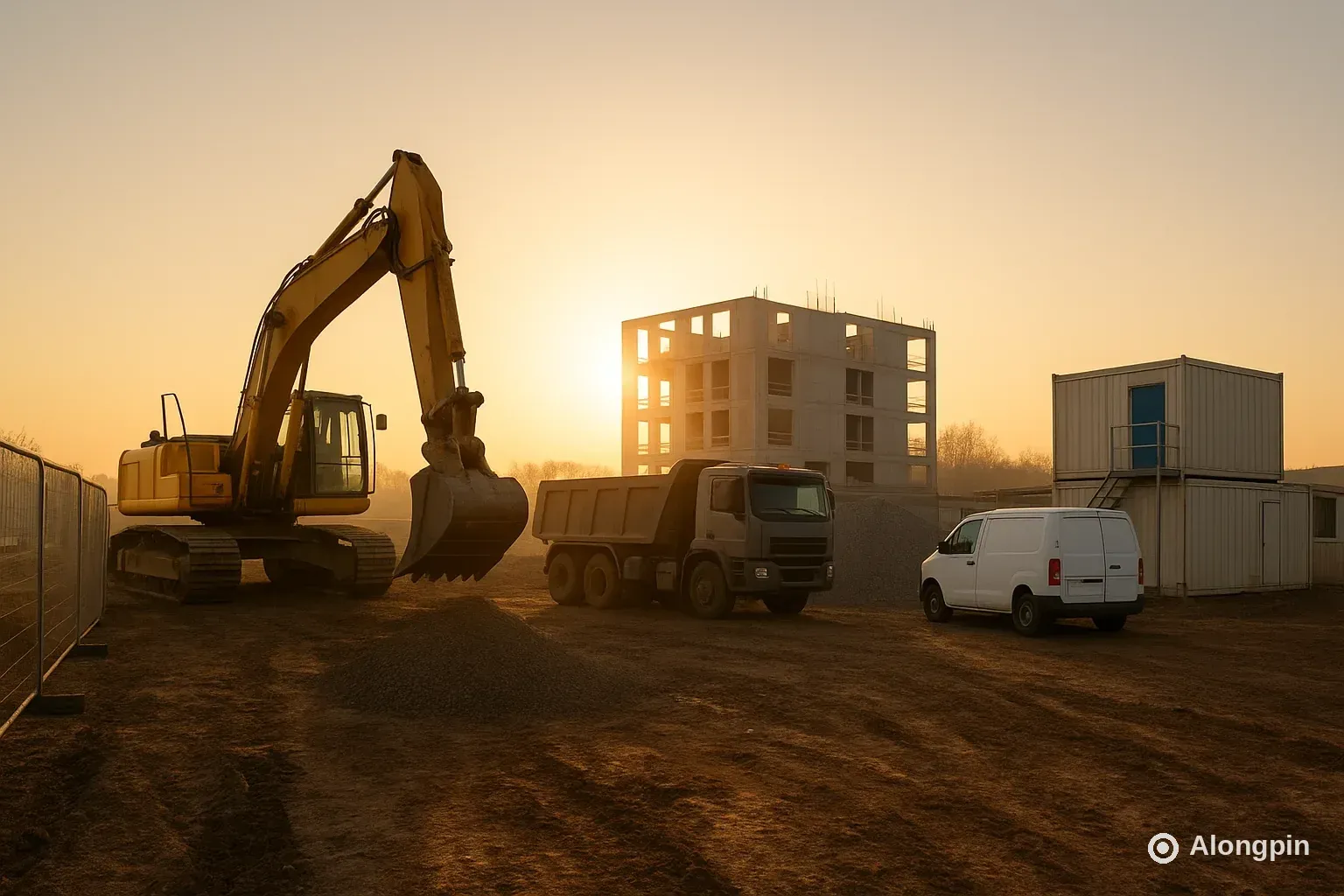
GPS tracking for construction companies means one map and one set of records for a fleet that never stands in one place: vans and pickups for the crews, tippers and flatbeds for materials, excavators, rollers and other plant on site, and trailers, generators and containers that move from job to job. A tracker in each vehicle or machine reports where it is; a zone drawn around each site records when it arrived and left; engine hours count running time on plant; and alert rules on a calendar tell you when something moves outside working hours. What you can see on each asset depends on the tracker you fit to it.
Key takeaways
- Group the fleet by type and site so each manager sees the vans, trucks and plant that matter to them.
- Draw each site as a polygon zone when the job starts and delete it when the job ends.
- The Geofence stays report gives every arrival and departure per site, with the time inside.
- Engine hours for plant need a tracker wired to the ignition or one that reports engine hours.
- An alert rule on an "out of hours" calendar tells you when a vehicle or machine moves at night or at weekends.
- Wired trackers suit powered vehicles and plant; battery trackers suit trailers and unpowered equipment.
The mixed fleet problem: vans, tippers, plant, trailers
A construction company's fleet is several fleets in one. Crew vans travel between the yard and sites every day. Tippers and flatbeds shuttle materials and spoil. Plant is delivered to a site and works there for weeks, measured in engine hours rather than kilometres. Trailers, generators, compressors and site cabins have no engine of their own, or none that runs while they travel.
Each needs a different question answered. For the vans: where are the crews, and when did they get to site? For the trucks: how many runs did they do? For plant: how many hours did it run, and is it due for service? For trailers and generators: which site is it on, and has it moved since Friday?
Put the vehicles and machines into groups that match these questions, such as "Crew vans", "Trucks", "Plant" and "Towed equipment", or by region. A group carries settings for every device in it, such as a speed limit, and a report or an alert rule can cover a whole group, including devices added later. On the live map, typing a group's name in the search narrows the map to that group.
A zone per site, drawn as a polygon and removed when the job ends
Construction sites are rarely round. A geofence drawn as a polygon follows the real boundary: the hoarding line, the site entrance, the compound where plant is parked. Open Geofences, choose New and the Polygon tool, click each corner and click the first one again to close it. Name it after the job, such as "Job 2417 · Riverside flats", and attach it to the groups that work there. How to draw a polygon geofence around a yard or district walks through the drawing and the pitfalls, such as boundaries too thin for GPS accuracy.
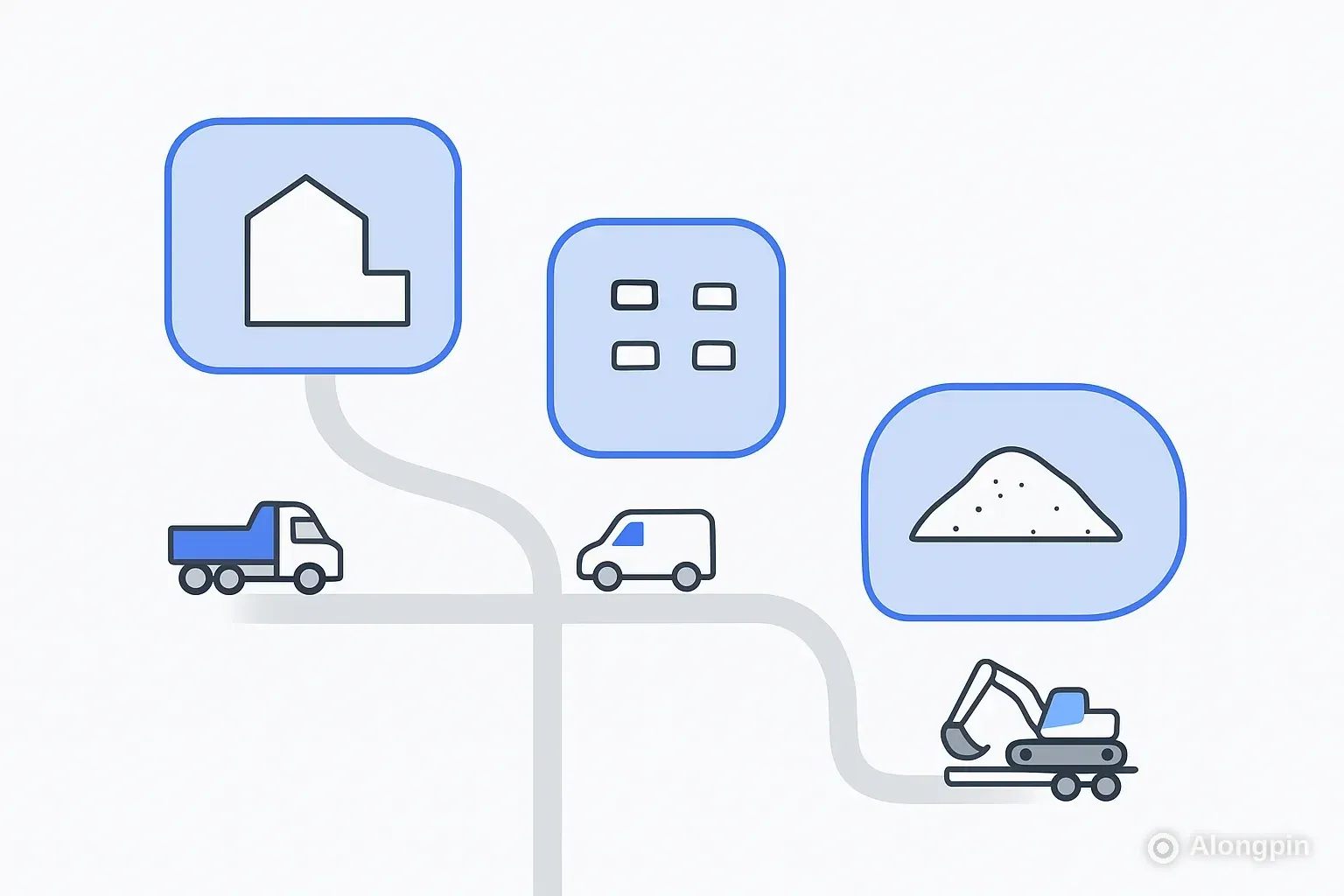
Keep the zone a little wider than the site where vehicles park along the edge, or every report can count as an exit. If the site's boundary already exists as a file from a site plan or a mapping tool, Import on the geofences list reads GPX, KML, KMZ, GeoJSON and CSV and creates a zone from each shape.
When the job ends, download its Geofence stays report for your records, then delete the zone. Deleting it stops new events at once; past positions and events keep their reference to it. A long list of finished jobs left on the map makes the next site harder to find, and every zone attached to a group is checked against every position of every vehicle in it.
The geofences page explains circles, polygons and route corridors.
Arrival and departure records per site
Every time a vehicle attached to a site zone enters or leaves it, the platform records a Geofence enter or Geofence exit event with the time. The Geofence stays report under Reports turns these into one row per visit: which vehicle, which site, Entered, until when, and the time Inside. Above the table, Time inside per geofence adds the stays up per site.
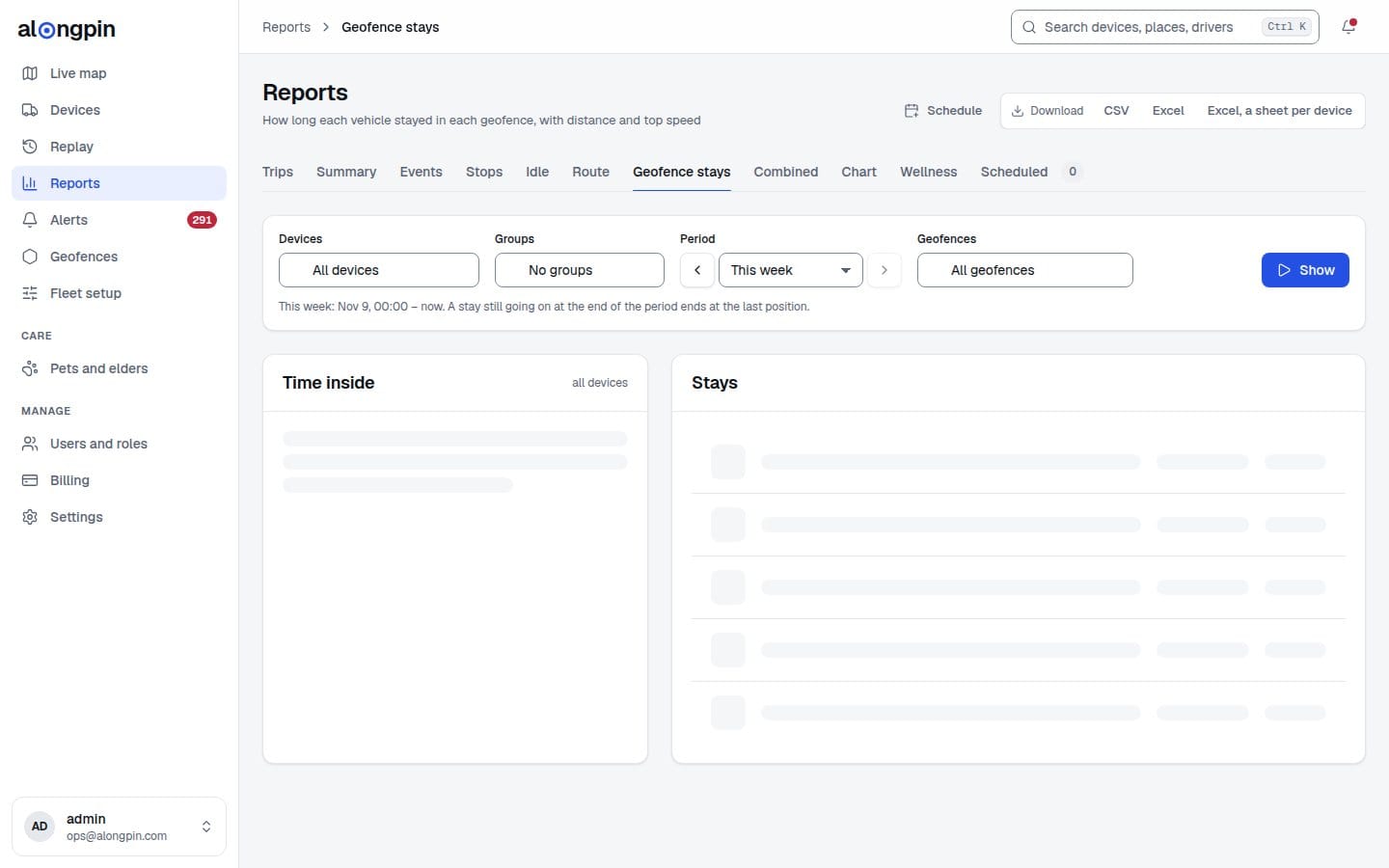
Construction firms use this for:
- Proof of attendance when a client disputes when a crew arrived or how long a machine was on hire.
- Counting truck runs to and from a site, or to a tip or quarry drawn as its own zone.
- Timesheet checks against the time vans spent on site.
Download the report as CSV or Excel to attach to an invoice. Reading the time on site report covers the cases where a stay is cut by the period.
Engine hours for plant, where the tracker reports them
Plant is serviced and often hired by engine hours. The platform counts engine hours while the ignition is on, so a tracker wired to the machine's ignition gives you running time, and some trackers report the machine's own engine hours directly. The Summary report shows Engine hours per machine and per day, and the Idle report shows time standing with the engine on.
A tracker fitted to a machine that has already run for years starts counting from zero. Correct it once to the hour meter's reading on the device's Settings tab, as described in correcting the odometer and engine hours. A maintenance plan by Engine hours, such as a service every 500 hours with a warning 50 hours before, then tells the plant manager when a machine needs attention.
Without an ignition connection, a tracker cannot know when the engine runs, and engine hours stay empty. Check this with your installer before relying on it.
Alerts for movement outside working hours
Plant and tools left on site overnight are exposed. An alert for movement outside working hours tells you when something moves while nobody should be using it. Alert rules fire only while their calendar is in progress, so this needs a calendar that covers the hours you want to watch:
- Under Fleet setup → Calendars, create an "Out of hours" calendar: evenings and nights, plus weekend days as their own periods.
- Under Alerts, create a rule with When this happens set to Started moving or Ignition on, or Geofence exit for a site zone, and choose the "Out of hours" calendar under Only during.
- Attach it to the plant and trailers, and send it by push or text message where your account offers them, so it reaches someone at night.
Many vehicle trackers also raise alarms of their own, such as Power cut when the tracker is disconnected, or Tow when the tracker senses the vehicle being towed or lifted; which ones depends on the model. How to limit alerts to working hours with a calendar shows the calendar set-up in full. A site with night shifts needs a calendar that fits its own hours.
Choosing trackers for powered and unpowered assets
| Asset | Tracker type | What you get |
|---|---|---|
| Vans, pickups, trucks | Wired tracker on permanent power, ignition connected | Live position, trips, ignition, idle, engine hours; often power-cut and tow alarms |
| Plant with an engine | Wired tracker on the machine's power, ignition connected | Position, engine hours, movement alerts; ruggedised housings for vibration and weather |
| Trailers, generators, containers | Battery tracker, often magnetic or bolted | Position a few times a day, low-battery alarms; no ignition, no engine hours |
| Small tools | Usually not worth a tracker each | Track the van or container they travel in |
Battery trackers last longer the less often they report, so they show where an asset is rather than following it live. Add a rule for Low battery so you change or charge them in time. For which kinds of tracker report what, see the vehicle trackers page, and check each model in the device check before you buy.
Getting started
Start with one live job: fit trackers to the vans and the plant on that site, draw the site and your yard as zones, add the out-of-hours rule, and run the stays report at the end of the first week. That shows what the records look like for your own work before you fit the rest of the fleet. To see it with your own vehicles in mind, book a demo; the fleet solution page shows how the live map, zones, alerts and reports fit together.
How Alongpin helps
Alongpin (alongpin.com) is a GPS tracking platform you open in a browser or on your phone. Your trackers, in the vans, trucks and cars you already run, show on one live map with trips, stops, idle time and alerts; reports and scheduled reports answer the questions this article raises, and users and roles let each depot see its own vehicles. Check your trackers in the device check, read how it works for fleets, and start on the pricing page.
Frequently asked questions
Can one tracker follow a machine from site to site?
Yes. The tracker stays on the machine; the zones it is attached to decide which site visits are recorded. Attach site zones to the group, and every machine in it is covered.
Do I need a new zone for every job?
For sites you want arrival and departure records for, yes. Drawing one takes a few minutes, or import it from the site plan.
Will a tracker show who was driving the excavator?
Only if the tracker identifies drivers, for example with a card or key reader, and the operators are registered as drivers.