Devices and connection
Correcting the odometer and engine hours of a device
How to set the odometer and engine hours of a tracker to the vehicle's real reading, for example after fitting it in a used vehicle, and what the correction changes in maintenance plans and reports.
Ashish Srivastava4 min read

To set the odometer of a GPS tracker to the vehicle's real reading, open the device in Devices, go to its Settings tab and choose Correct next to Odometer (or Correct odometer and engine hours from the device's menu). Type the dashboard reading as New odometer, and the engine hours if you know them, then press Save readings. From then on, trips and maintenance plans count on from the new value, and earlier trips keep their distances.
Key takeaways
- Correct the readings once, after fitting a tracker to a used vehicle or when the count has drifted from the dashboard.
- The correction needs one position from the tracker first; until then Save readings is off.
- Maintenance plans that count total distance or engine hours use the new value straight away.
- Only the device's owner, and users allowed to change the device, can correct its readings.
Why the tracker's odometer starts wrong
A new tracker starts counting from zero. Fitted to a vehicle that has already done 84,000 km, it shows a total distance of a few kilometres after its first day, while the dashboard shows the real figure. Engine hours, counted from the ignition, start at zero in the same way. Correcting both once makes the portal's figures match the vehicle, which matters as soon as you plan service by distance or hours.
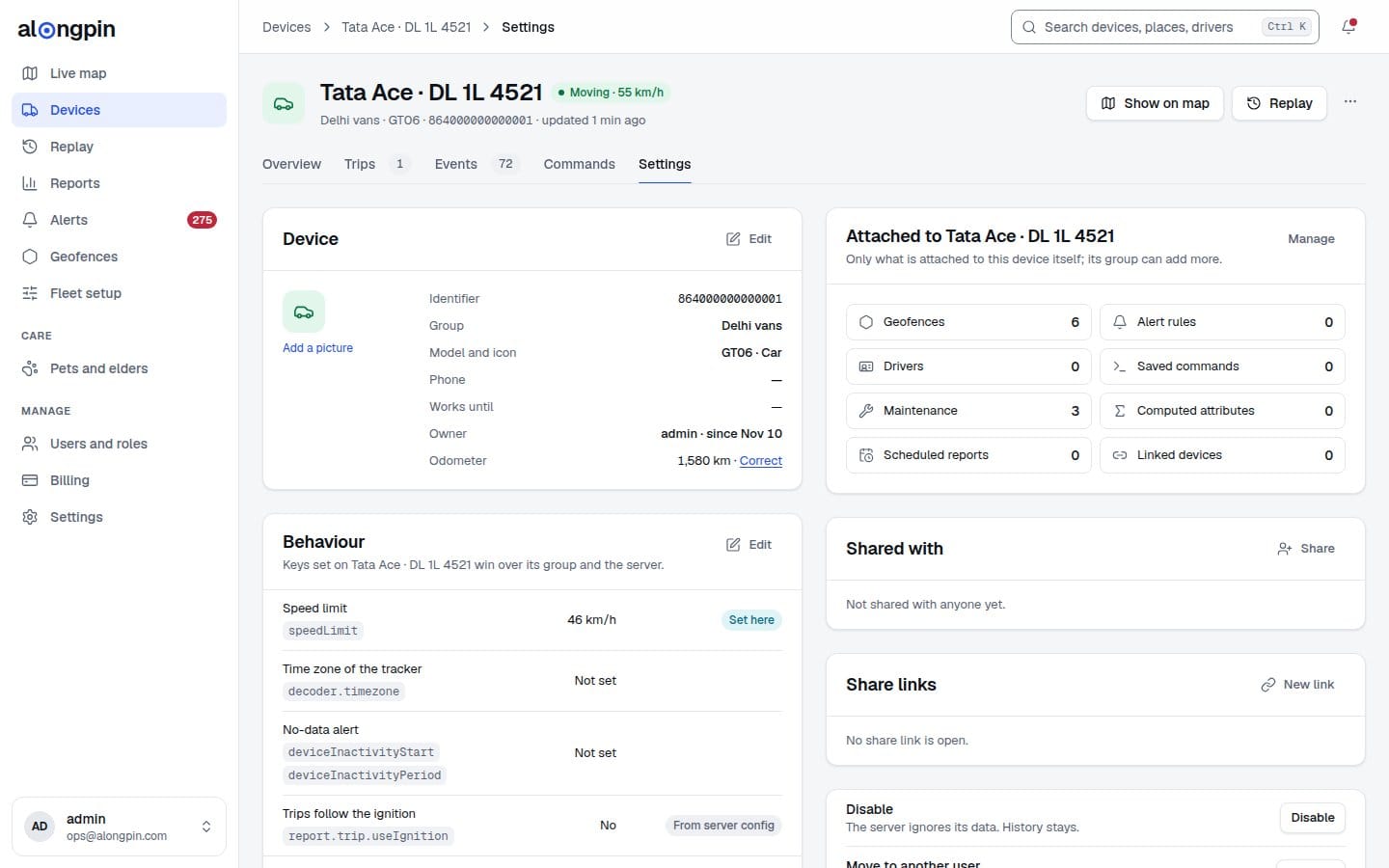
Where the odometer and engine hours are set
- Open Devices and select the vehicle.
- Open the Settings tab. The Odometer row shows the current count with a Correct button.
- The dialog Correct odometer and engine hours shows Odometer now and Engine hours now, from the tracker's latest position.
If the row reads Correct after the first position, the tracker has not reported yet. Wait for its first position on the live map, then come back.
Enter the vehicle's real reading
- Read the odometer on the dashboard and type it in New odometer, in your distance unit (kilometres or miles, as set under Settings → Map and display).
- If you know the engine hours, type them in New engine hours. Leave the field empty to keep the current value.
- Press Save readings. A message confirms that the readings are corrected.
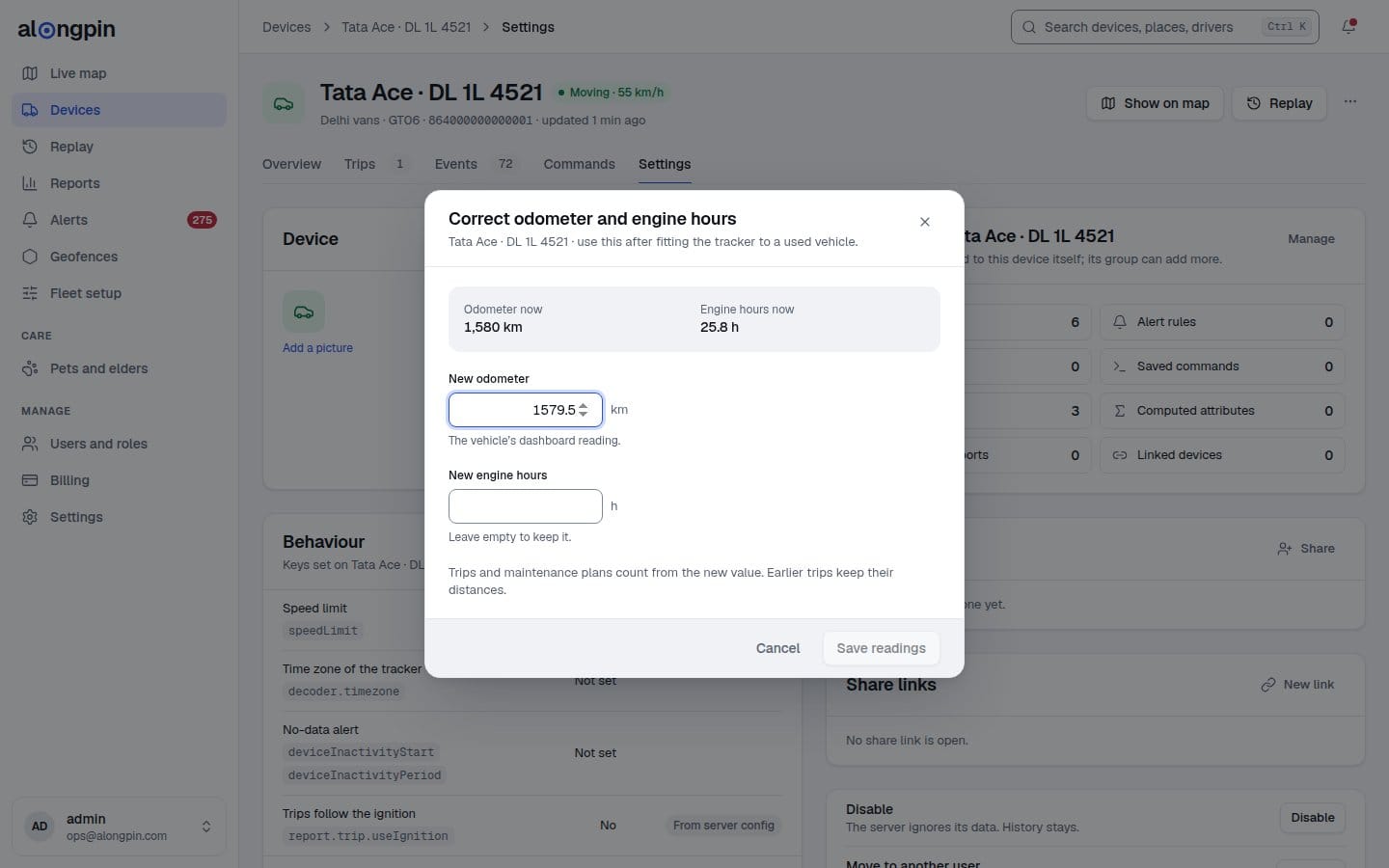
The stored positions are not changed. The portal adds one correction point at the vehicle's last position, standing still, and counts on from the new values. In a position history or an export you may see this extra point with a speed of zero.
What the correction changes in maintenance and reports
- Maintenance plans that count Total distance or Engine hours measure from the corrected value with the next position. An oil change planned "every 10,000 km from 0 km" on a van now at 84,000 km is next due at 90,000 km. If the correction carries the count past a mark, expect that plan's maintenance event when the next position arrives. See setting up a maintenance plan in the help center for how plans work.
- Trip and summary reports leave the jump out: a trip never shows 84,000 km driven in one second, and the trips before the correction keep their distances. The summary's start and end odometer readings show the corrected values from then on. The reports page lists what each report contains.
- Engine hours in the summary report are counted without the correction, so the day you correct them does not show a sudden number of hours.
Devices that report their own odometer
Some trackers, especially those wired to the vehicle or read over OBD, report the vehicle's own odometer. In that case trip distances come from that reading when both ends of the trip have one, unless your account is set to use the computed distance instead. The correction changes the portal's own count (total distance), not the odometer the vehicle reports, so:
- A maintenance plan that counts Odometer (the vehicle's own) follows the vehicle and needs no correction.
- A plan that counts Total distance follows the portal's count and does.
If you are unsure what your vehicle tracker reports, look at a recent position in the device's details: a separate odometer value means the tracker sends its own.
Who may change it
Only the device's owner, administrators, and users whose role lets them change that device can correct its readings. A user with read-only access, or whose devices are read-only, sees the dialog with a note that they cannot correct the readings. If the readings are hidden from you because you cannot see the latest position, the dialog says so and saving is off.
For a fleet, correcting the readings is usually the last step of fitting a tracker; the fleet solution page shows how tracking, maintenance and reports fit together.
Frequently asked questions
Can I correct the reading again later?
Yes. Each correction starts the count afresh from the value you enter; earlier trips keep their distances.
Why is the button greyed out?
The tracker has not sent a position yet, or you may not change this device. The dialog tells you which.
Does the correction change past reports?
No. Reports for periods before the correction stay as they were.