Cars and bikes
A geofence at home parking: an alert if the car moves at night
A geofence alert for a car parked at home: one small zone around the drive, a Geofence exit rule, a night calendar and quiet hours that let it through. Step by step, with what to do when it fires.
Ashish Srivastava6 min read
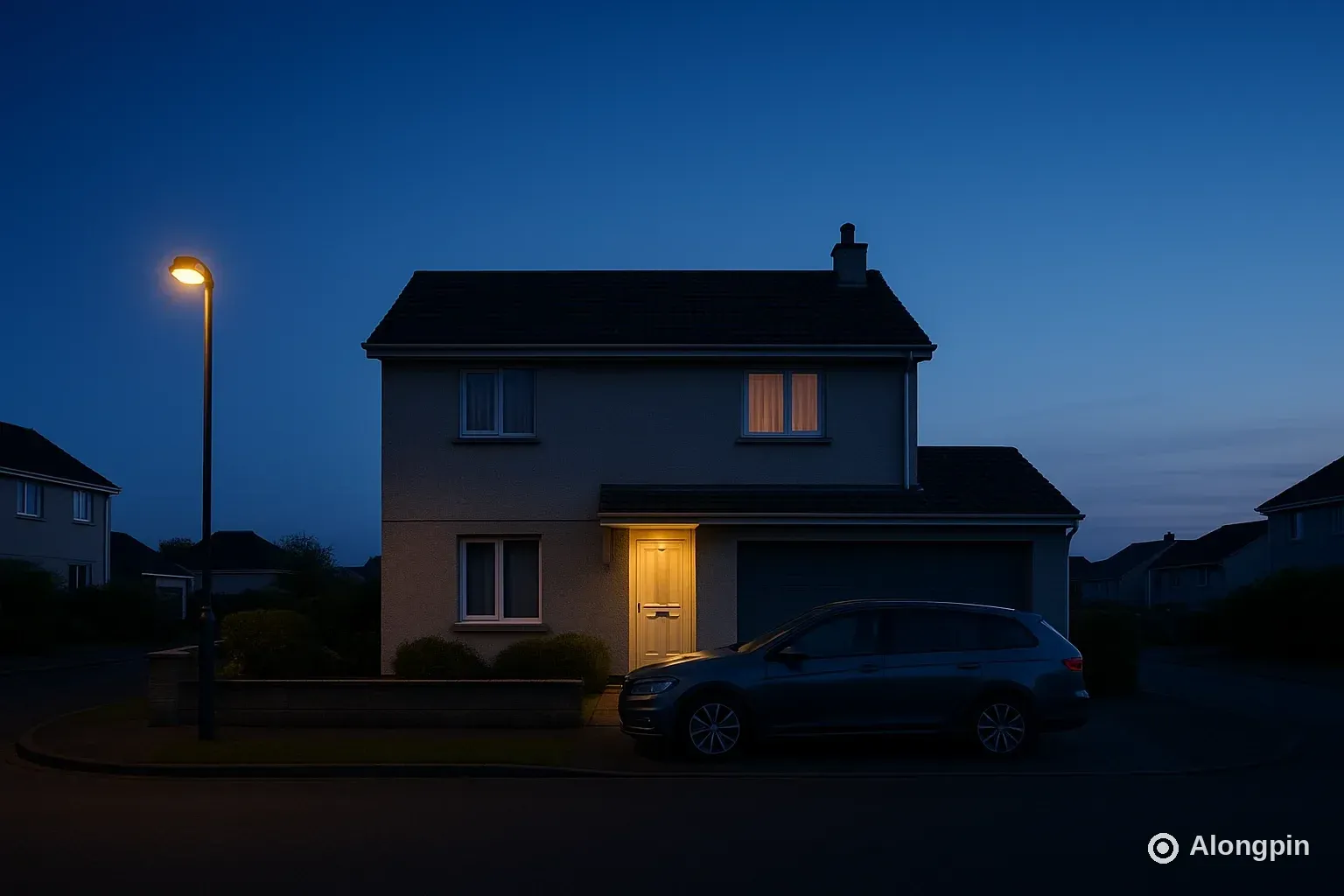
A geofence alert for a car parked at home is one small zone around your drive or the street outside, one alert rule on Geofence exit, and a calendar that keeps it to the night. Set up that way, it stays silent while the car comes and goes in the day and sends one message that matters when the car leaves at three in the morning. The whole set-up is done in the portal once the tracker is in the car and reporting.
Key takeaways
- Draw a small zone around the drive or the street outside, with a margin for position drift.
- Create one Geofence exit rule, limited to that zone, and add a night-time calendar under Only during.
- Check your quiet hours: let Geofence exit through, or the night alert is held back.
- Choose who receives it, and pick a channel that wakes you up.
- When the alert arrives, look at the map first, then call the police if the car is moving.
Before you begin
You need:
- A tracker in the car that reports to Alongpin, with the car on the live map. Wired, plug-in and battery trackers all work; the vehicle trackers page shows what each reports.
- The car's usual parking place.
- A phone that receives alerts. Which channels you can use (email, text message, Telegram, push) depends on what your server has switched on; the portal always shows alerts while it is open.
Step 1: Draw a zone around the drive or the street
Open Geofences and choose New. Pick Circle, click the middle of your drive or the stretch of street where the car stands, then click again to set the edge. Give it a name such as "Home parking" and save it.
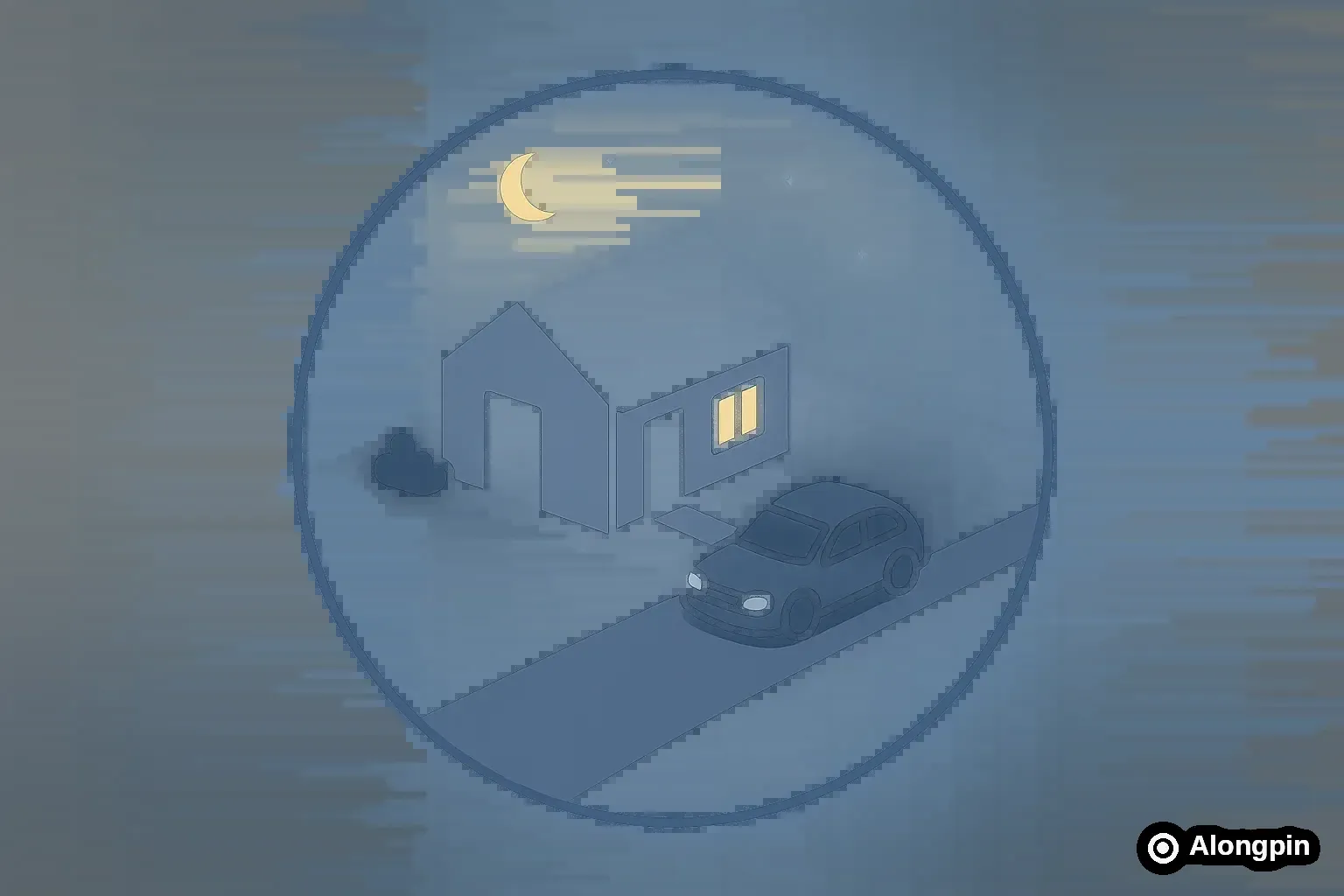
The size matters more than the shape. A parked car's GPS position wanders a little, more so between tall buildings or under trees. A zone drawn tightly around the car may see the position drift out of it and send a false alarm. A radius of some tens of metres around where the car stands, covering the drive and the street in front, keeps the drift inside while still catching the car once it drives away. If you park on either side of the street, draw the circle so both sides are inside.
If the car parks in more than one place
Some households park on the drive one night and around the corner the next. Draw one zone for each place, or one polygon that covers them all with Polygon instead of Circle, and include every zone in the rule in Step 3. A second home or a regular overnight stay works the same way: its own zone, added to the same rule.
Step 2: Attach the zone to the car
In the geofence's panel, under Attached to, choose Change and tick the car. A zone only produces enter and exit events for the devices it is attached to. The geofences page explains zones, shapes and attachments in general.
Step 3: Create the leaving alert with a night schedule
Open Alerts and choose New alert rule:
- Under When this happens, pick Geofence exit.
- Under Only these geofences, choose "Home parking", so leaving any other zone does not trigger it.
- Under Only during, choose New calendar and make a Simple schedule: a period from 23:00 to 06:00, tick Ends the next day, and set Repeats to Daily. Adjust the hours to when the car should never move.
- Under Tell people by, tick the channels.
- Save the rule with Create rule, then choose its devices and the people who receive it.
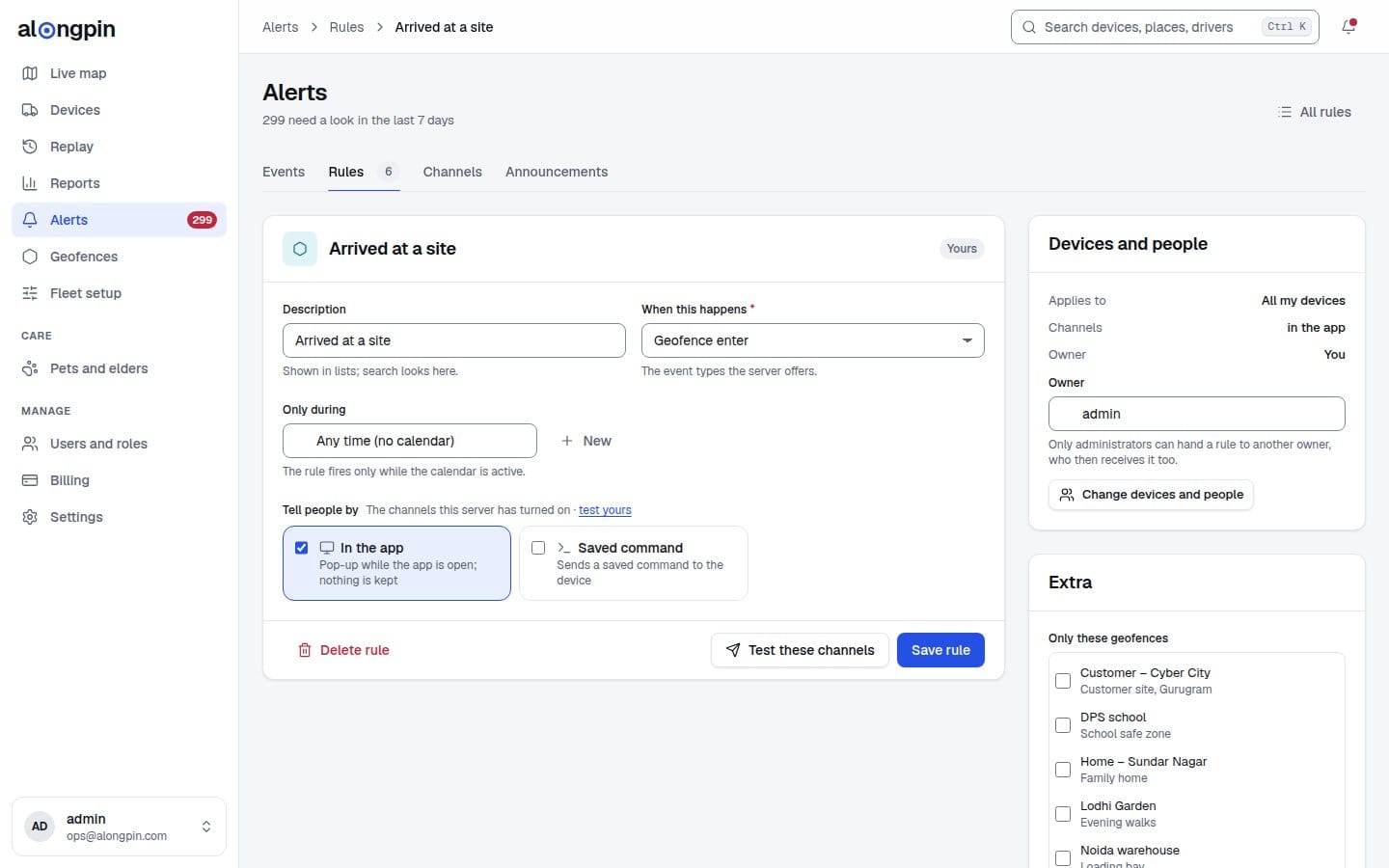
A calendar on the rule only limits the alert; the car's trips and the zone's events are still recorded all day. If you would rather limit the zone itself, a geofence also has a Calendar field, but then its enter and exit events only exist at night.
Step 4: Check your quiet hours
This is the step most people miss. Under Settings, Your account, Alerts and channels, you may have Quiet hours switched on, for example from 22:00 to 06:00. During quiet hours, alerts are not sent by email, text message, Telegram or push, and a held-back alert is dropped, not delivered later. By default, only SOS and power cut alarms still go out.
For a night alert, that is exactly the wrong way round. In Quiet hours, use Let another through and add Geofence exit, so it appears under Still goes out. The rest of your alerts stay quiet.
Step 5: Choose who receives it
When you save the rule, you choose its devices and the people who receive it. You receive your own rule. If you manage other users on your account, add a partner or a neighbour under Who receives it; otherwise, someone who can see the car can make the same rule for themselves. Each person's own quiet hours apply to their own messages.
Pick a channel that wakes you: a text message or a push to your phone, where your server offers them, rather than only email. Then use Test these channels to send a test message and make sure it arrives. The alerts page lists the channels and how rules work.
Optional: an alarm rule beside the zone
A zone notices the car leaving. Some trackers notice trouble earlier: a power cut when the tracker is disconnected, a tow alarm when the car moves with the ignition off, or vibration. Where your tracker reports them, a second rule on Alarm, narrowed under Alarm kinds and with the same night calendar, adds them to the same phone. Power cut alarms go out during quiet hours by default.
What to do when the alert arrives
- Open the map. Is the car moving away, or is it a short drift back and forth at the edge of the zone?
- Check with the household. Someone may have taken it for an early flight.
- If the car is moving and nobody took it, call the police. Give them the position, the time it left and the direction. Keep the portal open and tell them when it changes.
- Do not go after the car yourself. You do not know who is in it.
The post on car theft and GPS trackers covers what to tell the police and what a tracker cannot do.
Common mistakes
- A zone that is too small. Drift sets it off on a still night. Make it larger before you lose trust in it.
- Quiet hours swallowing the alert. Let Geofence exit through.
- Email only. Nobody reads email at 3 a.m.
- No test. A text message fails silently when there is no phone number on the account; the test tells you.
- The tracker asleep. A battery tracker that reports rarely may only notice the car has gone at its next report. Ask how often it reports when parked, and whether it wakes on movement.
What success looks like
For weeks, nothing: the rule stays silent every night, and the car's trips show it came and went in the day as usual. Then, if the car ever moves at night, one message reaches your phone within moments of it leaving the zone, with the car's name and the zone.
How Alongpin helps
Alongpin (alongpin.com) is a GPS tracking platform you open in a browser or on your phone. A tracker in your car, motorbike, scooter or bicycle shows on the live map, with trip history, geofences around home and work, and alerts when it moves or leaves. Check your tracker in the device check, see the vehicle trackers it works with, and start on the pricing page.
Frequently asked questions
Can I use the same zone for a "car is home" message?
Yes. A second rule on Geofence enter with the same zone, without the night calendar, tells you when the car arrives home.
Why did the alert not arrive?
The usual causes are quiet hours, a channel with no address on your account, the zone not attached to the car, or the tracker offline. The help article on why a geofence alert did not arrive goes through each one.