Cars and bikes
A trip log for your own car: exporting journeys
A GPS tracker records every journey of your car: start, end and distance. Here is how to turn those trips into a trip log you can export as CSV or Excel, how to download routes as GPX or KML, and why the accountant has the last word.
Ashish Srivastava5 min read

A car trip log from a GPS tracker is a list of every journey with its start, end and distance, recorded without you writing anything down. In Alongpin the trips report turns the tracker's positions into that list for any period, and you can export it as CSV or Excel for your own records or for an employer's mileage form. If you also need the route itself, the positions download as GPX or KML. What the log must contain for tax or expenses is a question for your accountant or employer, not for the tracker.
Key takeaways
- Trips are recorded automatically from the tracker's positions: start and end time, start and end place, distance and duration.
- The trips report shows them for any period; CSV and Excel downloads carry the same rows.
- Routes download as GPX or KML for mapping apps, or as CSV with one row per position.
- The purpose of each trip is not something a tracker knows: add it yourself in the spreadsheet.
- Ask your accountant or employer what your records must contain before you rely on them.
How trips are recorded
Your vehicle tracker sends its position at intervals while the car moves, and on most wired trackers it also reports whether the ignition is on. The platform splits that stream into trips and stops: a trip begins when the car starts moving and ends when it has stood still long enough to count as a stop.
Each trip carries:
- Start and end time of the journey.
- Start and end address, looked up from the positions where the car set off and arrived.
- Distance driven, from the positions along the way.
- Duration, top and average speed, and idle time where the tracker reports the ignition.
- Driver, where a driver ID reader is fitted and drivers are set up.
You can open any trip on the map and replay it. Trip history shows what a single trip looks like.
Step 1: Run the trips report for a period
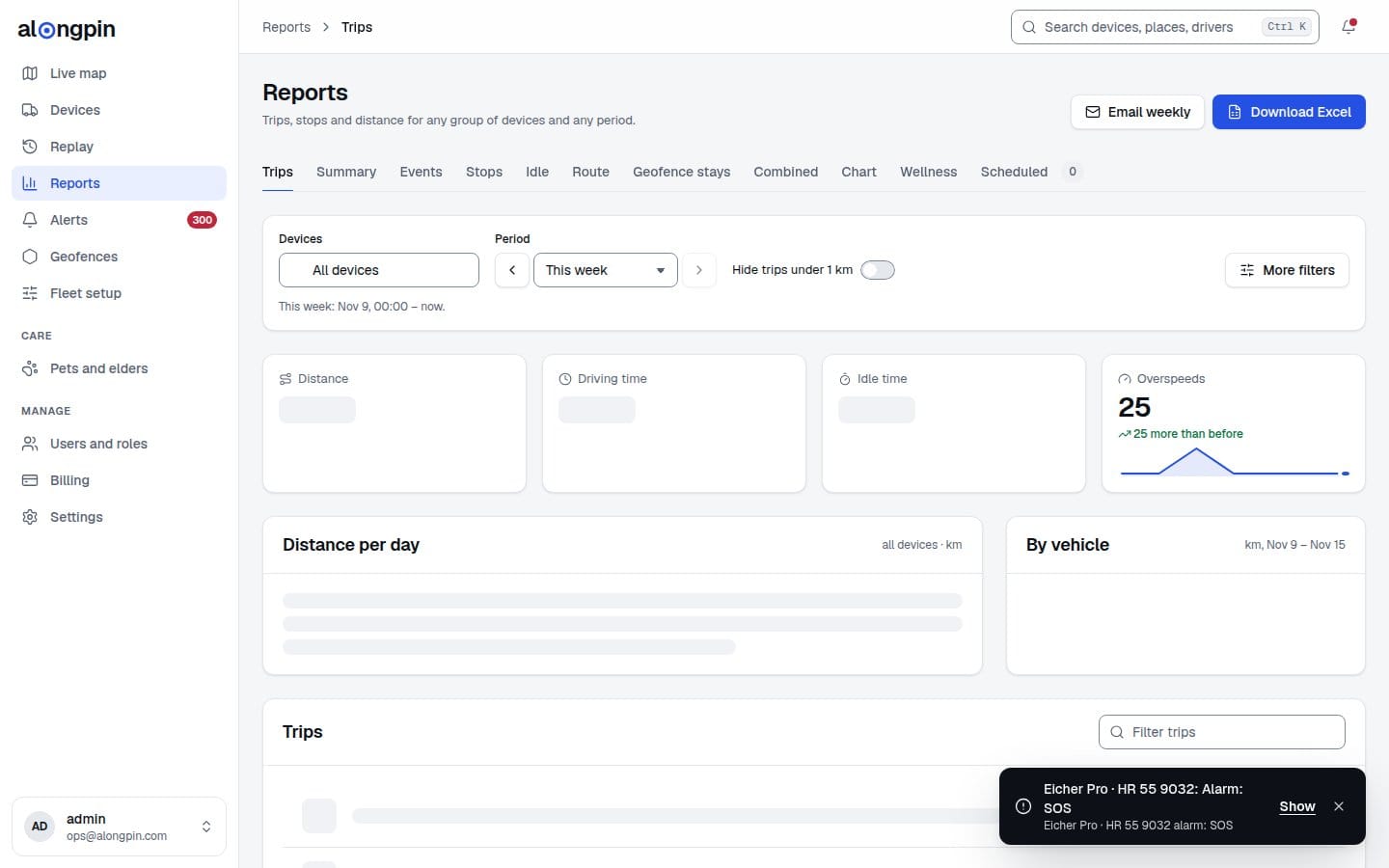
- Open Reports in the sidebar. The first view is the trips report: trips, stops and distance for any group of devices and any period.
- Choose your car under Devices, pick the period (a month, a quarter, or your own dates) and choose Show.
- If short hops to the corner shop clutter the list, use the switch that hides trips under a set distance.
The totals at the top give the distance and driving time of the period; the table below lists every trip. Your server may limit how long a single report can be; if the period is too long, the report says so and you split it, for example month by month.
Step 2: Export the trips as CSV or Excel
Under the report, choose CSV or Excel. The file has one row per trip with the same facts as the table: start and end time, start and end address, distance, duration, speeds and, where reported, the driver. Excel can also give a sheet per device if you log more than one car.
If you want the list every week without asking, Email weekly turns the same report into a scheduled one that arrives in your inbox. Reports covers the other report types and the formats.
Distances in the file are in the units you chose for your account, so set kilometres or miles before you export. Running your first trips report goes through the screen in more detail.
Step 3: Add what the tracker cannot know
A tracker knows where the car went, not why. For a mileage claim you usually need the purpose of each journey and, for business trips, whom you visited. Add a column for it in the spreadsheet after the export. Mark private journeys at the same time.
Two habits make this quick:
- Export once a month while you still remember the trips.
- Keep the original file next to your annotated copy, so the recorded figures stay untouched.
- Note the dashboard odometer on the first day of each month, so you can check the month's total against the car itself.
Step 4: Export routes as GPX or KML
Sometimes a list is not enough: an employer wants to see the route of a long journey, or you want to keep a holiday drive in a mapping app.
- Under Reports, open the route view for the car and the period.
- Choose Export positions and pick a format: GPX, a track for GPS and mapping apps; KML or KMZ, a line for Google Earth; or CSV, a row per position with times, place and speed.
The download always contains every position of the period, even when the screen shows only the first part of a long one. Exporting a trip as CSV, GPX or KML has the details.
Step 5: Ask your accountant what your records must contain
Rules for mileage logs differ by country and by employer. Some accept a summary of distance per month; others want each journey with its purpose, the odometer reading at start and end, and no gaps. A GPS trip log is good evidence of where and how far, but it does not decide on its own whether a trip was private or business, and it is not tax advice. Show your accountant or your employer a sample export and ask whether it meets their requirements, and what you need to add.
If the log needs the car's own odometer readings, check that the platform's distance matches the dashboard. You can set the odometer in the device's settings, so the counter starts from the figure on the dashboard.
Common mistakes
- Leaving the tracker unpowered. Trips made while the tracker had no power or no signal may be missing or arrive late. Look for gaps before you send the log.
- Relying on addresses alone. An address is looked up from a position and can be the house next door. Add the customer's name yourself.
- Exporting a year at once. Long periods may hit the server's report limit and are hard to annotate. Month by month is easier.
How Alongpin helps
Alongpin (alongpin.com) is a GPS tracking platform you open in a browser or on your phone. A tracker in your car, motorbike, scooter or bicycle shows on the live map, with trip history, geofences around home and work, and alerts when it moves or leaves. Check your tracker in the device check, see the vehicle trackers it works with, and start on the pricing page.
Frequently asked questions
Can I get the log on my phone?
Reports can be read in the mobile app; building, scheduling and downloading reports is done in the web portal.
Why is one journey split into two trips?
A trip ends when the car has stood still long enough to count as a stop, so a long stop for fuel or a coffee splits the journey. For a mileage log that is usually fine: the two rows add up to the whole distance. If your employer wants one line per journey, merge the rows in the spreadsheet and keep the first start and the last end.
Does the trip log include the cost of fuel?
No prices are calculated. Fuel figures appear only where the tracker reports fuel; cost per kilometre is a figure you work out in your spreadsheet.
Can someone else see my trips?
Only people you share the car with, and administrators of your account where there are any. A link you share for watching the car does not run reports on most servers.